Email providers
Xsolla uses its account with the SendGrid email service provider for email distribution by default. However, you can also use your own SendGrid account for your Login project:
- If you do not have a SendGrid account, create one.
- Log into your SendGrid account and get an API key.
- Open your project in Publisher Account and go to the Login section.
- Click Configure in the Login project’s panel.
- Go to the Communication service providers block and select the Email provider section.
- Click the button with the SendGrid logo.
- In the Email sender settings block specify the information visible to the recipients of your email (optional):
- Sender name
- Sender email address
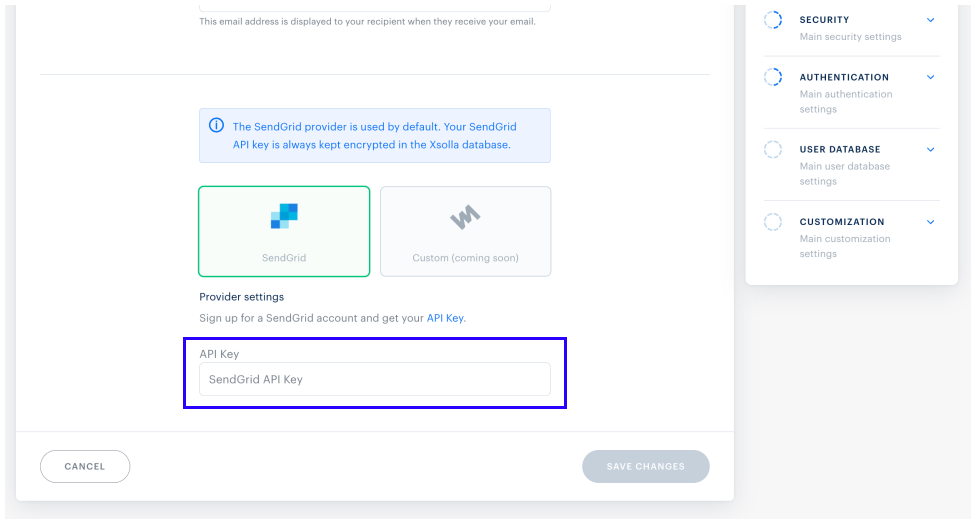
- In the API Key field, enter the API key obtained in step 2 and click Save changes.
Xsolla uses its account with the SendGrid email service provider for email distribution by default. However, you can also use your own SendGrid account for your Login project:
- If you do not have a SendGrid account, create one.
- Log into your SendGrid account and get an API key.
- Open your project in the account for mobile games and go to the Other tools > Login section.
- Click Configure in the Login project’s panel.
- Go to the Communication service providers block and select the Email provider section.
- Click the button with the SendGrid logo.
- In the Email sender settings block specify the information visible to the recipients of your email (optional):
- Sender name
- Sender email address
- In the API Key field, enter the API key obtained in step 2 and click Save changes.
Xsolla uses its account with the SendGrid email service provider for email distribution by default. However, you can also use your own SendGrid account for your Login project:
- If you do not have a SendGrid account, create one.
- Log into your SendGrid account and get an API key.
- In your project in the account, go to the Players > Login section.
- Click Configure in the Login project’s panel.
- Go to the Communication service providers block and select the Email provider section.
- Click the button with the SendGrid logo.
- In the Email sender settings block specify the information visible to the recipients of your email (optional):
- Sender name
- Sender email address
- In the API Key field, enter the API key obtained in step 2 and click Save changes.
Xsolla uses its account with the SendGrid email service provider for email distribution by default. However, you can also use your own SendGrid account for your Login project:
- If you do not have a SendGrid account, create one.
- Log into your SendGrid account and get an API key.
- In your project in the account, go to the Players > Login section.
- Click Configure in the Login project’s panel.
- Go to the Communication service providers block and select the Email provider section.
- Click the button with the SendGrid logo.
- In the Email sender settings block specify the information visible to the recipients of your email (optional):
- Sender name
- Sender email address
- In the API Key field, enter the API key obtained in step 2 and click Save changes.
Xsolla uses its account with the SendGrid email service provider for email distribution by default. However, you can also use your own SendGrid account for your Login project:
- If you do not have a SendGrid account, create one.
- Log into your SendGrid account and get an API key.
- In your project in the account, go to the Players > Login section.
- Click Configure in the Login project’s panel.
- Go to the Communication service providers block and select the Email provider section.
- Click the button with the SendGrid logo.
- In the Email sender settings block specify the information visible to the recipients of your email (optional):
- Sender name
- Sender email address
- In the API Key field, enter the API key obtained in step 2 and click Save changes.
Note
If you would like to use a different email provider, please contact your Customer Success Manager or email to [email protected]
.
Was this article helpful?
Thank you for your feedback!
We’ll review your message and use it to help us improve your experience.Found a typo or other text error? Select the text and press Ctrl+Enter.
