Xsolla Bot in Discord
Overview
The bot operates directly within your Discord server and enables users to sign in, claim rewards, and make purchases without leaving the Discord environment. In addition, the bot supports outbound messaging to channels.
User flow in Discord:
- The user types in
/shopin any channel in which the bot is connected to. The shop appears to the exact user who used the command — other users in the channel won’t see it.
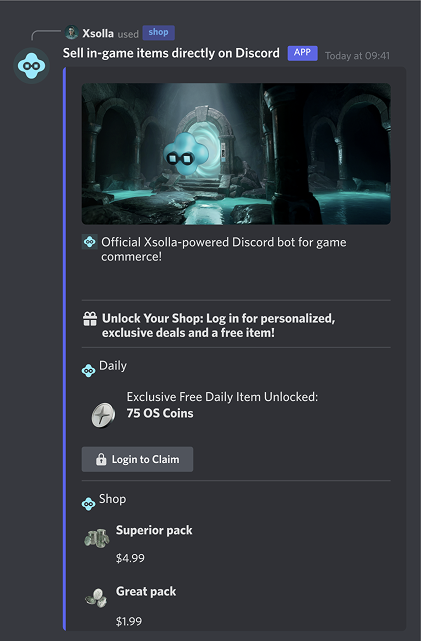
- The user logs in with their player ID.
- The user browsers through the catalog.
- The user clicks the purchase button next to the desired item.
- The user is redirected to the payment UI.
- After successful payment, the user returns to the Discord channel, and the item is granted to the user in the game.
  %%{init: {'themeVariables': { 'noteBkgColor': 'transparent', 'noteBorderColor': 'transparent' }}}%%
sequenceDiagram
    participant U as User
    participant D as Discord Bot
    participant X as Xsolla
    activate U
    U->>D: /shop command
    activate D
    D-->>U: Shop UI appears
    deactivate D
    U->>D: Log in with Player ID
    activate D
    D-->>U: Catalog displayed
    deactivate D
    U->>D: Click purchase on desired item
    activate D
    D->>X: Player ID + Item SKU
    activate X
    X-->>D: Return link to Payment UI
    D-->>U: Redirect to Payment UI
    deactivate D
    U->>X: Complete payment
    activate X
    note right of X: Grant item to player inventory
    deactivate X
    X->>D: Webhook: item granted notification
    deactivate X
    activate D
    D-->>U: Confirmation of successful purchase
    deactivate D
    deactivate U
Prerequisites
To sell your in-game items using the bot, you need to:
- Use Discord to communicate with users.
- Create an item catalog. You can do it manually, via API, or by importing from JSON files or external platforms.
- Configure the following webhooks to validate users and grant purchases to the users:
- Sign the Licensing agreement with Xsolla.
Your application will be reviewed within 3 business days. In addition to checking all legal aspects, we check the game for adult content, copyright issues, and other prohibited or restricted content.
Additional details:
- The 3-day period covers our initial response or a request for additional information. It doesn’t guarantee that the application will be fully approved within this timeframe.
- If any questions arise during the review, we will contact the person specified in the application.
- Once the review is complete and all requirements are met on Xsolla’s side, the status of your agreement will change to Signed.
How to set it up
Create bot
- In your project in Publisher Account, go to the Storefront > Xsolla Bot in Discord section.
- In your project in the account, go to the Storefront > Xsolla Bot in Discord section.
- In your project in the account, go to the Storefront > Xsolla Bot in Discord section.
- In your project in the account, go to the Storefront > Xsolla Bot in Discord section.
- In your project in the account for mobile games, go to the Monetization > Xsolla Bot in Discord section.
- Click Create.
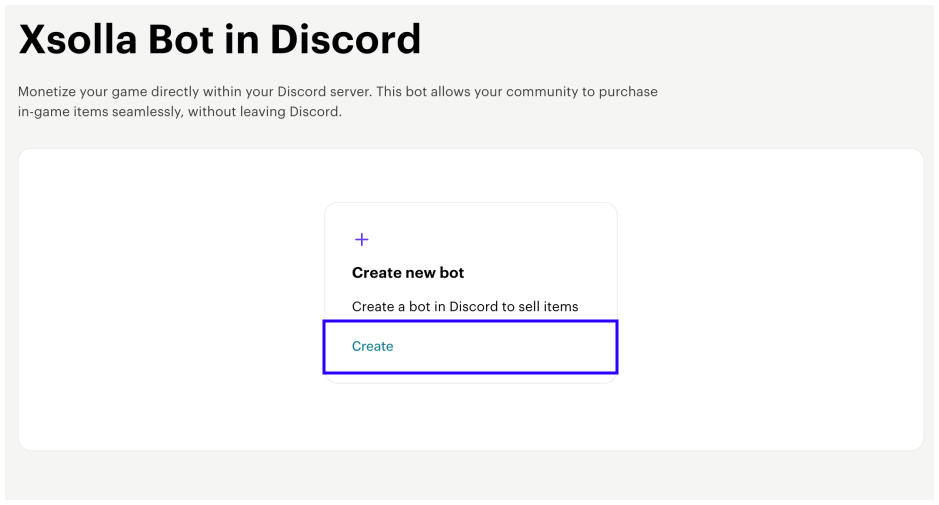
- Upload the logo and specify the bot name.
- Click Create.
- Go to the Settings tab to complete the bot configuration:
- In the Player ID help configurator block, click Set up and provide concise instructions on how users can find their player ID, and click Set up. It will be displayed in the Discord UI once the user clicks
How to find player ID .
- In the Player ID help configurator block, click Set up and provide concise instructions on how users can find their player ID, and click Set up. It will be displayed in the Discord UI once the user clicks
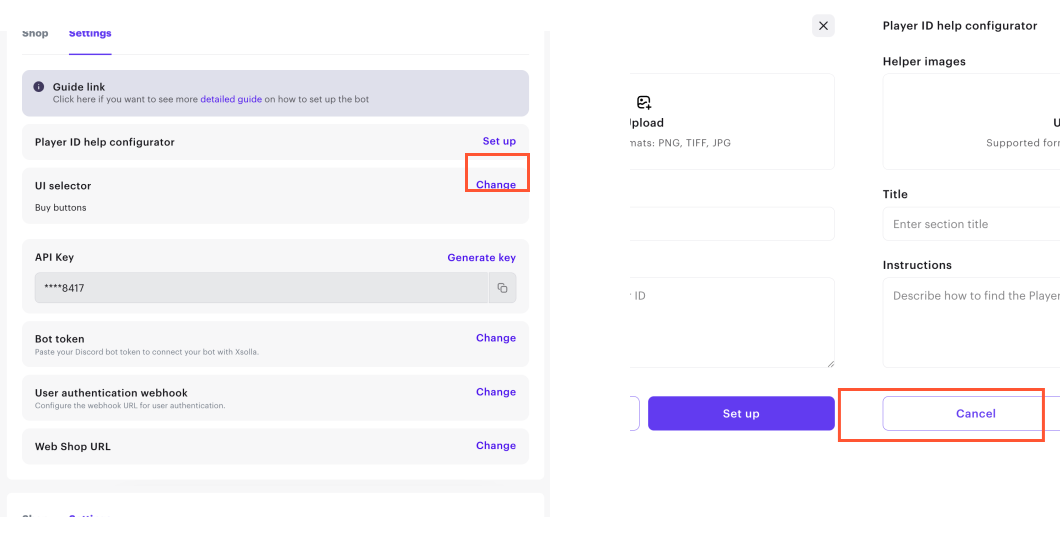
- In the UI selector block, click Change. Select a way to display items in the store and click Save:
- Dropdown selector (by default) — the store displays a drop-down list of available items. To buy an item, the user selects it in the list first, then opens an item card, and clicks a purchase button.
- Buy buttons — the store displays all available items at once, with a purchase button next to each one.
- The API key is generated automatically. If you want to update it, click Generate key.
- The bot token is generated automatically. If you already have a bot in Discord, click Change, provide its token in the corresponding field, and click Change. Keep in mind that after saving the changes, you won’t be able to use the previous token.
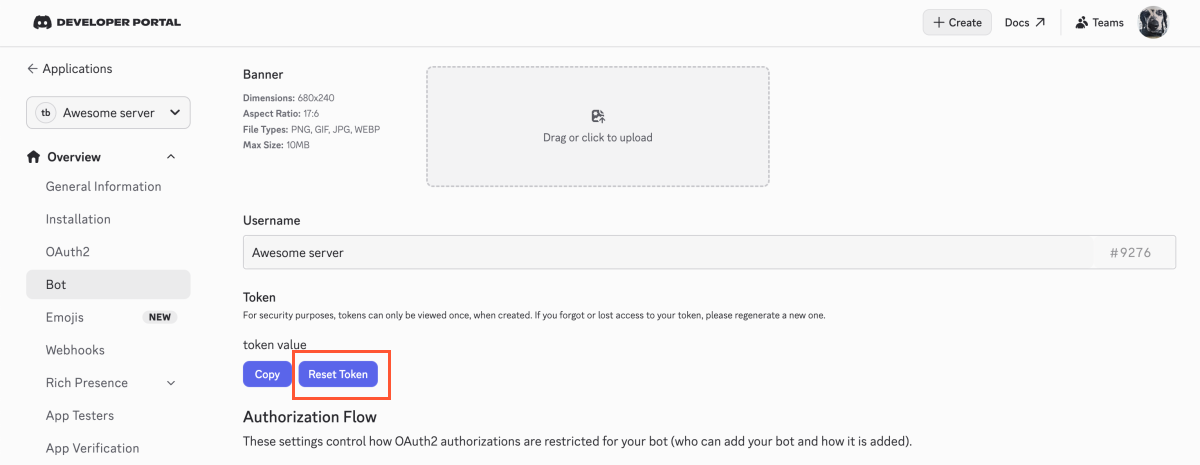
Instructions on finding bot token in Discord
- Go to the page of your application in the Discord developers portal.
- Go to the
Overview > Bot section. - In the
Token section, clickReset token . You might be prompted to pass verification. - Copy the new token value.
- In the User authentication webhook block, click Change, specify the URL of your server where you want to receive user authentication webhooks, and click Save.
- If you don’t have Web Shop, leave the Web Shop URL block unchanged.
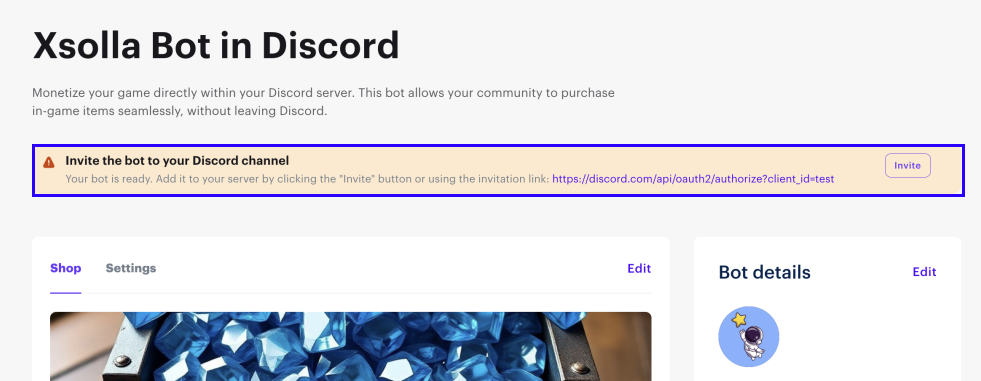
To add the bot to your Discord server, follow an invite link at the top of the page.
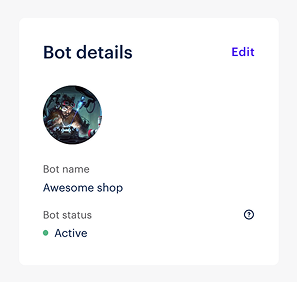
Once you configured all required settings, the bot status will change to Active.
Configure items
To configure items to sell:
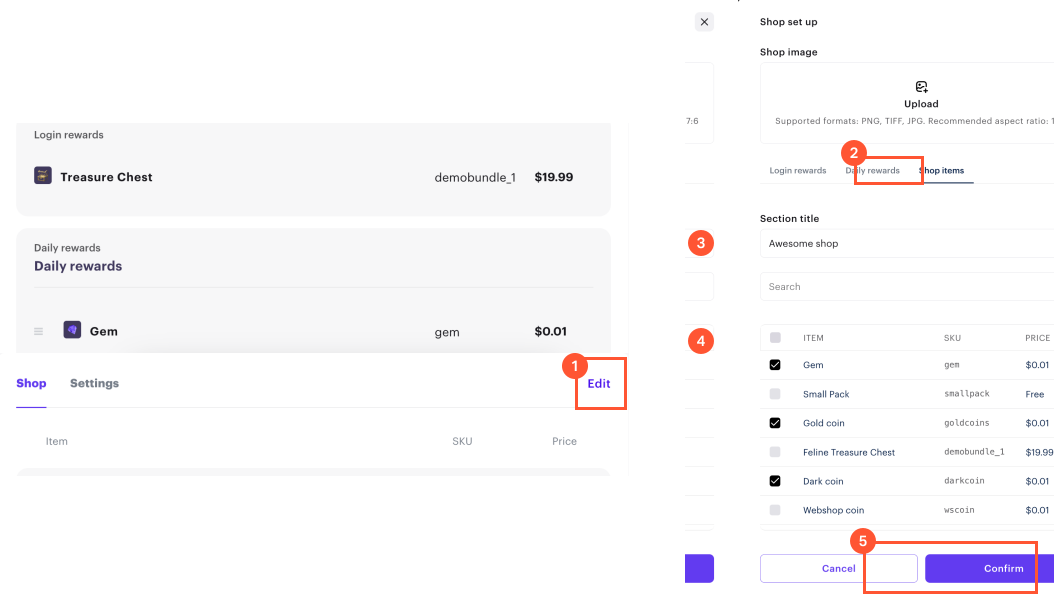
- Go to the Shop tab and click Edit.
- On the Shop items tab:
- Upload the shop cover image.
- Specify the shop title (required).
- Check the boxes next to the items you want to sell via Discord (required).
- Click Confirm.
After that you can go to your Discord server to check if the bot works correctly.
Configure reward items
To motivate users to visit your store more often, you can set up the following rewards:
- Login reward — rewards that become available to the user when they log into the store for the first time.
- Daily rewards — exclusive items that can be claimed once per day.
To set it up:
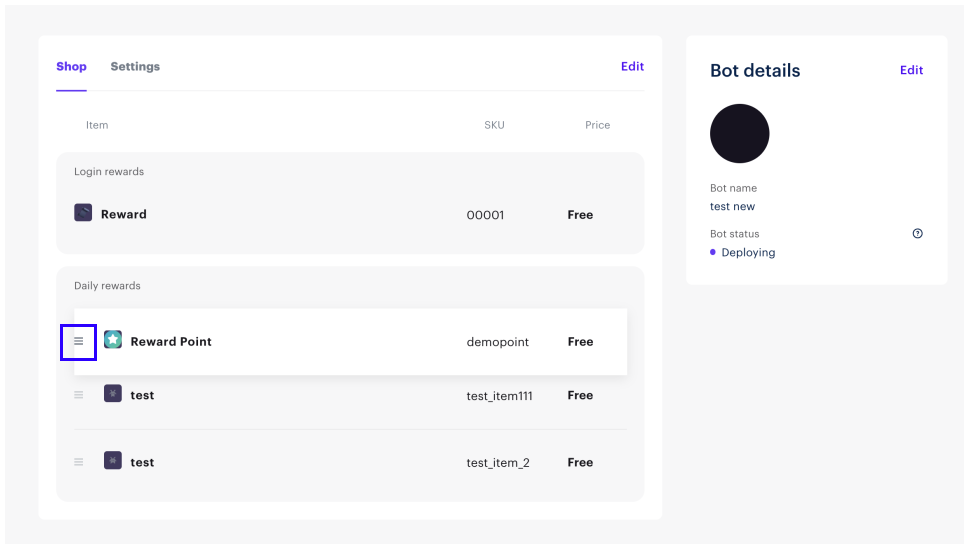
- Go to the Shop tab and click Edit.
- Set up reward items:
- On the Login rewards tab, select an item and click Confirm.
- On the Daily rewards tab, select items and click Confirm. To rearrange items in the correct order, drag and drop them on the main settings page.
After that you can go to your Discord server to check if the bot works correctly.
Found a typo or other text error? Select the text and press Ctrl+Enter.
