Campaigns
Campaigns connect creators with game developers, publishers, and brands. Depending on the campaign, you can receive game keys, promo codes, storefronts, or revenue share opportunities in exchange for creating content.
Campaign types
Partner Network supports the following campaign types:
- Key campaigns — receive a game key in exchange for creating content featuring the game, per the campaign terms.
- Revenue share campaigns — promote the game using your tracking link, storefront, or promo codes, and earn a share of attributed purchases. Many revenue share campaigns also include a game key — check the campaign details to see if one is provided.
Apply for campaign
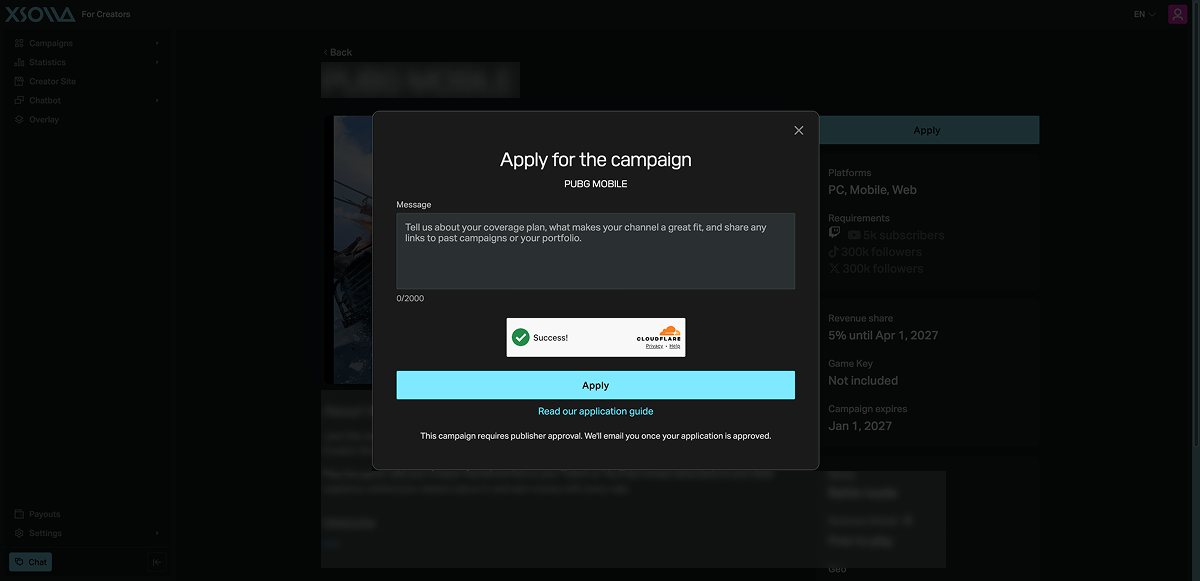
Depending on the campaign settings, you may be able to join a campaign immediately, or you may need to wait for your application to be reviewed and approved — most campaigns require approval.
- Go to the Campaigns page to browse available campaigns. Use the available filters to find campaigns.
- Open a campaign to review the details, requirements, and terms.
- Click Apply.
- Review the campaign agreement and click Agree.
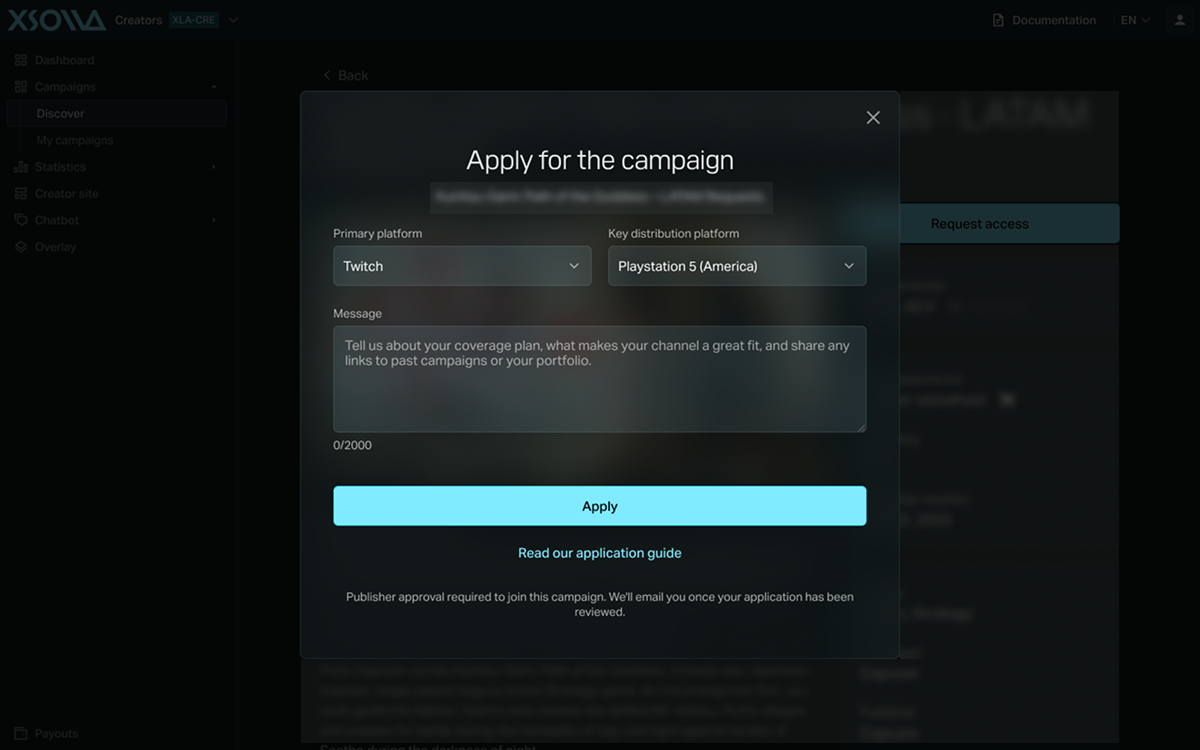
- Complete the application if required. If the application includes a description field, explain how you plan to promote the game and provide relevant examples of your content, if applicable. The application flow may vary by campaign type — for example, key campaigns may require you to select a platform and, in some cases, a region.
- Wait for the campaign manager to review your application, if required. Approval isn’t guaranteed, and some campaigns have a limited number of available rewards or game keys.
Campaign requirements
Campaigns may have minimum eligibility requirements defined by the organization running the campaign. Requirements may include:
- supported platform
- follower or subscriber count
- average concurrent viewers (ACV)
- recent streaming activity
You can connect multiple social media accounts to your creator account. You only need to meet the campaign requirements on one connected platform to apply. Connect all the social media accounts you actively use. Different campaigns may have different platform and audience requirements, so connecting multiple accounts gives you access to more campaign opportunities. To see which campaigns you currently qualify for, turn on the Only show campaigns you meet the requirements for toggle in the campaign filter. After connecting new social media accounts, turn the toggle off and back on to refresh the list.
Track your applications
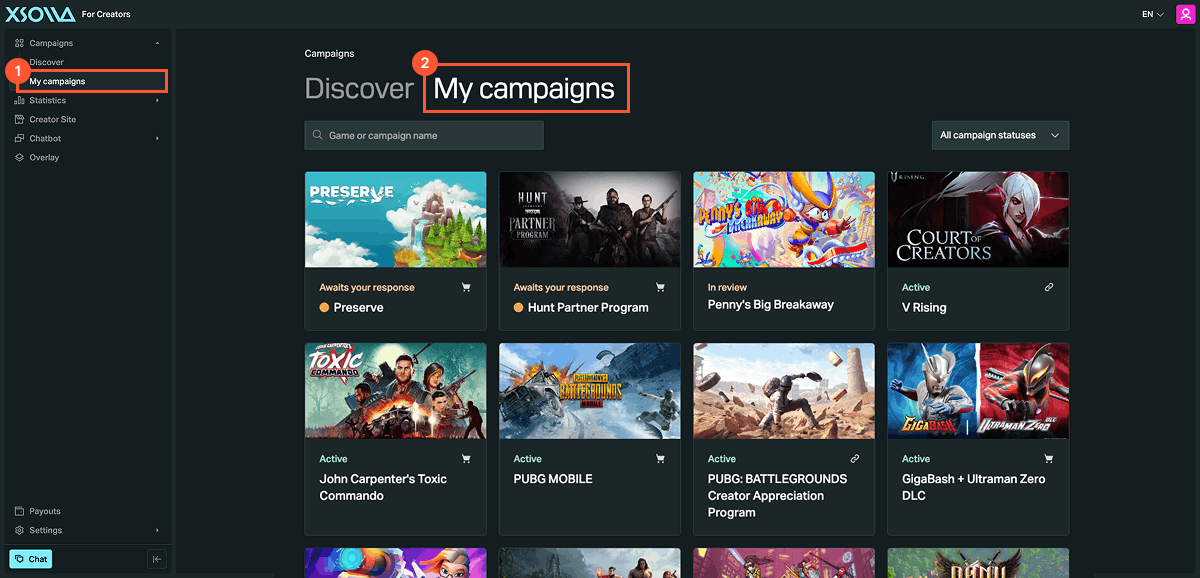
Go to the My campaigns tab to monitor the status of your campaign applications. After your application is reviewed, you’ll receive an email notification, and the application status will be updated in your account. If the status on the My campaigns tab doesn’t match the email notification, or you don’t receive an email at all, the in-app status is the reliable source.
Get assets after approval
After your application is approved, go to the Resources tab on the campaign page to find your promotional assets, which may include:
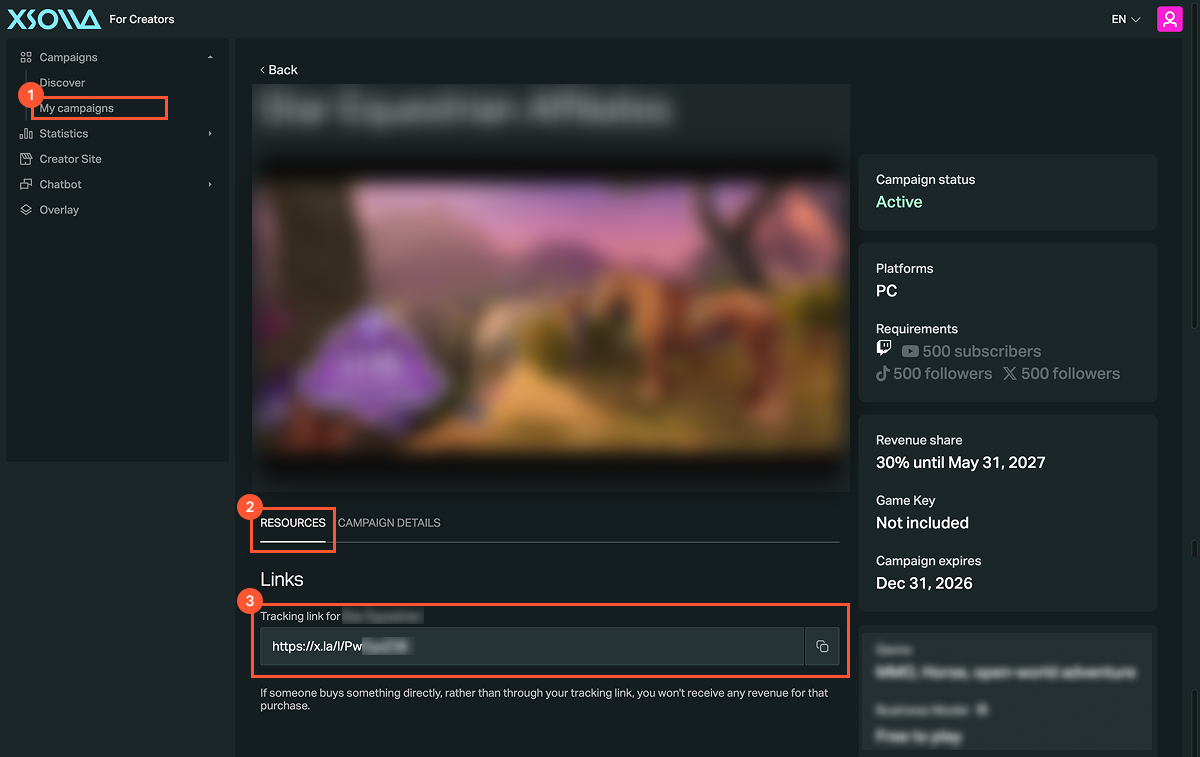
- Creator storefront or tracking link — depending on the campaign, this points to your personalized storefront (showing your stream, social links, and offers) or a non-personalized shop page. Purchases made through it are attributed to you.
- Game key — a copy of the game or downloadable content (DLC) to help you create content.
- Promo materials — publisher-provided media and promotional text to help you promote and create content.
- Promo code generator — a special discount you can create and share with your audience.
If the campaign provides a game key, the platform you selected when applying determines which redemption instructions apply. If the campaign type is a key campaign, this also includes the region.
Redeem your key using the instructions for your platform:
If the campaign provides a tracking link, find it in the Resources tab of that campaign on the Campaigns > My Campaigns page. Share it in stream descriptions, social media posts, videos, or other channels where you promote the campaign, to ensure eligible purchases are attributed to your account.
If the campaign provides a promo code, generate one at the Resources tab of that campaign (in Promo code generator section, if available). Promo codes are automatically set to uppercase and tied to your account — share it together with your campaign content.


Found a typo or other text error? Select the text and press Ctrl+Enter.
