Chatbot
Chatbot helps you manage your Twitch chat — run commands, moderate messages, reward loyal viewers, and more. If you’re part of a campaign, Chatbot can also send the following:
- timed messages
- responses to chat commands
- campaign links and promotional information
To set up Chatbot:
- Sign up for Partner Network with your Twitch account, or connect Twitch to your existing account .
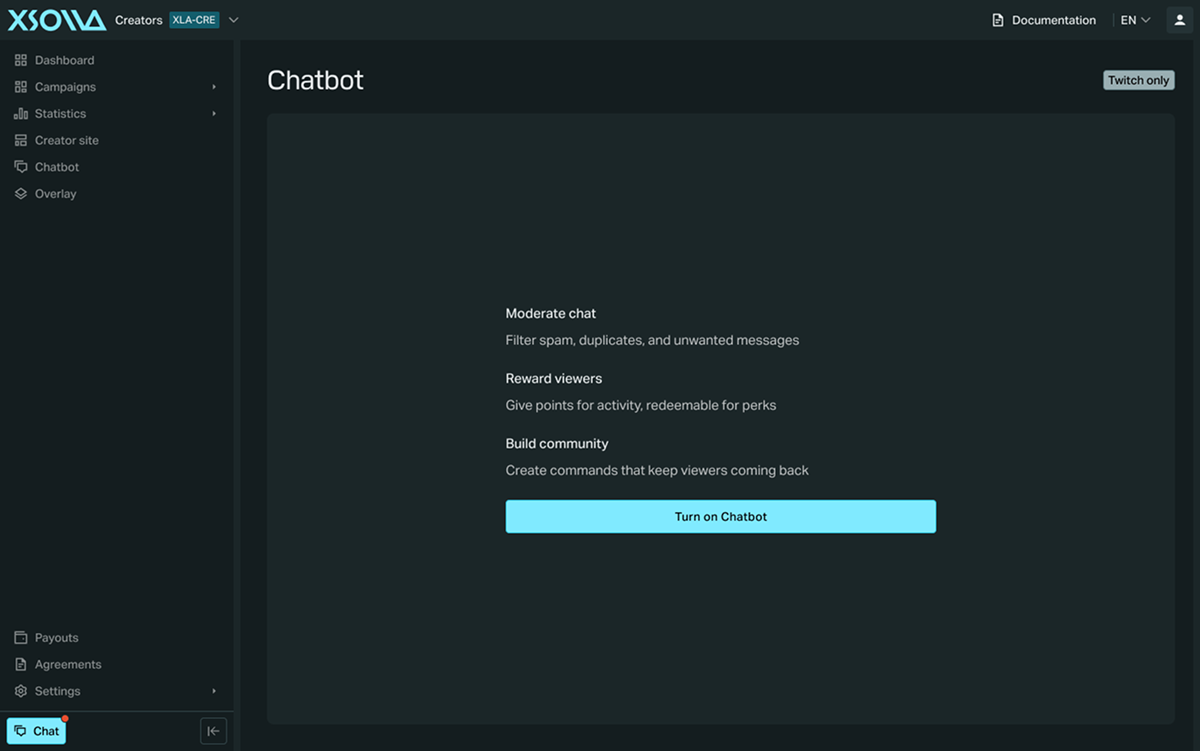
- Go to the Chatbot page and click Turn on Chatbot. This adds the Xsolla chatbot to your channel and grants the chatbot moderator permissions.
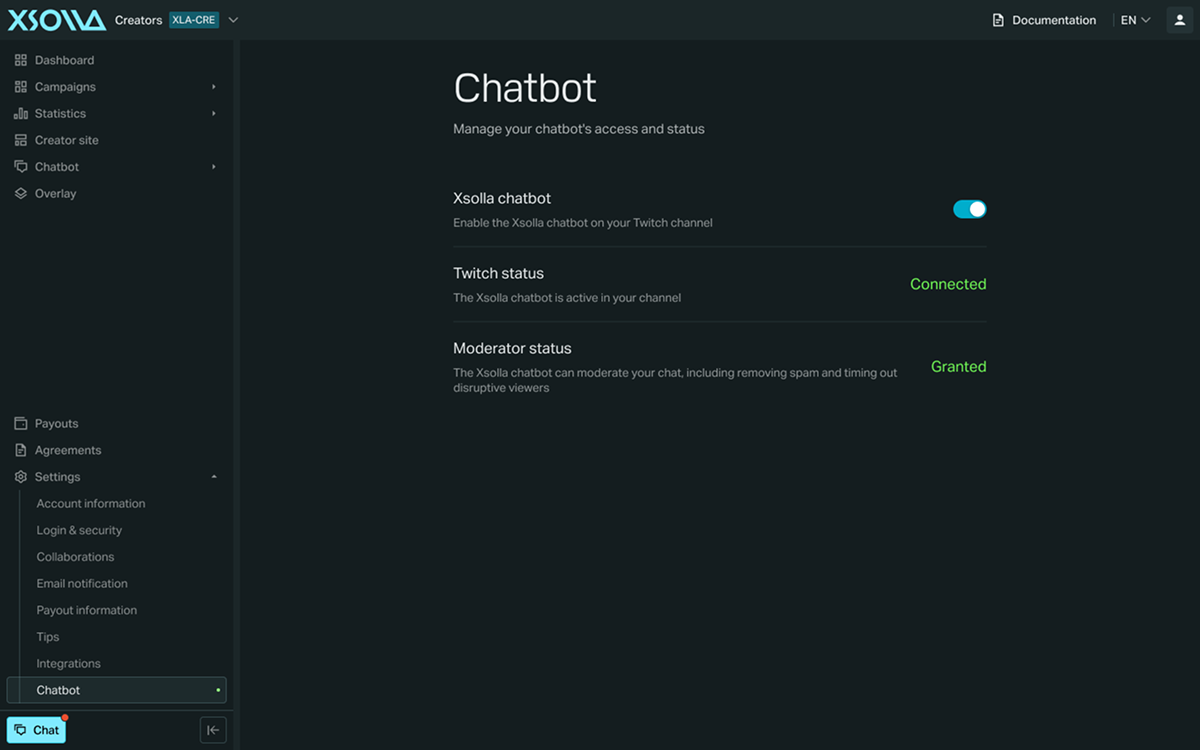
Once activated, you can control Chatbot and check its status on the Settings > Chatbot page. Twitch status can take the following values:
- Connected — the Xsolla chatbot is active in your channel.
- Pending — the Xsolla chatbot is reconnecting after a server restart or update.
- Disconnected — the Xsolla chatbot isn’t connected. This can happen if the Xsolla chatbot was banned from your channel or doesn’t have moderator status.
- Unknown — the Xsolla chatbot’s status couldn’t be determined. Contact our support team if the issue persists.
Moderator status can take the following values:
- Granted — the Xsolla chatbot can moderate your chat, including removing spam and timing out disruptive viewers.
- Not granted — the Xsolla chatbot can’t moderate your chat without moderator access.
Moderation
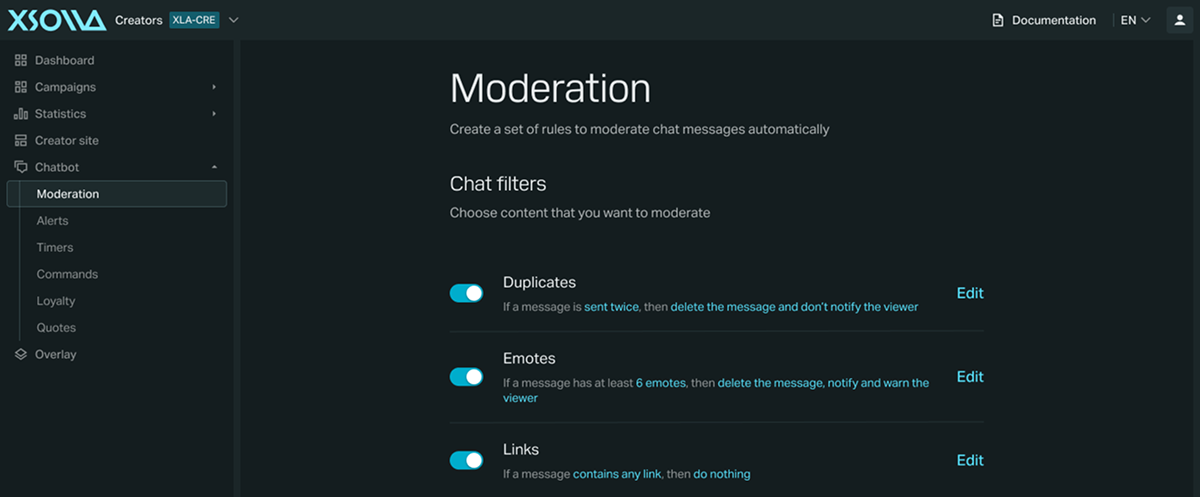
To choose the content you want to moderate, go to the Chatbot > Moderation page, and make sure the toggles for the content you want to moderate are turned on in the Chat filters section:
| Filter | Trigger |
|---|---|
| Duplicate | A message is repeated a set number of times. |
| Emotes | A message contains at least a set number of emotes. |
| Links | A message contains any link, with an optional allowlist (partial match — e.g. twitch.tv allows all Twitch links). |
| Symbols | A message reaches a set length and percentage of it is symbols. |
| Uppercase | A message reaches a set length and percentage of it is uppercase. |
These are the default thresholds — add new ones or adjust them in the Warning thresholds section:
| Punishment | Warning count |
|---|---|
| Timeout for 10 minutes | 3 |
| Timeout for 3 hours | 6 |
| Permanent ban | 9 |
If you want the chatbot to reply to a posted link with the title of the page it leads to, turn on the Link preview toggle.
Alerts
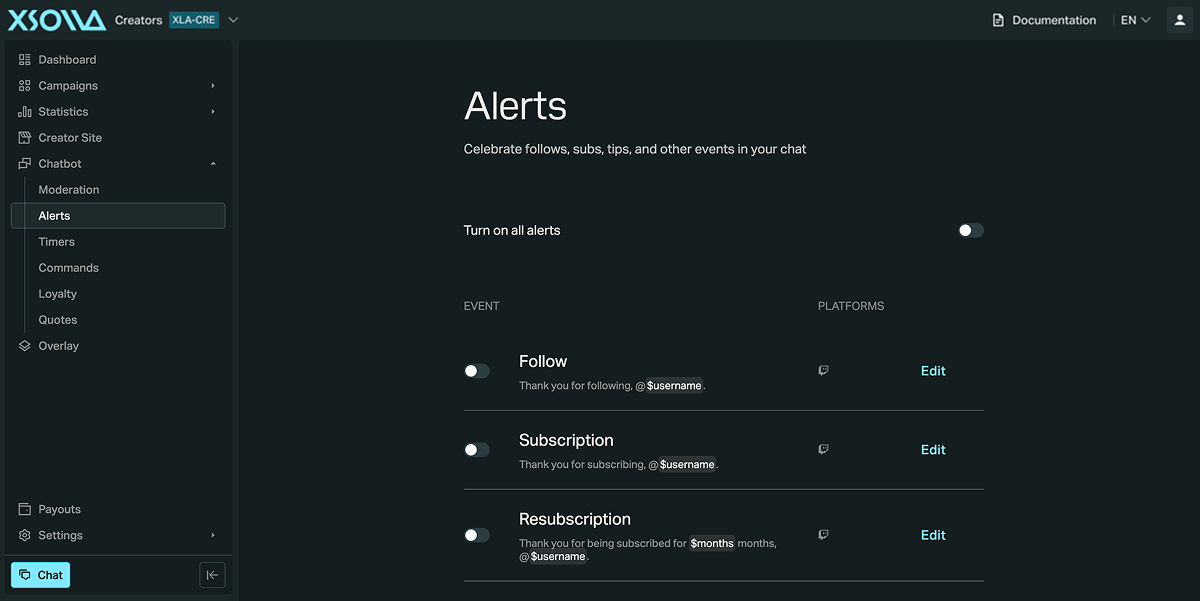
Chatbot can post a message in chat for follows, subscriptions, tips, and other events. Turn on all alerts at once, or enable and edit each one individually:
| Event | Default message |
|---|---|
| Follow | Thank you for following, @$username. |
| Subscription | Thank you for subscribing, @$username. |
| Resubscription | Thank you for being subscribed for $months months, @$username. |
| Subscription gift | Thank you @$gifter for gifting a sub to @$username. |
| Twitch cheer | @$username cheered $amount bits to the stream. |
| Twitch raid | @$username is raiding the stream with $viewers viewers. |
| Tip | $name tipped $amount to the stream: $message. |
| ExtraLife/Tiltify | $name donated $amount to charity. |
These default messages use the following variables:
| Variable | Description |
|---|---|
$username | The viewer’s Twitch username. |
$gifter | The username of the viewer who gifted the subscription. |
$months | The number of months a viewer has been subscribed. |
$amount | The amount tipped, cheered in bits, or donated. |
$viewers | The number of viewers in a raid. |
$name | The name of the tipper or donor. |
$message | The message included in a tip. |
These are separate from variables available for custom commands. See Commands section for more information.
Timers
To post automated messages at a set interval, go to Chatbot > Timers page, and set one up to promote your tracking link or storefront , share your social media, or remind viewers of chat rules. You can configure messages to post only while you’re live.
Commands
Go to the Chatbot > Commands
page to enable or disable built-in commands for your channel. Each command has its own permission level (everyone, moderator, or owner) and can be assigned a cost in loyalty points. In addition to built-in commands, you can create your own commands by clicking New command. You and your moderators can also use !set and !unset directly in Twitch chat to quickly edit custom commands.
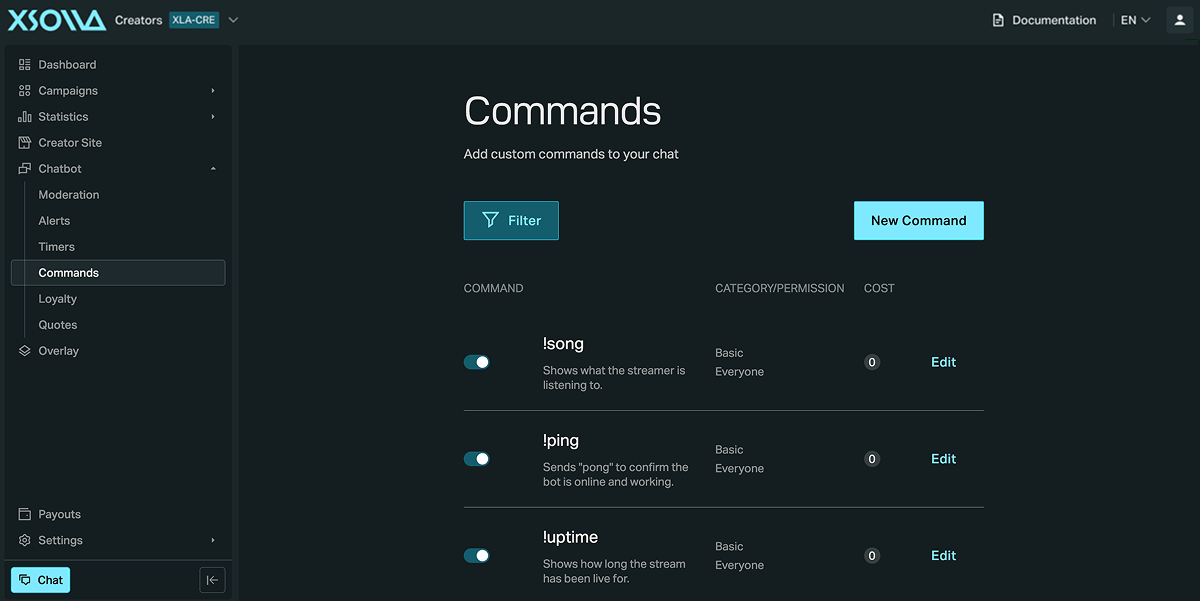
Chatbot includes the following built-in commands.
| Command | Description |
|---|---|
!song | Shows what the streamer is listening to. |
!ping | Sends pong to confirm the bot is online and working. |
!uptime | Shows how long the stream has been live for. |
!reset [command] | Resets the counter that shows the number of times the command has run. |
!unset [command] | Removes a command with a custom message. |
!set [name] [message] | Creates a new command with a custom message. |
!allow [user] | Temporarily allows the specified user to post a link. |
!warn [user] [silent] [reason] | Issues a warning for the user specified. |
!warnings [user] | Retrieves the number of warnings a user has. |
!unwarn [user] | Resets the warning count for the user specified. |
!mute [user] [silent] [duration] | Mutes the user specified. An expiry time can be defined. |
!unmute [user] | Unmutes the user specified. |
!clear [user] | Deletes all the messages the user specified has said recently. |
!boosts | Retrieves information on the boosts and point boosts available. |
!takepoints [user] [points] | Takes points from a given user. |
!give [user] [points] | Transfers some points from the sender to another user. |
!buyboost [boost] | Purchases a point boost, which can later be upgraded, but cannot be downgraded. |
!addpoints [user] [points] | Gives points to a specific user. |
!points [user] | Shows the number of points a specific user has. |
!boost [user] | Retrieves a user’s current point boost and expiry date. |
!giveall [points] | Gives points to all users in the channel. |
!leaderboard [count] | Shows the users who have the highest number of points, up to the count specified. |
!rank | Shows a user’s current rank. |
!removequote [quote] | Removes a quote from the bot’s database. |
!quote [quote] | Returns a random quote, or the specific quote specified in the command. |
!addquote [person] [message] | Adds a new quote to the bot’s database. |
!raffleend | Ends the current raffle, and selects a random winner. |
!raffleset [word] [followers] | Starts a giveaway, setting the key word the bot will look for. |
!addschedule [message] | Adds a new message to the schedule’s message wheel. |
!commands | Shows a list of commands in chat. |
!setgame [game] | Changes the stream game across all platforms the bot is linked to. |
!settitle [title] | Changes the stream title across all platforms the bot is linked to. |
Custom commands support variables for more advanced responses.
| Variable | Description |
|---|---|
$user | Accepts a username as an argument when the command runs (e.g. !costream @Xsolla). Always prefixes with @, even if you don’t type it. |
$sender | The name of the user who ran the command. |
$title, $game, $url | The Twitch channel’s stream title, current game, and channel URL — for your own channel by default. Include $user in the command to pull this information from another Twitch channel instead (e.g. !costream $user $title for a shoutout). |
$count | The number of times the command has been run. Moderators can reset it with !reset [command]. |
$arg1, $arg2, $arg3, … | Extra arguments passed after the command, separated by spaces. |
$args | Everything after the command, ignoring spaces. |
By default, responses start with your username — disable this by unticking Start with @username when creating a command. You can mix and match variables in a single command.
You can also trigger images and sounds on your stream from a command — see Overlay's triggers for details.
Loyalty
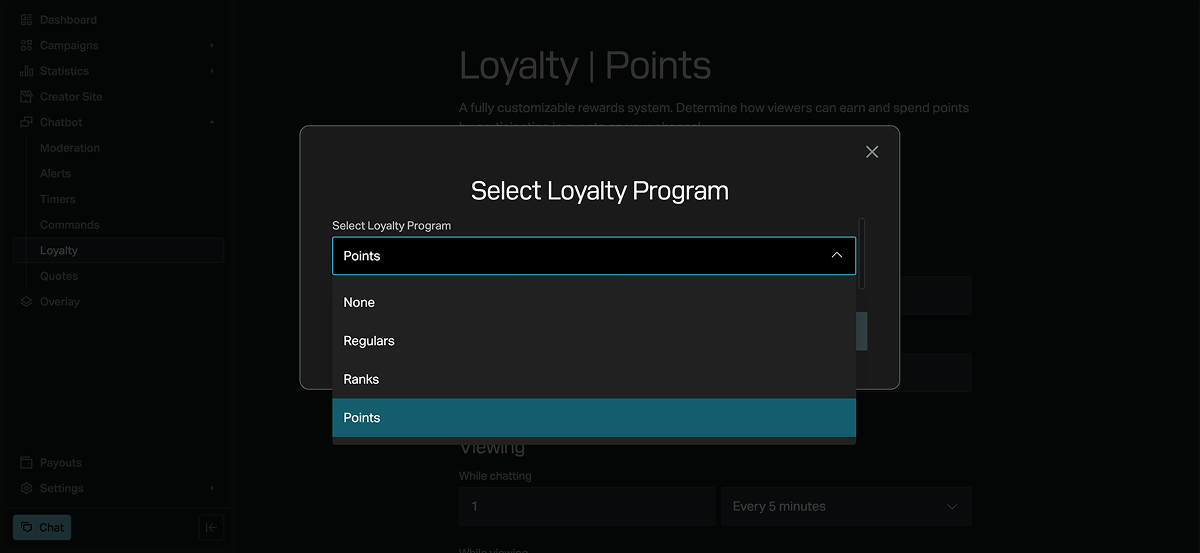
Go to the Chatbot > Loyalty page to set up a loyalty program. Click Settings and choose one of three systems:
- Regulars — manually grant loyal viewers a special chat role with access to additional commands. Click Regular to add a viewer by username.
- Ranks — viewers progress through custom tiers based on hours watched. Click Rank and set up ranks (name + hours required). Then enable the
!rankcommand so viewers can check their own rank in chat, and check the leaderboard on your Creator Site or with!leaderboard. - Points — a fully customizable in-chat currency. Viewers can spend points to fire commands linked to your Overlay’s trigger
layers, or to enter raffles you run through chat. To configure how viewers earn points, complete the following fields:
- Points name — the name of the currency (default: points).
- Subscriber multiplier — a multiplier applied to points earned by subscribers.
- Viewing — points earned for chatting, watching your stream live, or watching while you’re offline. You can configure the amount and interval for each.
- Events — bonus points for following, subscribing, gifting a subscription, tipping, winning a raffle, hosting, cheering, or raiding.
- Ignored users — accounts excluded from earning points (e.g. other chat bots).
Quotes
Save memorable moments from your chat as text, attributed to the viewer who said them, for others to rediscover later. There is no limit on how many quotes you can save. Add quotes from the Chatbot > Quotes
page — when someone runs !quote in chat, Chatbot randomly posts one of your saved quotes.
Found a typo or other text error? Select the text and press Ctrl+Enter.
