Payouts
Go to the Payouts page to complete payout setup, manage your payout methods, view your balance, and track your payout history. Completing payout setup isn’t required to join a campaign, but you’ll need it before you can withdraw earnings.
The Payouts page includes:
Set up your payouts
Complete the following steps before receiving payouts:
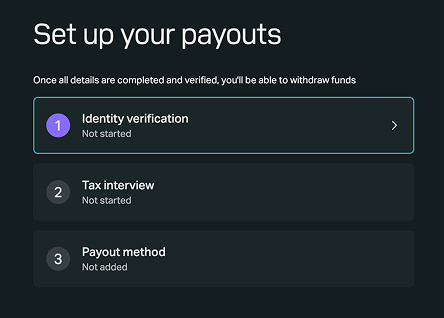
Complete identity verification
Complete identity verification through Sumsub, a third-party identity verification provider. Identity verification consists of 3 steps:
- Identity document (a photo of a government-issued ID, e.g. passport, driver’s license, or national ID card)
- Liveness check (a selfie, captured via your phone or webcam)
- Personal information (your legal name, email, country, and state)
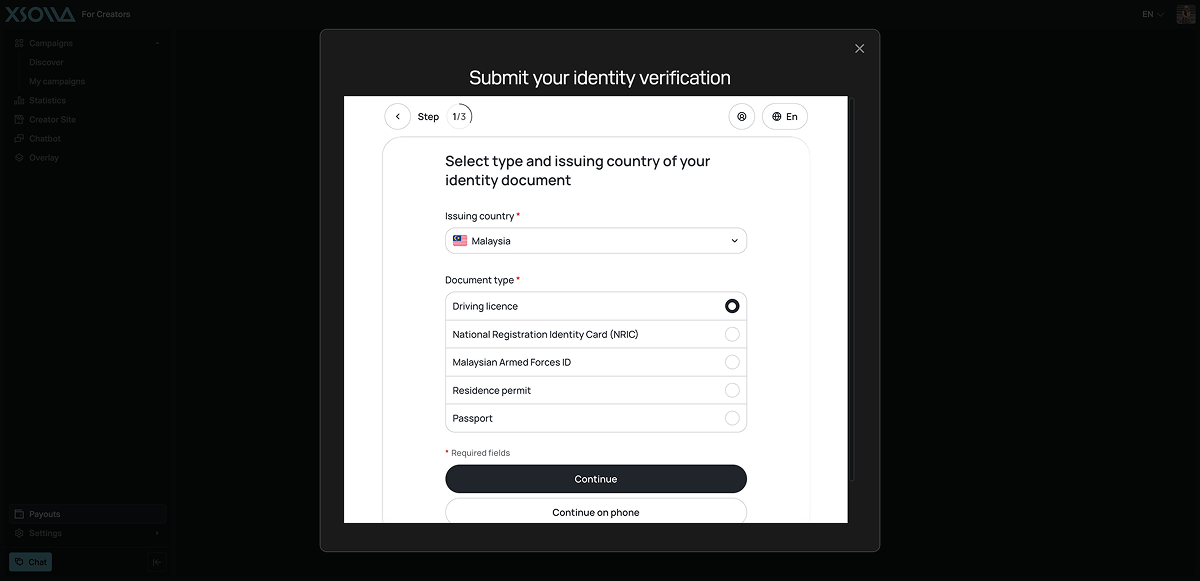
The process takes about 5 minutes — most creators get a result within a few minutes, though review can take up to 24 hours in rare cases. Refer to the Account verification FAQ section for more details.
Identity verification status can take the following values:
- Not started — you haven’t started identity verification yet.
- Not completed — you’ve started but haven’t finished submitting all required steps.
- On review — your identity verification is under review.
- Completed — your identity verification has been approved.
- Doesn’t match identity details — the information you provided doesn’t match your identification document.
Complete tax interview
Complete the tax interview by following the on-screen instructions. Tax interview consists of 6 steps:
- Start
- Profile
- Consents
- Status
- Review
- Sign & submit
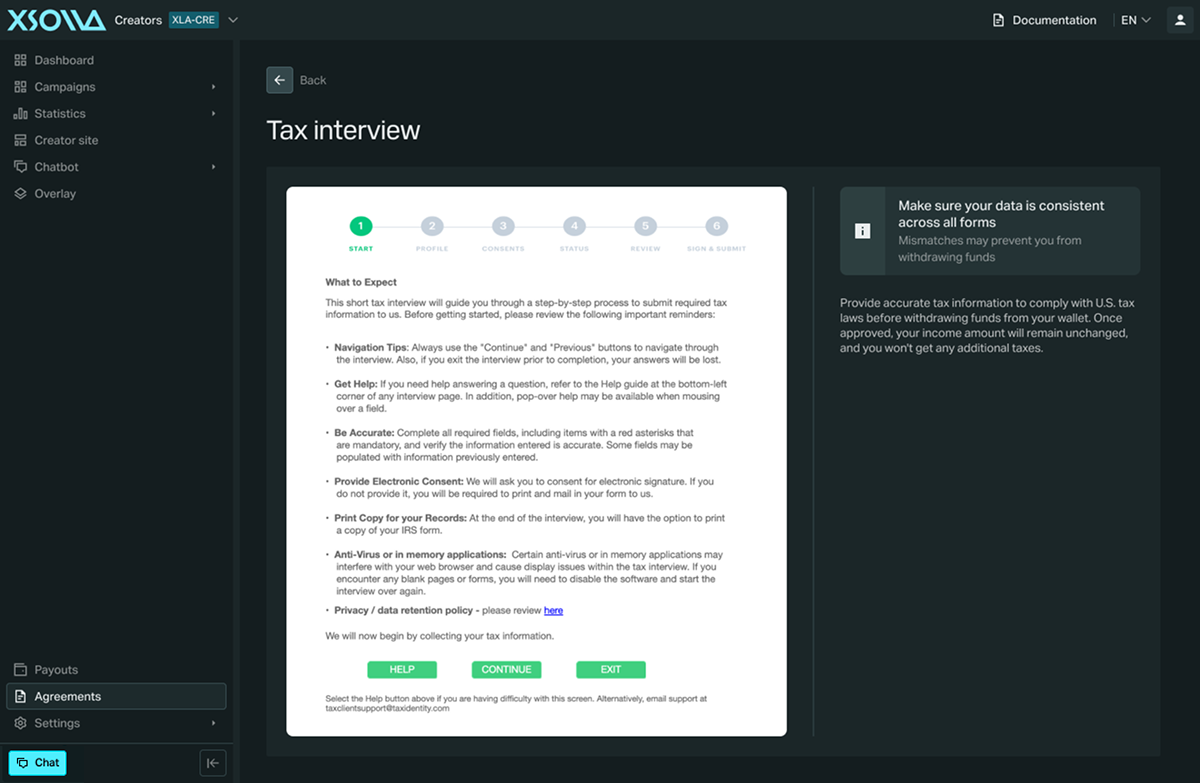
The tax interview status can take the following values:
- Not started — you haven’t started this tax interiew yet.
- Not completed — haven’t finished submitting all required information.
- On review — the tax interview is under validation by the Xsolla legal team.
- Completed — your tax interview has been approved.
- Doesn’t match identity details — the information you provided doesn’t match your identity verification details.
Choose payout method
Choose one of the supported payout methods and enter the requested payment details:
- PayPal
- Wire transfer
- Xsolla Money Account (XMA) — available exclusively for creators based in the United States
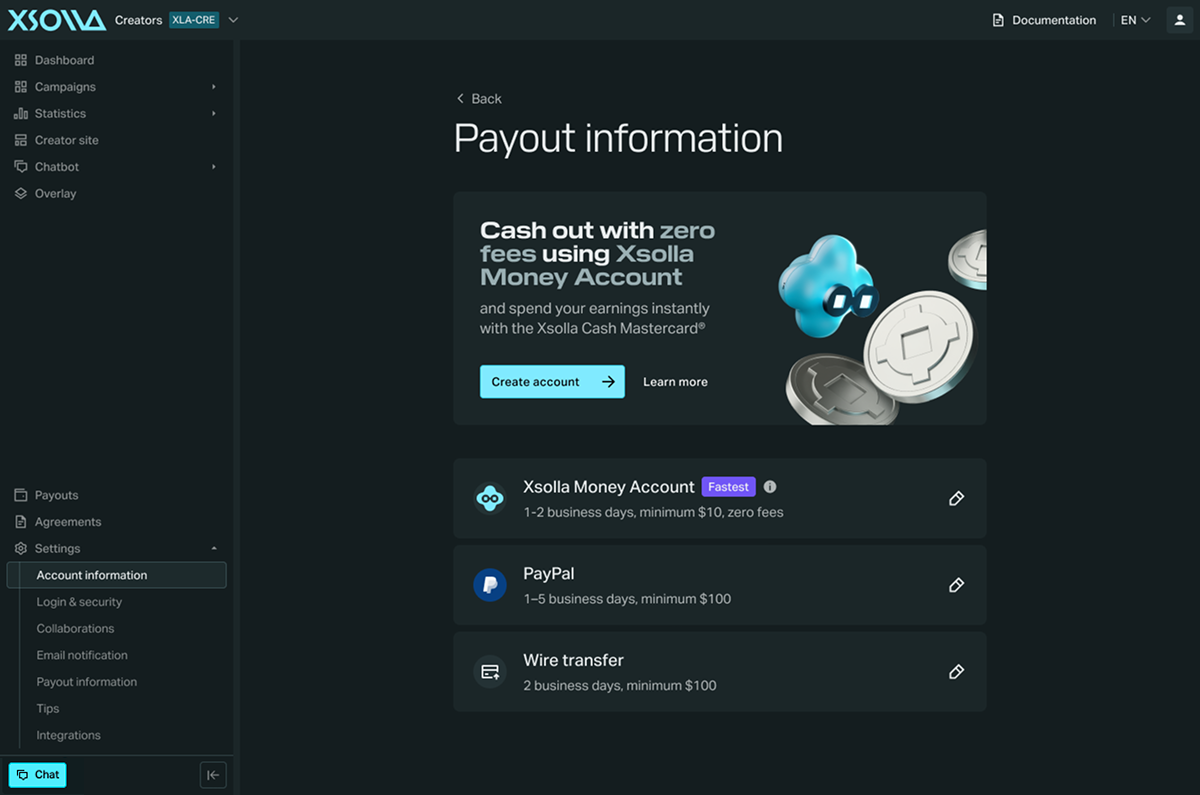
Fees and minimum payout amounts vary by method. Check your payment provider’s own terms for details — for example, PayPal’s fee page, or your bank’s terms for wire transfers.
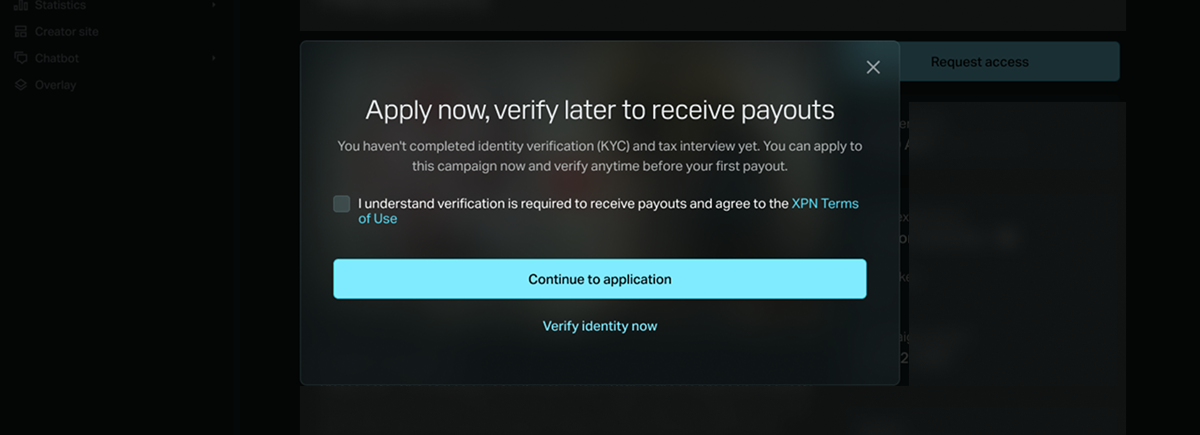
Key campaigns don’t require payout setup, since they don’t involve revenue share payouts. For revenue share campaigns, you can join before completing these steps — you’ll see a confirmation checkbox acknowledging that future payouts may not be available until step is complete. However, you can’t withdraw any earnings until all three steps are done. We recommend completing setup early: delaying it means you could earn money you’re later unable to withdraw — for example, if your region or payout method turns out to be unsupported.
Balance
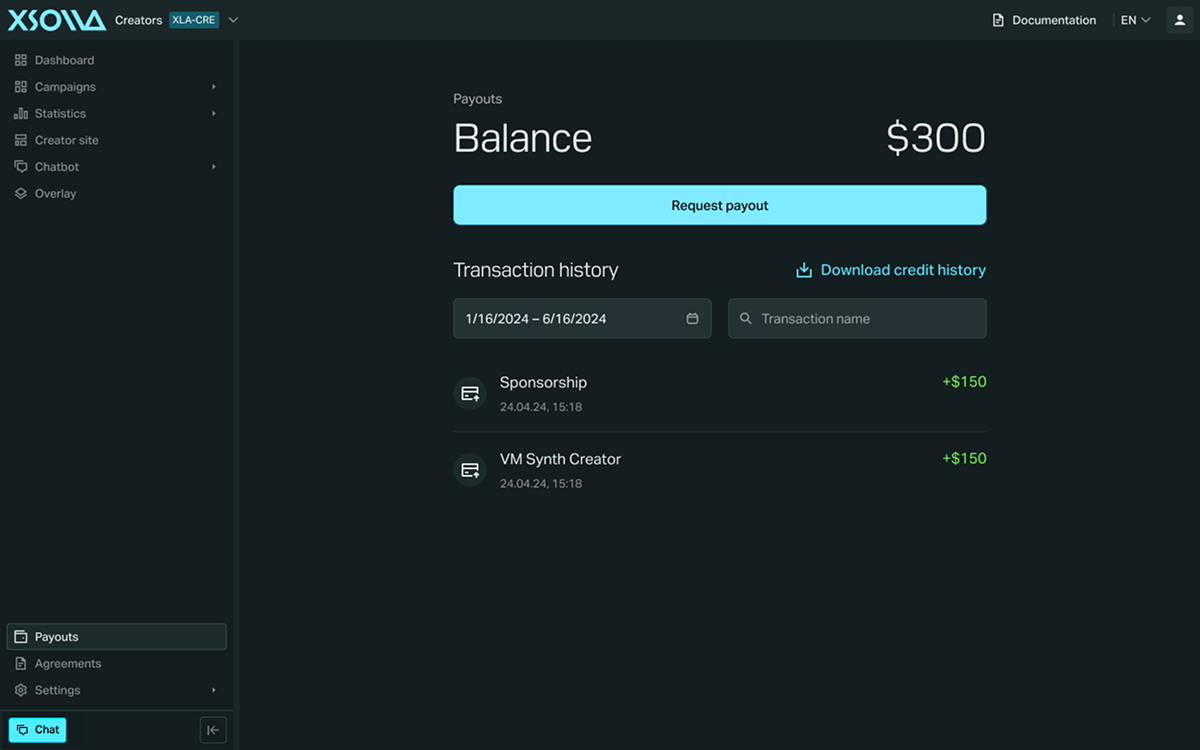
The Balance section displays your available earnings and updates in real-time. Your balance becomes available for withdrawal after you complete payout setup.
Transaction history
View your transaction history using the Credit and Payouts tabs:
- Credit tab shows earnings added to your balance, updated in real-time.
- Payouts tab shows your completed withdrawals.
Use the filters to narrow results by date range or campaign name, and download your history in CSV format.
Found a typo or other text error? Select the text and press Ctrl+Enter.
