Communication Hub
Overview
Communication Hub is a space where you can send requests to the Xsolla team and get answers to your questions in real time from an AI assistant or customer support agent. All dialogs and requests are saved, so you can review your history any time.
Communication Hub is a space where you can send requests to the Xsolla team and get answers to your questions in real time from an AI assistant or customer support agent. All dialogs and requests are saved, so you can review your history any time.
Communication Hub is a space where you can send requests to the Xsolla team and get answers to your questions in real time from an AI assistant or customer support agent. All dialogs and requests are saved, so you can review your history any time.
Communication Hub is a space where you can send requests to the Xsolla team and get answers to your questions in real time from an AI assistant or customer support agent. All dialogs and requests are saved, so you can review your history any time.
Communication Hub is a space where you can send requests to the Xsolla team and get answers to your questions in real time from an AI assistant or customer support agent. All dialogs and requests are saved, so you can review your history any time.
Communication Hub is a space where you can send requests to the Xsolla team and get answers to your questions in real time from an AI assistant or customer support agent. All dialogs and requests are saved, so you can review your history any time.
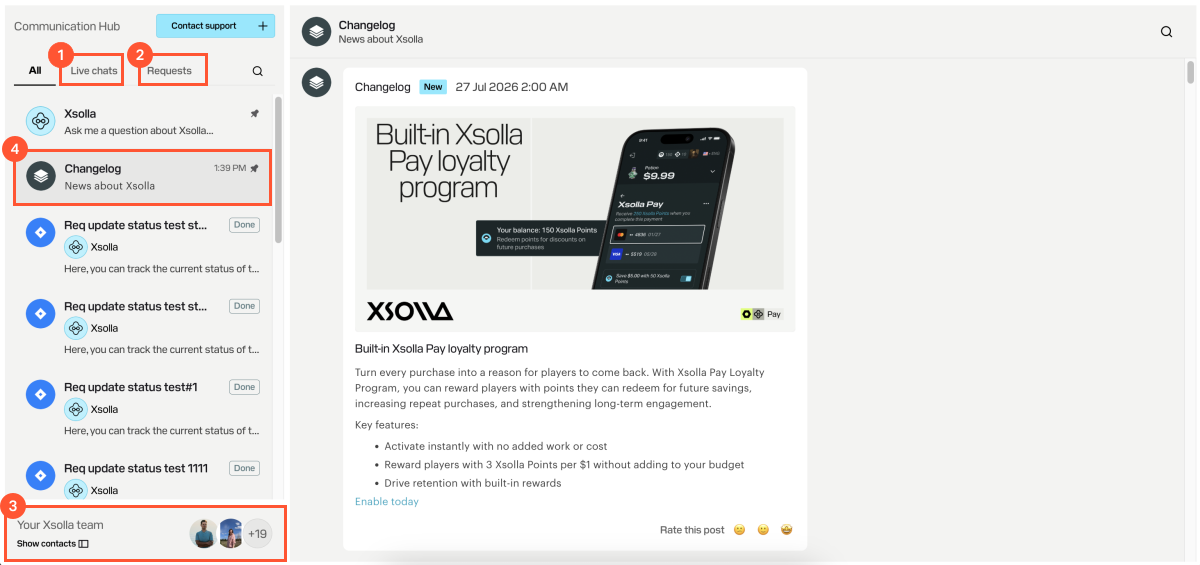
The following sections are available in the Communication Hub:
- Live chats — dialogs with an AI assistant or Xsolla customer support agent
- Requests — sent requests
- Your Xsolla team — list of Xsolla employees you can contact directly
- Changelog — Xsolla news on the latest releases and updates
Live chats
In this section of the Communication Hub, you can find the list of all chats including dialogs with customer support agents and other Xsolla employees.
In this section of the Communication Hub, you can find the list of all chats including dialogs with customer support agents and other Xsolla employees.
In this section of the Communication Hub, you can find the list of all chats including dialogs with customer support agents and other Xsolla employees.
In this section of the Communication Hub, you can find the list of all chats including dialogs with customer support agents and other Xsolla employees.
In this section of the Communication Hub, you can find the list of all chats including dialogs with customer support agents and other Xsolla employees.
In this section of the Communication Hub, you can find the list of all chats including dialogs with customer support agents and other Xsolla employees.
Flow of working in the chat:
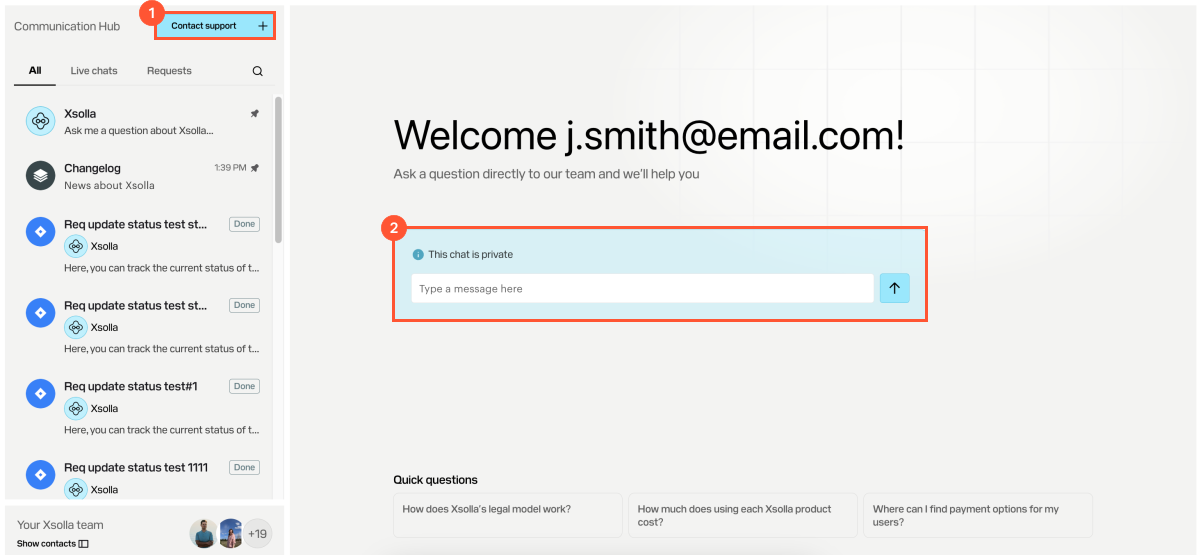
- To start a new chat, you click Contact support and ask your question.
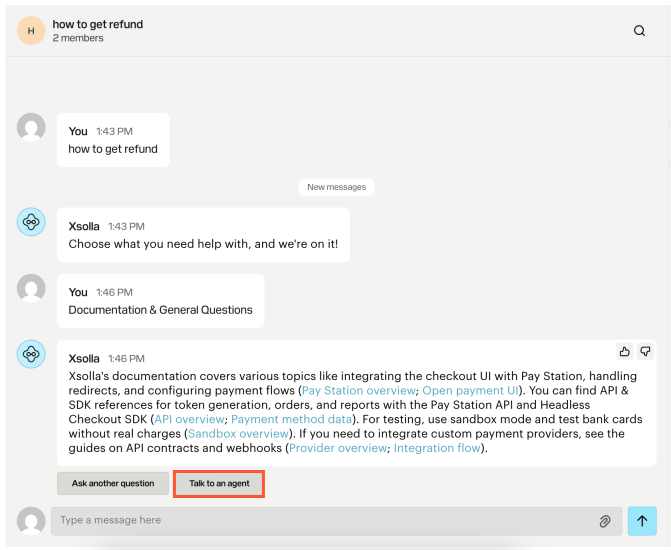
- An AI assistant asks you a follow-up question and suggests several topics that might be related to your request, e.g., technical documentation.
- You select a suitable topic and receive an answer from the AI assistant.
- If the AI assistant’s answer doesn’t resolve your question, you can click Talk to an agent and you will continue the dialogue with an Xsolla customer support agent.
- If your question requires help from other teams, a request will be created. You can track it on the Requests tab.
Requests
In this section of the Communication Hub, you can find the list of all your requests to the Xsolla team, track their statuses, as well as ask managers follow-up questions.
In this section of the Communication Hub, you can find the list of all your requests to the Xsolla team, track their statuses, as well as ask managers follow-up questions.
In this section of the Communication Hub, you can find the list of all your requests to the Xsolla team, track their statuses, as well as ask managers follow-up questions.
In this section of the Communication Hub, you can find the list of all your requests to the Xsolla team, track their statuses, as well as ask managers follow-up questions.
In this section of the Communication Hub, you can find the list of all your requests to the Xsolla team, track their statuses, as well as ask managers follow-up questions.
In this section of the Communication Hub, you can find the list of all your requests to the Xsolla team, track their statuses, as well as ask managers follow-up questions.
Flow of working with requests:
- The Xsolla team creates a request based on your inquiry.
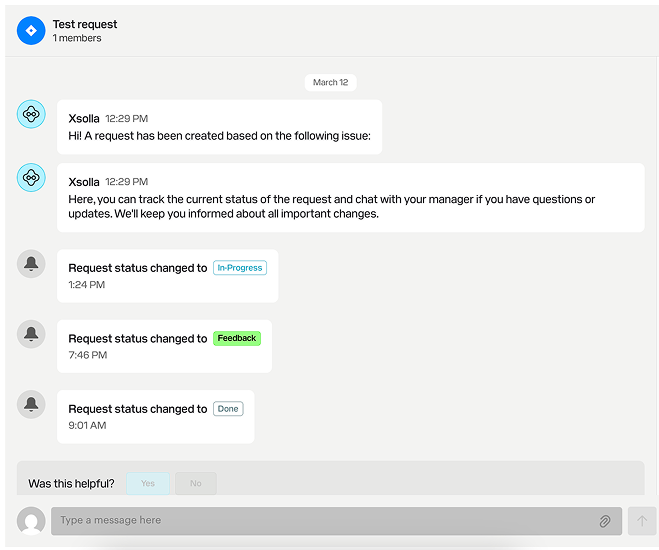
- You receive a message that a new request is created. On the Requests tab, it is displayed in the Received status.
- Throughout the processing, its status changes to the following:
- In progress — the Xsolla team is working on it.
- Feedback — the Xsolla team is waiting for your feedback or additional information.
- Done — the request is solved.
Your Xsolla team
In this section of the Communication Hub, you can find the list of Customer Success Managers who can help you resolve any issues. Xsolla managers are available across different time zones.
In this section of the Communication Hub, you can find the list of Customer Success Managers who can help you resolve any issues. Xsolla managers are available across different time zones.
In this section of the Communication Hub, you can find the list of Customer Success Managers who can help you resolve any issues. Xsolla managers are available across different time zones.
In this section of the Communication Hub, you can find the list of Customer Success Managers who can help you resolve any issues. Xsolla managers are available across different time zones.
In this section of the Communication Hub, you can find the list of Customer Success Managers who can help you resolve any issues. Xsolla managers are available across different time zones.
In this section of the Communication Hub, you can find the list of Customer Success Managers who can help you resolve any issues. Xsolla managers are available across different time zones.
To contact a manager:
- Click Your Xsolla team.
- Select a manager and a convenient channel of communication:
- Chat — you will be redirected to an existing or new dialog in the Communication Hub.
- Email — you will be redirected to your email.
- Google Meet and/or Zoom meeting — you will be redirected to a calendar page where you can schedule a meeting with a manager.
Note
Available channels of communication may vary by manager.
Was this article helpful?
Thank you for your feedback!
We’ll review your message and use it to help us improve your experience.Found a typo or other text error? Select the text and press Ctrl+Enter.
