How to launch cloud game on website
How it works
You can enhance user experience by embedding your cloud game into your storefront. It will allow users to launch your cloud game within the iframe on the website.
User flow:
- On your website, the user clicks the button to play your cloud game, e.g., Play in cloud.
- If the user has already signed in, they are automatically redirected to the streaming session in the iframe. Non-signed users are prompted to log in to start their session.
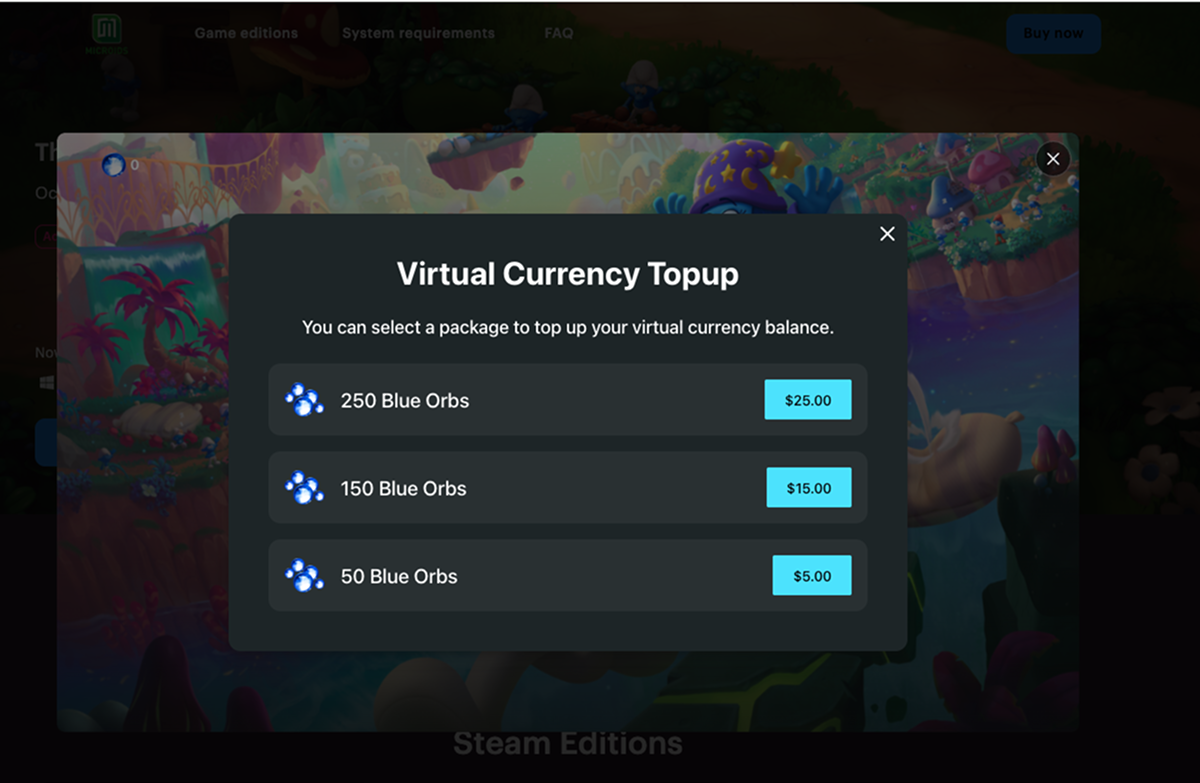
- If the user runs out of the orbs to play, the streaming session pauses, and the user sees a modal window to top up their balance. Once the payment is completed, the user can resume their session.
How to set it up
Prerequisites
To make your cloud game available within an iframe on your website, you need to:
- Set up your cloud game in Publisher Account.
- Sign the Licensing Agreement with Xsolla.
- Configure a website using Xsolla site builder.
Set up in Publisher Account
Note
To add an ability to launch your cloud game on the website, the game page must be created with the Single game template. If you use another one, create a new page.
- In your project in Publisher Account, go to the Storefronts > Websites section.
- On the pane of the necessary website, click Open Site Builder.
- If your website includes multiple pages, select the one you need:
- Click the current page title at the top of the builder.
- Select the necessary page from the drop-down list.
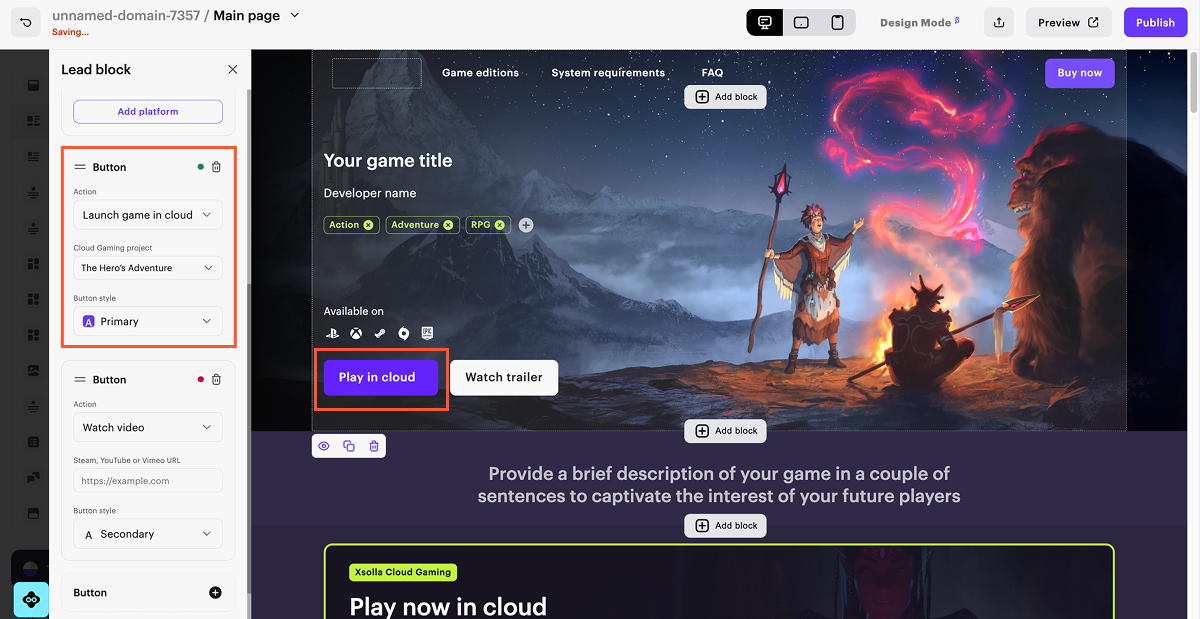
- Configure the button to open your cloud game:
- In the side menu, go to the Lead block section.
- Go to the button settings.
- From the Action drop-down list, select Launch game in cloud.
- From the Cloud Gaming project drop-down list, select the necessary game.
- To update the button text, click it in the builder and enter a new copy.
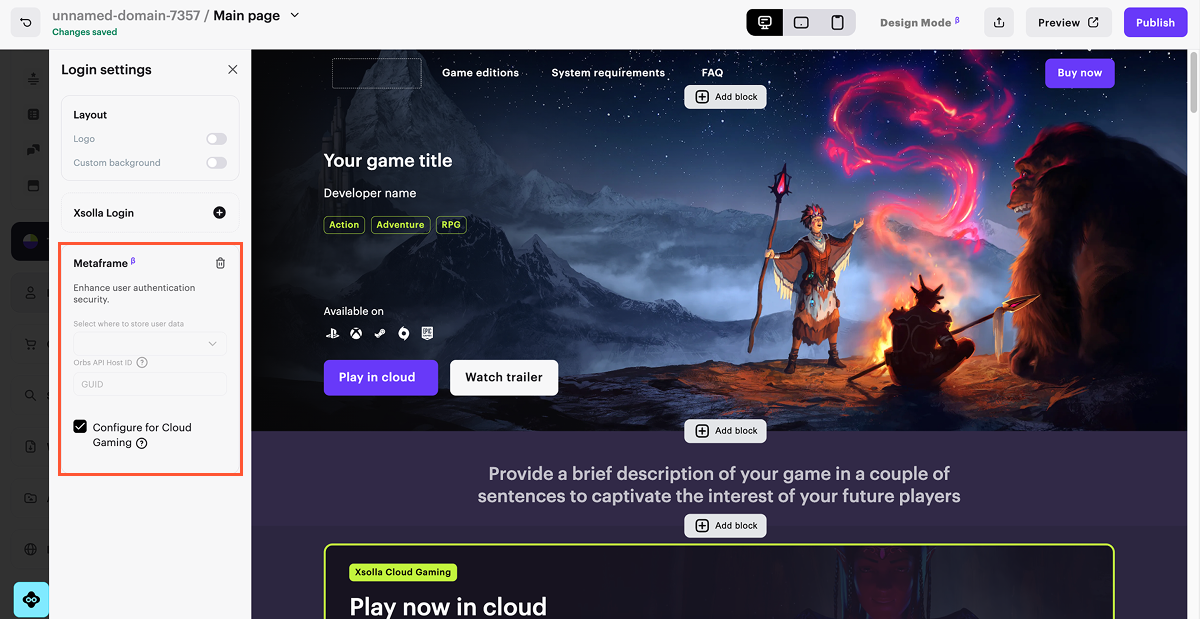
- Configure user authentication:
- In the side menu, go to the Login settings section.
- Click the Metaframe block.
- Check the Configure for Cloud Gaming box.
Notice
If you have already configured another Login option for your website, you need to create a dedicated website for launching a cloud game using the Single game page template.
- To apply changes, publish the website:
- In the upper-right corner of the builder, click Publish.
- Check the boxes next to the pages you want to publish.
- Confirm that you have checked all the settings.
- Click Publish.
Note
If the publication is not available, make sure all the conditions are met:
- There are no empty sections in the builder (marked with a red indicator).
- The licensing agreement with Xsolla has been signed.
- The main page is published or selected for publication. You can’t publish child pages before the main one.
Was this article helpful?
Thank you for your feedback!
We’ll review your message and use it to help us improve your experience.Found a typo or other text error? Select the text and press Ctrl+Enter.
