How to work with game analytics
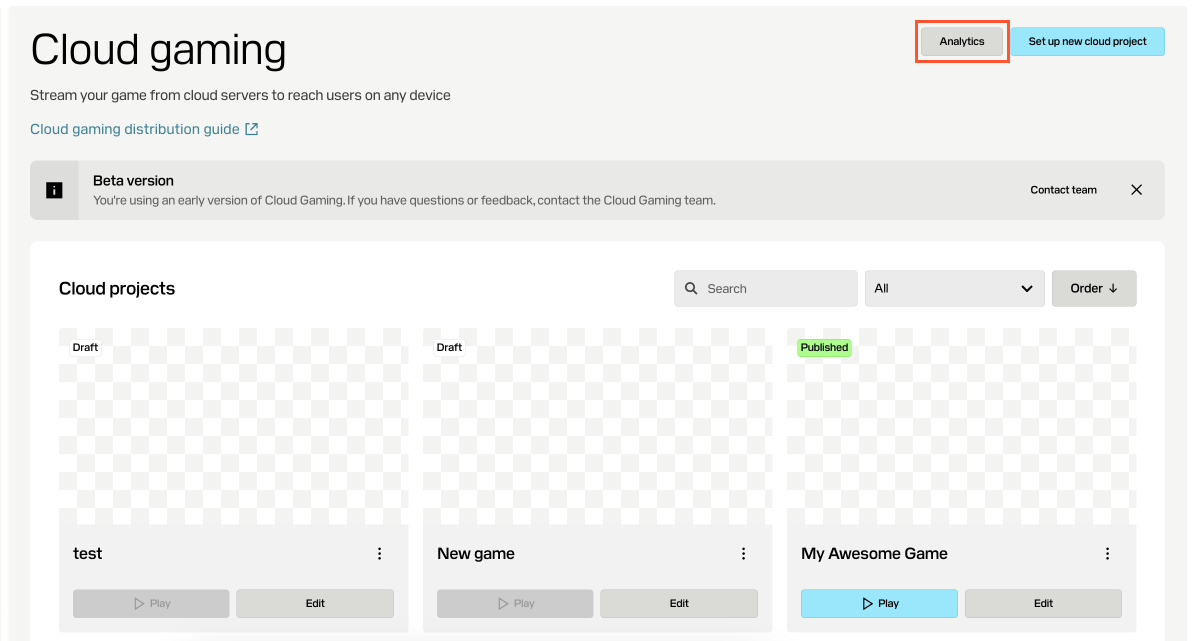
In your account, you can track key metrics for your cloud gaming projects, including financial data, user data, and game session data. To do this:
- Open your project in Publisher Account and go to the Distribution > Cloud gaming section.
- Open your project in the account and go to the Distribution > Cloud gaming section.
- Open your project in the account and go to the Distribution > Cloud gaming section.
- Open your project in the account and go to the Other tools > Cloud gaming section.
- Click
Analytics .
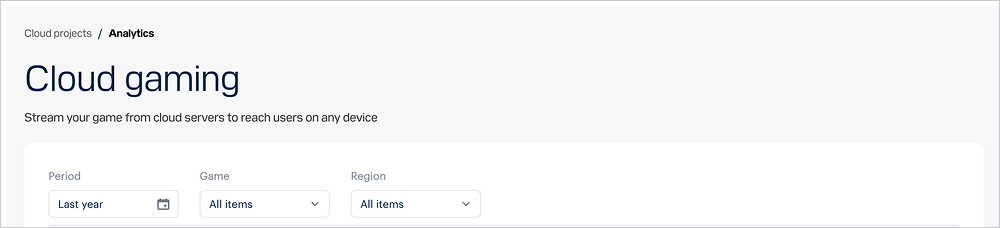
- On the analytics dashboard, you can filter data by period, game, or region.
The analytics include the following sections:
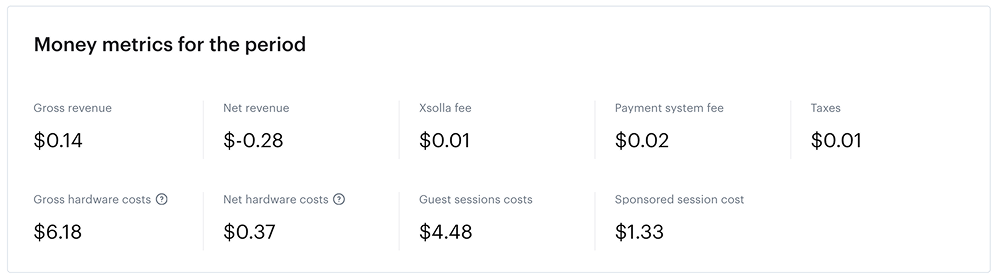
- Financial data:
Gross revenue — total revenue earned before any deductions.Net revenue — revenue after deducting fees, taxes, and other costs.Xsolla fee — Xsolla fee calculated as a percentage of the revenue you earn.Payment system fee — fee charged by the payment providers for processing transactions.Taxes — taxes.Gross hardware costs — total hardware cost for running the game sessions.Net hardware costs — hardware costs after deducting guest session and sponsored session expenses.Guest session costs — hardware costs for sessions run during free trials .Sponsored session cost — hardware costs for sessions launched in sandbox mode or streamed using blue orbs from your developer account balance.
- User data:
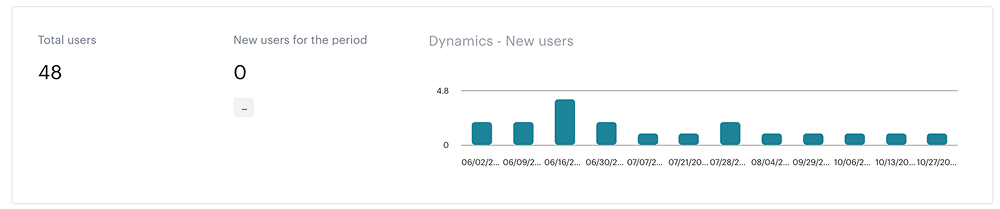
- Total number of users.
- Number of new users for the selected period.
- Dynamics of new users by day.
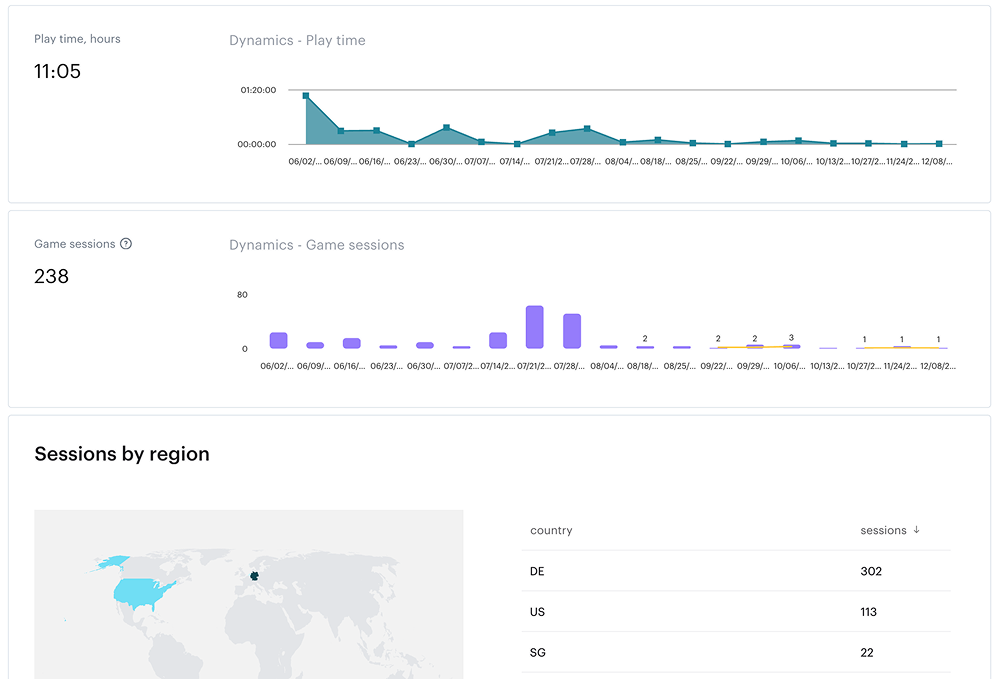
- Game data:
- Playtime in hours, including its dynamics by day.
- Number of game sessions, including their dynamics by day.
- Distribution of game sessions by region.
Found a typo or other text error? Select the text and press Ctrl+Enter.
