How to enable free trial and allowlisting
You can manage how users access your game by enabling either a free trial for all users or early access for the allowlisted ones.
Free trial
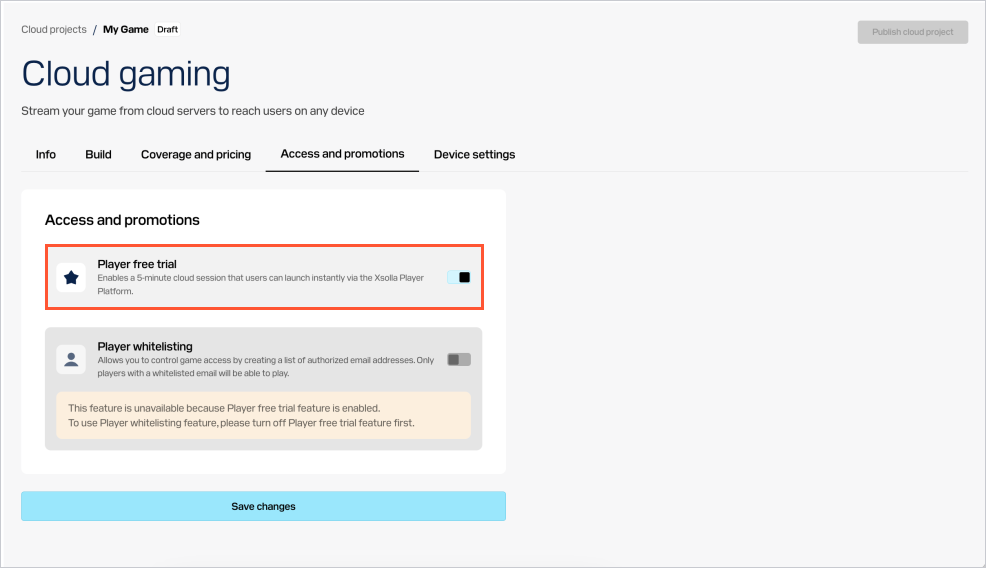
To give logged-in users an opportunity to try out the game for free for a limited time:
- In your project in Publisher Account, go to the Distribution > Cloud Gaming section.
- In your project in the account, go to the Distribution > Cloud Gaming section.
- In your project in the account, go to the Distribution > Cloud Gaming section.
- In your project in the account, go to the Other tools > Cloud Gaming section.
- In the game pane, click
Edit . - Go to the
Access and promotions tab. - Turn on the
Player free trial toggle. - Click
Save changes .
Allowlist
How it works
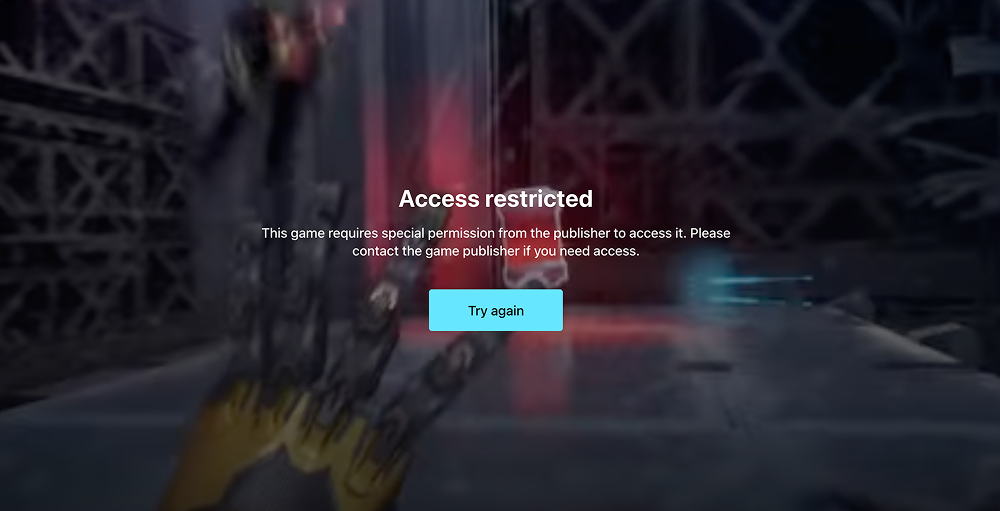
The allowlisting feature enables you to manage game access by inserting a list of approved emails. Once enabled, only players whose emails are on the allowlist can launch the game stream. The monetization model for this feature remains unchanged: users on the allowlist need to spend their orb balance to stream the game. Non-allowlisted users can’t launch the game stream — to get access, they need to contact the game publisher.
Use this feature for scenarios like closed beta tests, influencer campaigns, and VIP previews. Allowlisting provides advanced control over your cloud content distribution and allows you to securely launch targeted engagement campaigns without risk of public exposure.

How to set it up
- In your project in Publisher Account, go to the Distribution > Cloud Gaming section.
- In your project in the account, go to the Distribution > Cloud Gaming section.
- In your project in the account, go to the Distribution > Cloud Gaming section.
- In your project in the account, go to the Other tools > Cloud Gaming section.
- In the game pane, click
Edit . - Go to the
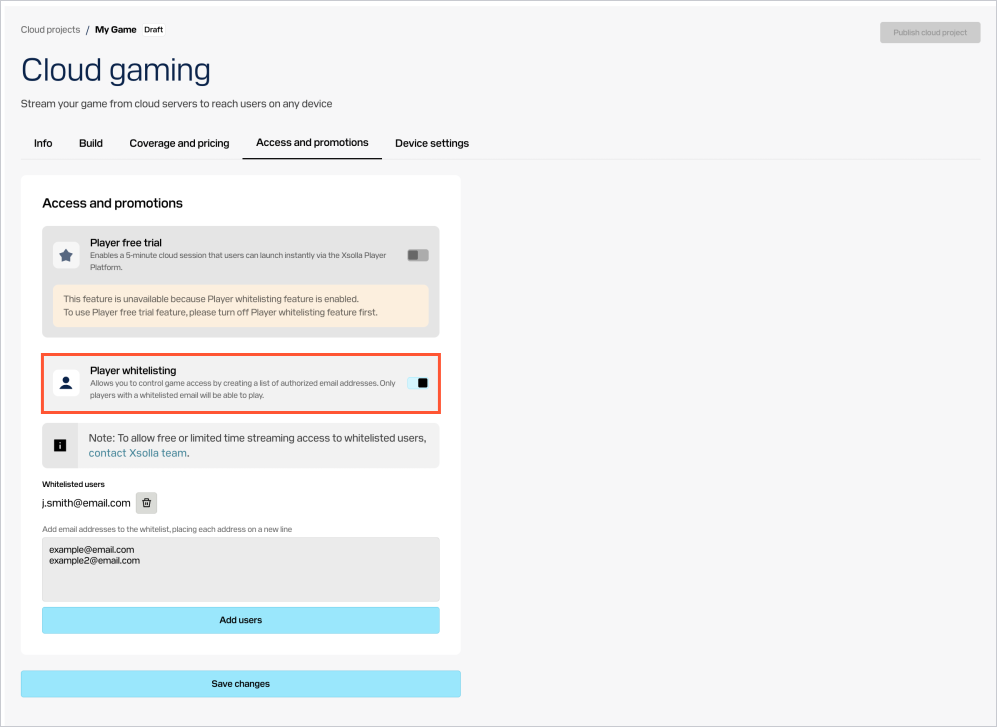
Access and promotions tab. - Turn on the
Player whitelisting toggle. - Insert the list of emails without commas, entering each address in a new row. You can either enter the emails manually, or copy them from a CSV file and paste in the text field.
- Click
Add users . - Review the list of emails. If needed, you can remove them by clicking the

- Click
Save changes .
Found a typo or other text error? Select the text and press Ctrl+Enter.
