Set up game distribution
To cover various scenarios of users accessing the games, you can set up two game distribution options:
- Embed the cloud game into your storefront created with Xsolla site builder. It will allow users to launch your cloud game within the iframe on the website.
- Add the cloud game to the Xsolla game platform, such as Long Tale Games.
User flow
- On your website, the user clicks the button to play your cloud game, e.g., Play in cloud.
- If the user has already signed in, they are automatically redirected to the streaming session in the iframe. Non-signed users are prompted to log in to start their session.
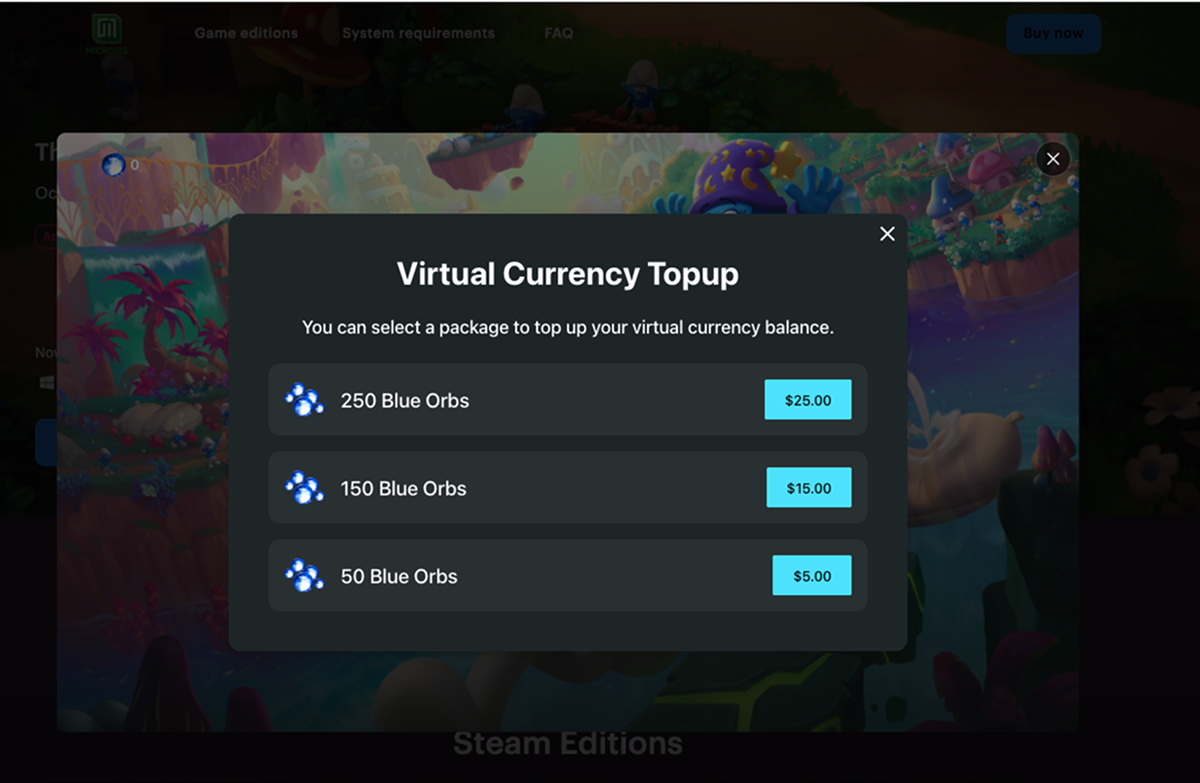
- When the user runs out of the orbs to play, the streaming session pauses, and the user sees a modal window to top up their balance. Once the payment is completed, the user can resume their session.
How to set it up
- In your project in Publisher Account, go to the Storefronts > Websites section.
- Open your project in the account and go to the Storefronts > Websites section.
- Open your project in the account and go to the Storefronts > Websites section.
- Open your project in the account and go to the Storefronts > Websites section.
- Click the pane of your site.
- If your website includes multiple pages, select the one you need:
- Click the current page title at the top of the builder.
- Select the necessary page from the drop-down list.
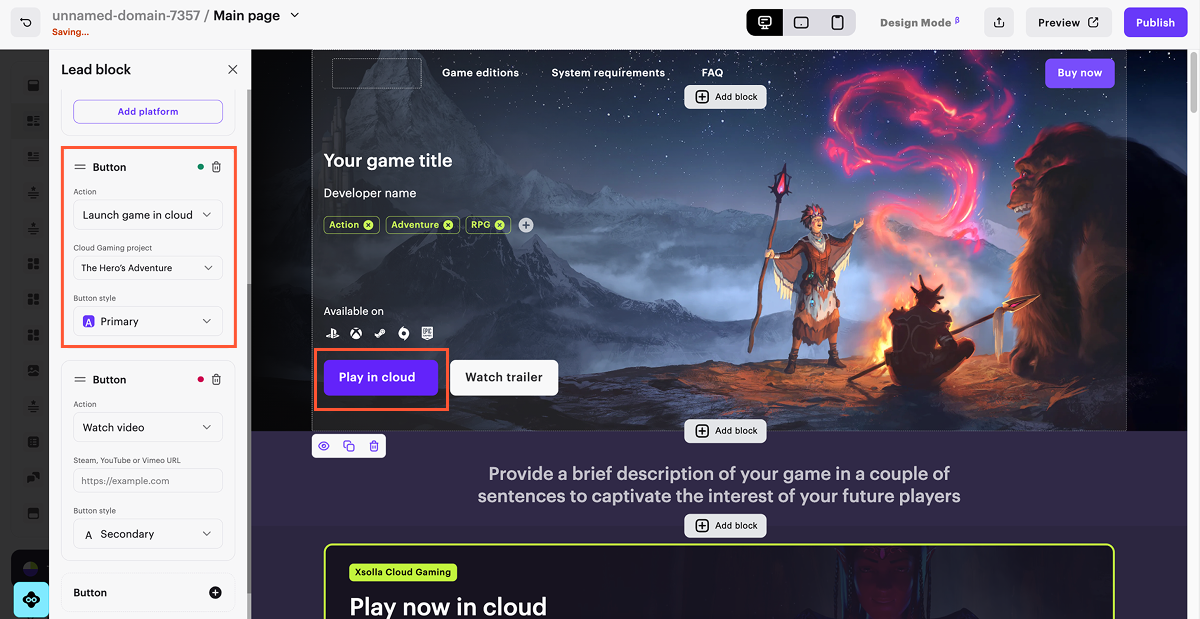
- Configure the button to open your cloud game:
- In the side menu, go to the Lead block section.
- Go to the button settings.
- From the Action drop-down list, select Launch game in cloud.
- From the Cloud Gaming project drop-down list, select the necessary game.
- To update the button text, click it in the builder and enter a new copy.
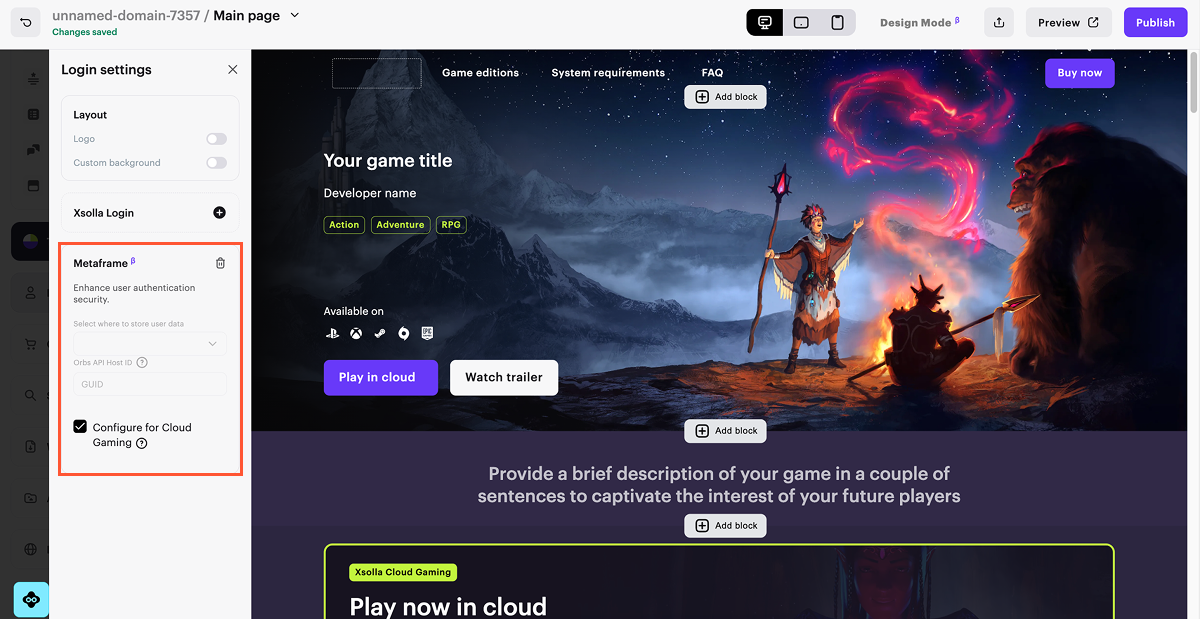
- Configure user authentication:
- In the side menu, go to the Login settings section.
- Click the Metaframe block.
- Check the Configure for Cloud Gaming box.
- To apply changes, publish the website:
- In the upper-right corner of the builder, click Publish.
- Check the boxes next to the pages you want to publish.
- Confirm that you have checked all the settings.
- Click Publish.
If the publication is not available, make sure all the conditions are met:
- There are no empty sections in the builder (marked with a red indicator).
- The licensing agreement with Xsolla has been signed.
- The main page is published or selected for publication. You can’t publish child pages before the main one.
User flow
- The user finds the game on the Xsolla game platform, such as Long Tale Games, and clicks the button to play.
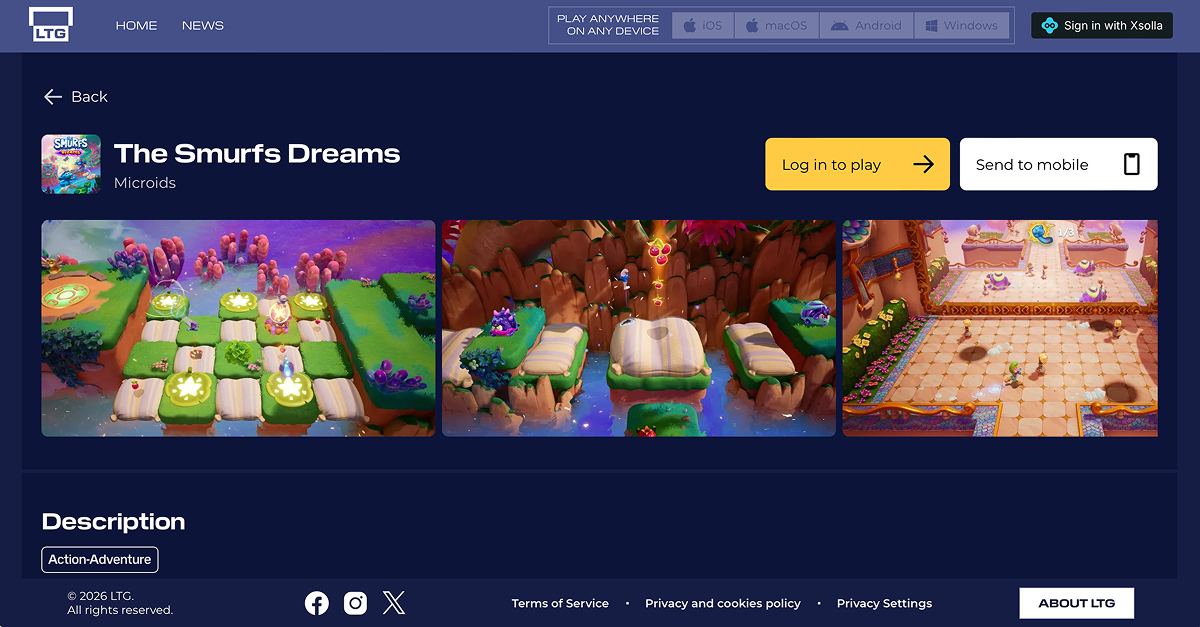
- If the user has already signed in, they are automatically redirected to the streaming session. Non-signed users are prompted to log in via the provided method.
- When the user runs out of the orbs to play, the streaming session pauses, and the user sees a modal window to top up their balance. Once the payment is completed, the user can resume their session.
How to set it up
To add your cloud game to the Xsolla game portal:
- In your project in Publisher Account, go to the Distribution > Game Player Platform section.
- Open your project in the account and go to the Distribution > Game Player Platform section.
- Open your project in the account and go to the Distribution > Game Player Platform section.
- Open your project in the account and go to the Distribution > Game Player Platform section.
Click
Set up your game .Specify the main information about the game:
- Enter the game title that will be displayed to the users.
- Provide the game description. Keep in concise, as it will be displayed to the users on the game portal.
- Select a game type —
Cloud . - Select game genres.
Click
Save .In the game page that opens, provide the remaining information:
- In the
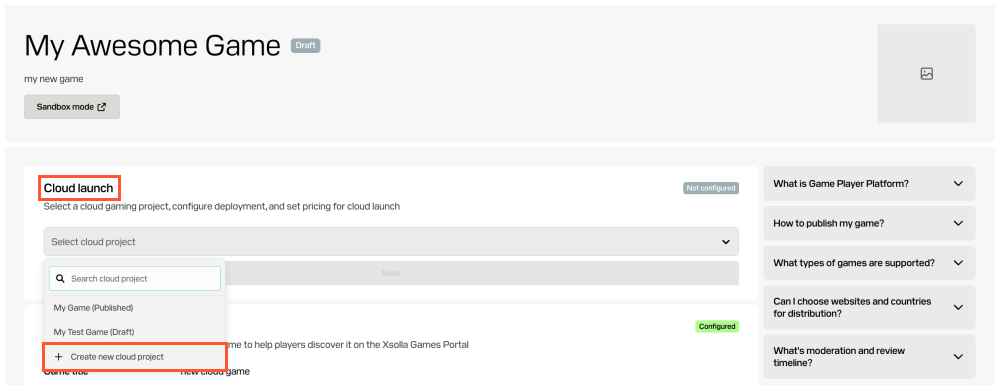
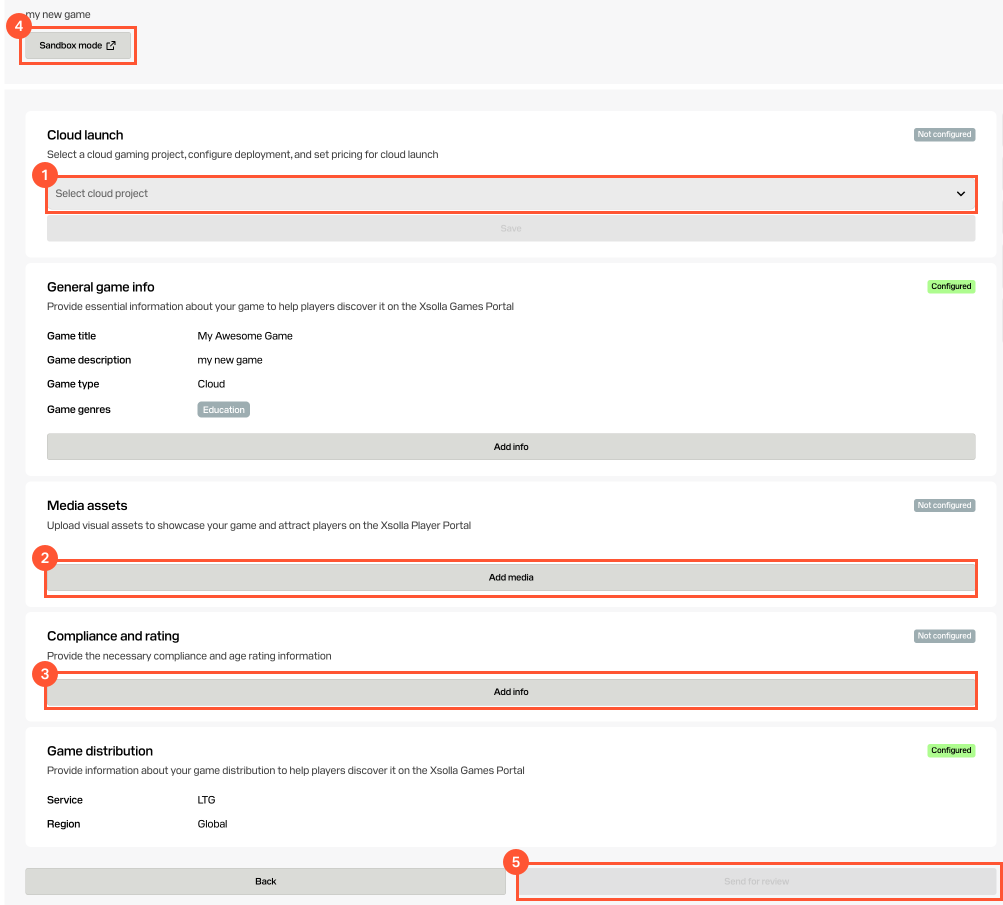
Cloud launch block, select the cloud game project you set up earlier from the drop-down list, and clickSave . You can also create a new one by clickingCreate new cloud project .
- Upload media assets: thumbnail image, cover image, and screenshots to show gameplay and main features. Additionally, you can also provide a video preview or trailer.
- Specify the details on legal compliance and age rating:
- Preferred release date. Keep in mind that it may change depending on how long the review process will take.
- Game age rating according to PEGI. If another rating system applies, use the strictest equivalent.
- Link to your game’s privacy policy explaining how user data is handled.
- Link to your game’s terms of service that outlines usage rules and legal agreements.
- Link to instructions for users on how to manage and delete their personal data.
- In the
To see how your game will look on the game portal, click
Sandbox mode .Once you provide all required information, click
Send for review .
Your application will be reviewed within a few business days. In addition to checking all legal aspects, we check the game for adult content, copyright issues, and other prohibited or restricted content. If any questions arise during the review, we will contact you. Once the review is complete, your game will be available on the Xsolla game portal.
Found a typo or other text error? Select the text and press Ctrl+Enter.
