Set up cloud game project and upload game build
Note
The interface for integration and onboarding is available in Publisher Account only after signing the licensing agreement with Xsolla.
Note
The interface for integration and onboarding is available in your account only after signing the licensing agreement with Xsolla.
You can use the Cloud Gaming solution for games built for mobile and PC platforms.
To create a cloud game project:
- In your project in Publisher Account, go to the Distribution > Cloud Gaming section.
- In your project in the account, go to the Distribution > Cloud Gaming section.
- In your project in the account, go to the Distribution > Cloud Gaming section.
- In your project in the account, go to the Other tools > Cloud Gaming section.
- Click Set up new cloud project.
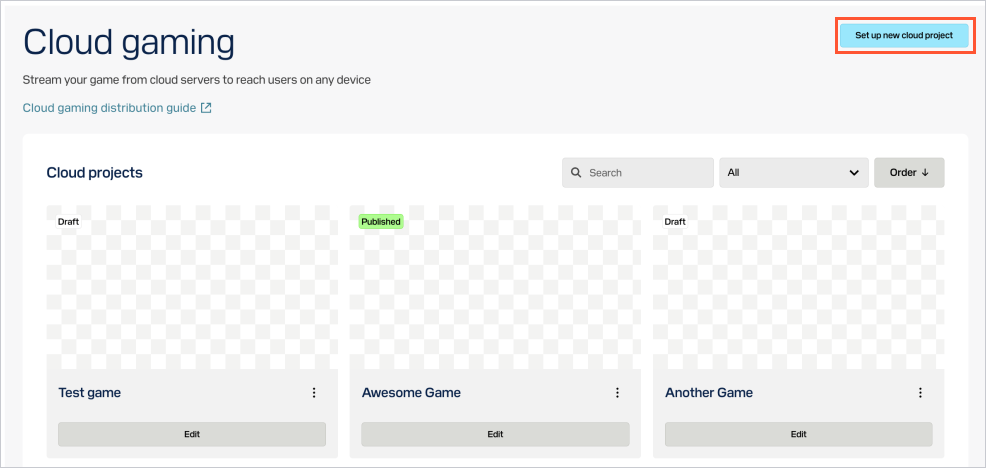
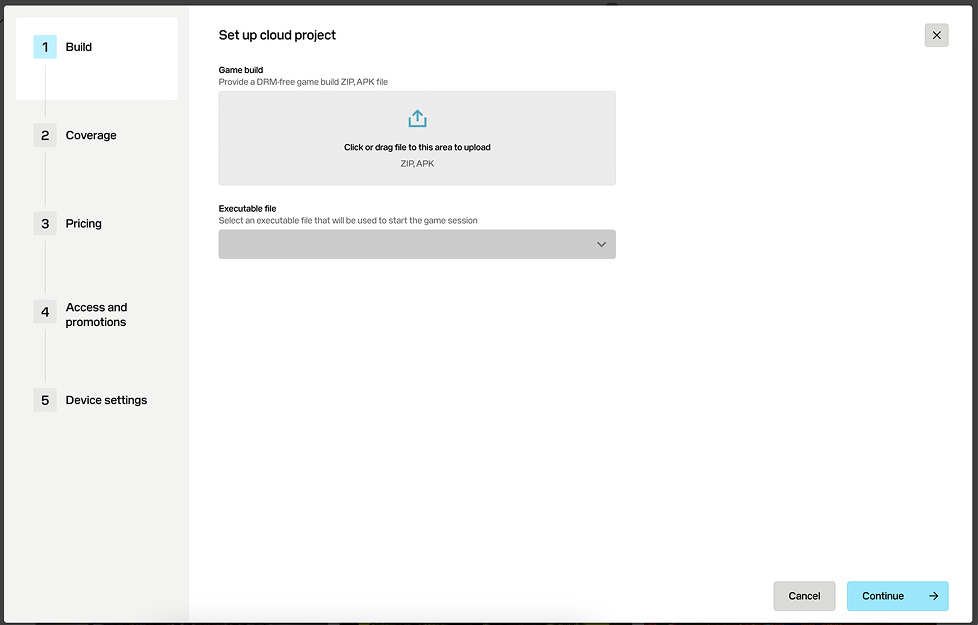
- Upload the game build archive in ZIP format and select the executable file.
- Click Continue.
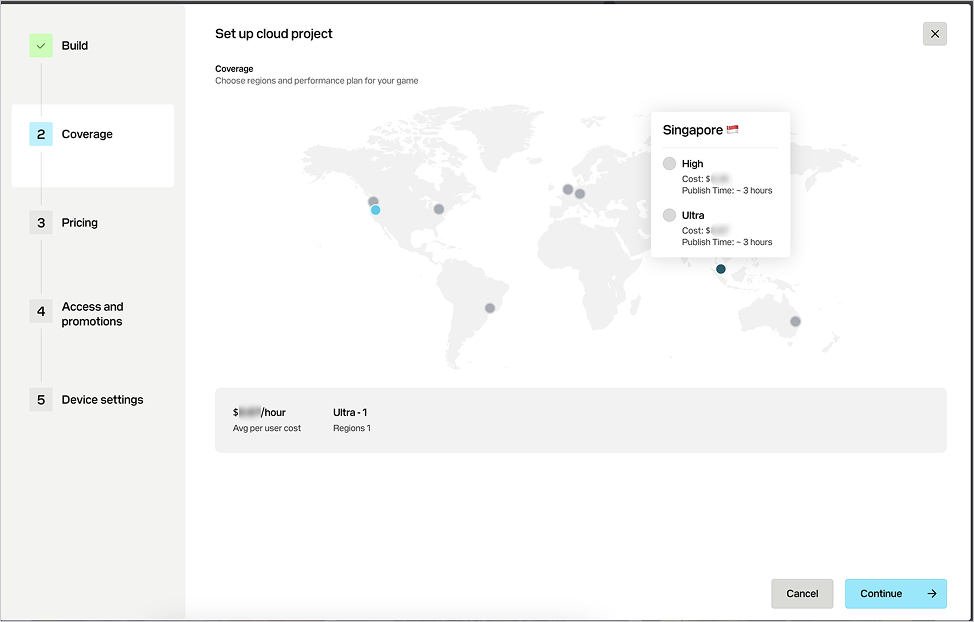
- On the Coverage tab, select a region and set up reserved capacity based on your game hardware requirement. Available server types and their characteristics are provided in the table:
| Server type | Characteristics |
|---|---|
| |
|
- Click Continue.
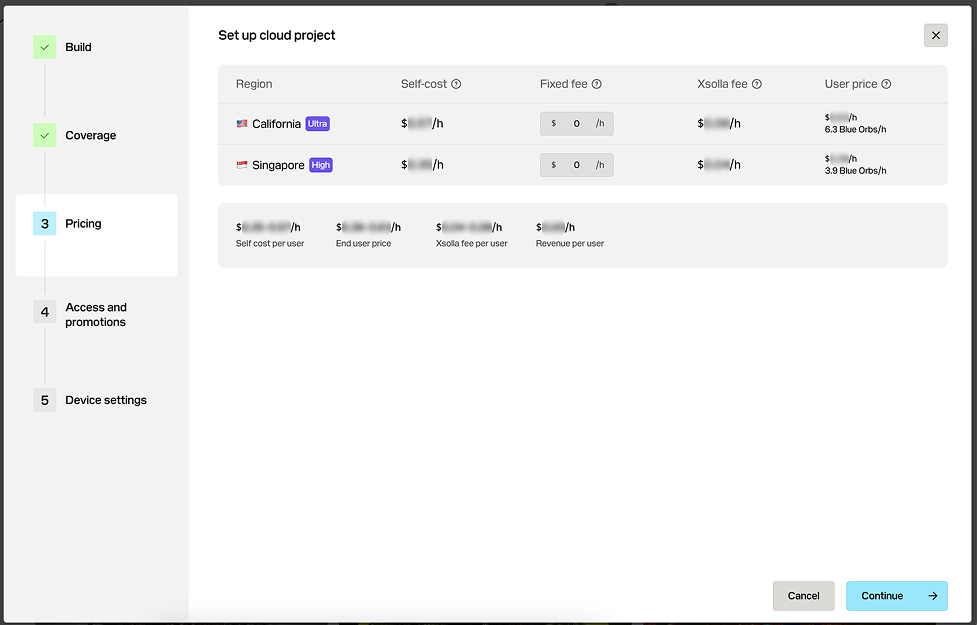
- On the Pricing tab, set up the playtime price for your game streams.
Note
For detailed information about managing game streams and pricing, refer to the How to manage game streams and pricing section.
- Click Continue.
- On the Access and promotions tab, configure a free trial for all users or early access for the allowlisted users (optional). For detailed information about these promotions, refer to the How to work with promotions section.
- Click Continue.
- On the Device settings tab, enable voice input and/or virtual gamepad (optional).
- Click Continue.
Your game will be added to the general list of cloud games. This list is available in all your company projects in Publisher Account.
Your game will be added to the general list of cloud games. This list is available in all your company projects in the account.
Note
After clicking Continue, the game moves to one of the following statuses:
- Draft — the build upload is still in progress or has not started yet. Game metadata might be incomplete or unpublished, and no cloud infrastructure has been provisioned.
- Publishing — the build has been uploaded successfully. Cloud streams are now being queued and set up for deployment, but the game is not yet available to users.
- Published — all cloud streams are active and fully deployed. The game is available to users.
- Error — an issue occurred during the cloud stream setup process, and the stream could not be created automatically. The Xsolla development team will investigate and might need to intervene manually to complete the upload.
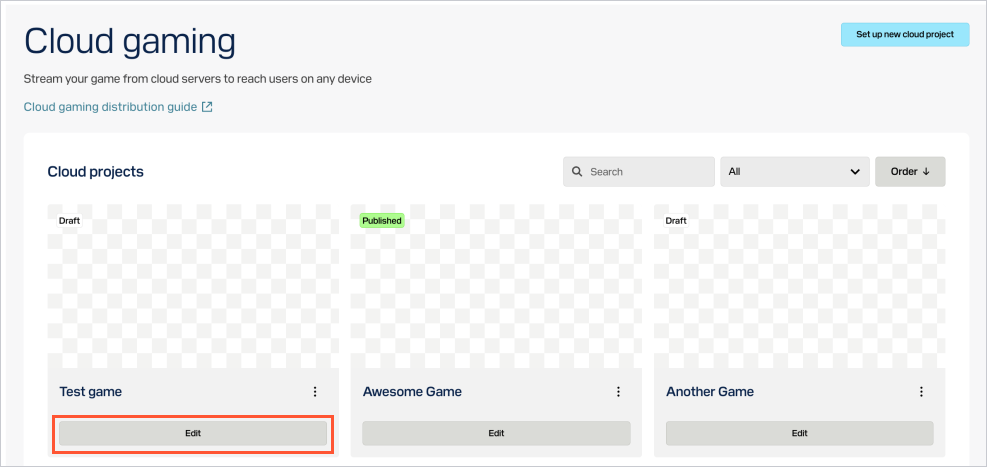
To update settings after creating a project, click Edit in the game pane.
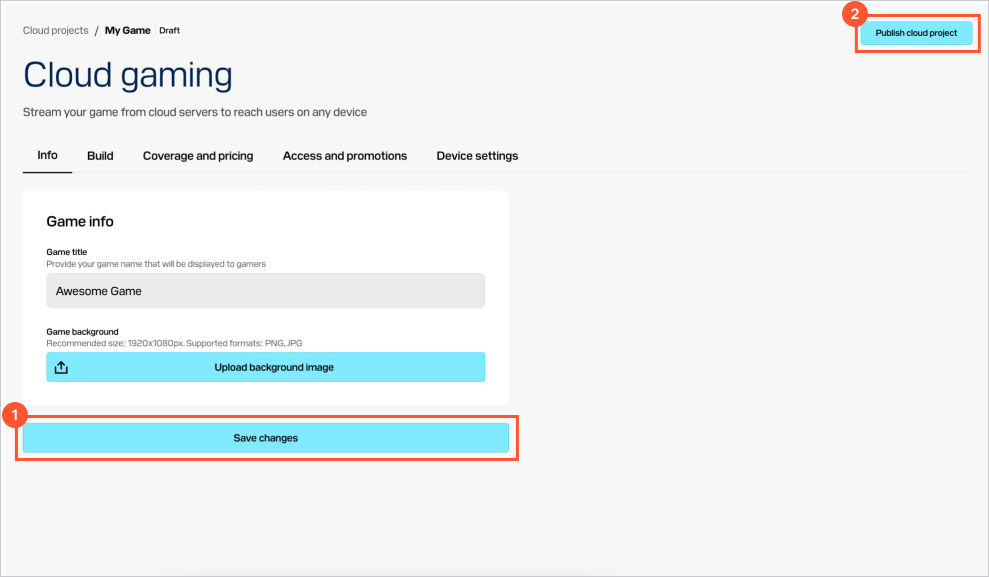
On the game page, you can find tabs with the settings described in the table below. To apply the changes:
- On the tab with necessary settings, make the changes and click Save changes before going to the next one.
- Click Publish cloud project to make the changes available to users.
| Tab | Settings |
|---|---|
| |
| |
| Game streams and pricing settings. | |
| Promotions settings. | |
| Voice input and virtual gamepad settings. |
Was this article helpful?
Thank you for your feedback!
We’ll review your message and use it to help us improve your experience.Found a typo or other text error? Select the text and press Ctrl+Enter.
