How to enable buying games in the launcher
How it works
The launcher allows users to buy games without leaving its interface. This is called the pay-to-play distribution model.
To enable this distribution model for a game, you first need to add a game key package in the store, and then specify the package SKU for the game in the launcher project.
How to get it
Add a game key package to the store
- Open your project in Publisher Account and go to the Items catalog > All items section.
- Click Add and select Game key from the drop-down list.
- Fill in the required fields to provide general information:
- SKU — a unique game key package ID.
- Game title.
- Click Save and continue.
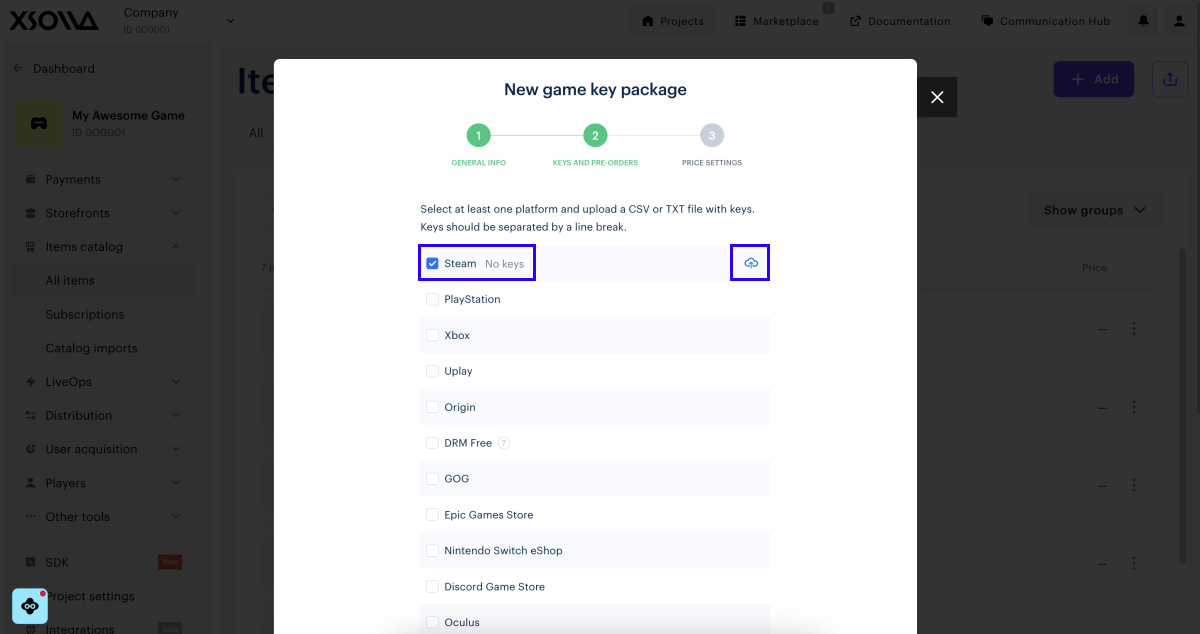
- Upload the keys:
- Check the box next to the platform name.
- Upload a CSV or TXT file with keys. For each key, the alphanumeric combination must be unique. Keys with duplicate combinations will not be uploaded.
- Click Save and continue.
- Set up pricing for the selected platforms. If needed, configure regional prices.
- Click Save and continue.
- Close the modal window.
Note
For detailed information about configuring game keys, refer to the instructions.
Specify the package SKU for the game in the launcher project
- Open your project in Publisher Account and go to the Distribution > Launcher section.
- Find the launcher on the dashboard, and click Edit launcher.
- In the Games section, click Set up to the right of your game.
- Click Distribution.
- On the Distribution model tab, select Pay-to-play (P2P), and then select the SKU that you specified when creating the game keys package in the store.
Was this article helpful?
Thank you for your feedback!
We’ll review your message and use it to help us improve your experience.Found a typo or other text error? Select the text and press Ctrl+Enter.
