
Free items
How it works
Free items are items that users can obtain without spending virtual or real currency. Free items are available for the following scenarios:
- sale of in-game items — virtual items, virtual currency packages, and bundles
- sale of games and DLC via game keys
- Free items offered on project milestones or special dates, such as an anniversary, to reward users for their loyalty.
- Free add-ons for users who have already purchased the base game, as a loyalty reward.
- Free starter packs available in the web store to attract new users to the game.
Set up free items
Set up in Publisher Account
Before configuring items, it’s recommended to create groups to help you sort items and manage how they’re displayed in your store.
The process of setting up free items is described below, using a virtual item as an example.
- In your project in Publisher Account, go to the Items catalog > All items section.
- Click Add and select Virtual items from the drop-down list.
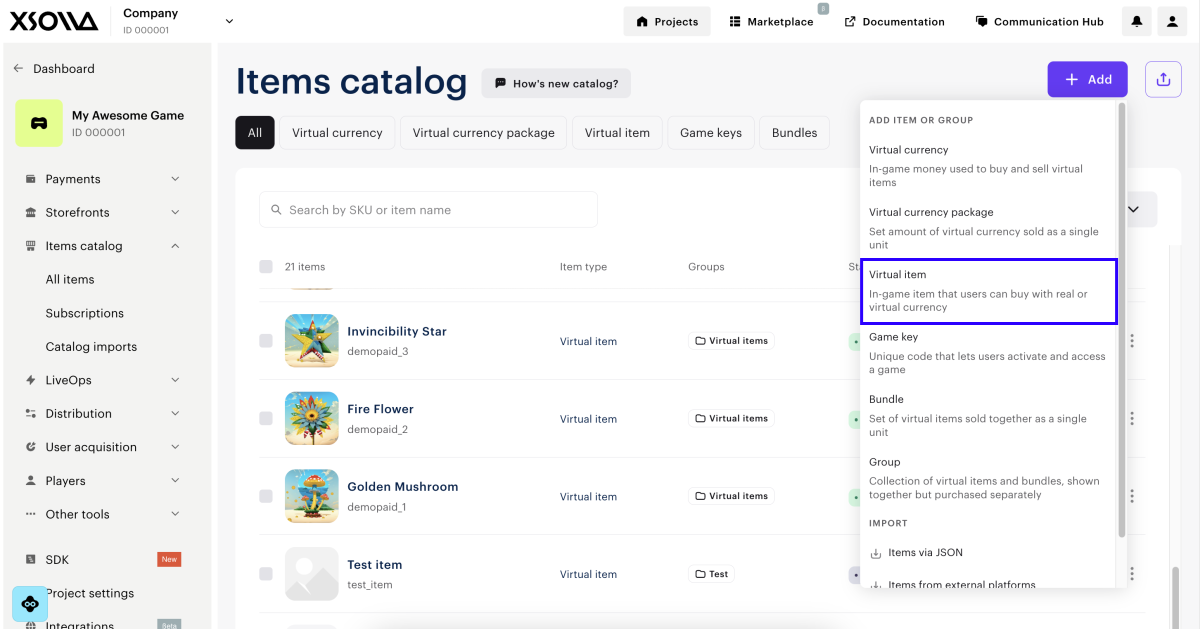
- Specify the following parameters:
- Image (optional).
- SKU.
- One or several groups the bundle should belong to.
- Name.
- Description (optional).
- In the Price settings section, select Free item.
- To limit the number of items available for purchase, turn on the Limit number of times one user can buy this item toggle and enter the desired quantity.
- To configure how often the limit resets:
- From the drop-down list, select a period:
- Daily.
- Weekly.
- Monthly.
- Custom interval — this is calculated starting from the bundle’s display start date.
- No regular refresh.
- Set up the reset schedule based on the selected period.
- From the drop-down list, select a period:
- Configure how the item is displayed in the store:
- Select the status.
- Set a display time limit for the item (optional): specify the time zone and the beginning and the end of the period. If you don’t want to indicate the end of the item display period, check the No end date box.
- Configure item attributes (optional) using one of the following options:
- Click Create item.
Set up via API
To make an item free, pass “is_free”: true in the request body when calling the following Admin API calls:
- Create virtual item or Update virtual item
- Create game, Update game by ID or Update game by SKU
- Create virtual currency or Update virtual currency
- Create virtual currency package or Update virtual currency package
- Create bundle or Update bundle
limitswith the quantity specifiedlimits.recurrent_schedulewith the limit reset frequency specified
Display free items in catalog
Free items are displayed in the catalog depending on how it is implemented — through the site builder or via API.
Display via site builder
To display free items on your website:
- Create free items.
- In your project in Publisher Account, go to the Storefronts > Websites section.
- In the pane of the desired site, click Open Site Builder.
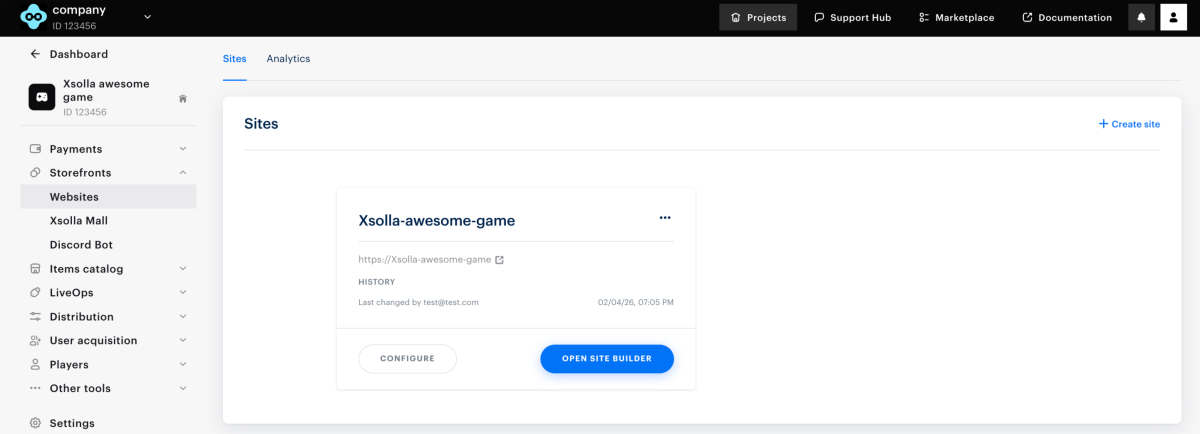
- In the Store section, in the Item type field, select the free item type and specify its group, if applicable.
- Configure an item card layout.
- After making all necessary changes and preparing your website for launch:
- In the upper-right corner of the site builder, click Publish.
- Check the boxes next to the pages you want to publish.
- Click Publish.
If website publication is not available, make sure all the conditions are met:
- There are no empty sections on the website (marked with a red indicator).
- The licensing agreement with Xsolla has been signed.
- The main page is published or selected for publication. You cannot publish child pages before the main page.
Get free item information via API
If your catalog is configured using API, free item data is returned through the calls available in the Catalog subsection:
- Get virtual items list
- Get virtual currency list
- Get virtual currency packages list
- Get bundles list
- Get games list
Grant free items to users
The way an order with free items is processed depends on whether a cart is used during the purchase. If a user purchases an item without using a cart, use the Create order with specified free item API call. If a user purchases items using a cart, the following scenarios are possible:
- If the user’s cart contains both paid and free items, use the order creation API calls Create order with all items from particular cart or Create order with all items from current cart. In this case, the user completes the payment through the payment UI.
- If the user’s cart contains only free items, use the Create order with free cart or Create order with particular free cart API calls. In this case, the payment UI is not used.
In both cases, Xsolla sends the Successful payment for order webhook with item data used to grant the items to the user. For free items, the order.invoice_id parameter in the webhook is set to null.
Example of an order object for free items:
- json
 1{
 2  "method": "POST",
 3  "url": "https://mybestgame.com/xsolla/notification",
 4  "body": {
 5    "items": [
 6      {
 7        "sku": "gift_direct_game_reward-supercoin",
 8        "type": "virtual_currency",
 9        "is_pre_order": false,
10        "quantity": 500,
11        "amount": "0",
12        "promotions": [
13
14        ]
15      },
16      {
17        "sku": "package-500_supercoin",
18        "type": "bundle",
19        "is_pre_order": false,
20        "quantity": 1,
21        "amount": "0",
22        "promotions": [
23
24        ]
25      },
26      {
27        "sku": "xsolla-giveaway_offer_11_14_22",
28        "type": "bundle",
29        "is_pre_order": false,
30        "quantity": 1,
31        "amount": "0",
32        "promotions": [
33
34        ]
35      }
36    ],
37    "notification_type": "order_paid",
38    "order": {
39      "id": 12345678,
40      "mode": "default",
41      "currency_type": "unknown",
42      "currency": null,
43      "amount": "0",
44      "status": "paid",
45      "platform": "xsolla",
46      "comment": null,
47      "invoice_id": null,
48      "promotions": [
49
50      ]
51    },
52    "user": {
53      "external_id": "1234567812345678",
54      "email": null
55    }
56  },
57  "headers": {
58    "Authorization": "Signature 3b840ccefea111dcdfd111db1fdc6df969a3ec11",
59    "Accept": "application/json",
60    "Content-Type": "application/json"
61  },
62  "type": "webhook_payment",
63  "callback_parameters": {
64    "order_id": 12345678
65  }
66}
Depending on your project integration settings, items are granted to the user in one of the following ways:
- If you’ve integrated PlayFab, virtual currency and items are granted to the user’s PlayFab inventory automatically.
- If you use a custom delivery system, all virtual items and currency are granted on your side. We recommend setting up a webhook handler to receive order data on your backend. The necessary data is included in the Successful payment for order webhook.
Found a typo or other text error? Select the text and press Ctrl+Enter.
