Free items
How it works
Free items are items that users can obtain without spending virtual or real currency.
Free items are available for the following scenarios:
- sale of in-game items — virtual items, virtual currency packages, and bundles
- sale of games and DLC via game keys
Use cases:
- Free items offered on project milestones or special dates, such as an anniversary, to reward users for their loyalty.
- Free add-ons for users who have already purchased the base game, as a loyalty reward.
- Free starter packs available in the web store to attract new users to the game.
Free virtual items, virtual currency, and bundles are available only to authorized users. Free game keys are available to both authorized and unauthorized users. Limits on the number of free items can be configured only for authorized users.
Set up free items
Set up in Publisher Account
Before configuring items, it’s recommended to create groups to help you sort items and manage how they’re displayed in your store.
The process of setting up free items is described below, using a virtual item as an example.
To create a free virtual item:
- In your project in Publisher Account, go to the Items catalog > All items section.
Set up in your account
Before configuring items, it’s recommended to create groups to help you sort items and manage how they’re displayed in your store.
The process of setting up free items is described below, using a virtual item as an example.
To create a free virtual item:
- In the project in your account, go to the Items catalog > All items section.
Set up in your account
Before configuring items, it’s recommended to create groups to help you sort items and manage how they’re displayed in your store.
The process of setting up free items is described below, using a virtual item as an example.
To create a free virtual item:
- In the project in your account, go to the Items catalog > All items section.
Set up in your account
Before configuring items, it’s recommended to create groups to help you sort items and manage how they’re displayed in your store.
The process of setting up free items is described below, using a virtual item as an example.
To create a free virtual item:
- In the project in your account, go to the Items catalog > All items section.
Set up in your account
Before configuring items, it’s recommended to create groups to help you sort items and manage how they’re displayed in your store.
The process of setting up free items is described below, using a virtual item as an example.
To create a free virtual item:
- In the project in your account for mobile games, go to the Catalog section.
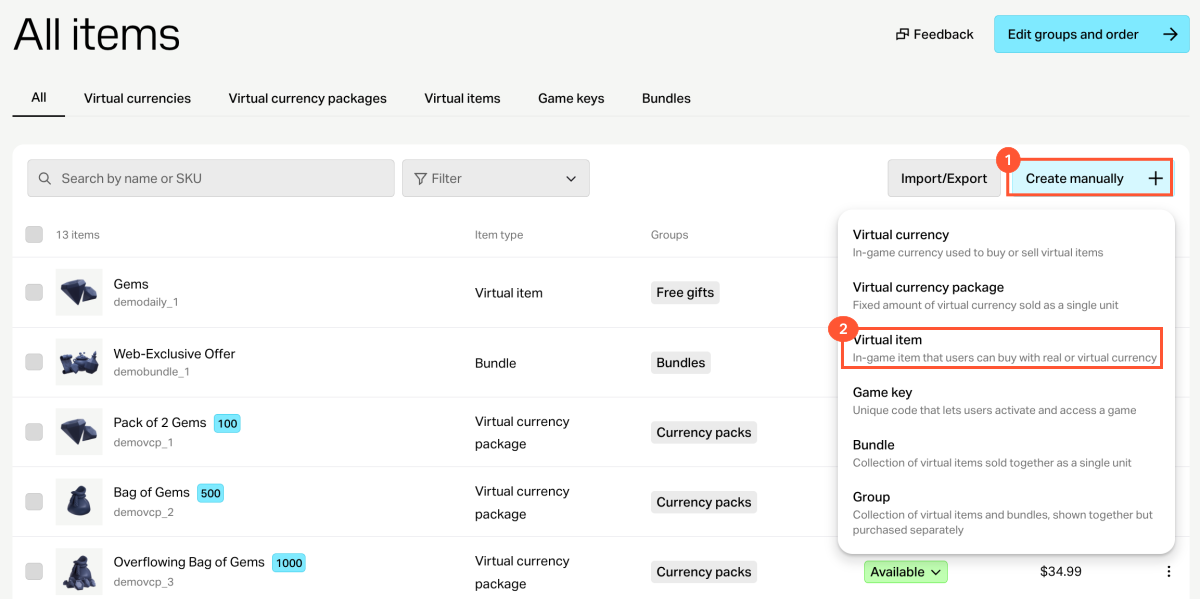
- Click Create manually and select Virtual item from the drop-down list.
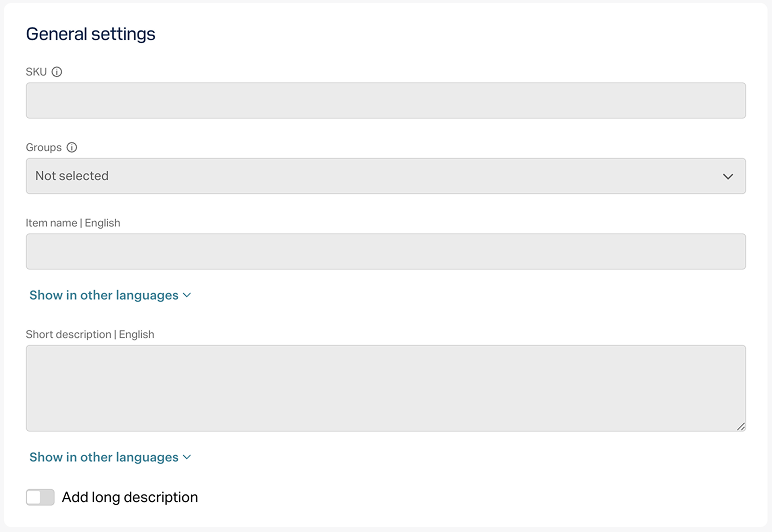
- In the General settings section, specify the following:
- SKU
- one or several groups the item should belong to (optional)
- name
- short description
- extended description — to add it, turn on the corresponding toggle (optional)
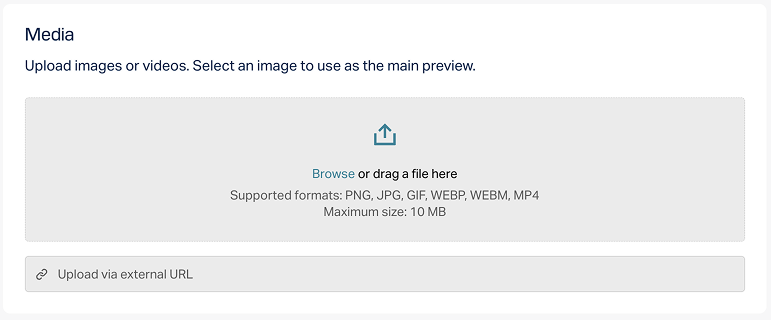
- In the Media section, upload one or more images or videos (optional) — from your device or via a link. In the store created with the Xsolla site editor, all item cards display the file marked as Main, while the remaining files are available only in item cards with a media gallery. The file marked as Main is also returned in the responses of the catalog retrieval API calls.
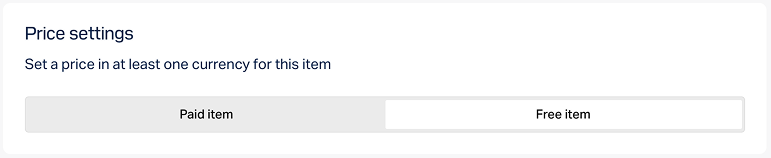
- In the Price settings section, select Free item.
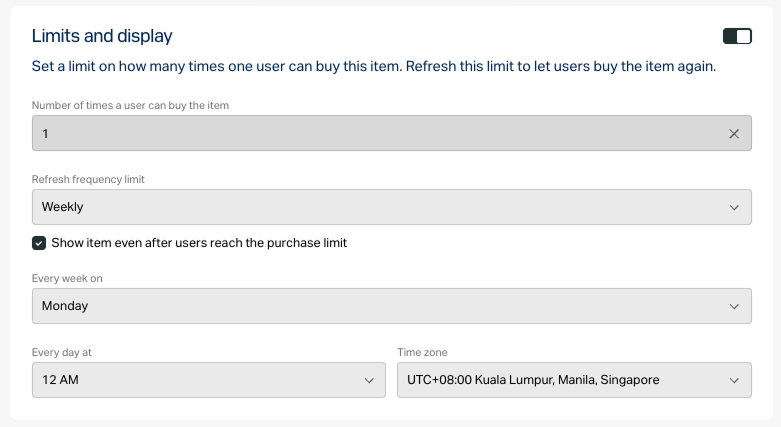
- To limit the number of items available for purchase:
- Turn on the toggle in the Limits section and specify the quantity.
- Configure the limit reset frequency. To do this, select a period from the drop-down list:
- Daily.
- Weekly.
- Monthly.
- Custom interval. The interval is calculated from the item’s display start date in the store.
- No regular refresh.
- Set up the reset schedule by specifying the parameters that correspond to the selected period.
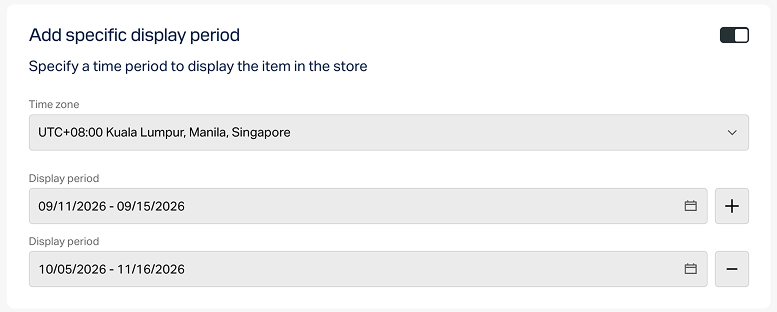
To configure a display time limit for the item (optional):
- Turn on the toggle in the Add specific display period section.
- Specify the time zone and the beginning and the end of the period.
To leave the end of the item’s display period unspecified, turn on the No end date toggle.
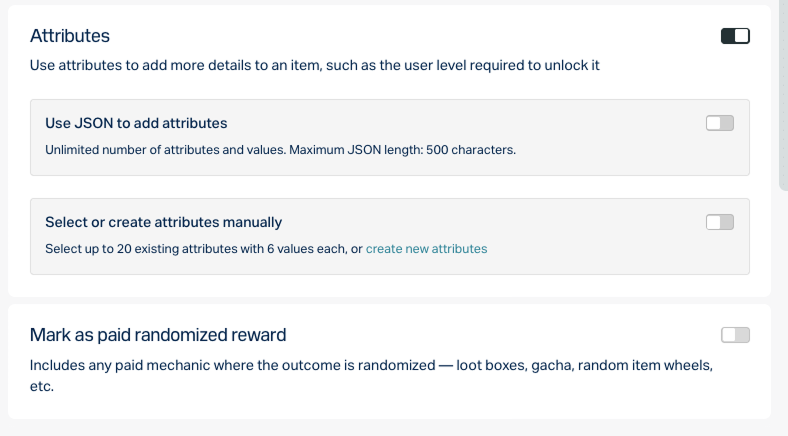
- Configure attributes using one of the following options (optional):
- Click Create.
- In the window that opens, select the item status and click Continue.
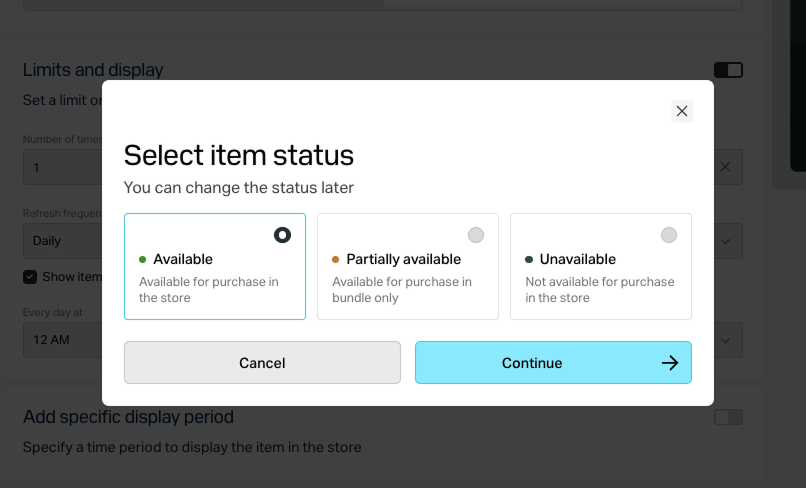
The created item will appear in the All items section.
Set up via API
To make an item free, pass “is_free”: true in the request body when calling the following Admin API calls:
- Create virtual item or Update virtual item
- Create game, Update game by ID or Update game by SKU
- Create virtual currency or Update virtual currency
- Create virtual currency package or Update virtual currency package
- Create bundle or Update bundle
If you want to limit the number of free items a user can receive, pass the following parameters in the item creation or update calls:
limitswith the quantity specifiedlimits.recurrent_schedulewith the limit reset frequency specified
You can also configure the item’s display time limit in the store and set regional restrictions.
Display free items in catalog
Free items are displayed in the catalog depending on how it is implemented — through the site editor or via API.
Display via site editor
To display free items on your website:
- In your project in Publisher Account, go to the Storefronts > Websites section.
- In the pane of the desired site, click Open Site Builder.
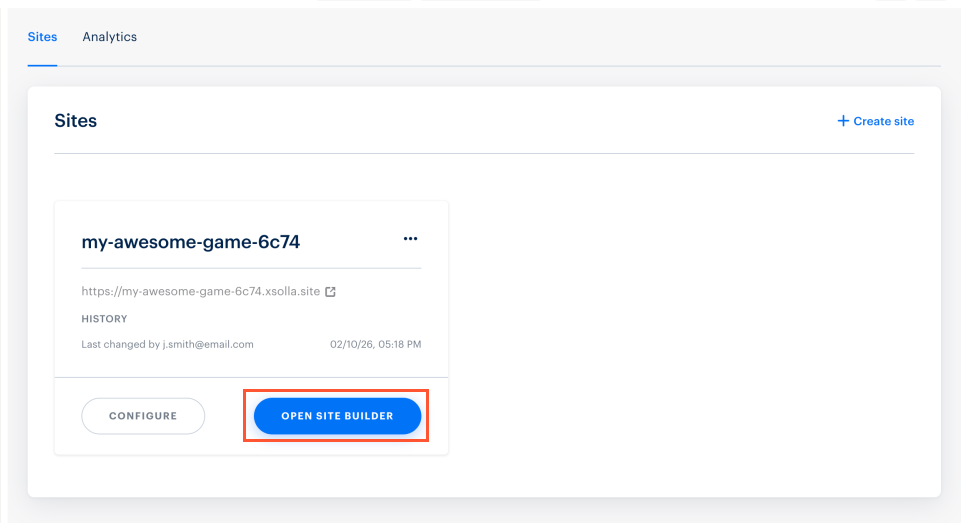
- In the project in your account, go to the Storefronts > Websites section.
- In the pane of the desired site, click Open Site Builder.
- In the project in your account, go to the Storefronts > Websites section.
- In the pane of the desired site, click Open Site Builder.
- In the project in your account, go to the Storefronts > Websites section.
- In the pane of the desired site, click Open Site Builder.
- In the project in your account for mobile games, go to the Web Shop section.
- Click the pane of the desired site.
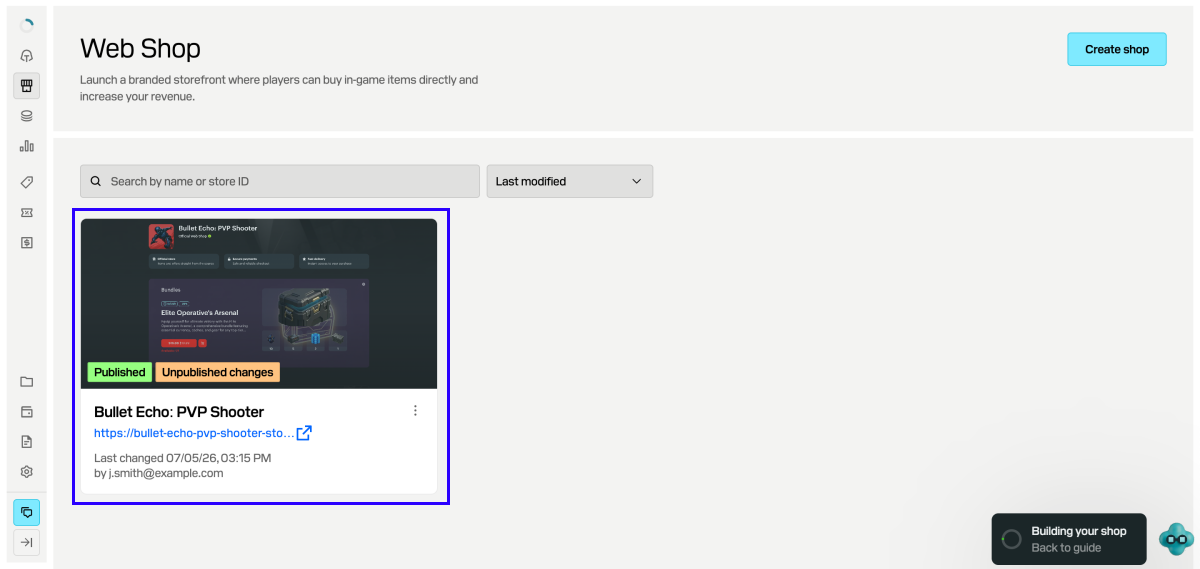
- If your site includes multiple pages, select the one you need:
- Click the current page title at the top of the editor.
- Select the necessary page from the drop-down list.
- In the Store section, in the Item type field, select the free item type and specify its group, if applicable.
- Configure an item card layout.
- After making all necessary changes and preparing your website for launch:
- In the upper-right corner of the site editor, click Publish.
- Check the boxes next to the pages you want to publish.
- Click Publish.
If website publication is not available, make sure all the conditions are met:
- There are no empty sections on the website (marked with a red indicator).
- The licensing agreement with Xsolla has been signed.
- The main page is published or selected for publication. You cannot publish child pages before the main page.
Once the site is published, a section with free items will become available. If items aren’t displayed, check that their status is set to Available and that no time-based display limit is active.
Get free item information via API
If your catalog is configured using API, free item data is returned through the calls available in the Catalog subsection:
- Get virtual items list
- Get virtual currency list
- Get virtual currency packages list
- Get bundles list
- Get games list
Grant free items to users
The way an order with free items is processed depends on whether a cart is used during the purchase.
If a user purchases an item without using a cart, use the Create order with specified free item API call.
If a user purchases items using a cart, the following scenarios are possible:
- If the user’s cart contains both paid and free items, use the order creation API calls Create order with all items from particular cart or Create order with all items from current cart. In this case, the user completes the payment through the payment UI.
- If the user’s cart contains only free items, use the Create order with free cart or Create order with particular free cart API calls. In this case, the payment UI is not used.
In both cases, Xsolla sends the Successful payment for order webhook with item data used to grant the items to the user. For free items, the order.invoice_id parameter in the webhook is set to
null.
Example of an order object for free items:
- json
 1{
 2  "method": "POST",
 3  "url": "https://mybestgame.com/xsolla/notification",
 4  "body": {
 5    "items": [
 6      {
 7        "sku": "gift_direct_game_reward-supercoin",
 8        "type": "virtual_currency",
 9        "is_pre_order": false,
10        "quantity": 500,
11        "amount": "0",
12        "promotions": [
13
14        ]
15      },
16      {
17        "sku": "package-500_supercoin",
18        "type": "bundle",
19        "is_pre_order": false,
20        "quantity": 1,
21        "amount": "0",
22        "promotions": [
23
24        ]
25      },
26      {
27        "sku": "xsolla-giveaway_offer_11_14_22",
28        "type": "bundle",
29        "is_pre_order": false,
30        "quantity": 1,
31        "amount": "0",
32        "promotions": [
33
34        ]
35      }
36    ],
37    "notification_type": "order_paid",
38    "order": {
39      "id": 12345678,
40      "mode": "default",
41      "currency_type": "unknown",
42      "currency": null,
43      "amount": "0",
44      "status": "paid",
45      "platform": "xsolla",
46      "comment": null,
47      "invoice_id": null,
48      "promotions": [
49
50      ]
51    },
52    "user": {
53      "external_id": "1234567812345678",
54      "email": null
55    }
56  },
57  "headers": {
58    "Authorization": "Signature 3b840ccefea111dcdfd111db1fdc6df969a3ec11",
59    "Accept": "application/json",
60    "Content-Type": "application/json"
61  },
62  "type": "webhook_payment",
63  "callback_parameters": {
64    "order_id": 12345678
65  }
66}
Depending on your project integration settings, items are granted to the user in one of the following ways:
- If you’ve integrated PlayFab, virtual currency and items are granted to the user’s PlayFab inventory automatically.
- If you use a custom delivery system, all virtual items and currency are granted on your side. We recommend setting up a webhook handler to receive order data on your backend. The necessary data is included in the Successful payment for order webhook.
Refer to the Set up order status tracking section for more details on this and other options of retrieving purchase data.
Found a typo or other text error? Select the text and press Ctrl+Enter.
