
How to group and sort items in catalog
You can add items in groups. The group can include identical and different types of items:
- Virtual items
- Virtual currency
- Virtual currency packages
- Bundles
- Game keys
Main features:
- Add the same item in several groups.
- Change the order of the groups.
- Change the order of items.
Set up groups:
Set up via Publisher Account
Create group
To create a group for virtual items:
- Open your project in Publisher Account go to the Items catalog > All items section.
- Click Add and select Group in the drop-down list.
- Specify the following parameters:
- External ID — unique group code.
- Group name.
- Set the Show group in Store toggle to On.
- Click Create group.
Edit group
To edit a group:
- Open your project in Publisher Account and go to the Items catalog > All items section.
- Click Show groups.
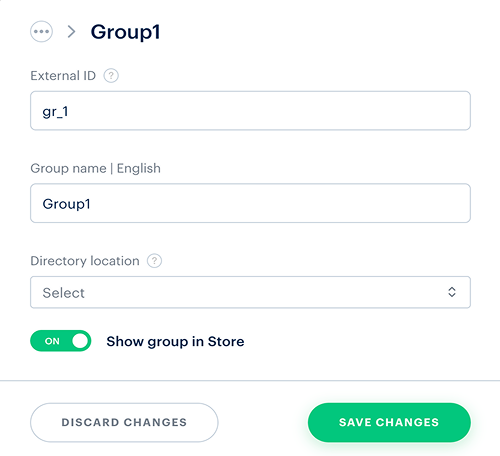
- Click ⋮ next to the required group and in the drop-down list, select Edit.
- Make the necessary changes and click Save changes.
- Is not returned in response when calling the Get items groups list API.
- Is not displayed in the properties of items included in this group when calling client methods for obtaining a list of items.
Add item to group
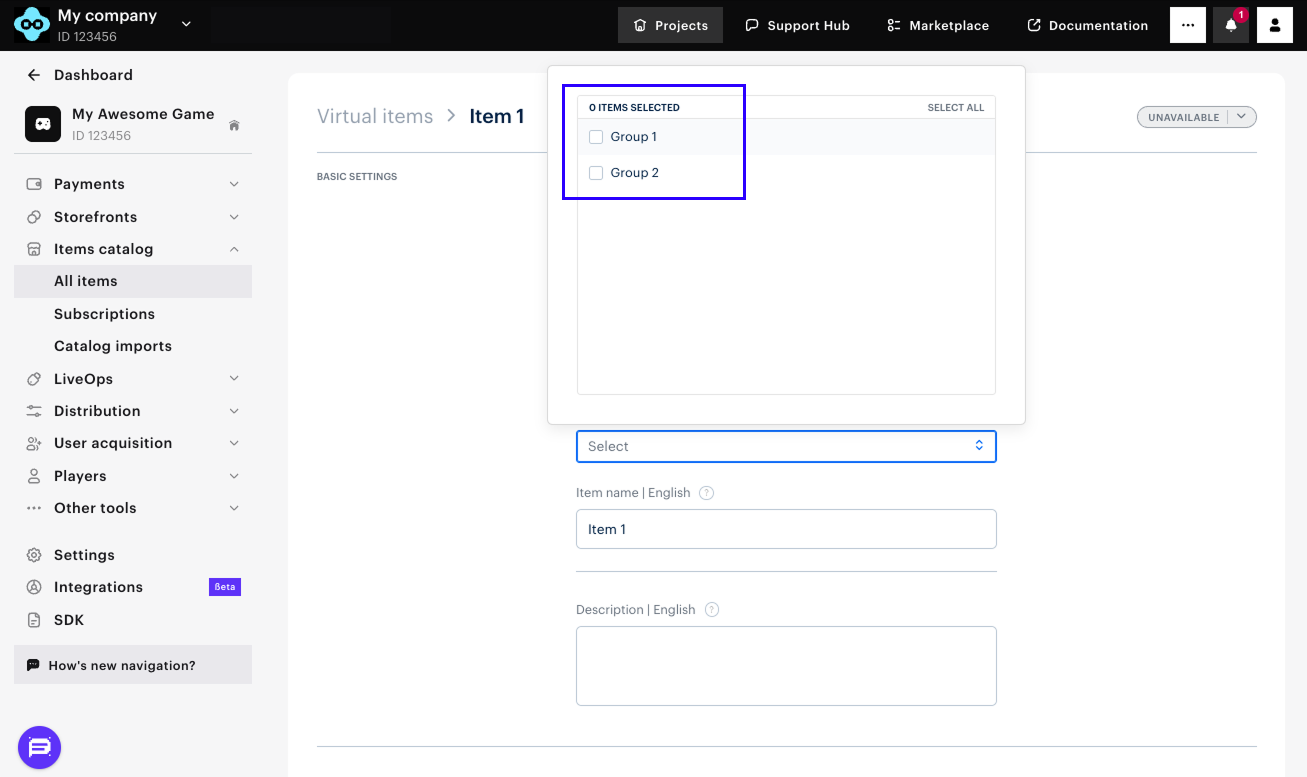
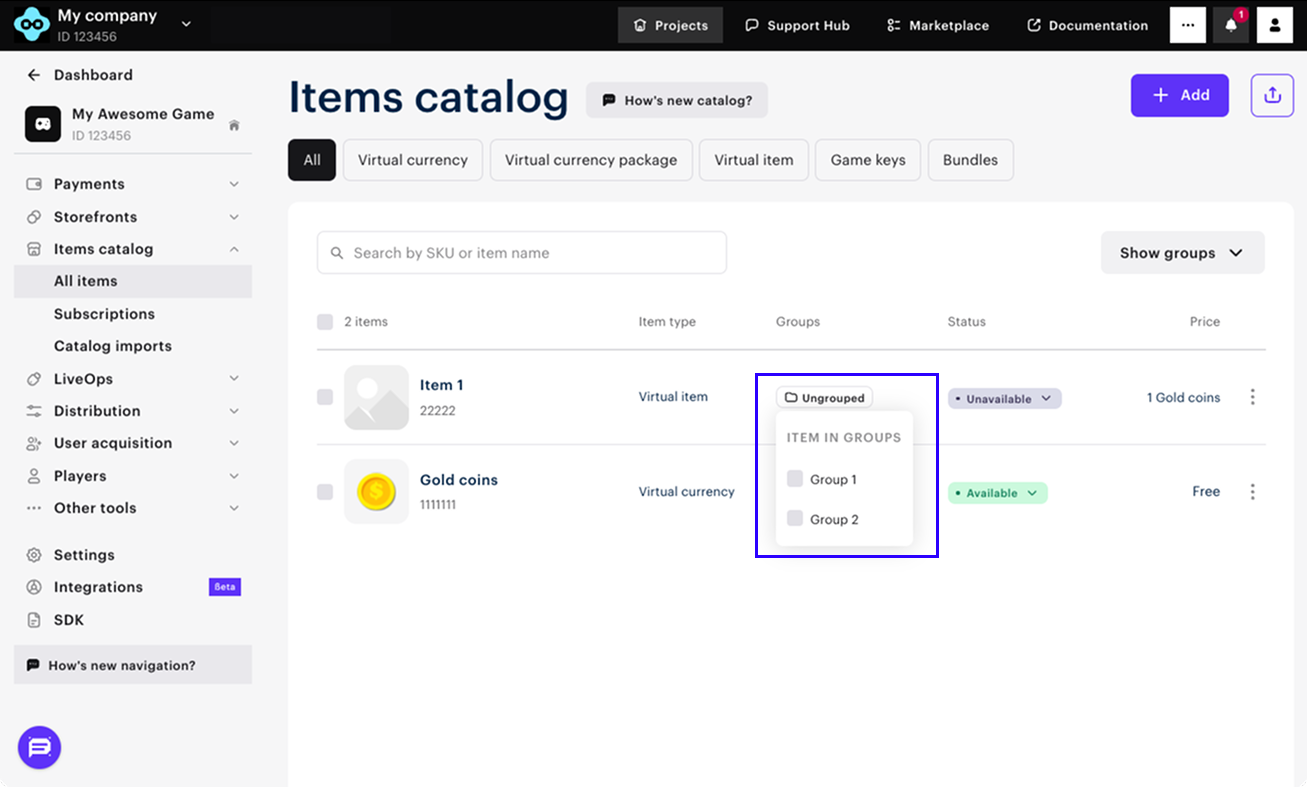
To add a virtual item to a required group, specify the group:
- when creating a new item
- when editing the existing item in Publisher Account:
- in item’s basic settings
- In the drop-down list of groups in the list of virtual items
- They cannot be sorted.
- They are not available for calling via the Get items list by specified group API calls.
Sort items
To sort items within a group of items:
- Open your project in Publisher Account and go to the Items catalog > All items section.
- Click Show groups.
- Go to the group.
- Hover over the virtual item number. The ☰ icon will be displayed. Drag the virtual item to the new position.
Sort groups
To sort groups:
- Open your project in Publisher Account and go to the Items catalog > All Items section.
- Click Show groups.
- Hover over the group name. The ☰ icon will be displayed. Drag the group to the new position.
Set up via API
Add item to group
To add an item to the existing group via API calls, pass the array containing the external_id parameter of the groups that the item should belong to in the group field:
- Game keys — use the Create game, Update game by SKU, and Update game by ID API calls.
- Virtual items — use the Create virtual item and Update virtual item API calls.
- Virtual currency — use the Create virtual currency and Update virtual currency API calls.
- Packages of virtual currency — use the Create virtual currency package and Update virtual currency package API calls.
- Bundles — use the Create bundle and Update bundle API calls.
Example of the request:
- json
 1{
 2  "sku": "sword",
 3  "name": {
 4    "en": "Sword"
 5  },
 6  "is_enabled": true,
 7  "is_free": false,
 8  "order": 1,
 9  "description": {
10    "en": "A sword is a bladed melee weapon intended for cutting or thrusting that is longer than a knife or dagger, consisting of a long blade attached to a hilt."
11  },
12  "prices": [
13    {
14      "amount": 100,
15      "currency": "USD",
16      "is_enabled": true,
17      "is_default": true
18    }
19  ],
20  "vc_prices": [],
21  "is_show_in_store": true,
22  "groups": [
23    "chests",
24    "bonus"
25  ]
26}
Get list of groups
To get the list of all groups, use the Get items group list API call. To get the list of items of the specified group, pass the external_id parameter to the Get items list by specified group API call.
Filter items
To filter items of the required group:
- Get the list of items via the following API calls:
- Using the filtering, find the items with the
external_idparameter of the required group specified in thegroupsparameter.
Found a typo or other text error? Select the text and press Ctrl+Enter.
