How to group and sort items in catalog
You can combine items into groups. A group can include items of the same or different types:
- Virtual items
- Virtual currency
- Virtual currency packages
- Bundles
- Game keys
The order of groups and items within them affects how the catalog looks in your store — on the website or in the app. Properly configured order helps you work with sales more effectively: you can show popular items and groups to users first.
When requesting the list of item groups , groups are returned in the order they are sorted. Similarly, when requesting items by group , items are returned in their sorted order. Items without a specified group are automatically added to the Ungrouped group — they cannot be sorted and are not returned when requesting items by group.
Main features:
- Adding one item to several groups.
- Sorting groups.
- Sorting items within a group.
Set up groups:
Set up via Publisher Account
Create group
To create a group:
- In your project in Publisher Account, go to the Items catalog > All items section.
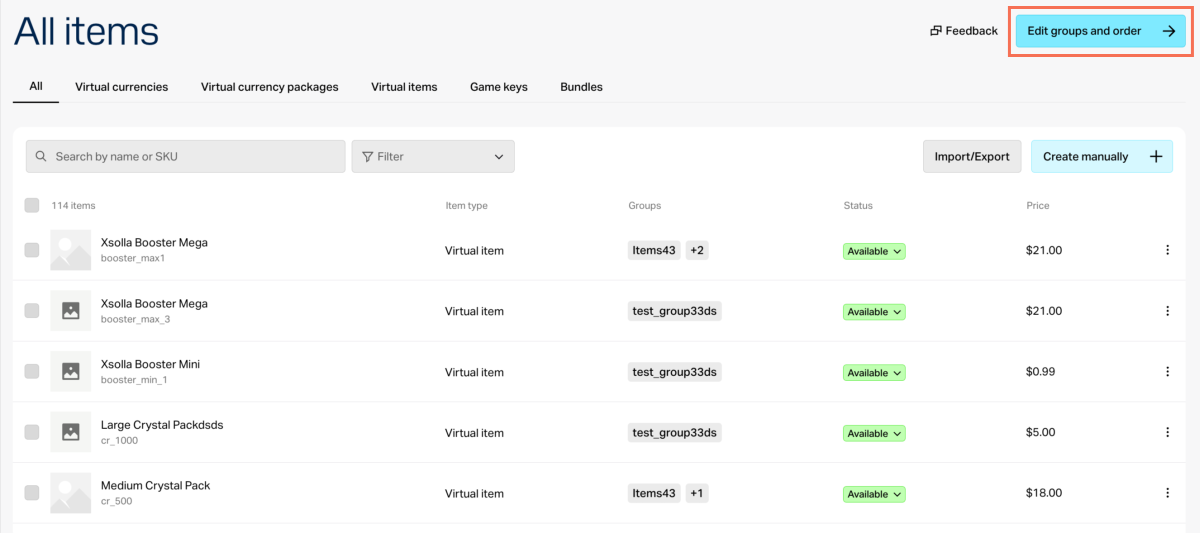
- Click Edit groups and order.
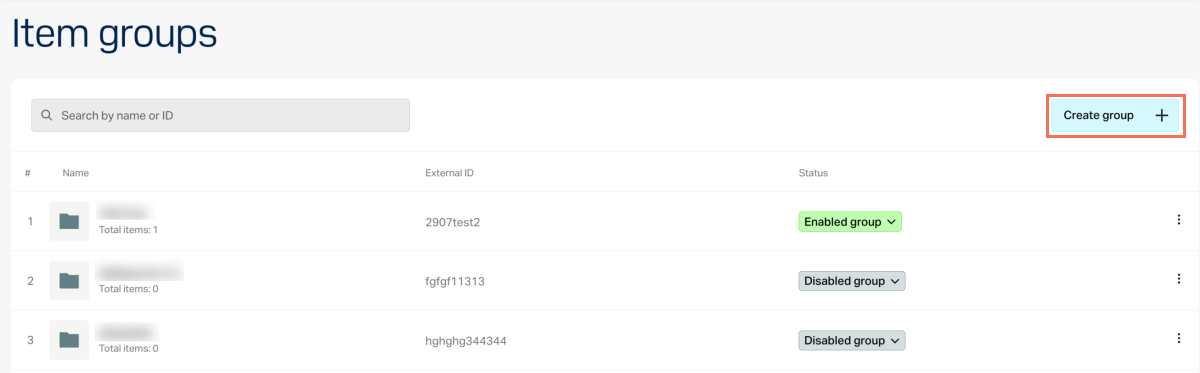
- Click Create group.
- Specify the required parameters:
- External ID — a unique group ID.
- Group name.
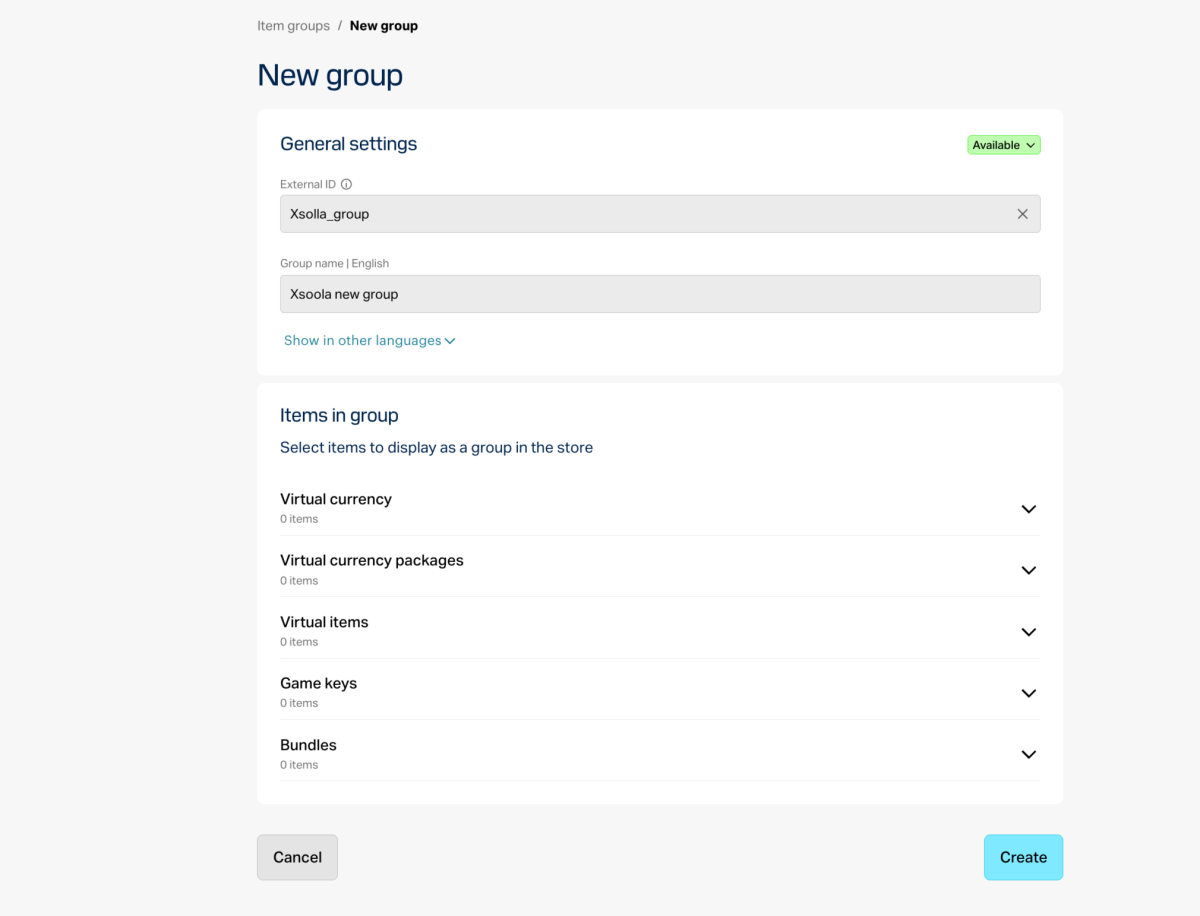
- Add items to the group (optional). If your catalog doesn’t have any items yet, you can save the current settings and return to this step later.
- Select the status Enabled in the drop-down list to show the group in the store.
- Click Create.
Set up in your account
Create group
To create a group:
- In your project in the account, go to the Items catalog > All items section.
- Click Edit groups and order.
- Click Create group.
- Specify the required parameters:
- External ID — a unique group ID.
- Group name.
- Add items to the group (optional). If your catalog doesn’t have any items yet, you can save the current settings and return to this step later.
- Select the status Enabled in the drop-down list to show the group in the store.
- Click Create.
Set up in your account
Create group
To create a group:
- In your project in the account, go to the Items catalog > All items section.
- Click Edit groups and order.
- Click Create group.
- Specify the required parameters:
- External ID — a unique group ID.
- Group name.
- Add items to the group (optional). If your catalog doesn’t have any items yet, you can save the current settings and return to this step later.
- Select the status Enabled in the drop-down list to show the group in the store.
- Click Create.
Set up in your account
Create group
To create a group:
- In your project in the account, go to the Items catalog > All items section.
- Click Edit groups and order.
- Click Create group.
- Specify the required parameters:
- External ID — a unique group ID.
- Group name.
- Add items to the group (optional). If your catalog doesn’t have any items yet, you can save the current settings and return to this step later.
- Select the status Enabled in the drop-down list to show the group in the store.
- Click Create.
Set up in your account
Create group
To create a group:
- In the account for mobile games, go to the Catalog section.
- Click Edit groups and order.
- Click Create group.
- Specify the required parameters:
- External ID — a unique group ID.
- Group name.
- Add items to the group (optional). If your catalog doesn’t have any items yet, you can save the current settings and return to this step later.
- Select the status Enabled in the drop-down list to show the group in the store.
- Click Create.
Edit group
To edit a group:
- In a project in Publisher Account, go to the Items catalog > All items section.
- Click Edit groups and order.
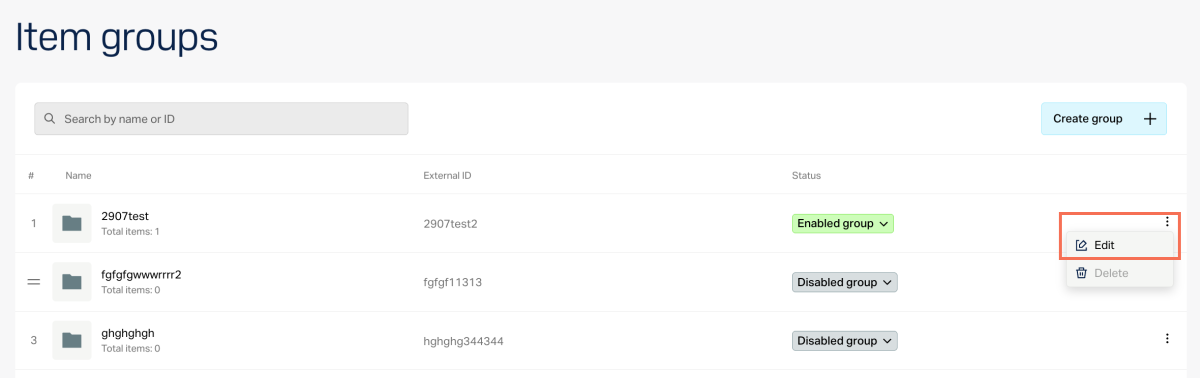
- Click ⋮ near the desired group and in the drop-down list, select Edit.
- Make the necessary changes and click Save.
- In a project in the account, go to the Items catalog > All items section.
- Click Edit groups and order.
- Click ⋮ near the desired group and in the drop-down list, select Edit.
- Make the necessary changes and click Save.
- In a project in the account, go to the Items catalog > All items section.
- Click Edit groups and order.
- Click ⋮ near the desired group and in the drop-down list, select Edit.
- Make the necessary changes and click Save.
- In a project in the account, go to the Items catalog > All items section.
- Click Edit groups and order.
- Click ⋮ near the desired group and in the drop-down list, select Edit.
- Make the necessary changes and click Save.
- In the account for mobile games, go to the Catalog section.
- Click Edit groups and order.
- Click ⋮ near the desired group and in the drop-down list, select Edit.
- Make the necessary changes and click Save.
If you have disabled the group’s display in the store (selected Disabled in the drop-down list), such group:
- Is not returned in responses of the API calls for getting a list of items by the specified group.
- Is not displayed in the properties of items included in this group when calling client API calls for getting a list of items.
Delete group
You can delete only groups that don’t contain any items.
To delete a group:
- In a project in Publisher Account, go to the Items catalog > All items section.
- In the Filter field, select the group. All items included in it are displayed.
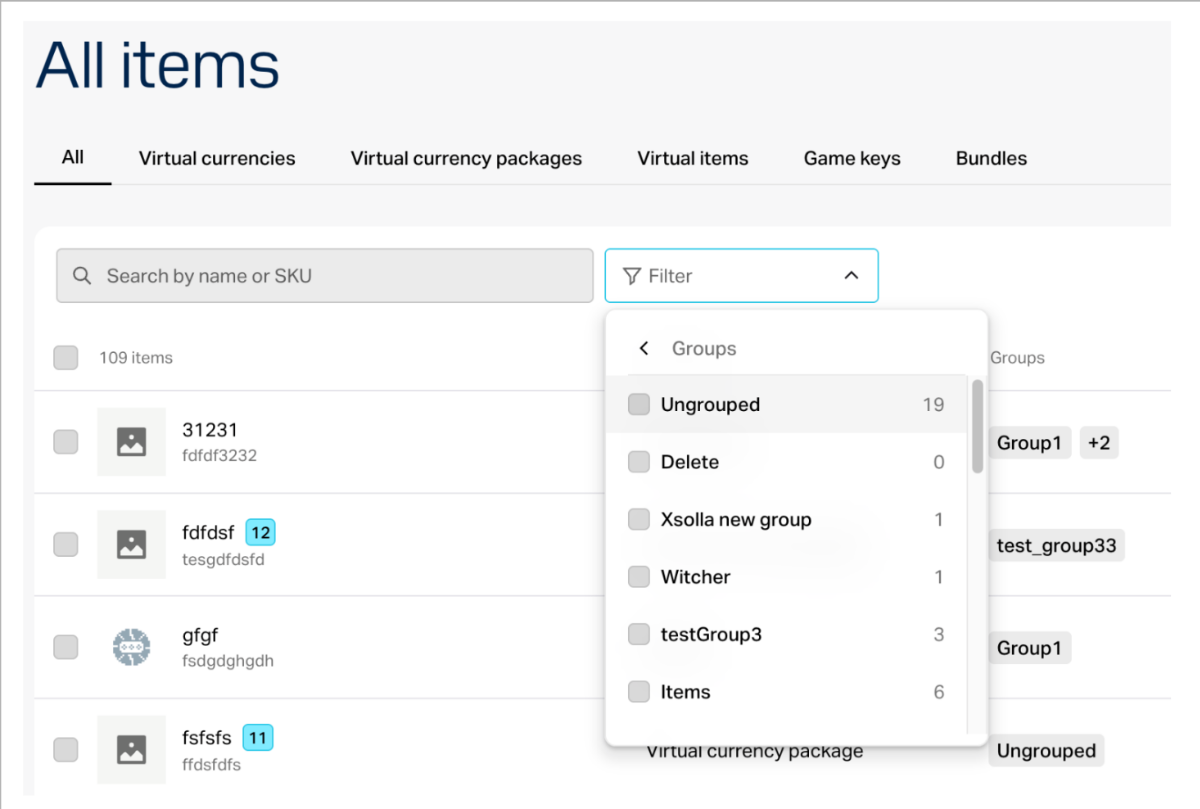
- In the Groups column, clear the checkbox of the group to be deleted for each item.
- Click Edit groups and order.
- Click ⋮ near the desired group, and in the drop-down list, select Delete.
- In a project in the account, go to the Items catalog > All items section.
- In the Filter field, select the group. All items included in it are displayed.
- In the Groups column, clear the checkbox of the group to be deleted for each item.
- Click Edit groups and order.
- Click ⋮ near the desired group, and in the drop-down list, select Delete.
- In a project in the account, go to the Items catalog > All items section.
- In the Filter field, select the group. All items included in it are displayed.
- In the Groups column, clear the checkbox of the group to be deleted for each item.
- Click Edit groups and order.
- Click ⋮ near the desired group, and in the drop-down list, select Delete.
- In a project in the account, go to the Items catalog > All items section.
- In the Filter field, select the group. All items included in it are displayed.
- In the Groups column, clear the checkbox of the group to be deleted for each item.
- Click Edit groups and order.
- Click ⋮ near the desired group, and in the drop-down list, select Delete.
- In the account for mobile games, go to the Catalog section.
- In the Filter field, select the group. All items included in it are displayed.
- In the Groups column, clear the checkbox of the group to be deleted for each item.
- Click Edit groups and order.
- Click ⋮ near the desired group, and in the drop-down list, select Delete.
Add item to group
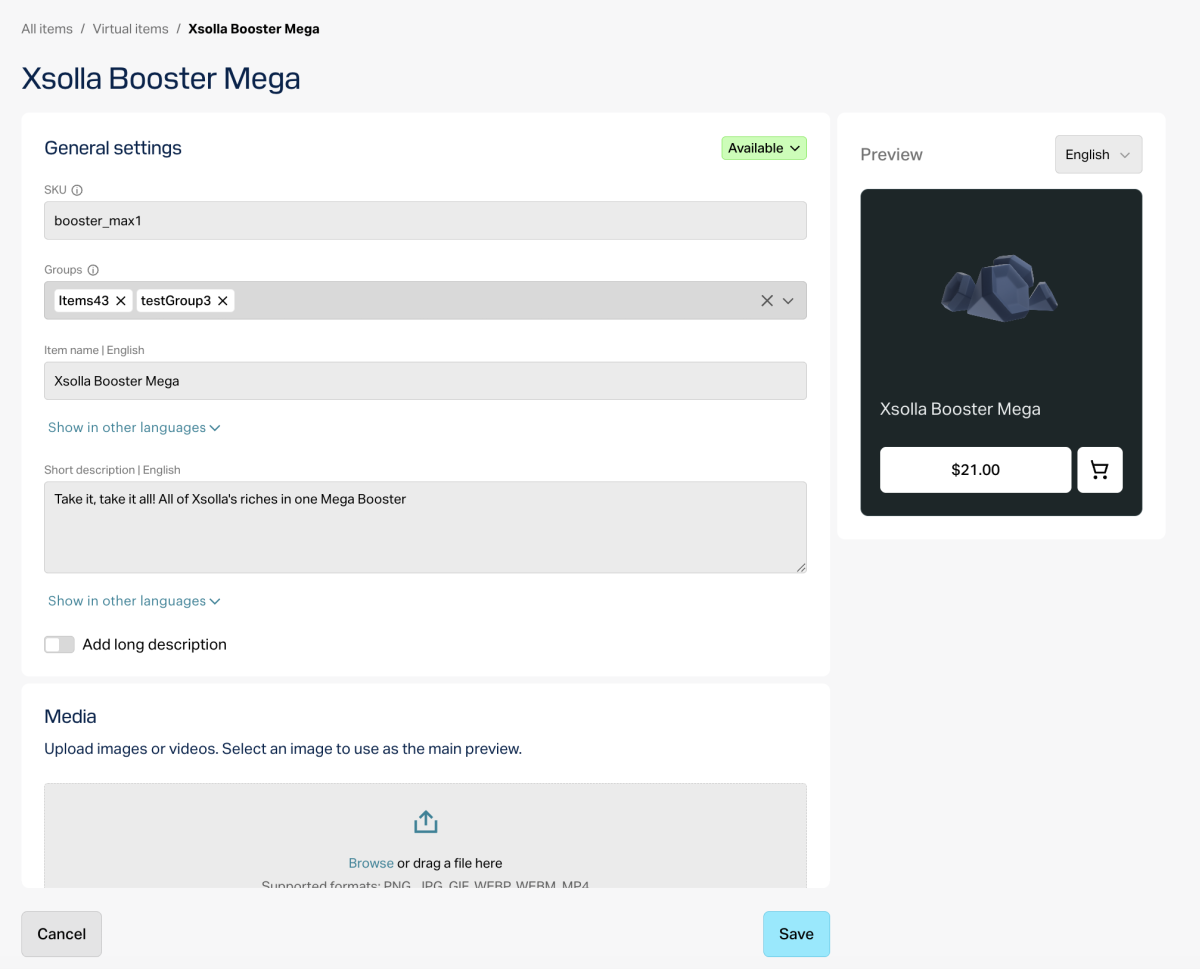
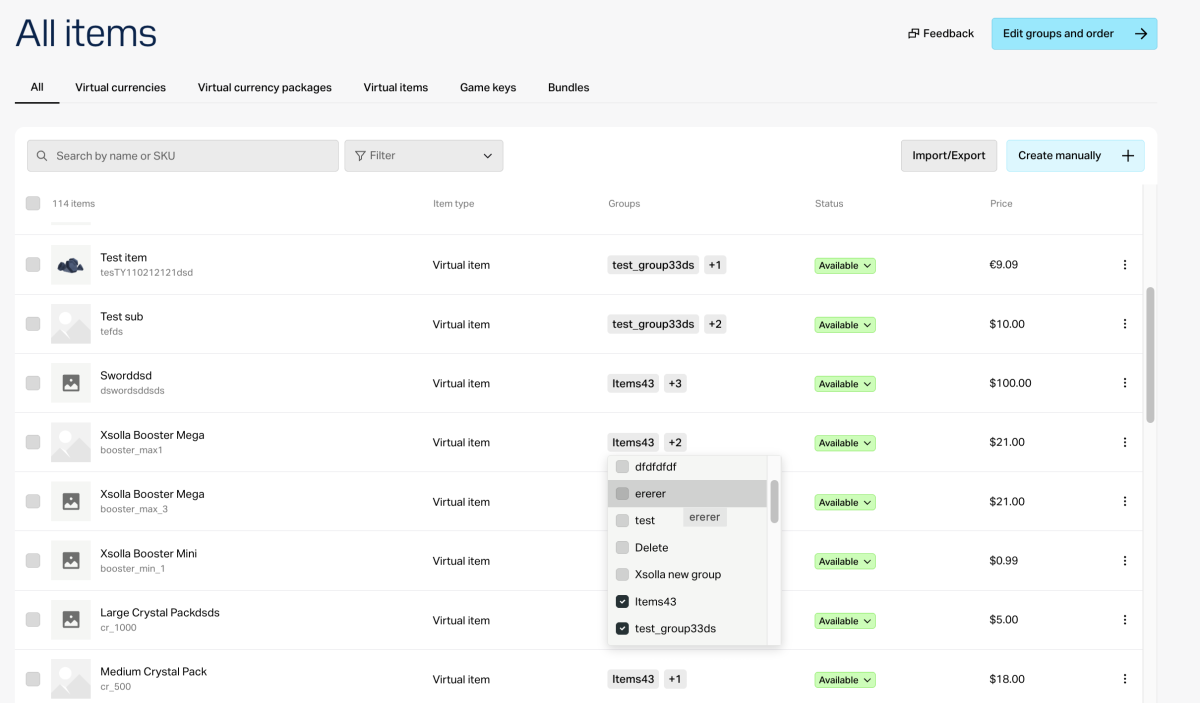
To add an item (using virtual items as an example) to the required group, specify the group when creating or editing virtual item:
- in the virtual item’s basic settings;
- in the drop-down list of groups in the list of virtual items.
Sort items
To sort items (using virtual items as an example):
- In a project in Publisher Account, go to the Items catalog > All items section.
- Click Edit groups and order.
- Click ⋮ near the desired group, and in the drop-down list, select Edit.
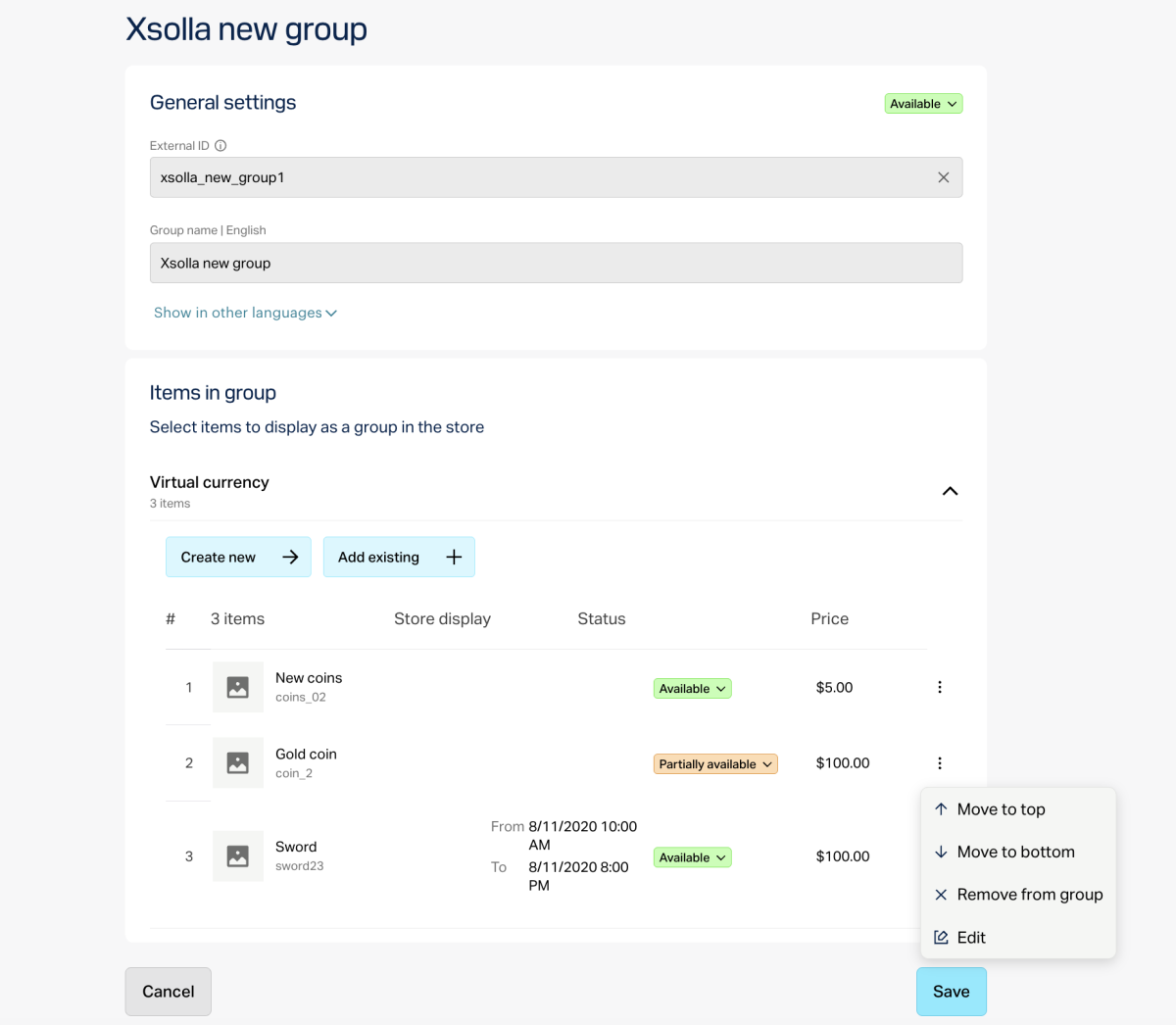
- Expand the virtual items block by clicking ⌄.
- Hover over the virtual item number. The ☰ icon will be displayed. Drag the virtual item to the required position. You can also move the item straight to the top or bottom of the list. To do this, click ⋮ and select the corresponding option.
- Click Save.
- In a project in the account, go to the Items catalog > All items section.
- Click Edit groups and order.
- Click ⋮ near the desired group, and in the drop-down list, select Edit.
- Expand the virtual items block by clicking ⌄.
- Hover over the virtual item number. The ☰ icon will be displayed. Drag the virtual item to the required position. You can also move the item straight to the top or bottom of the list. To do this, click ⋮ and select the corresponding option.
- Click Save.
- In a project in the account, go to the Items catalog > All items section.
- Click Edit groups and order.
- Click ⋮ near the desired group, and in the drop-down list, select Edit.
- Expand the virtual items block by clicking ⌄.
- Hover over the virtual item number. The ☰ icon will be displayed. Drag the virtual item to the required position. You can also move the item straight to the top or bottom of the list. To do this, click ⋮ and select the corresponding option.
- Click Save.
- In a project in the account, go to the Items catalog > All items section.
- Click Edit groups and order.
- Click ⋮ near the desired group, and in the drop-down list, select Edit.
- Expand the virtual items block by clicking ⌄.
- Hover over the virtual item number. The ☰ icon will be displayed. Drag the virtual item to the required position. You can also move the item straight to the top or bottom of the list. To do this, click ⋮ and select the corresponding option.
- Click Save.
- In the account for mobile games, go to the Catalog section.
- Click Edit groups and order.
- Click ⋮ near the desired group, and in the drop-down list, select Edit.
- Expand the virtual items block by clicking ⌄.
- Hover over the virtual item number. The ☰ icon will be displayed. Drag the virtual item to the required position. You can also move the item straight to the top or bottom of the list. To do this, click ⋮ and select the corresponding option.
- Click Save.
Sort groups
To sort groups:
- In a project in Publisher Account, go to the Items catalog > All items section.
- Click Edit groups and order.
- Hover over the group name. The ☰ icon will be displayed. Drag the group to the required position.
- In a project in the account, go to the Items catalog > All items section.
- Click Edit groups and order.
- Hover over the group name. The ☰ icon will be displayed. Drag the group to the required position.
- In a project in the account, go to the Items catalog > All items section.
- Click Edit groups and order.
- Hover over the group name. The ☰ icon will be displayed. Drag the group to the required position.
- In a project in the account, go to the Items catalog > All items section.
- Click Edit groups and order.
- Hover over the group name. The ☰ icon will be displayed. Drag the group to the required position.
- In the account for mobile games, go to the Catalog section.
- Click Edit groups and order.
- Hover over the group name. The ☰ icon will be displayed. Drag the group to the required position.
Set up via API
Add item to group
To add an item to the existing group via API calls, pass the array containing the external_id parameter of the groups that the item should belong to in the group field:
- Game keys — use the Create game , Update game by SKU , and Update game by ID API calls.
- Virtual items — use the Create virtual item and Update virtual item API calls.
- Virtual currency — use the Create virtual currency and Update virtual currency API calls.
- Packages of virtual currency — use the Create virtual currency package and Update virtual currency package API calls.
- Bundles — use the Create bundle and Update bundle API calls.
Example of the request:
- json
 1{
 2  "sku": "sword",
 3  "name": {
 4    "en": "Sword"
 5  },
 6  "is_enabled": true,
 7  "is_free": false,
 8  "order": 1,
 9  "description": {
10    "en": "A sword is a bladed melee weapon intended for cutting or thrusting that is longer than a knife or dagger, consisting of a long blade attached to a hilt."
11  },
12  "prices": [
13    {
14      "amount": 100,
15      "currency": "USD",
16      "is_enabled": true,
17      "is_default": true
18    }
19  ],
20  "vc_prices": [],
21  "is_show_in_store": true,
22  "groups": [
23    "chests",
24    "bonus"
25  ]
26}
Get list of groups
To get the list of all groups, use the Get items group list
API call. To get the list of items of the specified group, pass the external_id parameter to the Get items list by specified group
API call.
Filter items
To filter items of the required group:
- Get the list of items via the following API calls:
- Using the filtering, find the items with the
external_idparameter of the required group specified in thegroupsparameter.
Found a typo or other text error? Select the text and press Ctrl+Enter.
