
Time limit for displaying items in store
How it works
You can set the display period for an item in the store to:
- Maintain the relevance of the catalog at a given time, for example, during holiday sales.
- Create an item in advance without displaying it in the catalog.
- Motivate users to buy items by displaying a timer next to the item. When you create a catalog interface using site builder, the timer is displayed automatically. When you build the catalog using a custom interface, the timer must be implemented on your side.
- sale of in-game items — virtual items, virtual currency packages, and bundles
- sale of games and DLC via game keys
Item display time limits are not taken into account within a bundle.
Example
- You create a
Booster virtual item and set its display period from October 29th to November 15th. - You create a
Legendary Start Pack bundle that includes theBooster . The bundle does not have a time limit, so it is always visible in the store. - On October 20th, a user opens your in-game store. You use the following methods:
- Get virtual items list to display the catalog of virtual items.
- Get list of bundles to display the catalog of bundles.
show_inactive_time_limited_itemsparameter in these methods. - You retrieve the item catalog:
- The
Booster is not included in the response of the Get virtual items list, because its display period is from October 29th to November 15th. If you pass the parametershow_inactive_time_limited_items:1in the Get virtual items list, theBooster is included in the response, and the periods array indicates the period when it is available for purchase. - The
Booster is included in the response of the Get list of bundles as part of theLegendary Start Pack bundle, and the user can obtain it regardless of the value of theshow_inactive_time_limited_itemsparameter.
- The
Configure and update limits
Configure and update in Publisher Account
- The configuration process below is shown using virtual items as an example.
- Before configuring virtual items, it is recommended to create groups. Groups allow you to build a multi-level catalog and manage how items are displayed in your store.
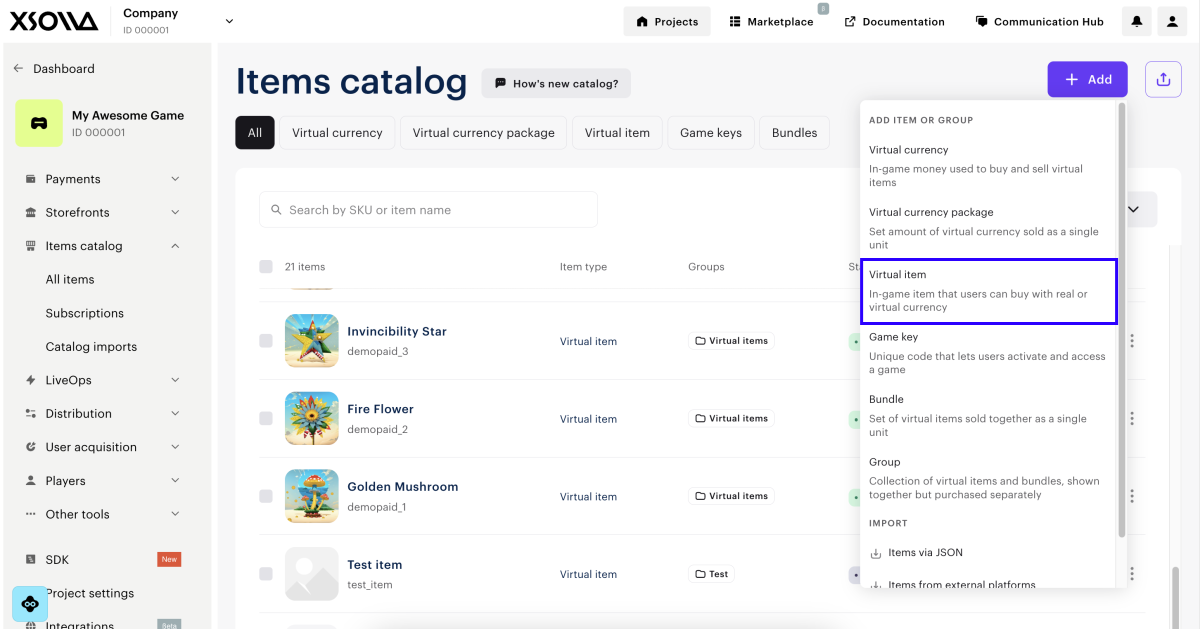
- Open your project in Publisher Account and go to the Items catalog > All items > Virtual items section.
- Click Add and select Virtual items.
- Specify the following parameters:
- image
- SKU
- one or several groups the item should belong to
- name
- description
- prices
- To limit the number of times a user can buy an item, set the Limit the number of times one user can buy this item toggle to On and specify the limit.
- To set how often limits are refreshed:
- In the drop-down list, select the period:
- Daily
- Weekly
- Monthly
- Custom interval. The interval is calculated starting from the start date of the item’s display period in the store.
- No regular refresh
- In the drop-down list, select the period:
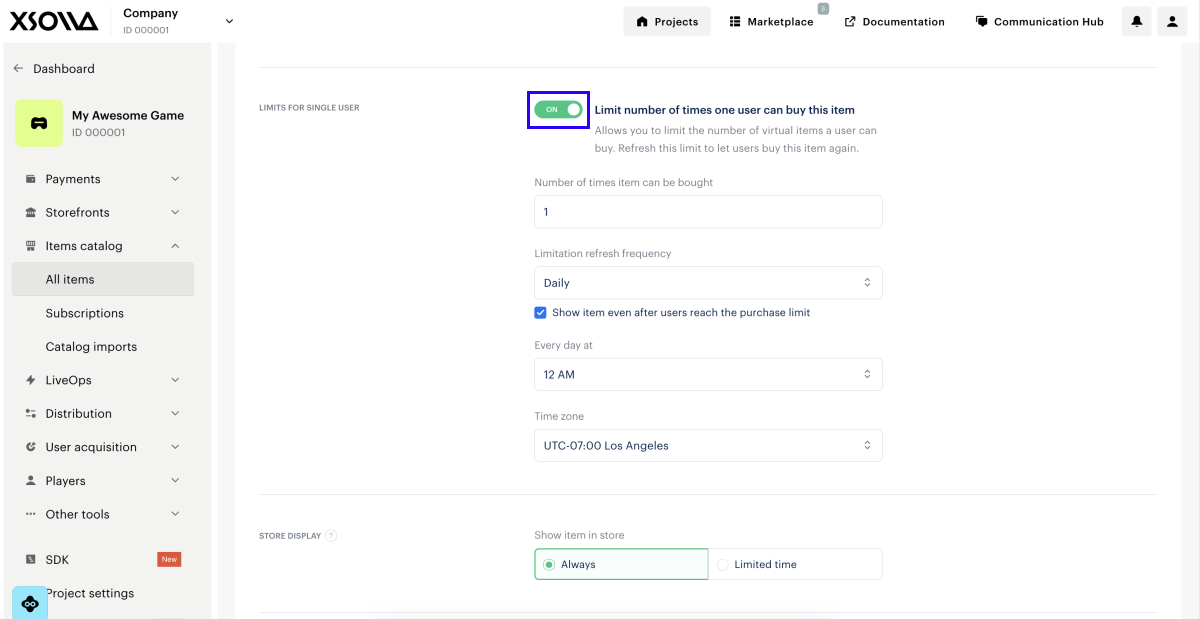
- Set the update schedule by specifying the parameters corresponding to the period.
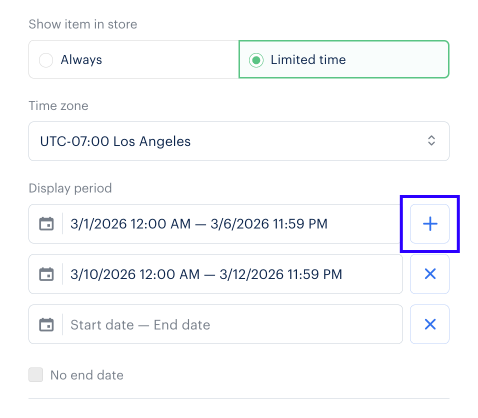
- To set a display period for the item in the catalog, select Limited time, specify the time zone, start date, and end date. To make the item available indefinitely, check the No end date box.
To add another display period for the item in the catalog, click +. If an item has multiple display periods, each must have an end date. The display period ends at the last second of the specified minute. For example, if an end time is set to 12:00, the display period runs until 12:00:59.
- Click Create item.
Set up and update via API calls
To set a time limit for displaying items in the store, use the following API calls:
- Create virtual item or Update virtual item
- Create virtual currency or Update virtual currency
- Create virtual currency package or Update virtual currency package
- Create bundle or Update bundle
- Create game, Update game by SKU or Update game by ID
periods[0].date_fromwith the date and time of the beginning of item display period inYYYY-MM-DDThh:mm:ss±TMZformat, whereTMZis the time zone indicator inhh:mmGMT format.periods[0].date_untilwith the date and time of the end of the item display period inYYYY-MM-DDThh:mm:ss±TMZformat, whereTMZis the time zone indicator inhh:mmGMT format. To not indicate the end of an item’s display period, specify only one period and pass“periods[0].date_until”: null.
You can set up multiple periods for displaying an item in the store. To do this, pass an array of objects with the start and end dates of all periods in the API calls.
Example:
- json
 1"periods": [
 2      {
 3        "date_from": "2022-06-10T14:00:00+03:00",
 4        "date_until": "2022-06-30T14:00:00+03:00"
 5      },
 6       {
 7        "date_from": "2022-07-10T14:00:00+03:00",
 8        "date_until": "2022-07-30T14:00:00+03:00"
 9      },
10       {
11        "date_from": "2022-08-10T14:00:00+03:00",
12        "date_until": "2022-08-30T14:00:00+03:00"
13      }
14]
The catalog retrieval API calls return the items that are displayed in the store at the time of the request. To obtain information about items whose display period has not yet started or has already expired, pass the show_inactive_time_limited_items parameter with a value of 1 when requesting the catalog.
Display limits in the catalog of items
The display of time-limited items in the catalog depends on how it is implemented — either through the site builder or via API.
Display via site builder
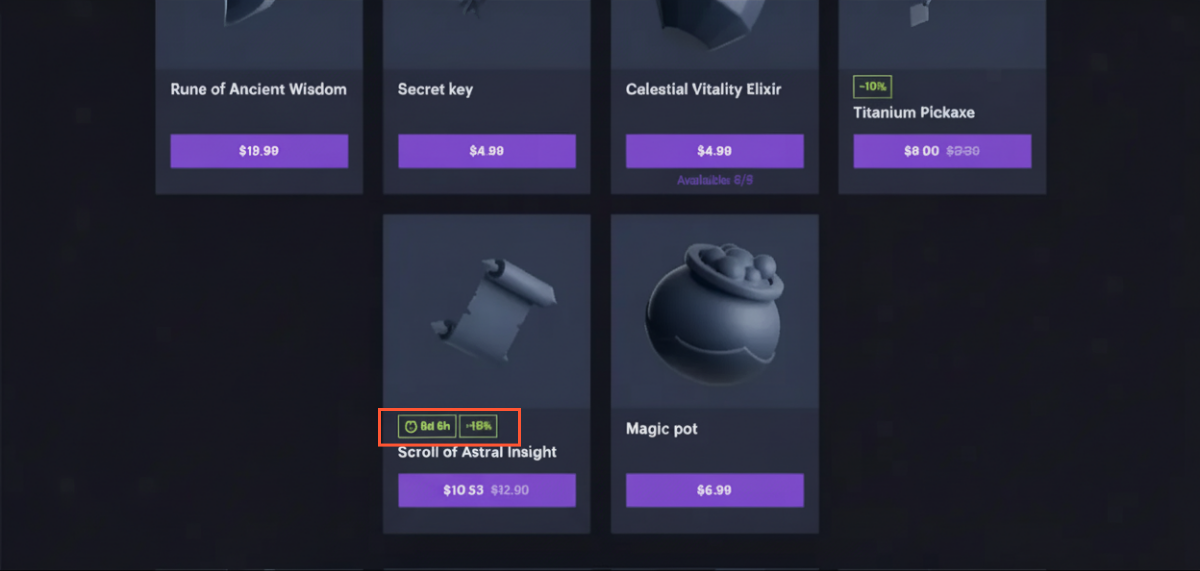
If you use a site builder, time limits are displayed automatically. 30 days before the end of an item’s sale period, a timer automatically appears on the item card and shows the remaining time:
- If more than a week remains until the end of the sale, the timer shows days and hours.
- If more than one day remains until the end of the sale, the timer shows hours and minutes.
- If less than one day remains until the end of the sale, the timer shows minutes and seconds.
Get limit information via API
If the catalog is implemented using API, item’s sale period information is returned in the items.periods array in the following catalog-related API calls:
- Get virtual items list
- Get virtual currency list
- Get virtual currency packages list
- Get bundles list
- Get games list
Found a typo or other text error? Select the text and press Ctrl+Enter.
