
Set up catalog manually
Virtual currency is virtual money that is used for purchasing and selling in-game items. Depending on its purpose, a virtual currency affects the game economy balance or is connected to the monetization of the app. You can also create hard currency — a virtual currency that is linked to the platform of purchase and can be purchased only for real money.
You can sell the virtual currency in predefined amounts. For a package, you can define a special price that doesn’t equal the amount of virtual currency in it.
See the Virtual currency section to learn more about virtual currency.
To set up virtual currency via Publisher Account:
- In your project in Publisher Account, go to the Items catalog > All items section.
- Click Add and select Virtual currency from the drop-down list.
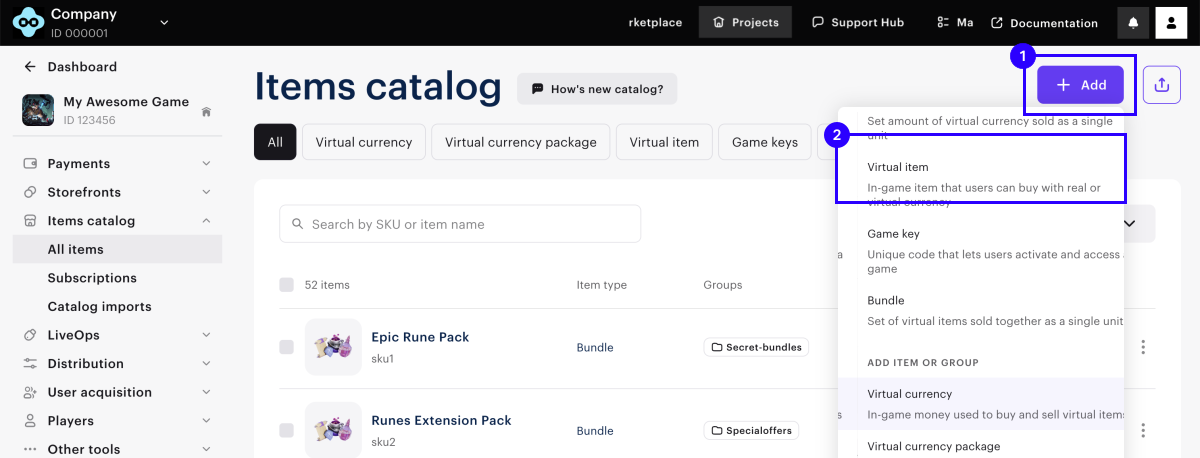
- Specify the following parameters:
- Image (optional).
- SKU.
- Virtual currency name.
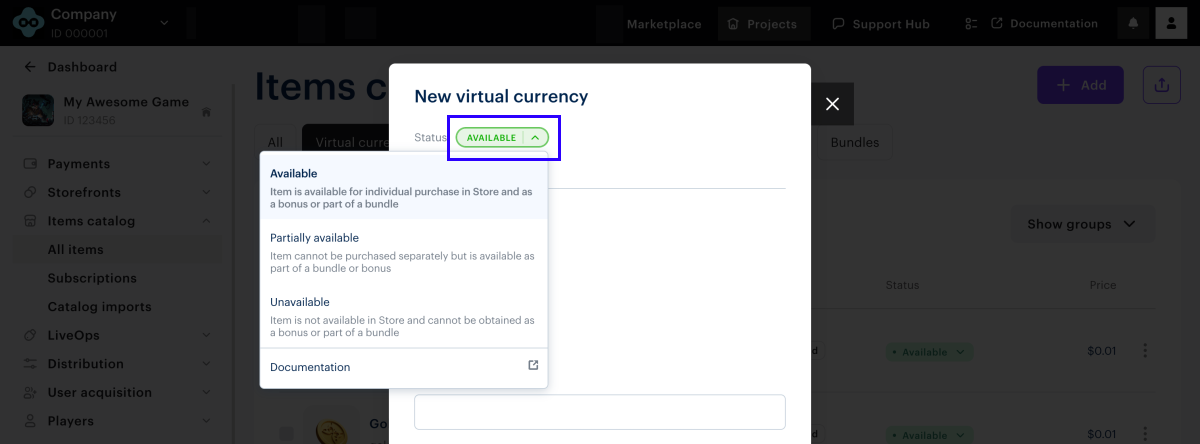
- To configure how virtual currency is displayed in the store, select the appropriate status.
- To set a price, click Set up prices and specify the price in real currency. If needed, configure regional prices.
- Configure attributes using one of the following methods (optional):
- Check the settings and click Create currency.
- In your project in Publisher Account, go to the Items catalog > All items section.
- Click Add and select Virtual currency package from the drop-down list.
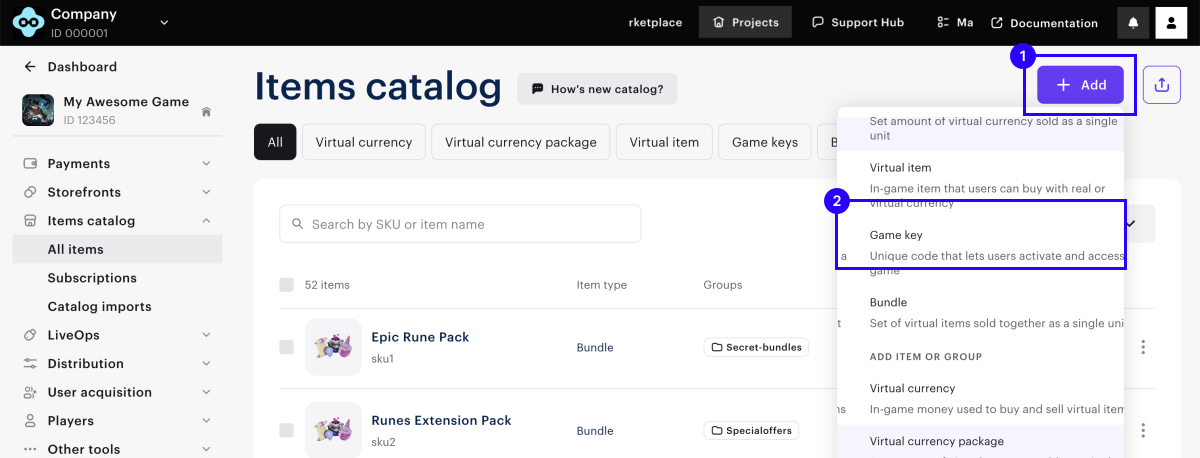
- Specify the following parameters:
- Image (optional).
- SKU.
- One or several groups the package should belong to.
- Name.
- Description (optional).
- To configure how virtual currency is displayed in the store, select the appropriate status.
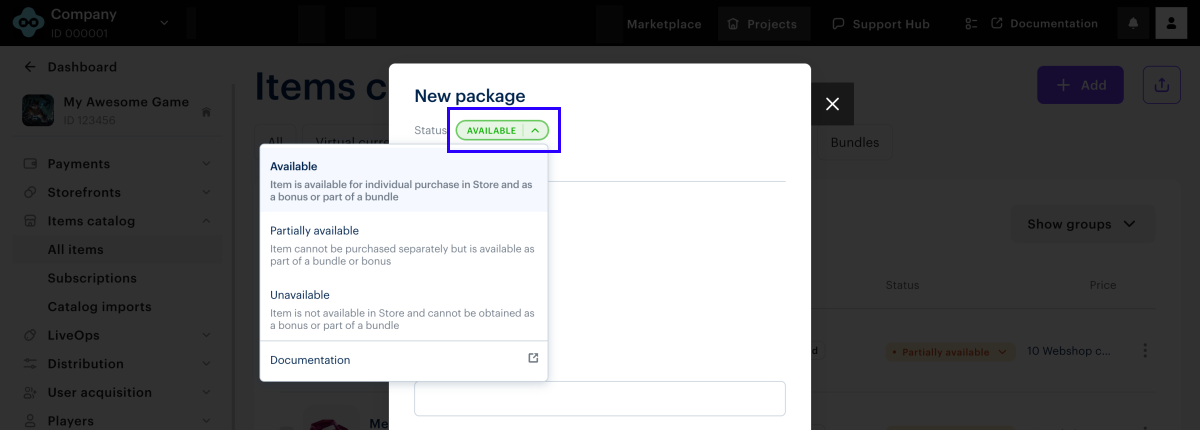
- Specify the virtual currency included in the package and its amount.
- Set prices or create a free item in the Paid or free field:
- To create a free package, select Free package.
- To set a price, select Paid package and specify the price in real currency. If needed, configure regional prices.
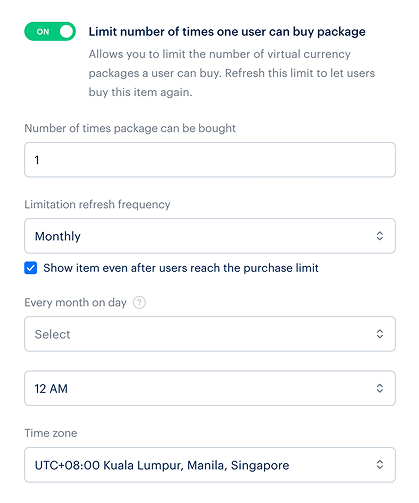
- To limit the number of packages available for purchase, turn on the Limit number of times one user can buy package toggle and enter the desired quantity.
- To configure how often the limit resets:
- From the drop-down list, select a period:
- Daily.
- Weekly.
- Monthly.
- Custom interval – this is calculated starting from the package’s display start date.
- No regular refresh.
- From the drop-down list, select a period:
- Set up the reset schedule based on the selected period.
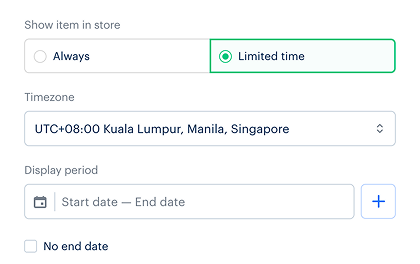
- Configure a time limit for displaying a package (optional):
- In the Show item in store field, select Limited time.
- Specify the time zone and the beginning and the end of the period.
- If you don’t want to indicate the end of the item display period, check the No end date box.
- Configure attributes using one of the following methods (optional):
- Check the settings and click Create package.
Virtual items are the in-game content that you can sell for real and virtual currency.
See the Virtual items section to learn more about virtual items.
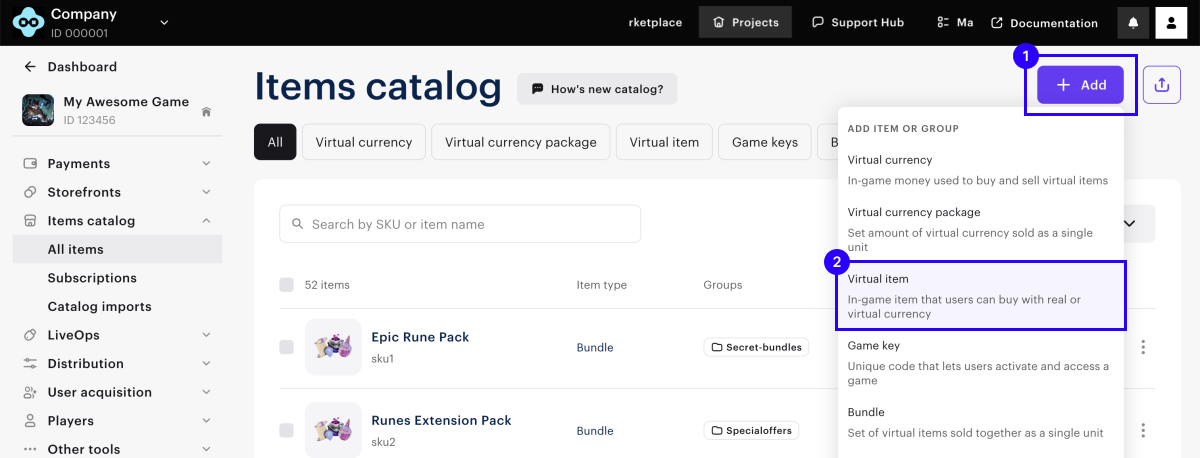
- In your project in Publisher Account, go to the Items catalog > All items section.
- Click Add and select Virtual item from the drop-down list.
- Specify the following parameters:
- Image (optional).
- SKU.
- One or several groups the item should belong to.
- Name.
- Description (optional).
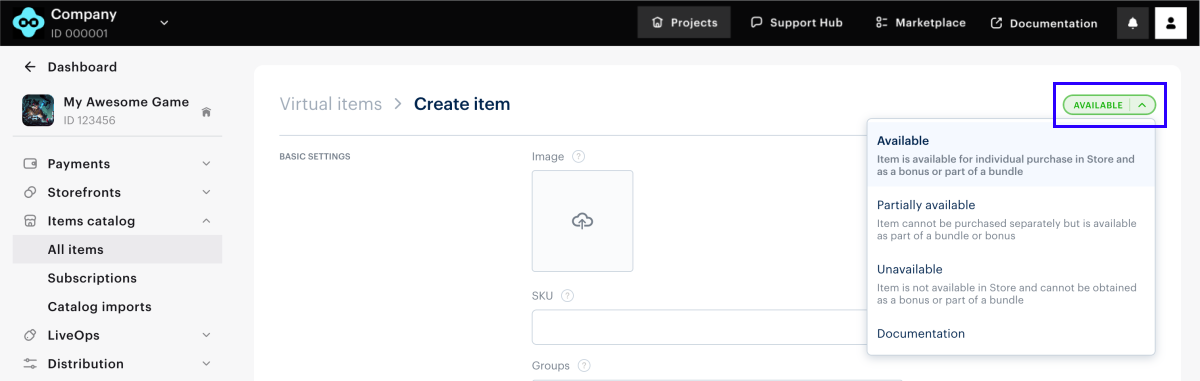
- To configure how the virtual item is displayed in the store, select the appropriate status.
- Set prices or create a free item in the Paid or free field:
- To create a free item, select Free item.
- To set a price, select Paid item and specify the price in real currency. If needed, configure regional prices.
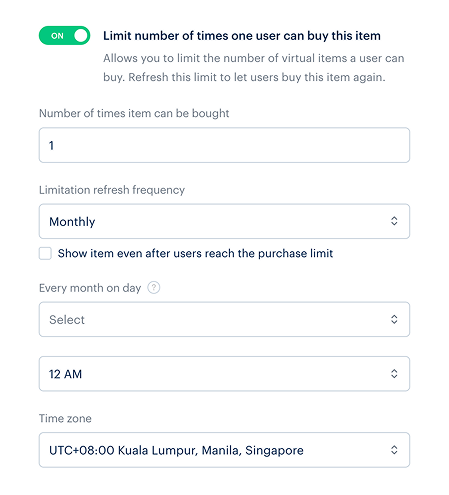
- To limit the number of items available for purchase, turn on the Limit number of times one user can buy this item toggle and enter the desired quantity.
- To configure how often the limit resets:
- From the drop-down list, select a period:
- Daily.
- Weekly.
- Monthly.
- Custom interval – this is calculated starting from the item’s display start date.
- No regular refresh.
- From the drop-down list, select a period:
- Set up the reset schedule based on the selected period.
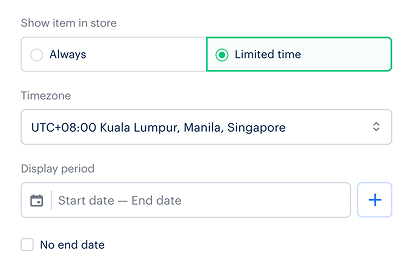
- Configure a time limit for displaying the item (optional):
- In the Show item in store field, select Limited time.
- Specify the time zone and the beginning and the end of the period.
- If you don’t want to indicate the end of the item display period, check the No end date box.
- Configure attributes using one of the following methods (optional):
- Check the settings and click Create item.
Bundle is a set of several items that are sold as a single unit. You can add items of different types to a bundle:
- Virtual currency.
- Package of virtual currency.
- Virtual items including time-limited items.
- Bundles.
See the Bundles section to learn more about bundles.
To create a bundle:
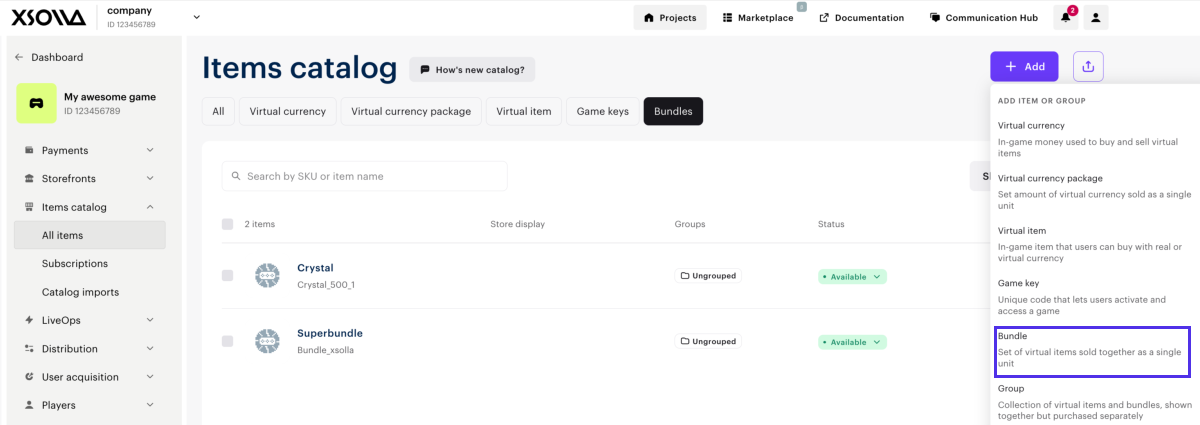
- In your project in Publisher Account, go to the Items catalog > All items section.
- Click Add and select Bundle from the drop-down list.
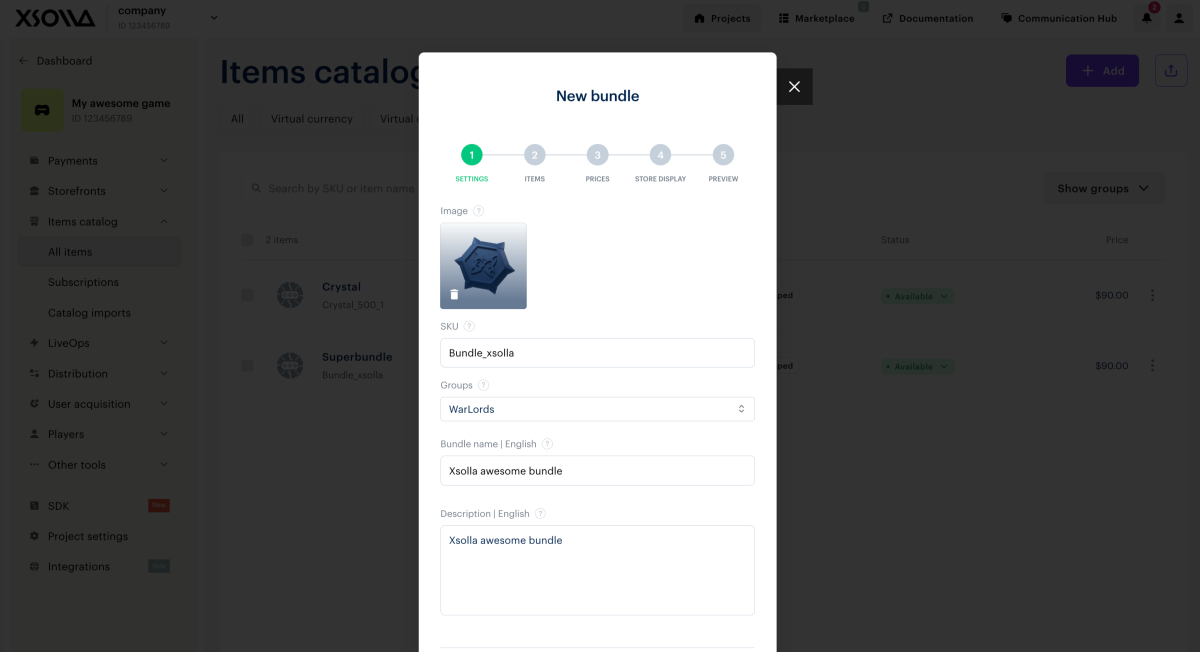
- Specify the following parameters:
- Image (optional).
- SKU.
- One or several groups the bundle should belong to.
- Name.
- Description (optional).
- Configure bundle attributes (optional) using one of the following methods:
- Click Next.
- If partner-side personalization is enabled, you can choose between a standard and a dynamic bundle type. Dynamic bundles allow you to skip item creation in Xsolla and instead return bundle contents generated by your server when the catalog is requested. If partner-side personalization is disabled, the bundle type selector is not displayed, and a standard bundle is created automatically.
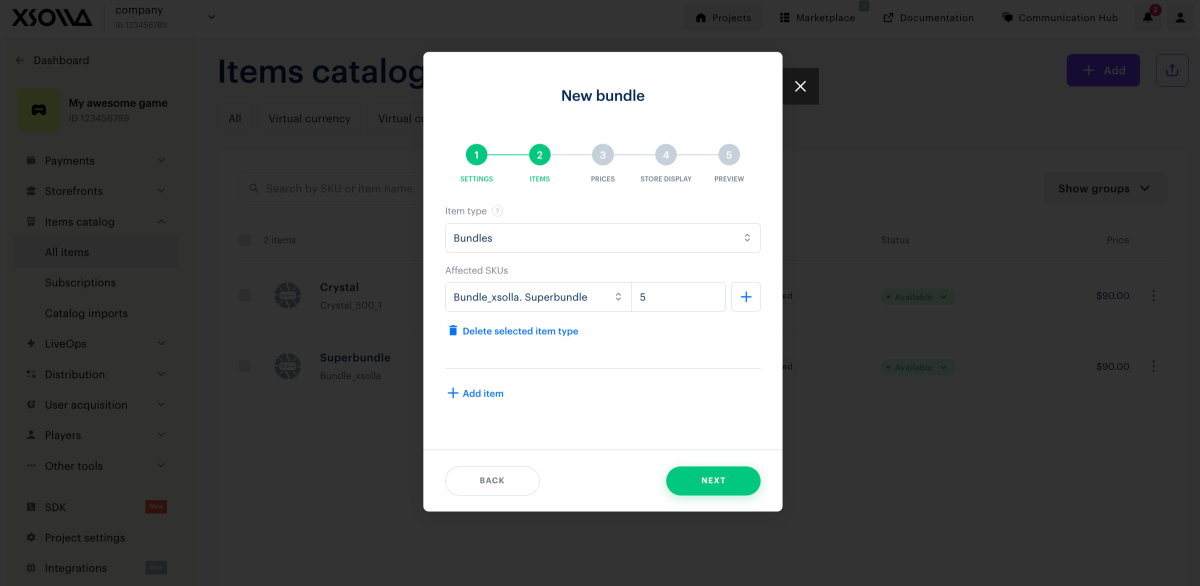
- Add items to the bundle:
- Select the item type.
- Specify one or more item SKUs to be included in the bundle.
- Set the quantity for each SKU.
- Click Next.
- Set the bundle price in the Paid or Free field:
- To create a free bundle, select Free bundle.
- To set a price, select Paid bundle and specify the price in real or virtual currency. You can’t create a bundle with a price of zero. If needed, configure regional prices.
- To limit the number of bundles available for purchase, turn on the Limit bundle purchases per user toggle and enter the desired quantity.
- To configure how often the limit resets:
- From the drop-down list, select a period:
- Daily.
- Weekly.
- Monthly.
- Custom interval — this is calculated starting from the bundle’s display start date.
- No regular refresh.
- Set up the reset schedule based on the selected period.
- From the drop-down list, select a period:
- Click Next.
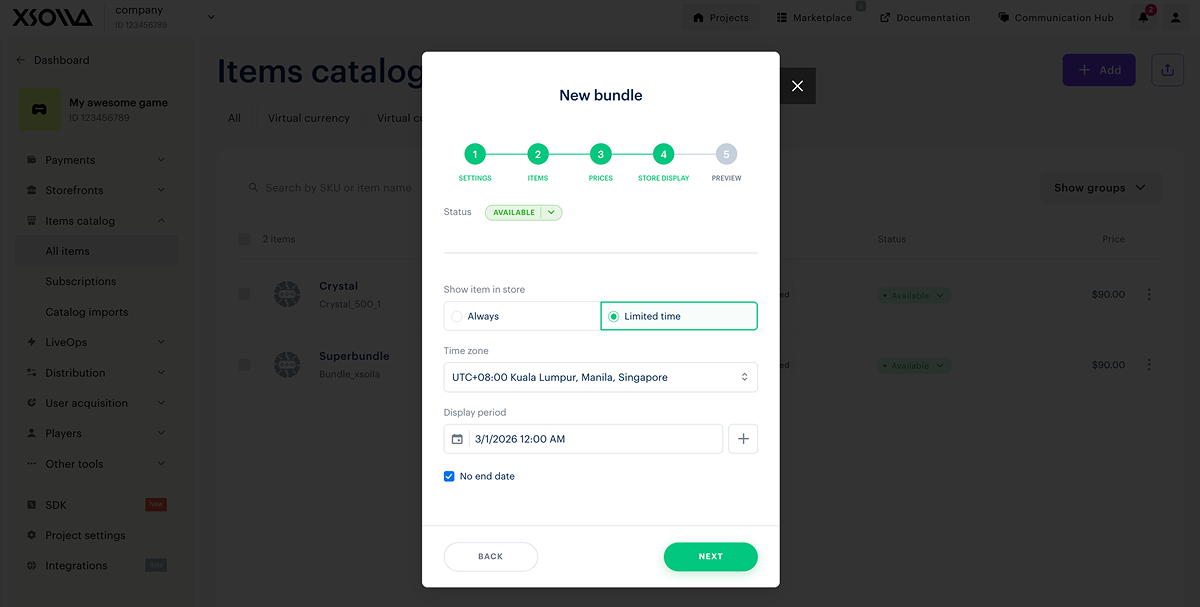
- Configure how the bundle is displayed in the store:
- Choose the status.
- Set a display time limit for the bundle (optional): specify the time zone and the beginning and the end of the period. If you don’t want to indicate the end of the bundle display period, check the No end date box.
- Click Next.
- Check the settings and click Save.
- Open your project in Publisher Account and go to the Items catalog > All items section.
- Click Add and select Game key from the drop-down list.
- Set the basic package settings:
- Add general information for each game, including:
- Image (optional)
- SKU
- Game title
- Game description (optional)
- Add a link to the game page (optional):
- Set the Add game page link toggle to On.
- If the game does not have a page, select Create new game page and specify Game page name.
- Add general information for each game, including:
- Click Save and continue.
- Select the game distribution platforms and upload a CSV or TXT file with keys. Each key’s alphanumeric combination must be unique. Keys with an identical combination will not be uploaded.
- If you want to sell the game before its official release, set the Pre-orders toggle to On. You can specify the release date when the keys will be delivered to users instantly when creating the keys or later.
- Click Save and continue.
- Set up pricing for the selected platforms. Define prices or create free keys:
- To create a free key package, in the Paid or free field, select Free game key.
- To set a price, in the Paid or free field, select Paid game key and specify the price in real or virtual currencies. If needed, configure regional prices.
- To set a limit for purchasing a game key (optional). To do this, switch the Limit for game key purchase per user toggle to On and specify the number of keys a user can purchase.
- Click Save and continue.
- After successfully creating a package of keys, a modal window will appear with game keys selling options. These options include selling keys via Site Builder, via widget, or via direct link. You can select one of the options: go to sales setup immediately or return at any time later.
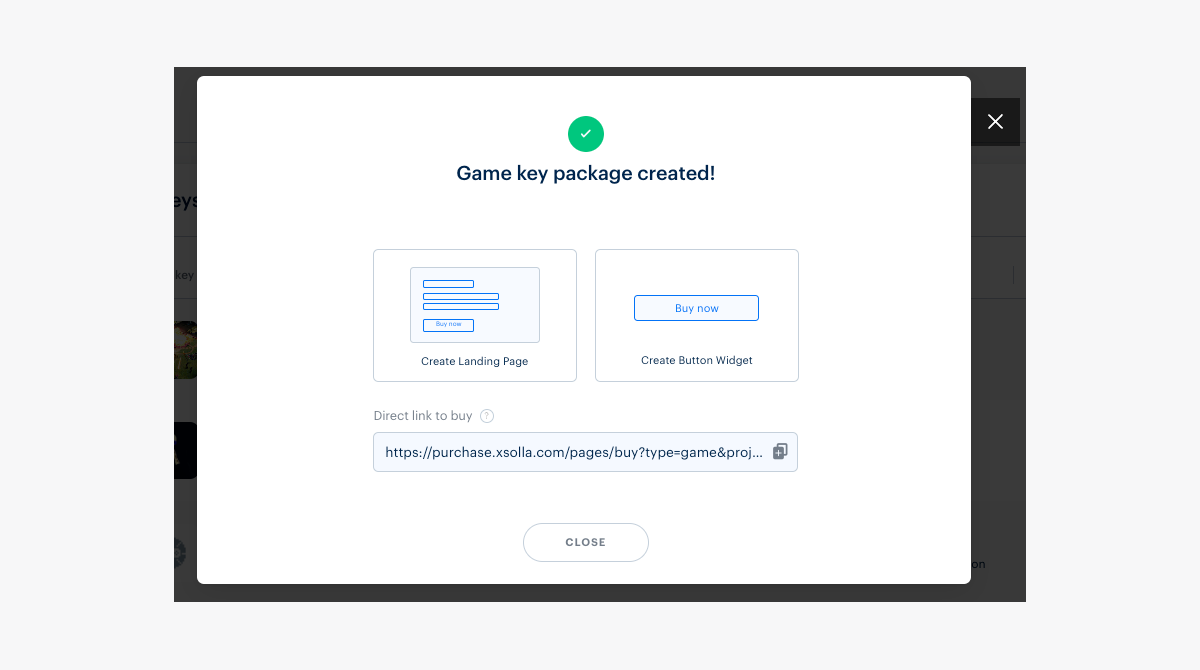
To make changes to the created game keys package, select the key on the Game keys tab, make changes, and save.
For users to be able to buy the game, the keys need to be uploaded. If the keys run out, additional keys must be uploaded.
You will receive an email notification when there are 25%, 10%, and 0% uploaded keys remaining in each package if you have one of the following roles in Publisher Account:
- developer
- owner
Only the project owner can change roles in Publisher Account in the Company settings > Users section.
Found a typo or other text error? Select the text and press Ctrl+Enter.
