
Bundles
How it works
Bundle is a set of several items that are sold as a single unit.
Main features:
- Adding items of different types to a bundle:
- virtual currency
- package of virtual currency
- game keys for preselected platforms
- virtual items
- bundles
- Free bundle.
- Configuring the bundle pricing in real and virtual currencies. You can set up prices in several real or virtual currencies. Make sure you select a default currency in this case.
- Setting regional prices for bundles.
- Limiting the number of bundles available for purchase.
- Setting a time limit for displaying bundles in the store.
- Restricting bundle availability by region.
- You can’t add the same bundle to the bundle.
- You can’t create an empty bundle.
- If a bundle includes keys and the available keys are exhausted, the sale of that bundle is paused.
- Setting regional restrictions for bundles is only available via API calls.
How to set up
Set up via Publisher Account
To create a bundle:
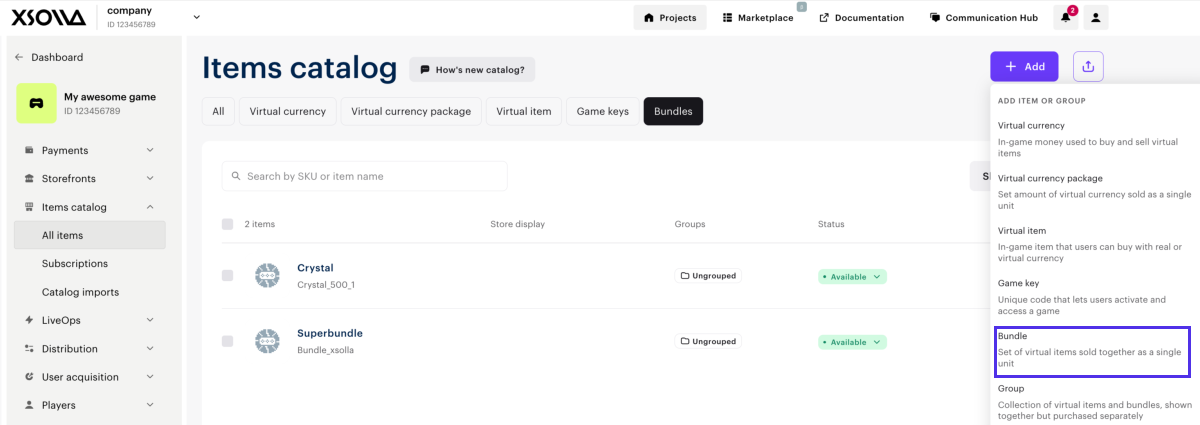
- In your project in Publisher Account, go to the Items catalog > All items section.
- Click Add and select Bundle from the drop-down list.
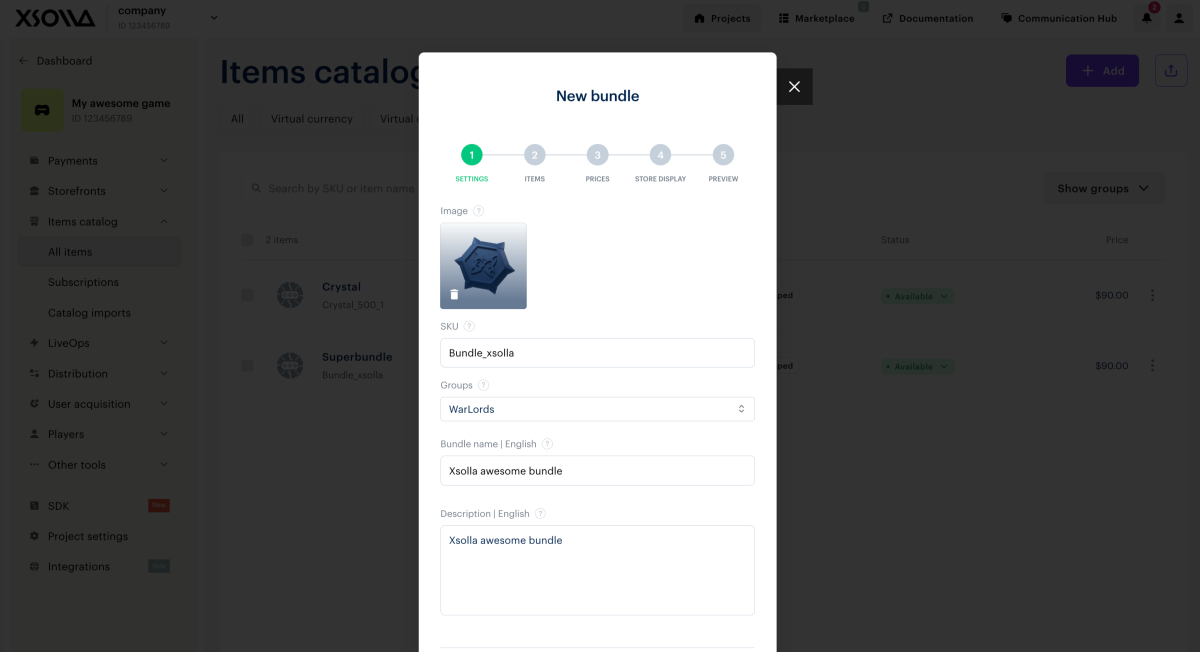
- Specify the following parameters:
- Image (optional).
- SKU.
- One or several groups the bundle should belong to.
- Name.
- Description (optional).
- Configure bundle attributes (optional) using one of the following methods:
- Click Next.
- If partner-side personalization is enabled, you can choose between a standard and a dynamic bundle type. Dynamic bundles allow you to skip item creation in Xsolla and instead return bundle contents generated by your server when the catalog is requested. If partner-side personalization is disabled, the bundle type selector is not displayed, and a standard bundle is created automatically.
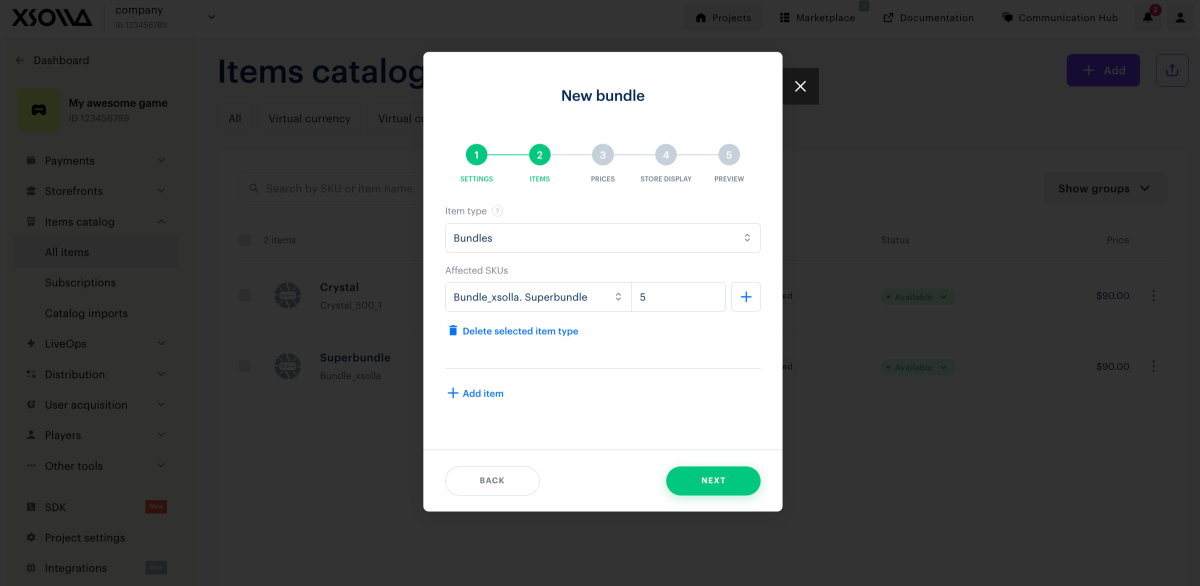
- Add items to the bundle:
- Select the item type.
- Specify one or more item SKUs to be included in the bundle.
- Set the quantity for each SKU.
- Click Next.
- Set the bundle price in the Paid or Free field:
- To create a free bundle, select Free bundle.
- To set a price, select Paid bundle and specify the price in real or virtual currency. You can’t create a bundle with a price of zero. If needed, configure regional prices.
- To limit the number of bundles available for purchase, turn on the Limit bundle purchases per user toggle and enter the desired quantity.
- To configure how often the limit resets:
- From the drop-down list, select a period:
- Daily.
- Weekly.
- Monthly.
- Custom interval — this is calculated starting from the bundle’s display start date.
- No regular refresh.
- Set up the reset schedule based on the selected period.
- From the drop-down list, select a period:
- Click Next.
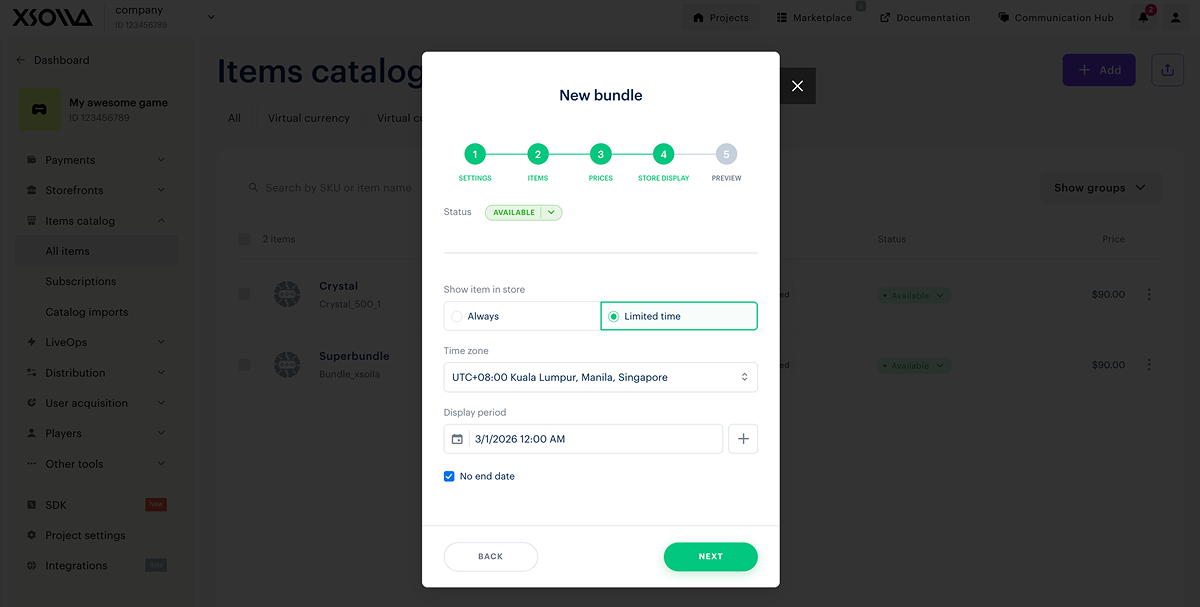
- Configure how the bundle is displayed in the store:
- Choose the status.
- Set a display time limit for the bundle (optional): specify the time zone and the beginning and the end of the period. If you don’t want to indicate the end of the bundle display period, check the No end date box.
- Click Next.
- Check the settings and click Save.
Set up via API
To set up bundles, you can use the calls from the Admin subsection in the Bundles group.
- json
1"content": [
2  {
3     "sku": "brilliant_game_sku_steam",
4     "quantity": 1
5  }
6]
To limit the number of bundles available for purchase, use the Create bundle or Update bundle API calls with the following parameters:
limits— specifies the maximum number of bundles available for purchase.limits.recurrent_schedule— defines how often the limit resets.
You can also configure the bundle’s display time limit in the store and set regional restrictions.
Display bundles in store
Bundles are displayed in the catalog depending on how it is implemented — through the site builder or via API.
Display via site builder
To display bundles on your website:
- Create bundles.
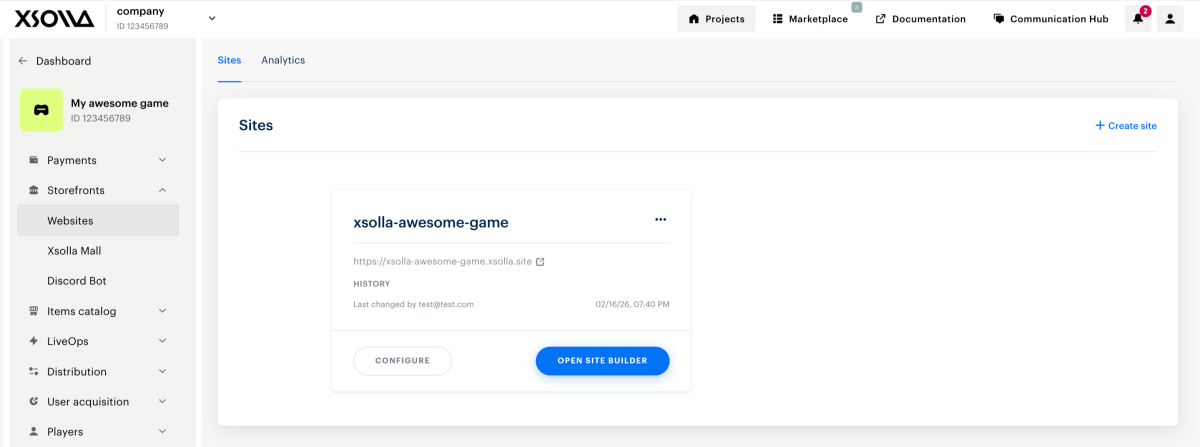
- In your project in Publisher Account, go to the Storefronts > Websites section.
- In the pane of the desired site, click Open Site Builder.
- In the Store block, go to the Store section.
- In the Item type field, select Bundles.
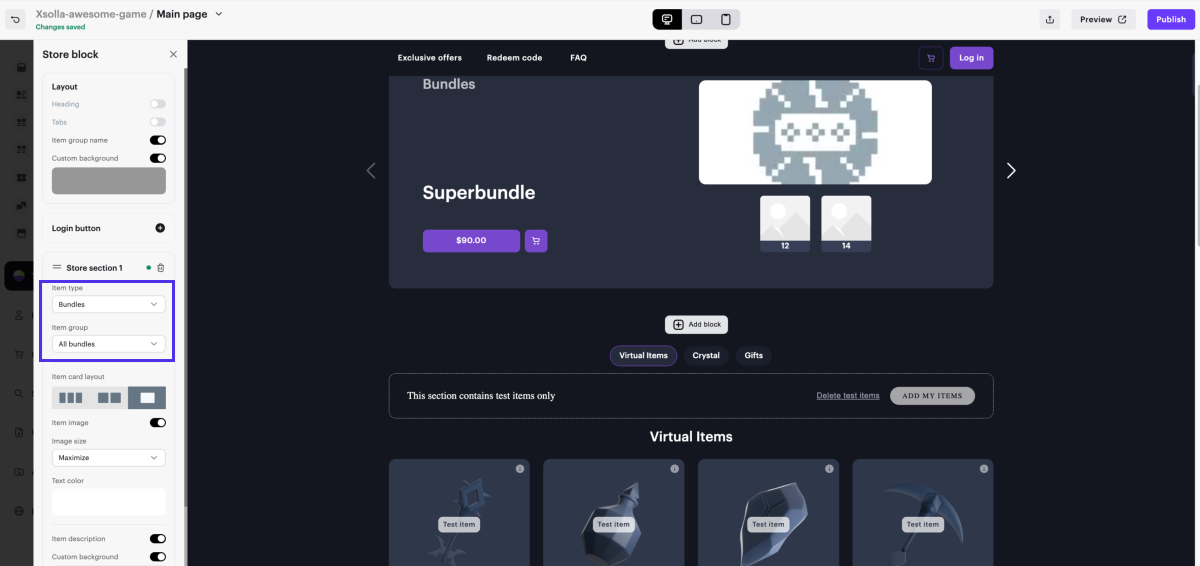
- In the Item group field, select their group.
- Choose an item card layout.
- If needed, customize the card layout by turning on the corresponding toggles in the card layout settings.
- After making all necessary changes and preparing your website for launch:
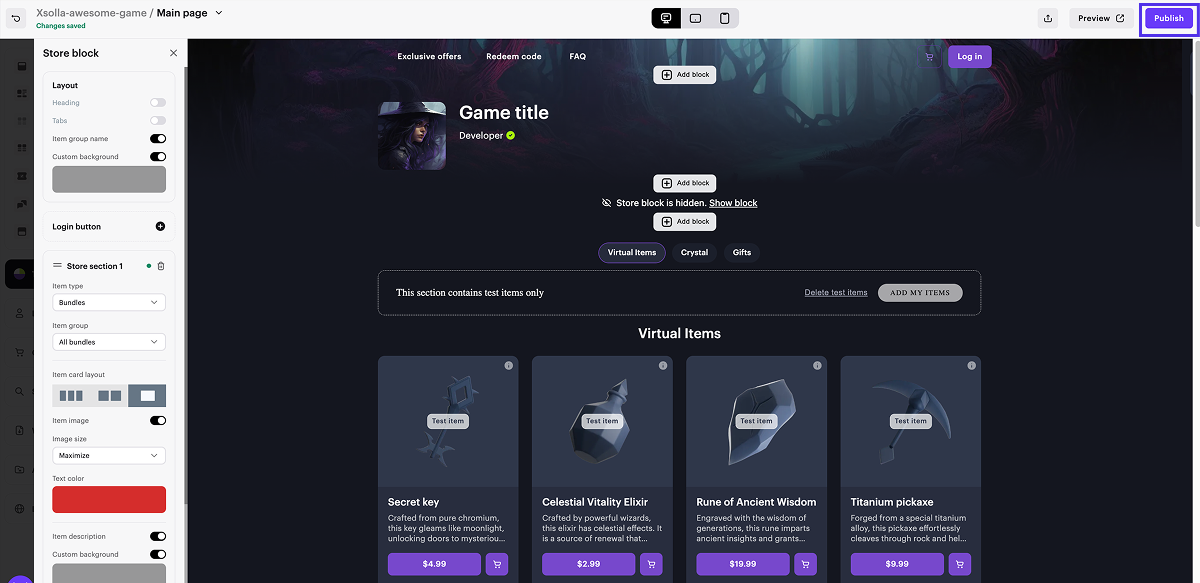
- In the upper-right corner of the site builder, click Publish.
- Check the boxes next to the pages you want to publish.
- Click Publish.
If website publication is not available, make sure all the conditions are met:
- There are no empty sections on the website (marked with a red indicator).
- The licensing agreement with Xsolla has been signed.
- The main page is published or selected for publication. You cannot publish child pages before the main page.
Once the site is published, a section with bundles will become available. If no bundles are displayed, check that their status is set to Available and that no time-based display limit is active.
Get bundle information via API
If your catalog is configured using API, bundle data is returned through the calls available in the Catalog subsection:
Set up webhooks
You can configure which item data is included in the Successful payment for order and Order cancellation webhooks via the items array.
Grant bundles to users
Depending on the item type and integration settings, the bundle is granted to the user in one of the following ways:
- If you’ve integrated PlayFab, virtual currency and items are granted to the user’s PlayFab inventory automatically.
- If you use a custom delivery system, all virtual items and currency are granted on your side. We recommend setting up a webhook handler to receive order data on your backend. The necessary data is included in the Successful payment for order webhook.
- If bundle content delivery is not disabled, after a bundle purchase, all items included in the bundle are listed in the items array of the Successful payment for order webhook as separate items. If a bundle contains another bundle, it will also be unpacked and passed as separate items.
Refer to the Set up order status tracking section for more details on this and other methods of retrieving purchase data.
Found a typo or other text error? Select the text and press Ctrl+Enter.
