
Virtual currency
How it works
Virtual currency is virtual money used to purchase and sell virtual goods. Depending on how it is used, virtual currency affects the game economy balance or is related to application monetization.
Main features:
- Selling any amount of virtual currency or virtual currency packages with a fixed amount.
- Selling virtual currency and virtual currency packages for real or virtual currency.
- Limiting the number of virtual currency packages available for purchase.
- Limiting the display time of virtual currency and virtual currency packages in the store.
- Free virtual currency packages.
The following options are available for selling virtual currency:
- Any amount — allows you to sell virtual currency in the amount specified by the user. To use this option, implement an input field on the client side that allows the user to enter the desired amount of currency when making a purchase.
- Packages — allows you to sell virtual currency in predefined amounts. The price of a currency package is set separately and may differ from the standard price of the same amount of that currency.
- Example: A package contains 100 gold coins and costs $90, while the price of one gold coin is $1.
Restrictions:
- You can add only one type of virtual currency to a package.
- A price in another virtual currency can be configured only via API calls.
- A virtual currency package can be made free — without specifying a price in real or virtual currency. This can be configured via Publisher Account or via API calls. Free virtual currency that is not part of a package can be created only via API calls.
- The amount of virtual currency in a package can be specified only as an integer.
How to set up
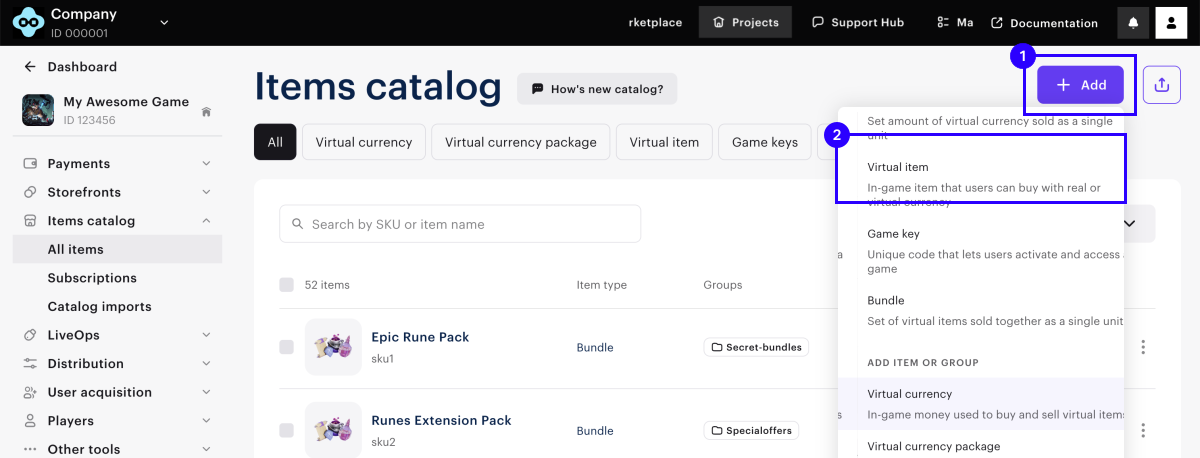
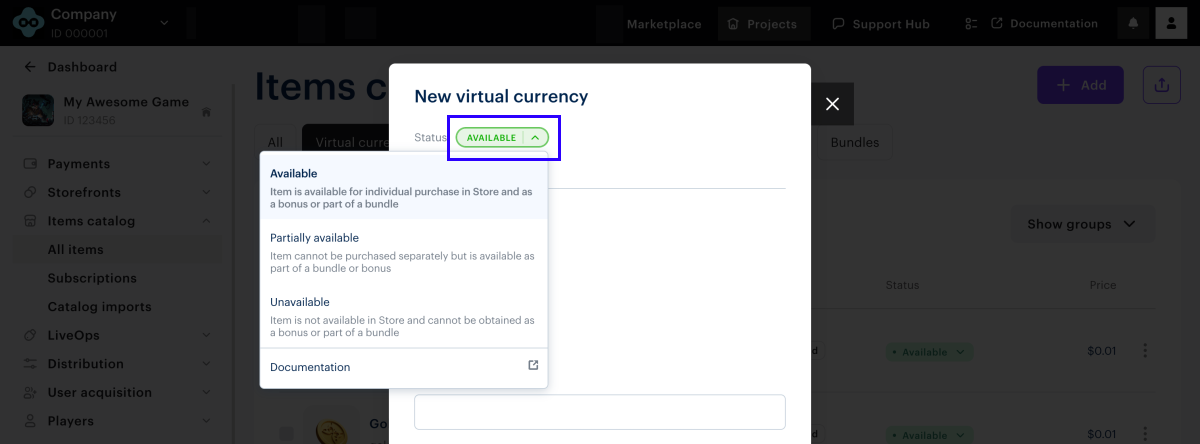
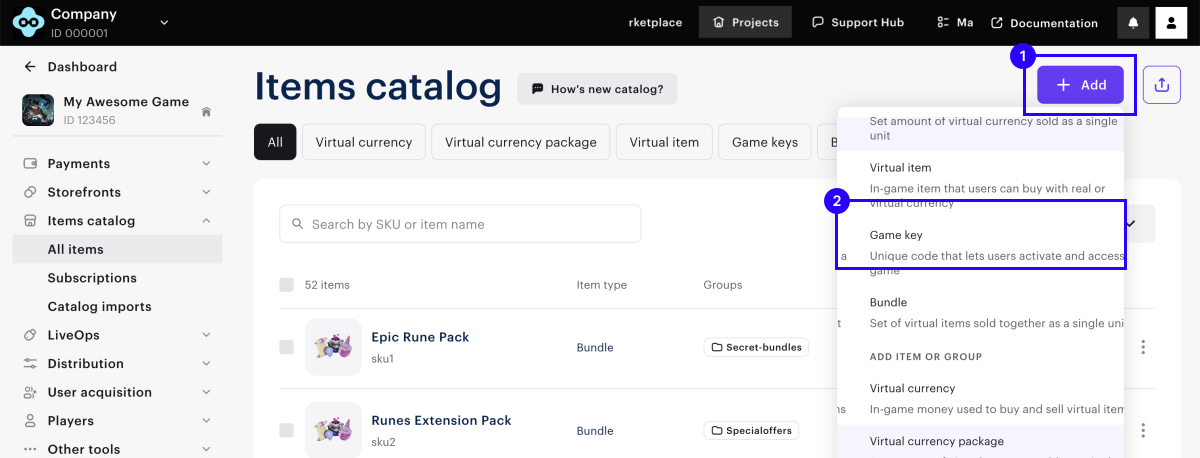
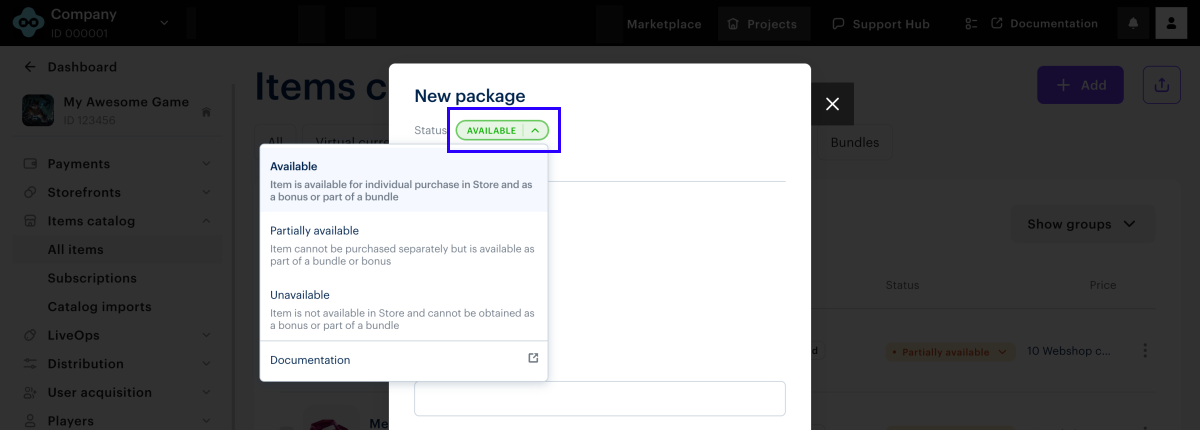
Set up via Publisher Account
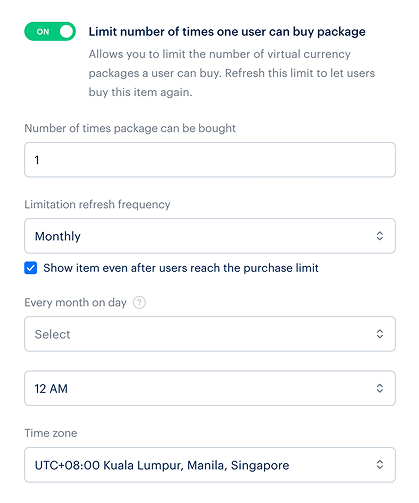
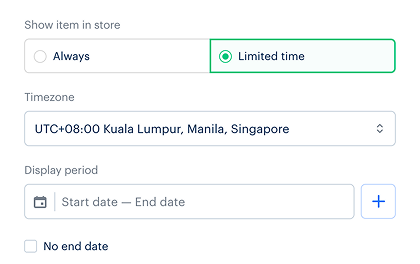
Set up via API
To set up virtual currencies, you can use the calls from the Admin subsection in the Virtual items and currency group.
| Task | API call |
|---|---|
| Create virtual currency. | Create virtual currency. |
| Get virtual currency. | Get virtual currency. |
| Get a list of virtual currencies. | Get list of virtual currencies. |
| Update virtual currency. | Update virtual currency. |
| Delete virtual currency. | Delete virtual currency. |
| Limit the amount of virtual currency available for purchase. | In the Create virtual currency or Update virtual currency API calls pass the following parameters:
|
| Create a virtual currency package. | Create virtual currency package. |
| Get a virtual currency package. | Get virtual currency package. |
| Get a list of virtual currency packages. | Get list of virtual currency packages. |
| Update a virtual currency package. | Update virtual currency package. |
| Delete a virtual currency package. | Delete virtual currency package. |
| Limit the number of virtual currency packages available for purchase. | In the Create virtual currency package or Update virtual currency package API calls pass the following parameters:
|
For more information about limits, see the following guides:
Display virtual currency in store
The display of virtual currency or virtual currency packages depends on how the catalog is implemented — through the site builder or via API.
Display via site builder
- Create virtual currency package.
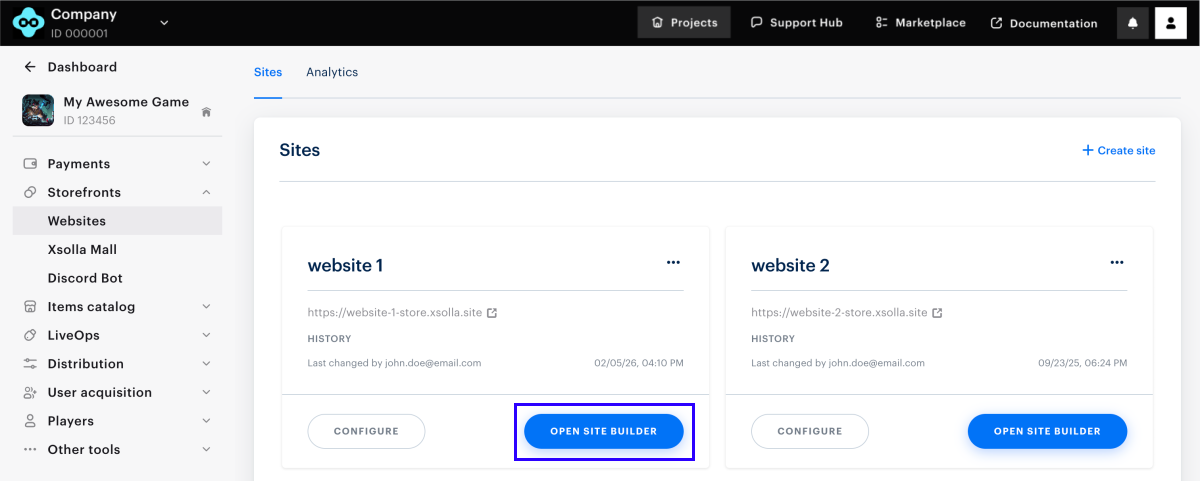
- In your project in Publisher Account, go to the Storefronts > Websites section.
- In the pane of the desired site, click Open Site Builder.
- In the Store block section, select the virtual currency package you want to sell on the website in the Item type field.
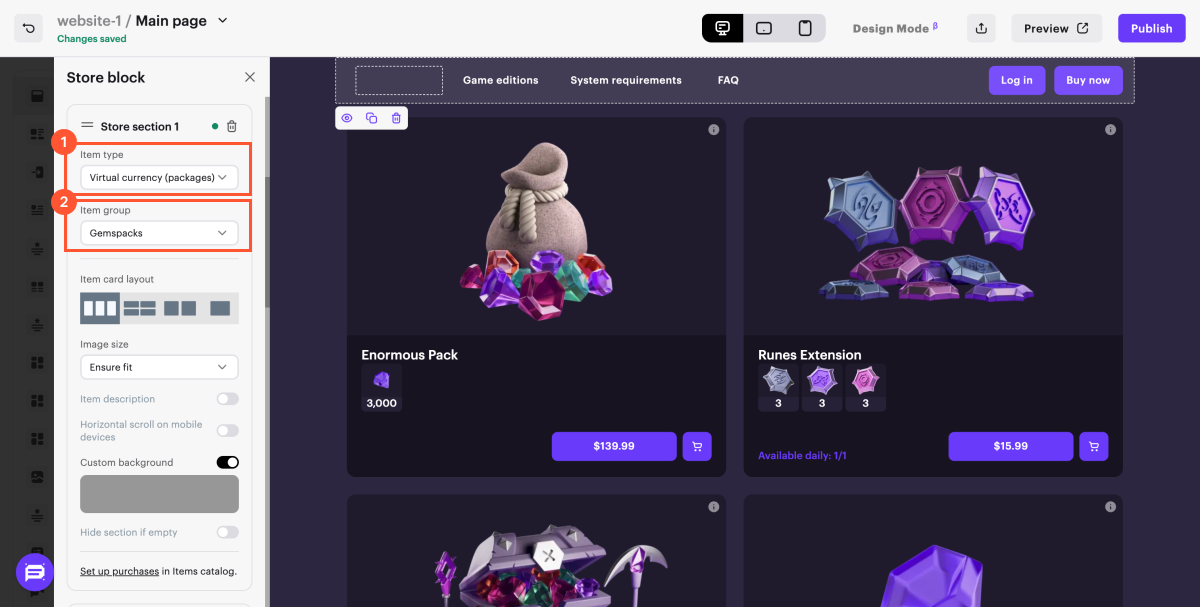
- Set an item card layout.
- After making all necessary changes and preparing your website for launch:
- In the upper-right corner of the site builder, click Publish.
- Check the boxes next to the pages you want to publish.
- Click Publish.
If website publication is not available, make sure all the conditions are met:
- There are no empty sections on the website (marked with a red indicator).
- The licensing agreement with Xsolla has been signed.
- The main page is published or selected for publication. You cannot publish child pages before the main page.
Once the site is published, a section with virtual currency packages will become available. If no packages are displayed, check that their status is set to Available and that no time-based display limit is active.
Get virtual currency information via API
To retrieve the catalog of virtual currencies and virtual currency packages on the client side, use the calls from the Catalog subsection of the Virtual items and currency group.
| Task | API call |
|---|---|
| Get virtual currency by SKU. | Pass the virtual_currency_sku parameter to the Get virtual currency by SKU API call. |
| Get a virtual currency list. | Get virtual currency list. |
| Get a virtual currency package by SKU. | Pass the virtual_currency_package_sku parameter to the Get virtual currency package by SKU API call. |
| Get a virtual currency package list. | Get virtual currency package list. |
Grant virtual currency to users
Depending on the item type and integration settings, the virtual currency is granted to the user in one of the following ways:
- If you’ve integrated PlayFab, virtual currency and items are granted to the user’s PlayFab inventory automatically.
- If you use a custom delivery system, all virtual items and currency are granted on your side. We recommend setting up a webhook handler to receive order data on your backend. The necessary data is included in the Successful payment for order webhook.
Found a typo or other text error? Select the text and press Ctrl+Enter.
