
Tenjin와 통합
글로서리
Tenjin
모바일 어트리뷰션 및 마케팅 분석 플랫폼입니다. 이를 통해 애플리케이션 개발자와 마케터는 다양한 채널과 기기에서 마케팅 캠페인을 추적, 측정 및 최적화할 수 있습니다.
플랫폼에 대한 자세한 내용은 Tenjin 문서를 참조하십시오.
애플리케이션 ID
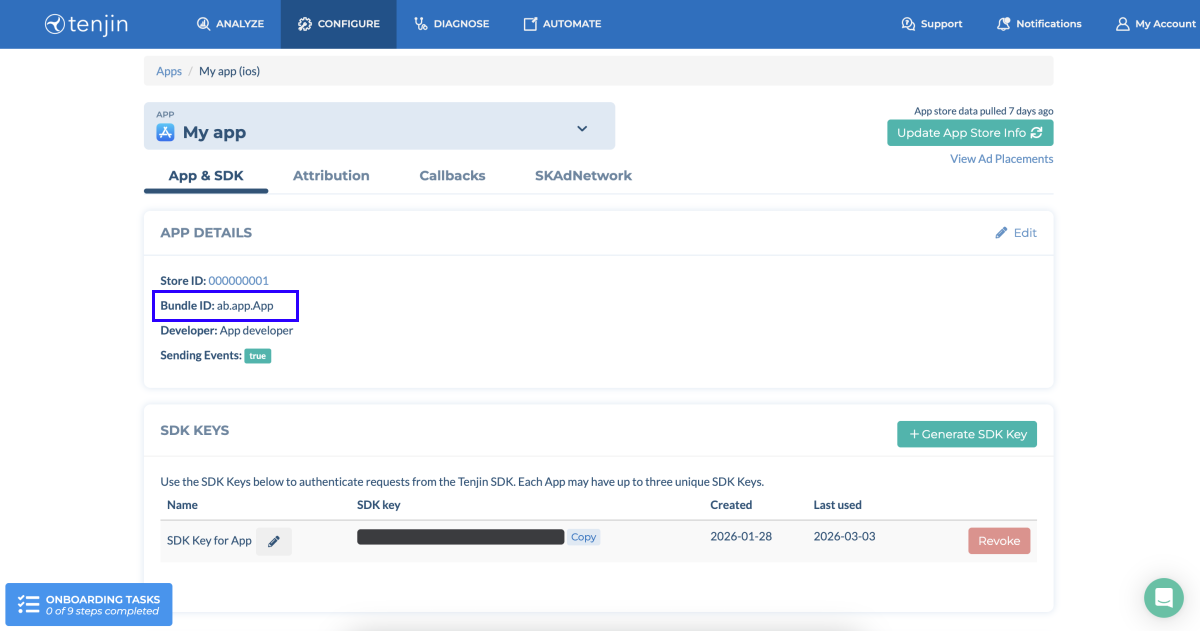
Tenjin에 애플리케이션을 추가할 때 자동으로 생성되는 모바일 애플리케이션 ID입니다. 이는
- Tenjin 계정에서
Configure > All apps 섹션으로 이동하세요. - 필요한 애플리케이션의 페이지를 엽니다.
Add details 섹션에서Bundle ID 를 복사하세요.
SDK 키
Tenjin에 애플리케이션을 추가할 때 자동으로 생성되는 모바일 애플리케이션 ID입니다. 이는
- Tenjin 계정에서
Configure > All apps 섹션으로 이동하세요. - 필요한 애플리케이션의 페이지를 엽니다.
Add details 섹션에서Bundle ID 를 복사하세요.
계정 수준의 키
애플리케이션을 iOS 및 Android 플랫폼에 게시할 때 서버 간(S2S) 호출을 인증하는 데 사용되는 토큰입니다. Tenjin에서 수동으로 생성됩니다. 이 토큰을 획득하려면 Tenjin 담당자에게 문의하십시오.
각 플랫폼마다 번들 ID가 고유하다는 점을 명심하십시오.
Tenjin ID
analytics_installation_id).평생 가치(LTV)
광고 투자 대비 수익(ROAS)
투자 수익률(ROI)
인앱 이벤트
사용자 확보
고객 사용자 ID(CUID)
사용자 등록 시 애플리케이션 소유자가 생성하고 설정한 사용자 ID입니다. СUID는 웹샵 솔루션과 Tenjin에서 동일해야 합니다. 이 매개 변수는 사용자 매칭 및 어트리뷰션을 지원합니다.
콜백
통합 시나리오
Tenjin과 엑솔라는 애플리케이션 내에서 그리고 웹샵 솔루션에서 구매를 위해 전체 LTV, ROAS, ROI 측정 완료를 허용하는 모바일 애플리케이션 S2S 통합을 지원합니다. 엑솔라는 웹샵 솔루션의 구매 정보를 모바일 인앱 이벤트로 Tenjin에 전송합니다.Tenjin는 이벤트를 모바일 애플리케이션 설치 수, 사용자 획득 캠페인에 귀속시킵니다.
다음과 같은 경우 모바일 애플리케이션 통합을 구성하여 고급 이벤트 분석을 얻을 수 있습니다:
엑솔라와 Tenjin S2S 통합을 통해 다음 이벤트를 이용할 수 있습니다:
| 이벤트 | 설명 |
|---|---|
| xsolla-billing-payment | 아이템 구매. 이벤트 매개 변수에는 구매에 대한 정보가 포함되어 있습니다. |
작동 방식
이 통합에는 엑솔라와 Tenjin 간의 양방향 데이터 흐름이 포함됩니다. 다음은 사용자가 구매할 때 시스템이 상호 작용하는 시나리오입니다.
  sequenceDiagram
    participant User
    participant Mobile App
    participant Web Shop
    participant Xsolla Backend
    participant Tenjin
    User->>Mobile App: 1. Logs in
    Mobile App->>Tenjin: 2. Sends CUID
    Tenjin-->>Xsolla Backend: 3. Sends callback
    User->>Web Shop: 4. Logs in using CUID
    User->>Web Shop: 5. Makes a purchase
    Web Shop->>Xsolla Backend: 6. Sends purchase event
    Xsolla Backend->>Tenjin: 7. Sends xsolla-billing-payment event
- 사용자가 모바일 애플리케이션에 가입하거나 로그인합니다.
- 사용자의 애플리케이션은 CUID를 포함하는 인앱 이벤트를 Tenjin으로 전송합니다.
- Tenjin은 콜백을 엑솔라에 전송합니다. 여기에는 애플리케이션 ID, Tenjin ID, CUID, 기타 관련 데이터 매개 변수가 포함됩니다.
- 사용자가 CUID를 사용하여 웹샵 솔루션에 로그인합니다.
- 사용자가 Web Shop에서 구매를 합니다.
- 구매 이벤트는 엑솔라 서버로 전송되어 Tenjin에서 수신한 데이터와 매칭됩니다.
- 엑솔라 서버는 Tenjin에서 받은 Tenjin ID, 애플리케이션 ID 및 기타 매개 변수가 포함된 S2S 인앱 이벤트를 Tenjin에 전송합니다.
Tenjin은 새로운 이벤트, 구매 및 수익을 미디어 소스로 다시 어트리뷰트합니다.
관리자 페이지에서 설정하는 방법
- 관리자 페이지에서 프로젝트를 열고 통합 섹션으로 이동합니다.
- Tenjin 창을 클릭합니다.
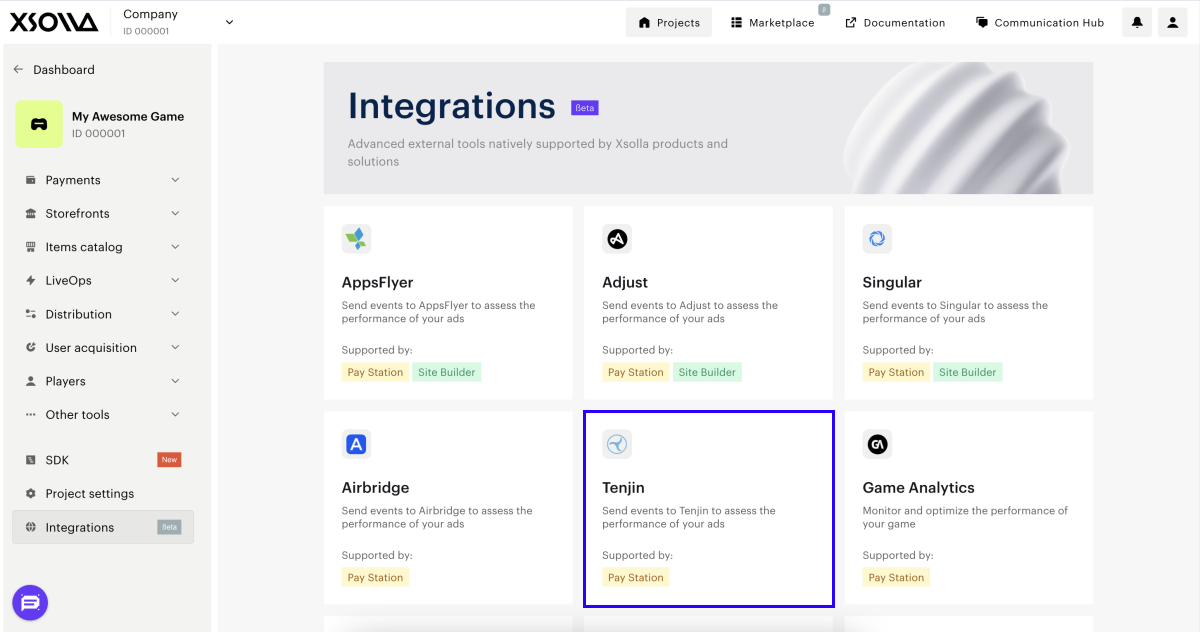
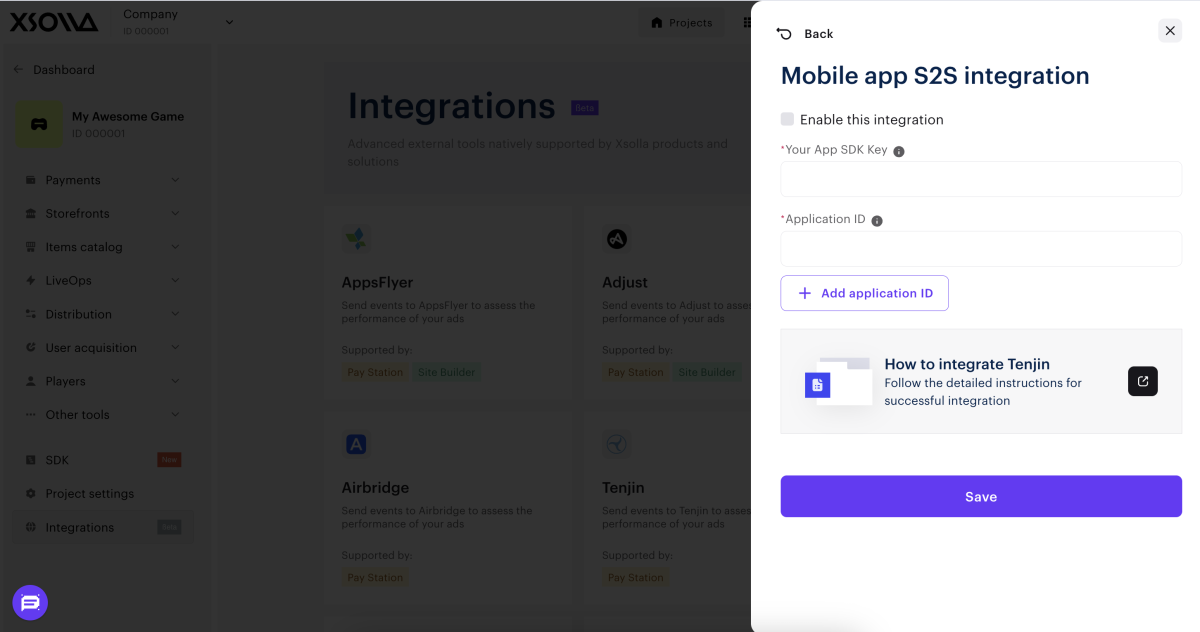
- 모바일 앱 S2S 통합 창에서 구성을 클릭합니다.
- 이 통합 활성화 확인란을 선택합니다.
- 다음 데이터를 입력하십시오:
- 플랫폼별로 Tenjin 측에서 생성된 SDK 키입니다. iOS 및 Android 플랫폼 모두에 애플리케이션을 게시한 경우, Tenjin으로부터 받은 계정 수준의 키를 지정해야 합니다.
- 애플리케이션 ID.
- 저장을 클릭합니다.
- Tenjin에서 통합을 활성화합니다.
설정을 저장하면 S2S 통합 창에 녹색 표시등이 표시됩니다.
활성화 통합을 변경하는 방법:
- Tenjin 창을 클릭합니다.
- 창이 열릴 경우 필요한 사항을 변경합니다.
- 저장을 클릭합니다.
Tenjin에서 설정하는 방법
Tenjin에서 다음을 수행해야 합니다:
CUID 전달
setCustomerUserId 메서드를 호출하여 다음과 같이 모바일 애플리케이션에서 Tenjin으로 CUID 전송을 구성하십시오:
java
- java
- swift
- C#
1TenjinSDK instance = TenjinSDK.getInstance(this, "<TENJIN_SDK_KEY>");
2instance.setCustomerUserId(cuid);   // CUID generated by your backend
3instance.connect();
1TenjinSDK.initialize("<TENJIN_SDK_KEY>")
2TenjinSDK.setCustomerUserId(userId: cuid);  // CUID used for Web Shop
3TenjinSDK.connect();
1BaseTenjin instance = Tenjin.getInstance("<TENJIN_SDK_KEY>");
2instance.SetCustomerUserId(cuid);   // CUID used for Web Shop
3instance.Connect();
엑솔라를 추가 채널로 추가
- Tenjin 계정에 로그인합니다.
Configure > Channels 섹션으로 이동합니다.Add a channel 을 클릭합니다.
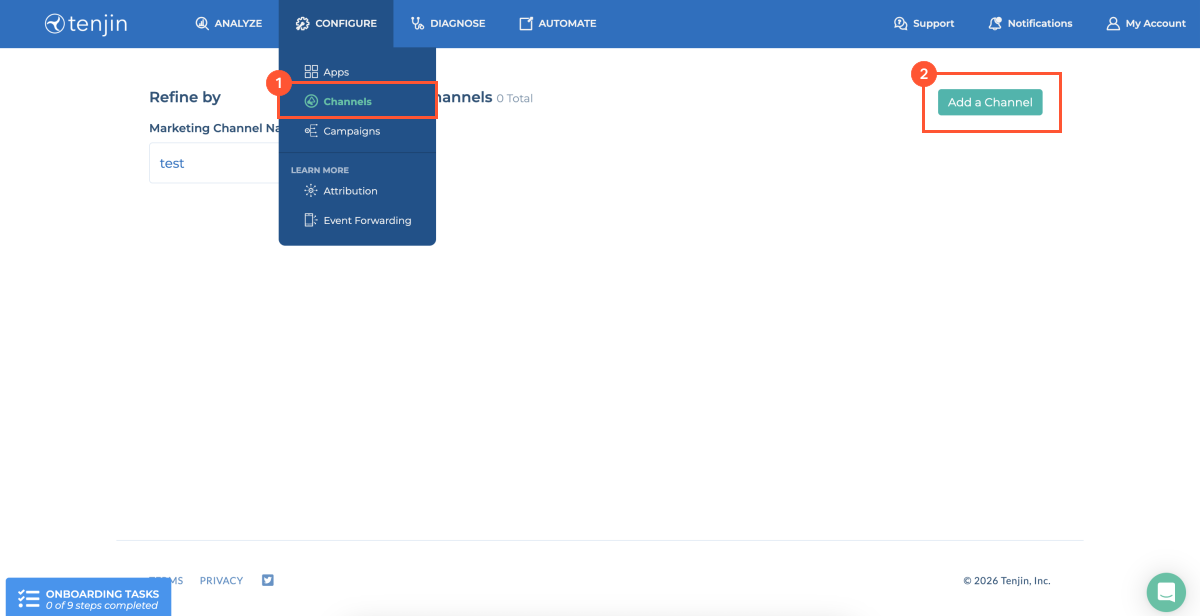
- 검색창에 엑솔라를 입력하고 선택합니다.
Xsolla 창을 클릭합니다.
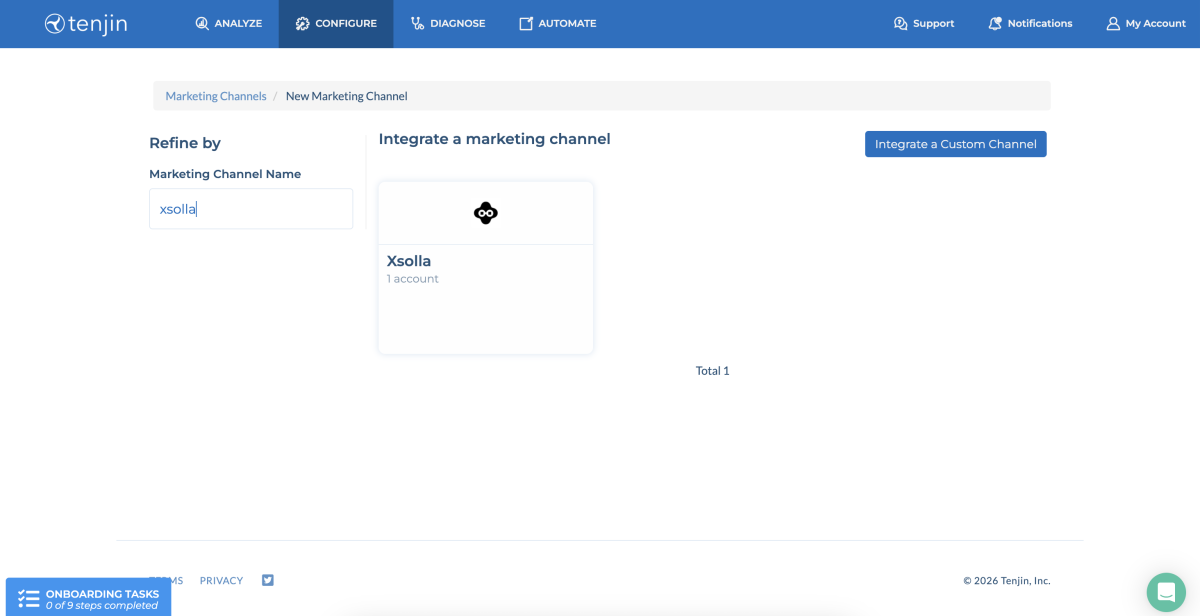
Add ad account 을 클릭합니다.
콜백 구성
- Tenjin 계정에 로그인합니다.
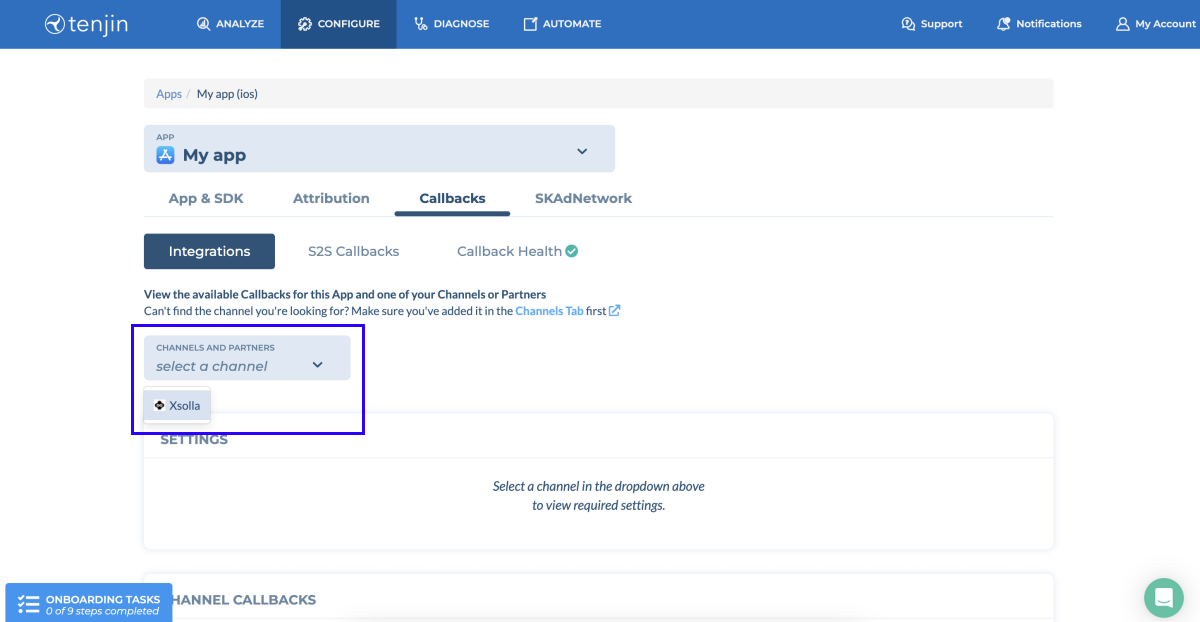
Configure > Channels 섹션으로 이동합니다.- 필요한 애플리케이션의 페이지로 이동합니다.
Callbacks 탭으로 이동합니다.- 광고 채널 드롭다운 목록에서
Xsolla 를 선택합니다.
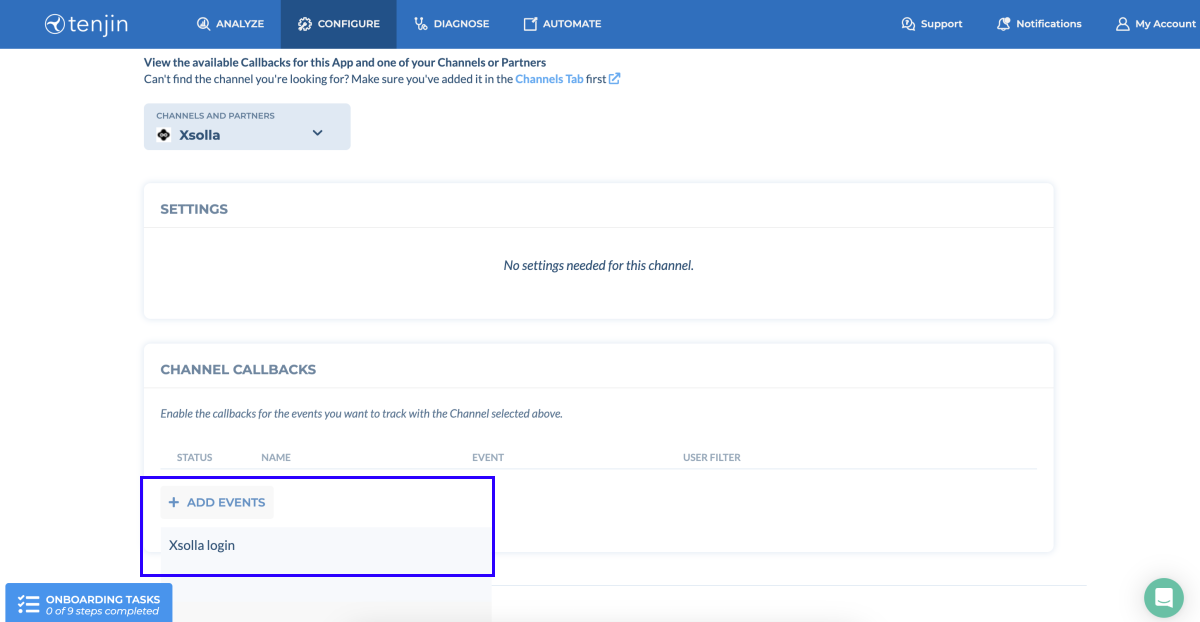
Channel callbacks 섹션에서Add events 를 클릭하고Xsolla login 을 선택합니다.
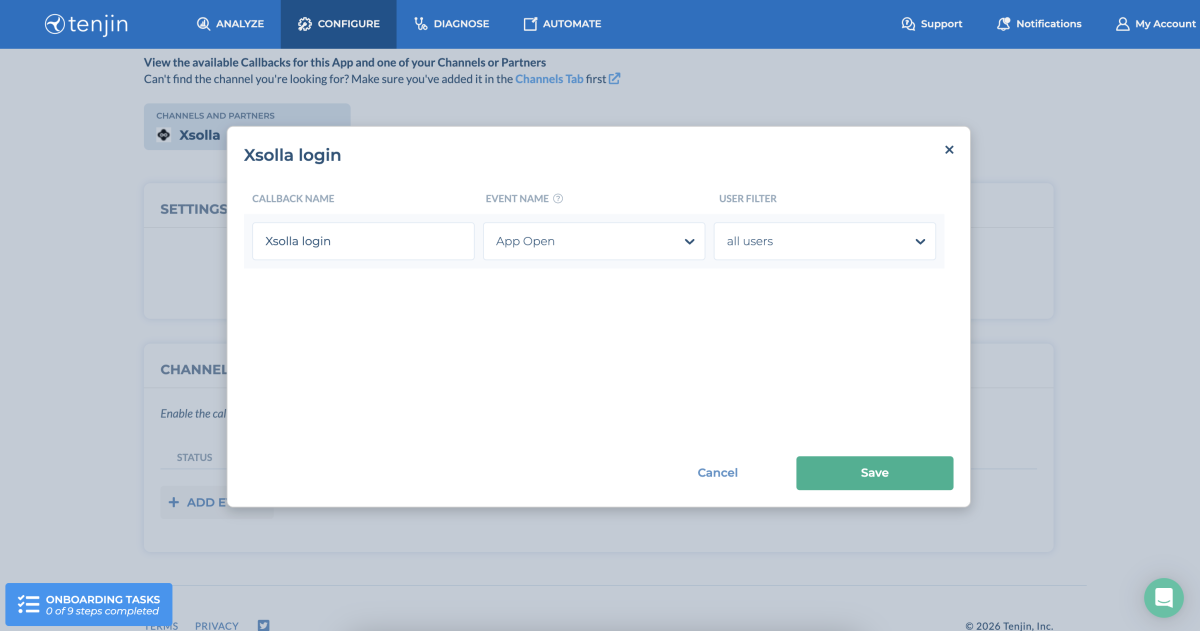
- 모달 창에서 CUID를 포함하는 이벤트를 선택하고
Save 을 클릭합니다.
이벤트 값 구조
특정 이벤트를 설정하거나 현재 통합 옵션이 요구 사항을 충족하지 못하는 경우에는 고객 성공 관리자에게 문의하거나 csm@xsolla.com으로 이메일을 전송하십시오.
아이템 구매
사용자가 Web Shop에서 구매하면 엑솔라는 Tenjin에 xsolla-billing-payment 이벤트를 전송합니다. 이벤트 매개 변수에 다음과 같은 구매 정보가 전달됩니다:
| 매개 변수 | 설명 |
|---|---|
| date_payment | 결제일. |
| invoice_id | 트랜잭션 ID. |
| payment_amount | 사용자가 실제로 지불한 금액. Tenjin 측에서는 사용자가 지불한 통화와 관계없이 금액이 USD로 환산됩니다. |
| payment_currency | 전환 또는 결제 방법 선택 후 사용자가 실제로 구매 대금을 결제한 통화(결제 통화)입니다. |
| payout_amount | 게임 판매자가 수수료와 세금을 공제한 후 수령한 구매 금액입니다. |
| purchase_amount | 수수료 및 세금을 공제하기 전 할인을 포함한 구매 금액입니다. |
| purchase_currency | 웹샵 솔루션에서 아이템 가격이 표시되는 통화(구매 통화)입니다. |
| skus | 단일 SKU 또는 SKU 배열. |
| dry_run | 테스트 결제 표시기. 샌드박스 모드에서 결제하는 경우 매개 변수는 1로 설정됩니다. 실제 결제의 경우 매개 변수가 생략됩니다. |
추가 데이터
또한 콜백에서 다음 매개 변수를 전달할 수 있습니다:
| 매개 변수 | 설명 |
|---|---|
| os_version | 장치 운영 체제 버전. |
| app_version | 애플리케이션 버전. |
| idfa | 앱 스토어의 광고주 ID. |
| idfv | Apple 측의 공급업체 ID. |
| gps_adid | Google Play의 광고주 ID. |
| sdk_version | Tenjin SDK 버전. |
| platform | 애플리케이션 플랫폼. |
오자 또는 기타 텍스트 오류를 찾으셨나요? 텍스트를 선택하고 컨트롤+엔터를 누르세요.
