
Time limits scheduler for items and promotions
The scheduler is a visual timeline within the canvas designed to help you plan and manage the timing of promotions and store items. It brings your catalog settings and marketing activities together in a single calendar view.
The tool focuses on a few practical tasks:
- Timing control. You can see time limits for displaying items in the store and promotion dates on one timeline. This makes it easy to spot if a promotion is still active while the item itself has already expired in the store.
- Easy editing. Adjust event durations using simple drag-and-drop directly on the timeline, without having to open the settings for each individual item.
- Conflict detection. The calendar view helps you track overlapping offers to ensure you aren’t overcrowding the user’s storefront.
- Time zone management. All schedules are displayed according to the selected time zone, which is essential for managing global launches.
Essentially, it is a single screen to verify exactly what content the user will see in the store at any given moment.
Limitations:
- Using canvas, you can’t create multiple periods when an item is available in the store, but you can change these periods if you’ve configured them manually in Publisher Account UI or using the API.
- Virtual currency packages are not supported in the scheduler. They won’t appear on the timeline or in search results, even if they have active time limits.
- Any changes made to items or promotions periods within the scheduler are applied according to the currently selected timezone.
Open scheduler
To access the scheduler:
- Open your project in Publisher Account and go to the LiveOps > Canvas section.
- Access the scheduler in one of the following ways:
In the toolbar, click the
 icon.
icon.In the toolbar, click the + icon and select the Scheduler widget.
Open the context menu anywhere on the canvas and select Scheduler.
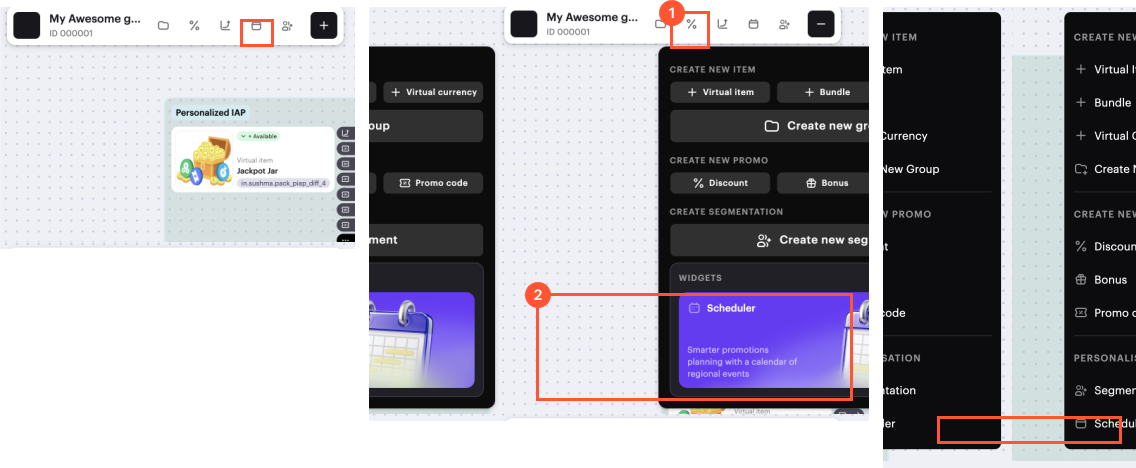
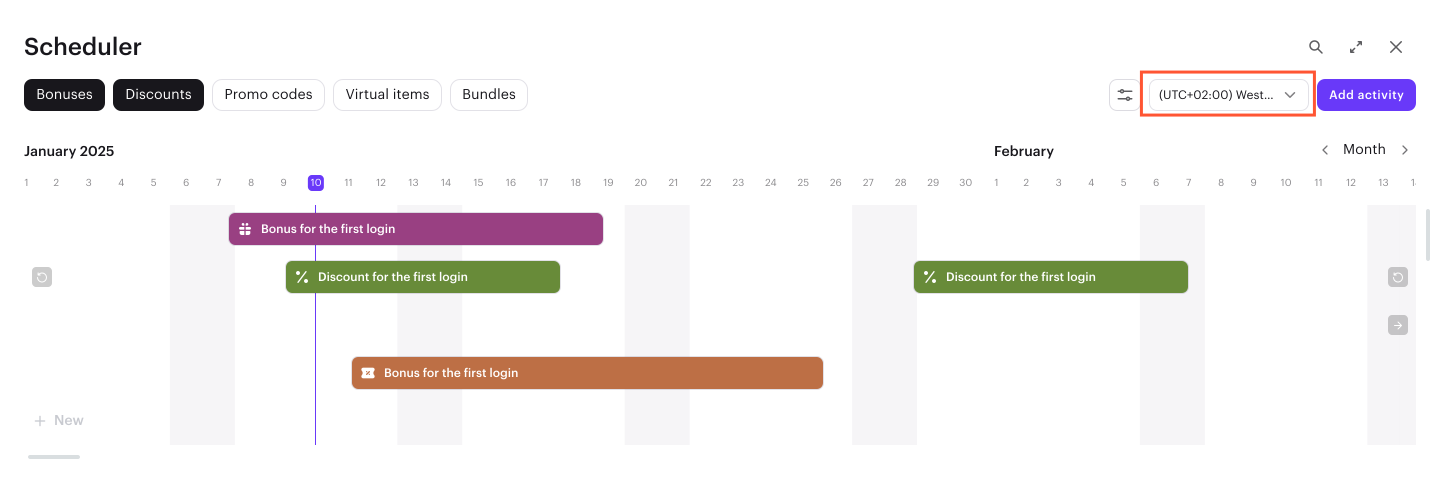
As a result you will see the timeline with promotions and items with specified time limits.
All time stamps are automatically normalized to a single time zone. By default, the scheduler detects and uses your browser’s local time zone, but you can manually select a different one from the drop-down list to align with your regional operations.
Filter and search items and promotions
Use the search and filter options to manage the visibility of items and promotions on the timeline:
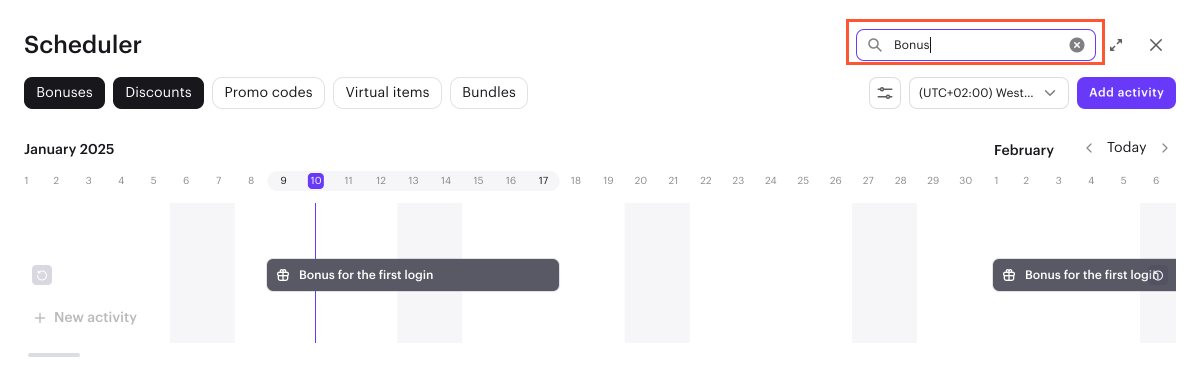
- Search by name (search by occurrence): use the search bar to find a specific item or promotion by typing any part of its name.
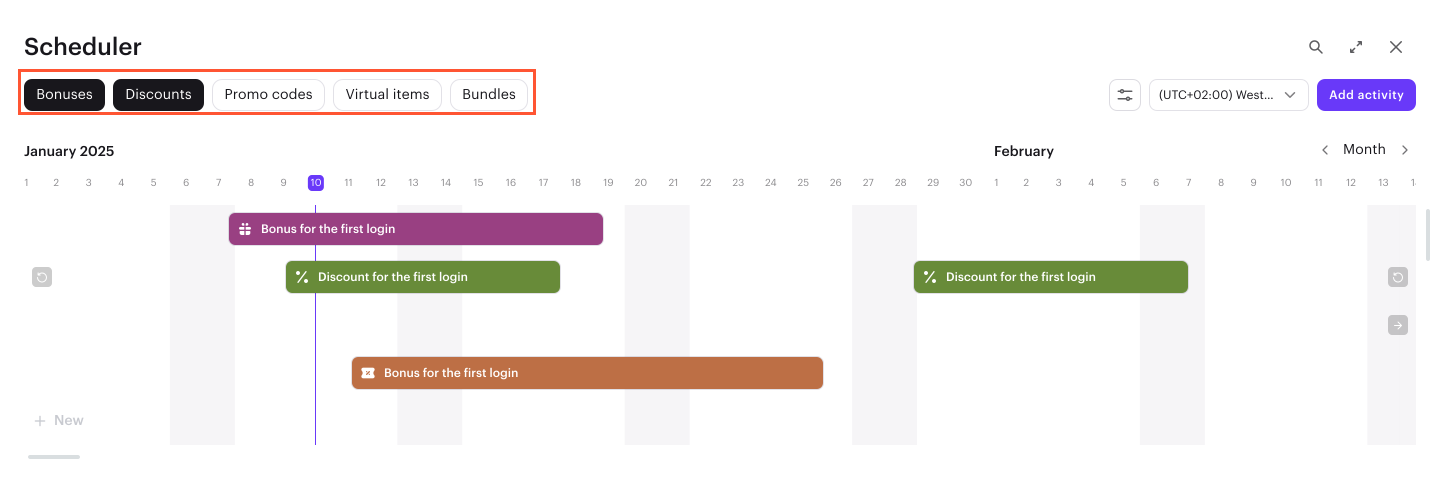
- Filter by type: you can narrow down the view by selecting specific categories of items and promotions.
- Status filters: toggle the visibility of items and promotions based on their current status.
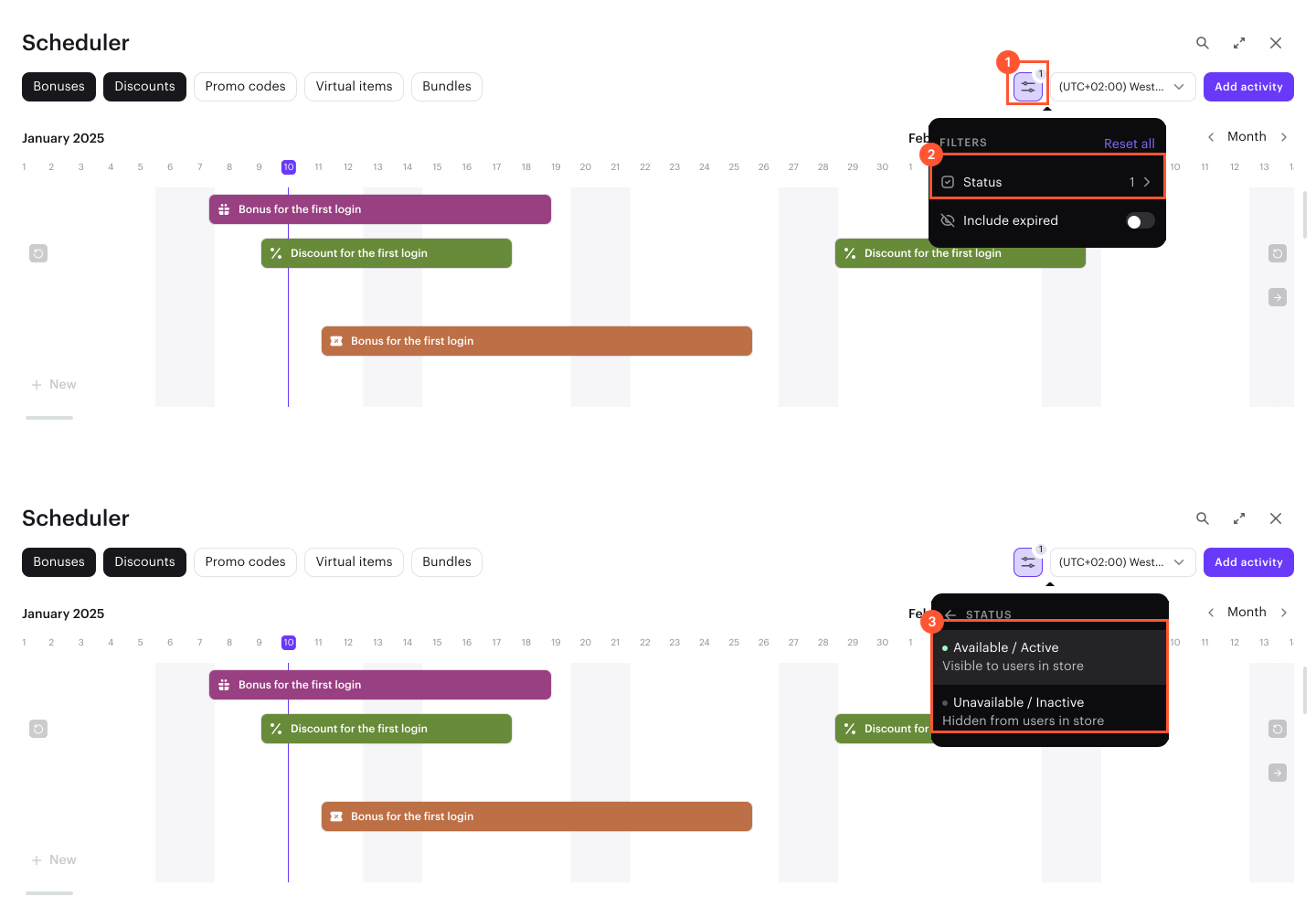
Items in the Partially available status are included in the Available/Active status filter.
If an item belongs to a hidden group, it remains visible within the scheduler according to the item’s status.
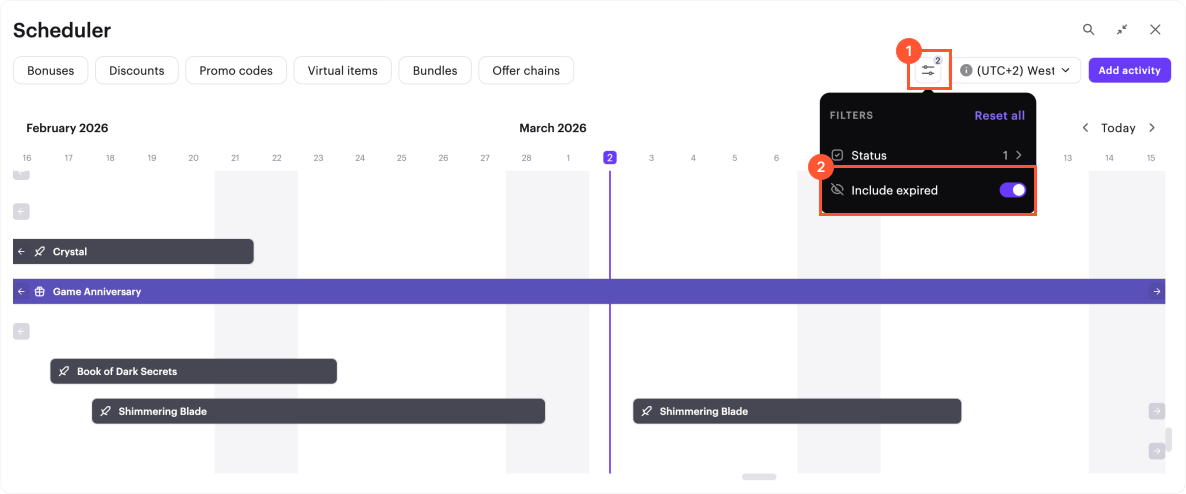
- Expired content: you can choose whether to show or hide items and promotions whose display time limits have already expired.
Manage schedules
You can modify the timeline of your activities directly within the scheduler UI using drag-and-drop actions:
- To adjust activity duration, drag the start or end point of an activity bar.
- To reschedule activity, drag the entire bar.
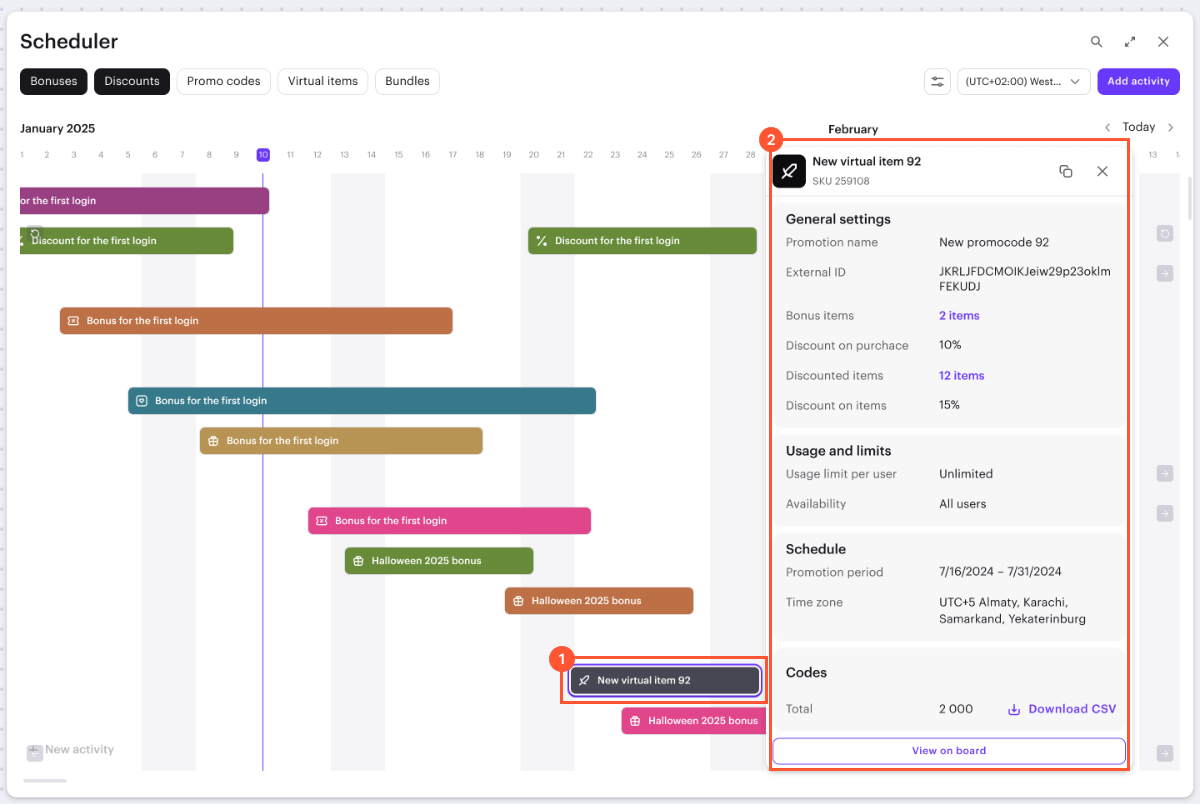
Also you can click on any activity bar to view item or promotion details:
- In the minimized view, the сanvas will automatically zoom to the corresponding card, allowing you to view and edit full configuration of the item or promotion directly in its settings.
- In the maximized view, clicking a bar opens a preview card with the item or promotion details, including its name, SKU, price, limitations, and schedule. From there, you can also click View on board to navigate directly to the specific card on canvas.
Found a typo or other text error? Select the text and press Ctrl+Enter.
