
Discounts
How it works
General information
Discount promotions are a marketing tool designed to attract new users and increase sales. Items purchased at a discount price are granted to users in the same way as items without discounts.
Discounts are available for the following scenarios:
- sale of in-game items — virtual items, virtual currency packages, and bundles
- sale of games and DLC via game keys
Key features:
- A discount promotion can be applied to one or multiple items.
- An unlimited number of discounts can be applied to one item.
- One discount can be applied to an unlimited number of items.
- API calls for creating a catalog return the price object for each item in which you can find item price including both discounted and regular prices.
Limitations:
- Discounts are not applied to prices specified in virtual currency. For items with both real and virtual currency prices, discounts apply only to the real currency price.
- You can’t apply regional restrictions to discount promotions.
- When you set up discount promotions in Publisher Account, you can specify only an integer value from 1 to 99. If you want to specify a fractional value, you need to configure discounts via API.
Rules for applying discounts
If several promotions are valid for an item at the time of purchase, discounts are applied to the item one by one. The order in which discounts are applied doesn’t matter.
Example:
The price of a virtual item is $10. In Publisher Account, the following promotions have been created for the virtual items:
- Black Friday discount promotion with a discount of 10% from November 4–30
- Sale discount promotion with a discount of 20% from November 15 – December 15
- promotion with a promo code for a 5% discount from November 4–30
If the item is purchased on November 20, both discount promotions and a promotion with a promo code are valid.
The total cost of the virtual item is then calculated as (($10 - 10%) - 20%) - 5% = $10 × (100%-10%) × (100%-20%) × (100%-5%) = $10 × 0.9 × 0.8 × 0.95 and will be $6.84.
Set up promotion with discounts
Configure in Publisher Account
To create a new discount promotion:
- In your project in Publisher Account, go to the LiveOps > Promotions section.
- On the Promotions tab, click Create promotion.
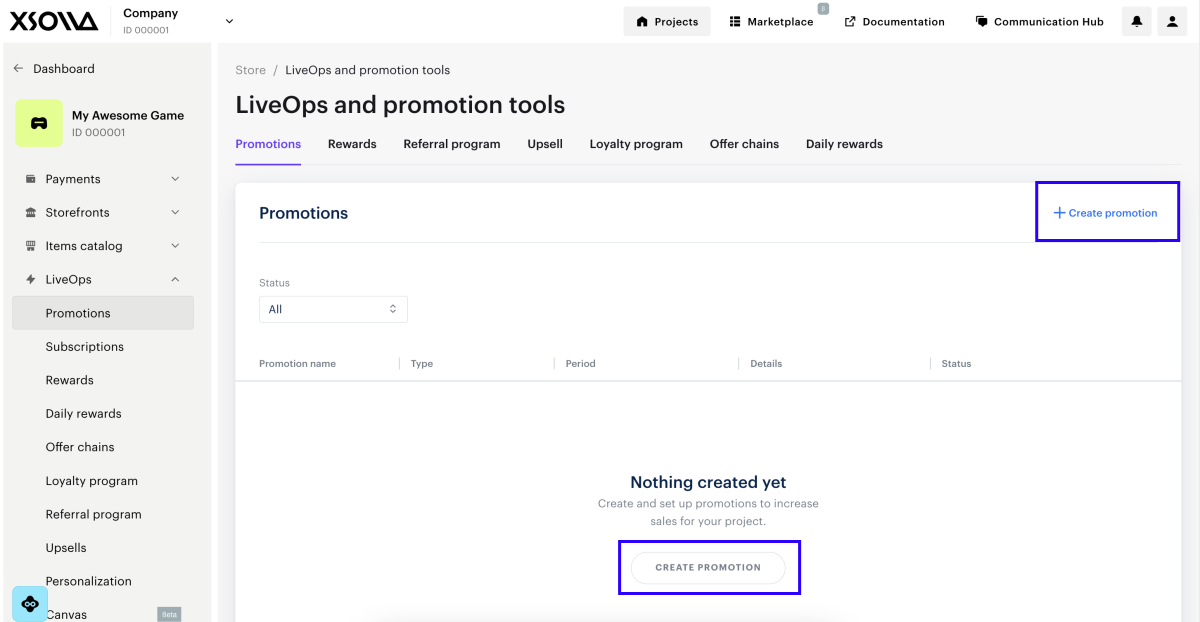
- Specify the main promotion parameters:
- Specify Promotion name.
- In the Promotion type drop-down list, select Discount.
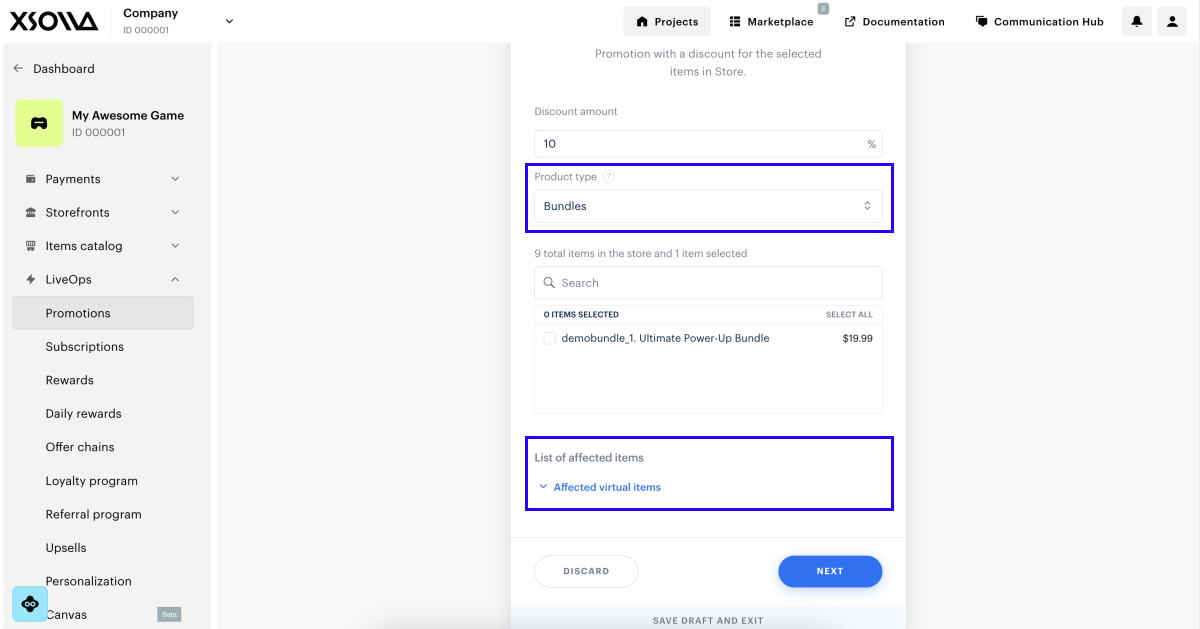
- In the Discount amount field, specify the discount percentage. It can only be an integer value from 1 to 99.
- In the Product type drop-down list, select an item type that a discount will be applied to.
- Select the items to which you want to apply the discount.
You can select different types of items. To switch between different item types, use the Product type field. Information about all selected items is displayed in the List of affected items area.
- Click Next.
- Configure discount limits:
- To limit the promotion to a user’s first purchase only, turn on the Trigger promotion only for first-time buyers toggle. When this setting is enabled, you can’t configure other limits.
- To limit the number of times a single user can get the discount, turn on the Limit number of times one user can use promotion toggle and specify the necessary value.
- To apply the discount to users whose attributes match specified conditions, turn on the Trigger promotion only for specific users toggle and define the attribute validation conditions.
- Click Next.
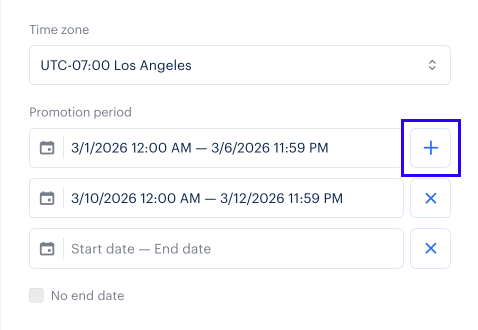
- Specify the promotion validity period: a time zone, start date, and end date. To create a promotion without an end date, check the No end date box.
To add another promotion validity period, click +. If a promotion has multiple validity periods, each must have an end date. The promotion ends at the last second of the specified minute. For example, if an end time is set to 12:00, the promotion runs until 12:00:59.
- Click Next.
- Review the promotion settings.
- Click Save and exit.
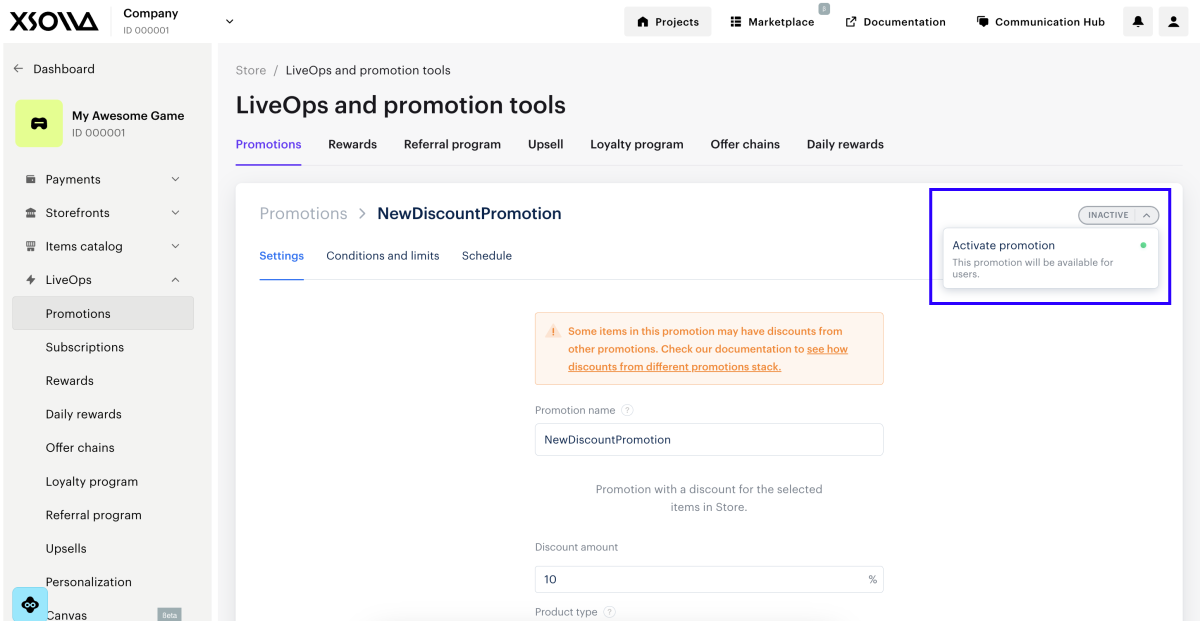
To make the promotion available to users, you must activate it. To do this:
- In your project in Publisher Account, go to the LiveOps > Promotions section.
- In the row with a promotion, click ••• and choose Edit promotion in the drop-down list.
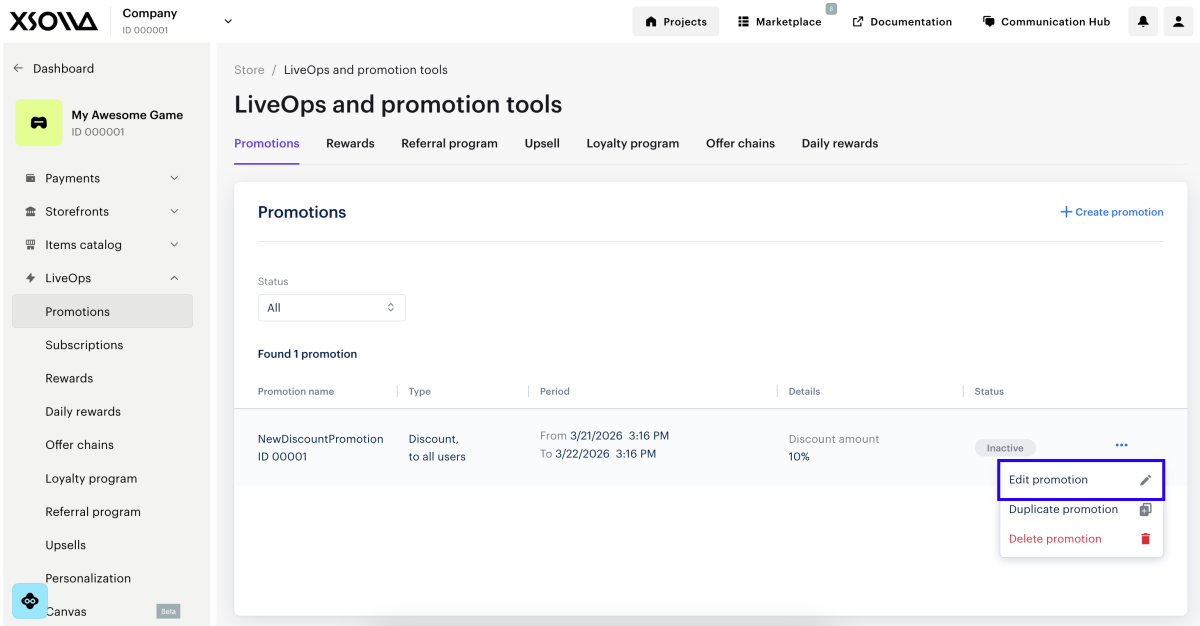
- In the drop-down list in the upper-right corner, select Activate promotion.
Configure via API
- the required parameters
- the parameters you want to change
- all other parameters returned by the promotion retrieval call
To set up and manage discount campaigns via API, use the following calls:
| Task | API call |
|---|---|
| Create a promotion. | Create discount promotion for item. In the items array, pass the necessary item SKUs — this can include items from different categories and specific DRMs of a game. To apply the discount to all items in your project, pass “items”: null. |
| Activate a promotion. | Update item promotion. Pass the “is_enabled”: true parameter. |
| Update a promotion. | Update item promotion. In the items array, pass the necessary item SKUs — this can include items from different categories and specific DRMs of a game. To apply the discount to all items in your project, pass “items”: null. |
| Deactivate a promotion. | Update item promotion. Pass the “is_enabled”: false parameter. |
| Set up promotion validity periods. | Create discount promotion for item or Update item promotion. Pass the promotion_periods field as an array of objects where date_from defines the start, and date_until defines the end date of the validity period.To make the promotion indefinite, specify only one period and pass “promotion_periods[0].date_until": null. |
| Delete a promotion. | Delete item promotion. |
Customize conditions of discount promotion
You can set up a discount that is applied only if some conditions are met. For example:
- discount that is applied to a specified cart sum
- discount that is applied only if the cart has enough items
- discount on one item if users buy another one
To set up discount promotions with conditions, contact your Customer Success Manager or email to csm@xsolla.com.
Display discounted items in store
If you sell items through your own interface, you can retrieve item pricing information, including discounted prices, by calling client API methods to get an item catalog (calls from the Common > Catalog, Virtual Items and Currency > Catalog, and Bundles > Catalog subsections).
If your site is created using Xsolla site builder, a timer appears on an item’s card 30 days before the end of the promotion to show the remaining time:
- If the end of the promotion is in more than a week, the timer shows days and hours.
- If the end of the promotion is in more than one day, the timer shows hours and minutes.
- If the end of the promotion is in less than a day, the timer shows minutes and seconds.
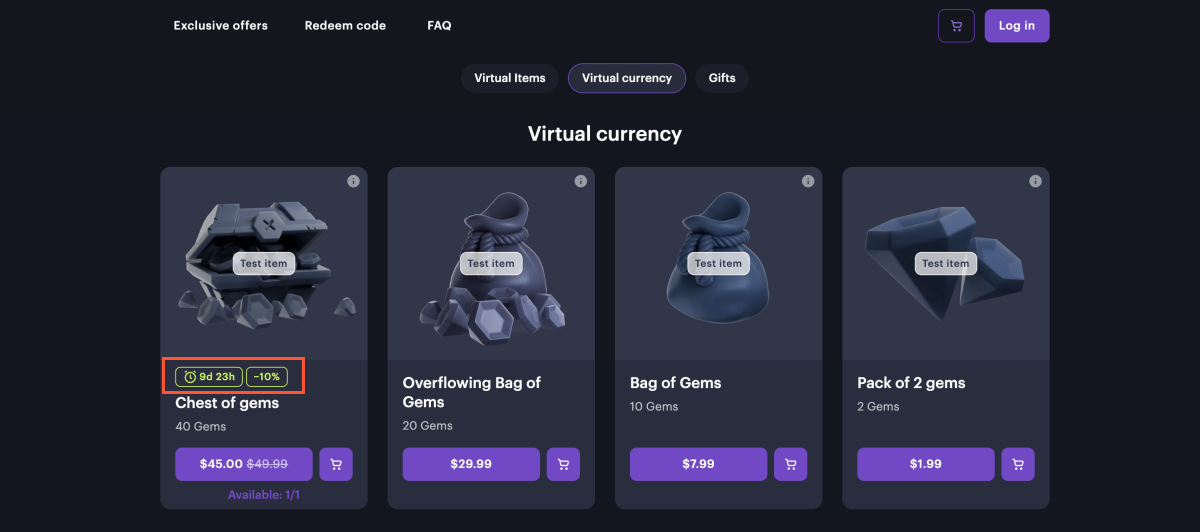
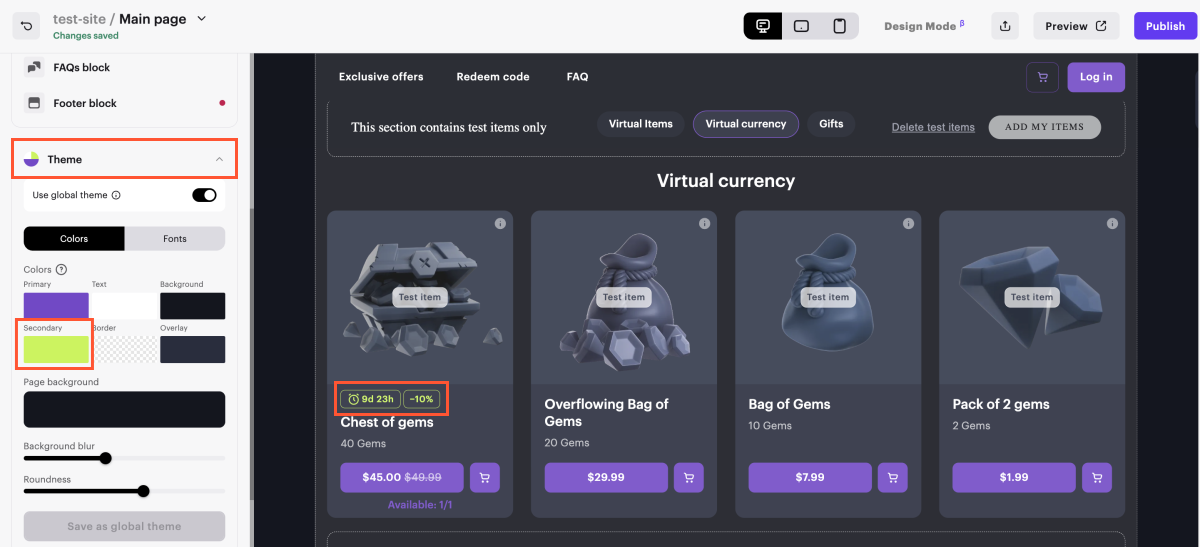
To change the color of the timer and discount amount:
- In your project in Publisher Account, go to the Storefronts > Websites section.
- Select your site and click Open Site Builder.
- In the side menu, go to the Theme section.
- Select a new color in the Secondary field.
- To apply changes, publish the website:
- In the upper-right corner of the site builder, click Publish.
- Check the boxes next to the pages you want to publish.
- Click Publish.
If site publication is not available, make sure all the conditions are met:
- There are no empty sections in the builder (marked with a red indicator).
- The licensing agreement with Xsolla has been signed.
- The main page is published or selected for publication. You can’t publish child pages before the main page.
Found a typo or other text error? Select the text and press Ctrl+Enter.
