
Promotion usage limits
How it works
You can set a limit on how many times a promotion can be used by a user and configure scheduled resets for these limits. Limit configuration is available for discount and bonus promotions. You can enable periodic limit resets to:
- allow repeat purchases using the same promotion
- synchronize data with your system when items are sold across multiple game publishing platforms
To correctly display the remaining promotion uses available to a user, you must configure authentication.
Unauthenticated users always see the maximum number of promotion uses. To show the user’s remaining promotion uses with the active limit applied, include user authorization data when requesting:
- the item catalog using calls from the Catalog subsection of Virtual Items & Currency group
- the game catalog using calls from the Catalog subsection of Game Keys group
Xsolla enforces limits and prevents users from purchasing more than set the limit. When the payment UI is opened and an item is paid for, all unpaid orders containing that item become invalid.
Example: A user can open the payment form for a promotional item in multiple browser tabs or different browsers before completing the purchase, which creates multiple orders for the same item. Once the purchase is completed in one tab, Xsolla cancels all unpaid orders for that item.
Configure and update limits
Configure and update in Publisher Account
To create a number-limited promotion:
- Open your project in Publisher Account and go to the LiveOps > Promotions section.
- Click Create promotion.
- Enter the promotion title.
- In the drop-down list, choose the Discount or Bonus type.
- Fill in the fields depending on the type of promotion you have chosen.
- Click Next.
- To limit a number of sales, on the Conditions page, set the Limit number of times one user can use promotion toggle to On and enter the number of uses.
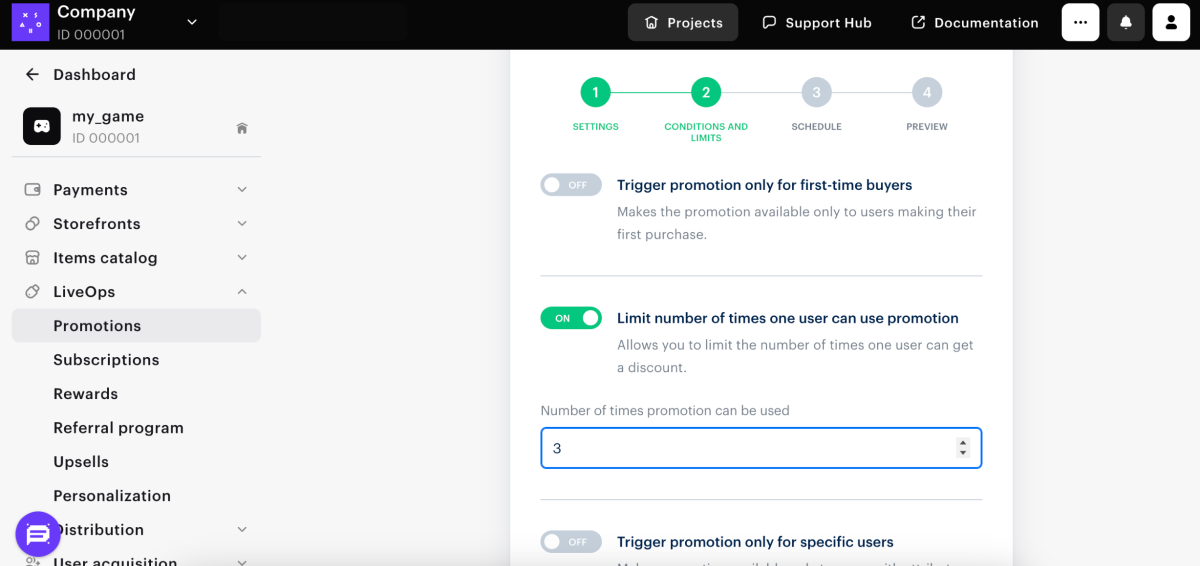
- To set up personalized promotions, set Promotion for only specific users toggle to On and follow these instructions.
- Click Next.
- Set the campaign start and end dates. Specify the time zone, start date, and end date. To make the promotion available indefinitely, select No end date.
- Click Next.
- Check the settings and click Save and exit.
- To activate a promotion:
- Find the promotion in your promotions catalog.
- Click the ••• menu button and select Edit promotion.
- In the upper right corner, open the drop-down menu and choose Activate promotion.
- Open your project in Publisher Account and go to the LiveOps > Promotions section.
- In the row with promotion, click ••• and choose Edit promotion in the drop-down list.
- If the promotion that you need is active, deactivate it in the upper right corner of the drop-down list.
- On the Condition and limits page, click Refresh this limit manually.
- Confirm the action and click Save changes.
- To activate the promotion, in the upper right corner, open the drop-down menu and choose Activate promotion.
Set up and update via API calls
To set daily, weekly, or monthly limits, pass the limits array in the following API calls:
To update and manage limits, use the API calls from the Limits section:| Feature | API call |
|---|---|
| Refresh limits for all promotions for a specified user. | Refresh all promotion limits for specified user. |
| Refresh limits for a specified promotion for all or a specified user. | Refresh promotion limit for users. |
| Change the limit on the use of a specified promotion for a specified user. | Set promotion limit for specified user. |
| Get information about what limits are configured for a specific promotion for a specific user. | Get promotion limit for specified user. |
| Increase the number of times a promotion can be used for a specified user. | Increase promotion limit for specified user. |
| Decrease the number of times a promotion can be used for a specified user. | Decrease promotion limit for specified user. |
Display limits in the catalog of items
Promotion usage limits are displayed in the catalog depending on how it is implemented — either through the site builder or via API.
Display via site builder
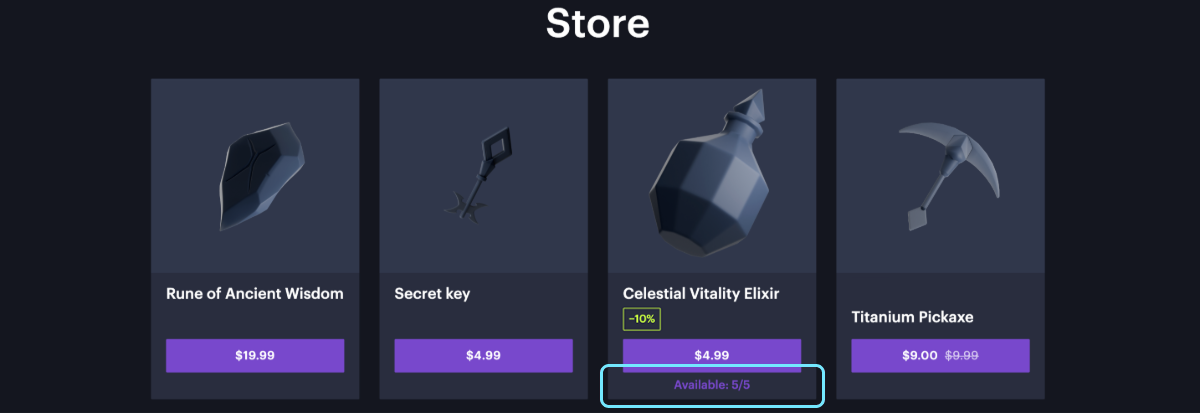
If you use the site builder, limits are displayed automatically. After setting up a promotion usage limit, the item card shows:
- the discount amount for discount promotions
- a bonus message for bonus promotions
- a counter indicating the number of promotional items available for purchase
Get limit information via API
If the catalog is implemented using API, information about promotion usage limits is returned in the promotions.limits array in the following catalog-related API calls:
- Get virtual items list
- Get virtual currency list
- Get virtual currency packages list
- Get bundles list
- Get games list
Found a typo or other text error? Select the text and press Ctrl+Enter.
