
Offer chains
How it works
Overview
An offer chain is a sequence of steps, each containing an item. Users receive this item for free or purchase it as part of an active offer, progressing through the chain step by step. The next step unlocks only after completing the previous one.
An offer chain can include exclusive items available only within the chain, as well as items at discounted prices compared to store prices. This encourages users to return to the game and complete the chain before it expires. Use this marketing tool to retain users and increase engagement.
The following items can be offered at chain steps:
- virtual currency packages
- virtual items
- bundles
Limitations:
- The following item settings are ignored in offer chains:
- personalization rules
- purchase limits
- scheduled availability (start/end date)
- promotions and discounts
- A maximum number of steps in one offer chain — 30.
- One step can contain only one item.
- You can’t use the same item at different chain steps.
User flow
- The user goes to the store.
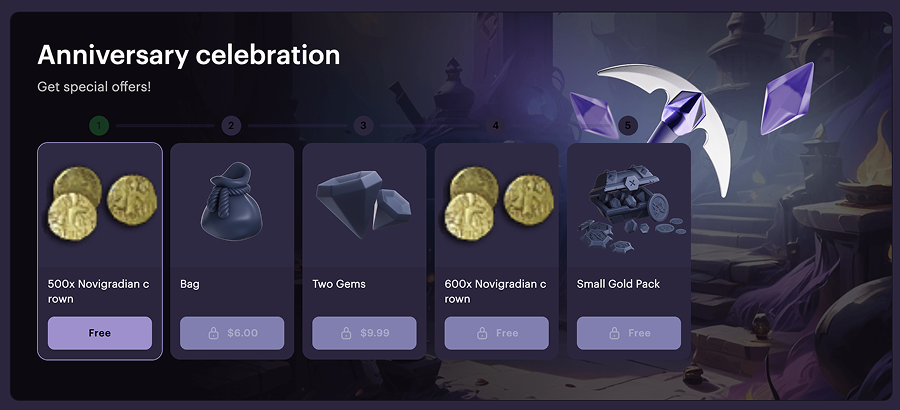
- The user sees an available offer chain and the rewards for each step.
- The user logs in.
- The user sees their current progress in the chain.
- The user completes the current step:
- If the step is free, the user clicks Claim reward.
- If the step is paid, the user makes a payment. The item is granted to the user the same way as when purchasing it.
- The user proceeds to the next step in the chain.
Offer chain visibility and behavior
The logic of the offer chain display is the following:
- Unauthorized users can see all offer chains available in the store.
- Once logged in, users only see offer chains available to them based on display conditions.
- If the user has already claimed or purchased items within a chain, their current progress is displayed including completed steps and the next available one.
- If the user completes all steps, the chain is shown as completed.
- If the chain is renewable, the user’s progress is reset on schedule.
Refunded items
If a purchased item is refunded, the user’s progress in the offer chain changes. The step where the user received the refunded item is considered incomplete. To proceed further through the chain, the user has to purchase this item again. Rewards claimed before the refund aren’t affected.
Example:
The user claimed and purchased items at steps 1, 2, and 3, then requested a refund for the item at step 2. Steps 1 and 3 remain completed, but step 4 is locked until the user completes step 2 again.
Set up offer chain
To create an offer chain, you need to first configure the items. Keep in mind:
- If you want an item to be available only through the chain, set its status to Partially available.
- If the user buys an item outside the offer chain, it doesn’t affect their progress in the chain.
To create items manually in your project in Publisher Account, go to Items catalog > All items. Detailed information about this and other methods for creating items is available in the Items catalog documentation section.
Configure in Publisher Account
To create an offer chain:
- In your project in Publisher Account, go to the LiveOps > Offer chains section.
- Click Create offer chain.
- Specify:
- Chain title.
- Chain description (optional).
- Click Next.
- Configure the necessary number of chain steps:
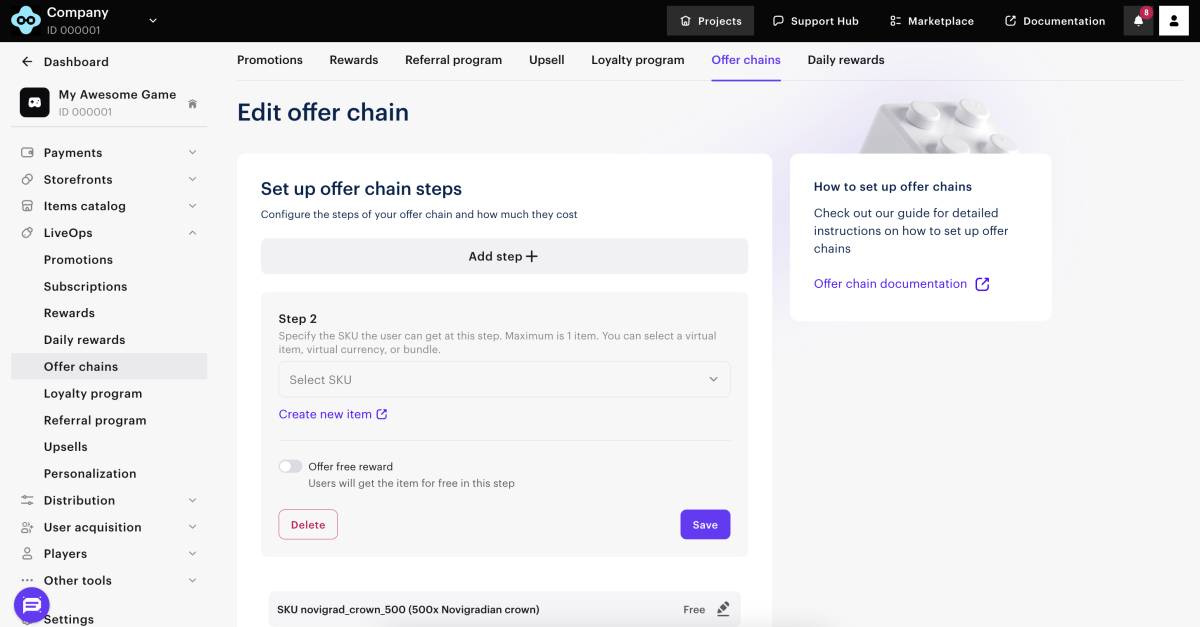
- Click Add step.
- In the Select SKU drop-down list, select an item.
- If you specified a price when creating the item but want to offer it for free, turn on the Offer free reward toggle. For items created as free, this toggle is automatically turned on.
- Click Save.
- Click Next.
- Specify the time zone, date and time when the chain can become available to users.
- To limit the chain by time, turn on the Set time limit toggle and specify the date and time. Without this setting the chain is considered indefinite.
- To configure chain reset, turn on the Make offer chain renewable toggle, select the necessary period, and specify the required parameters.
- Click Create.
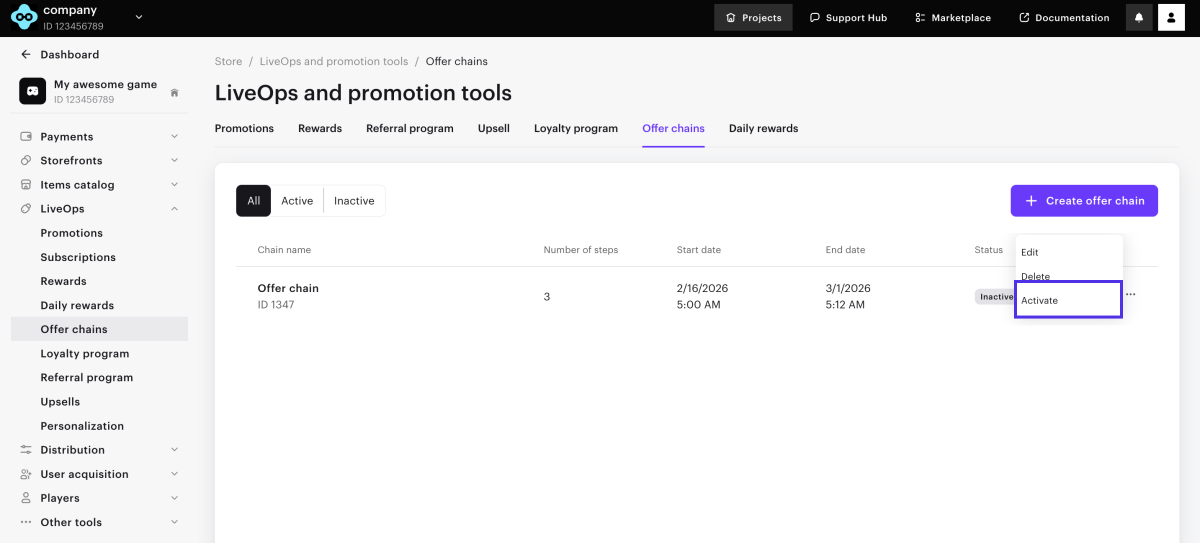
To make the offer chain available to users, you must activate it. To do this:
- In your project in Publisher Account, go to the LiveOps > Offer chains section.
- In the row with an offer chain, click ••• and choose Activate in the drop-down list.
Configure via API
To set up and manage offer chain via API, use the following calls from the Admin section in the Offer chains group:
| Task | API call |
|---|---|
| Create a chain. | Create offer chain. |
| Activate a chain. | Pass the “is_enabled”: true parameter to the Create offer chain or Update offer chain calls. You can also use the Toggle offer chain call. |
| Update a chain. | Update offer chain. |
| Deactivate a chain. | Toggle offer chain. |
| Delete a chain. | Delete offer chain. |
Display offer chain in store
Display on website created with Xsolla
To display an offer chain on your site:
- In your project in Publisher Account, go to the Storefronts > Websites section.
- Select your site and click Open Site Builder.
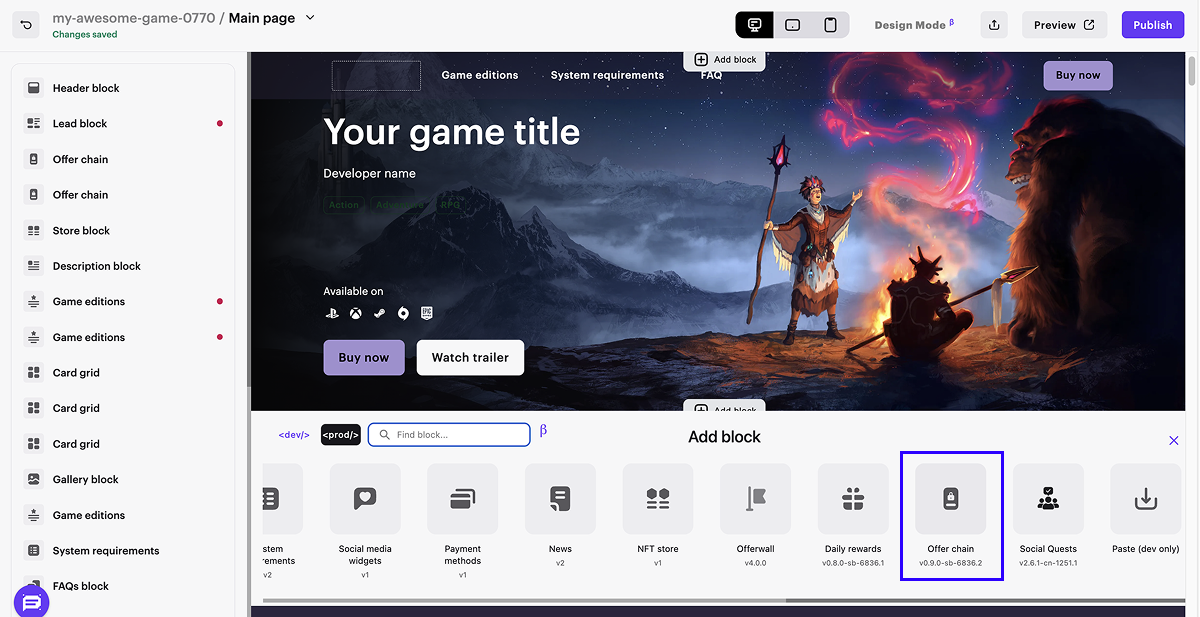
- In the main area of the builder, choose a place where you want to add a new block and click Add block.
- Select the Offer chain block.
- In the side menu, go to the block settings.
- From the drop-down list, select the offer chain.
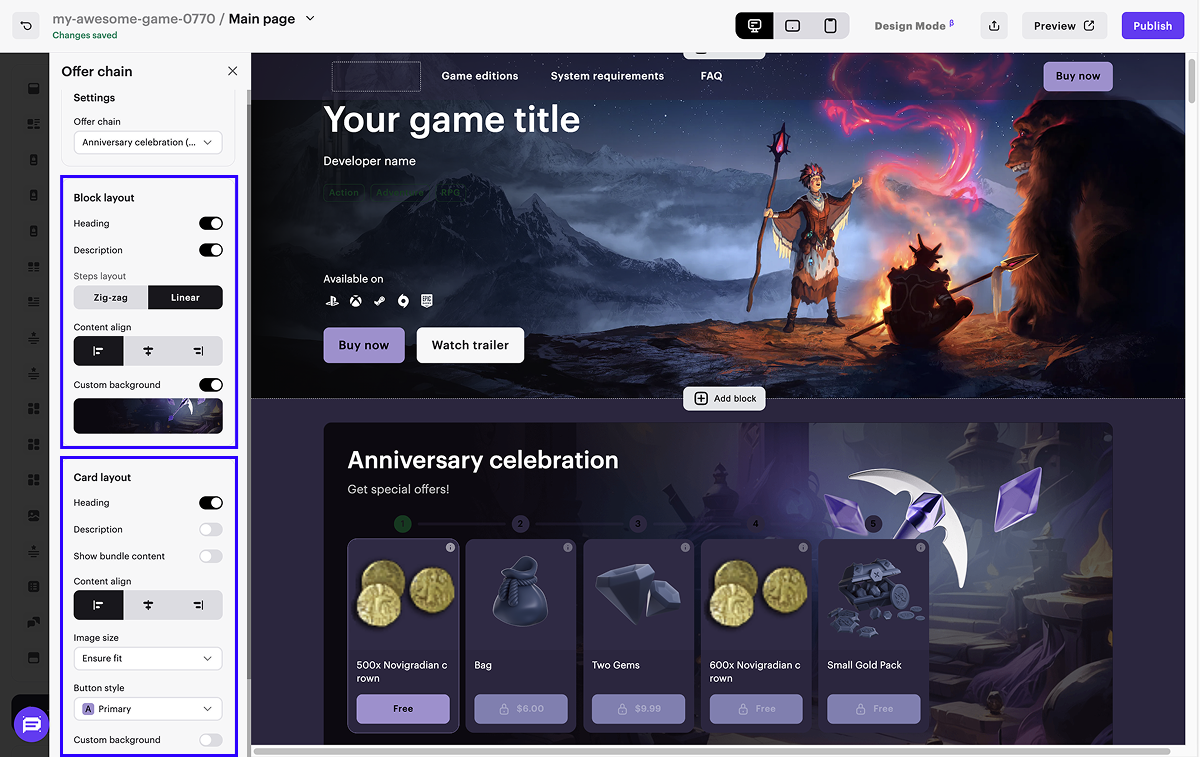
- Customize the block appearance (optional):
- Configure the chain appearance.
- Configure the steps’ appearance.
- To check the chain, click Preview in the upper-right corner of the builder.
- To apply changes, publish the website:
- In the upper-right corner of the site builder, click Publish.
- Check the boxes next to the pages you want to publish.
- Click Publish.
If site publication is not available, make sure all the conditions are met:
- There are no empty sections in the builder (marked with a red indicator).
- The licensing agreement with Xsolla has been signed.
- The main page is published or selected for publication. You can’t publish child pages before the main page.
Display in your own UI
- In your application UI, implement the elements to display offer chain steps.
- Implement the logic to work with chains using the following client-side API calls from the Offer chains group:
| Task | API call |
|---|---|
| Get the list of available chains. | Get current user’s offer chains. |
| Find out about user progress. | Get current user’s offer chain by ID. |
| Offer a free item to the user. | Claim free offer chain step. |
| Offer a paid item to the user. | Create order for paid offer chain step. |
- Ensure that items are correctly granted to the user.
Found a typo or other text error? Select the text and press Ctrl+Enter.
