
Promo codes
How it works
General information
Promotions with promo codes are a marketing tool designed to boost purchase conversion rates and increase the average check. Once a promo code is applied to an order, the user can receive:
- a discount applied to the entire purchase or specific items
- bonus items, including:
- virtual currency packages
- game keys
- virtual items
- bundles
Key features:
- Flexible bonus configuration. You can set up a single bonus type (discount on purchase, discount on selected items, or a bonus item) or any combination of them.
- Setting the total number of redemptions within a campaign.
- Setting the number of redemptions per user within a campaign.
- Multiple generation of promo codes.
- Applying regional restrictions for campaigns and items linked to a promo code.
Limitations:
- Only one promo code can be applied to the purchase.
- To receive a discount or bonus item, the user must pay for the purchase.
- Discounts are not applied to prices specified in virtual currency. For items with both real and virtual currency prices, discounts apply only to the real currency price.
- If game keys are used as a bonus item, the key will be sent to the user via email or to the entitlement system after redemption. If the campaign runs out of keys, the user will not be able to redeem the promo code.
- If regional restrictions are applied to a promo code campaign, users from those regions won’t be able to redeem the promo code.
- If a promo code includes at least one bonus item with a regional restriction, a user from that region won’t be able to redeem this promo code.
You can also set up coupon promotions for your store.
Key differences:
- A coupon allows a user to receive only bonus items. A promo code can provide bonus items, a discount on a specific item, or a discount on the entire cart.
- Promo codes are redeemed during a purchase (at checkout), whereas coupons are redeemed after the user enters and applies the code.
User flow
Rules for applying discounts
If several promotions are valid for an item at the time of purchase, discounts are applied to the item one by one. The order in which discounts are applied doesn’t matter.
Example:
The price of a virtual item is $10. In Publisher Account, the following promotions have been created for the virtual items:
- Black Friday discount promotion with a discount of 10% from November 4–30
- Sale discount promotion with a discount of 20% from November 15 – December 15
- promotion with a promo code for a 5% discount from November 4–30
If the item is purchased on November 20, both discount promotions and a promotion with a promo code are valid.
The total cost of the virtual item is then calculated as (($10 - 10%) - 20%) - 5% = $10 × (100%-10%) × (100%-20%) × (100%-5%) = $10 × 0.9 × 0.8 × 0.95 and will be $6.84.
Set up campaign with promo codes
If you want to create a promotion with bonus items, you need first configure these items and then proceed to the promotion setup.
To create items manually in your project in Publisher Account, go to Items catalog > All items. Detailed information about this and other methods for creating items is available in the Items catalog documentation section.
Set up in Publisher Account
To create a new campaign with promo codes:
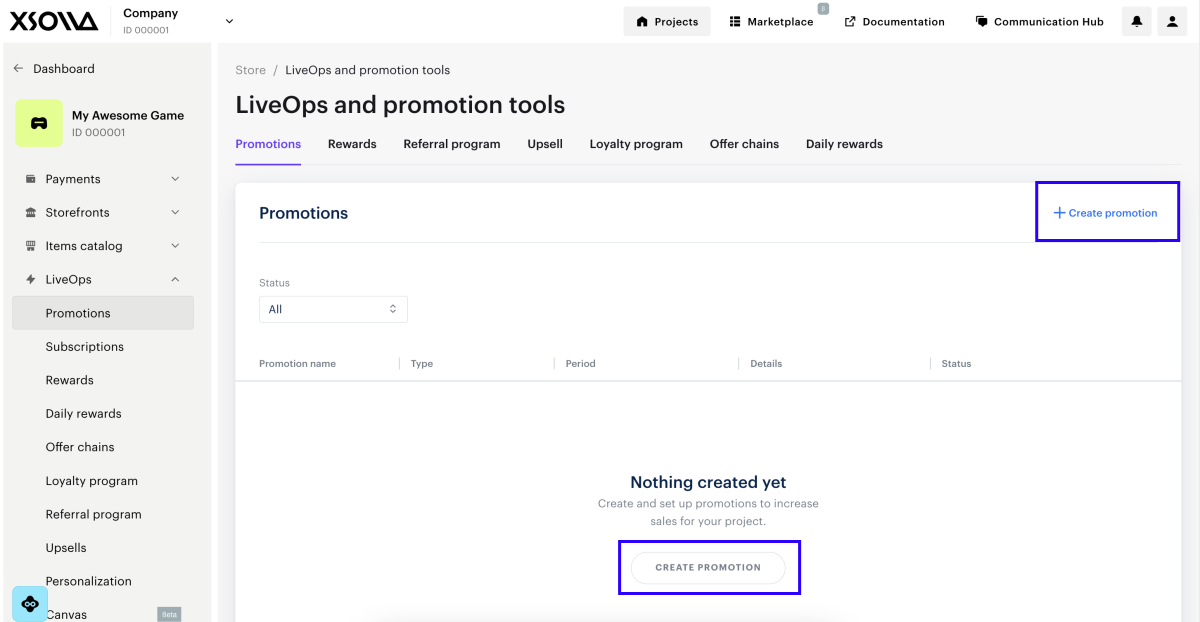
- In your project in Publisher Account, go to the LiveOps > Promotions section.
- On the Promotions tab, click Create promotion.
- Specify Promotion name.
- In the Promotion type drop-down list, select Promo code.
- In the External ID field, specify a promotion ID used for managing promotions via API calls.
- To apply a discount to any item or the entire cart when a promo code is redeemed:
- Set the Discount on purchase toggle to On.
- In the Discount amount field, specify the discount percentage.
- To apply a discount to specific items when a promo code is redeemed:
- Set the Discount on selected items toggle to On.
- In the Discount amount field, specify the discount percentage.
- In the Item type drop-down list, select the type of item that will be discounted upon promo code redemption.
- Select the items.
- To provide bonus items when a promo code is redeemed:
- Set the Bonus items toggle to On.
- In the Select bonus items drop-down list, select the type of an item to be granted to a user upon promo code redemption.
- Select the items to be provided upon promo code redemption.
- For virtual items, specify the quantity for each item.
- For game keys, specify when the platform will be determined:
- To pre-assign a specific platform (e.g., Steam), select Select DRM during code generation from the Type of DRM selection drop-down list. Then, select the platform from the DRM drop-down list.
- To let the user choose, select Player selects DRM at redemption from the Type of DRM selection drop-down list.
- For game keys, specify when the platform will be determined:
- Click Next.
The discount for an order or specific items must be an integer and cannot exceed 99%. When configuring discounts for specific items or bonus items, consider the following:
- An item type is available for selection only if at least one item of that type has been created in your project.
- You can configure items of different types. To switch between item types, use the item type selection field.
- Configure promo code redemption limits:
- To limit the total number of promo code redemptions across all users within a campaign, set the Limit total number of redemptions toggle to On and specify the maximum number of redemptions.
- To limit the number of promo codes a single user can redeem within a campaign, set the Limit total number of redemptions per user toggle to On and specify the maximum number of redemptions per user.
- To limit the number of times any unique promo code can be redeemed across all users, set the Limit number of unique promo code redemptions toggle to On and specify the maximum number of redemptions for the promo code.
- Click Next.
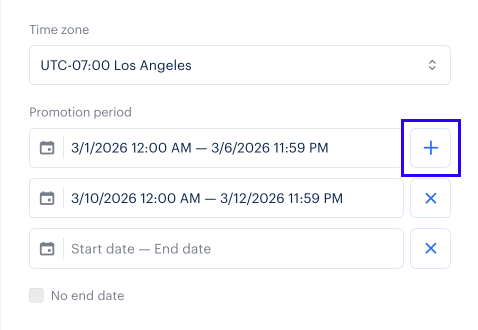
- Specify the promotion validity period: a time zone, start date, and end date. To create a promotion without an end date, check the No end date box.
To add another promotion validity period, click +. If a promotion has multiple validity periods, each must have an end date. The promotion ends at the last second of the specified minute. For example, if an end time is set to 12:00, the promotion runs until 12:00:59.
- Click Next.
- Review the campaign settings.
- Click Save and exit.
To add promo codes to a campaign:
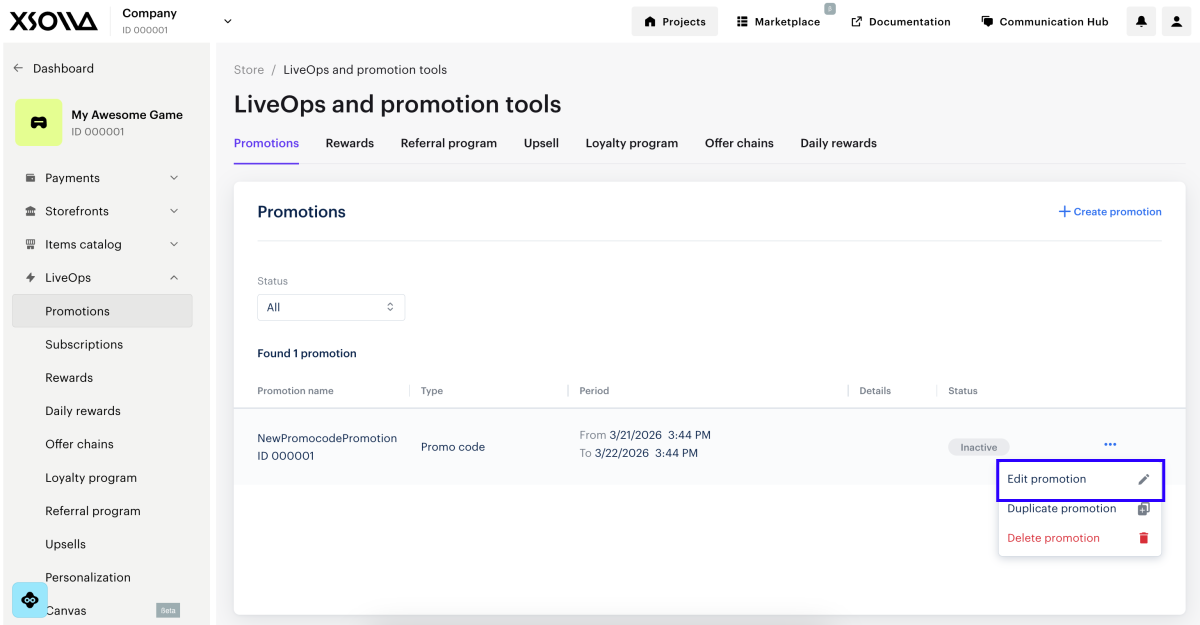
- In your project in Publisher Account, go to the LiveOps > Promotions section.
- In the row with promo code promotion, click ••• and choose Edit promotion in the drop-down list.
- Go to the Codes tab.
- To generate codes automatically:
- In the Code string format drop-down list, select Auto-generated.
- Specify the number of codes to generate and click Generate.
- To add codes manually:
- In the Code string format drop-down list, select Manually entered.
- Enter the promo code and click Create.
- Repeat the previous step to add the required number of codes.
- Download a CSV file with the codes (optional).
Promo codes are case-sensitive. For example, winter123 and WINTER123 are treated as different promo codes.
You can add new codes to a campaign an unlimited number of times. However, the total number of added codes must not exceed 50,000.
If you need to upload a large number of self-generated codes, contact us at igs@xsolla.com.
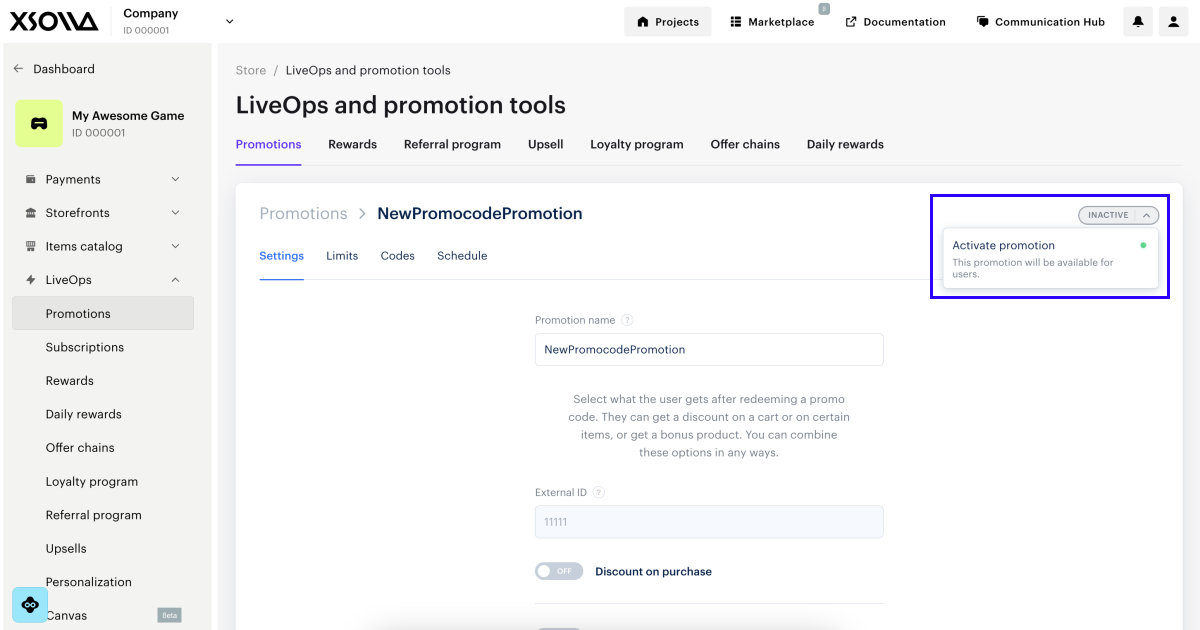
To make the campaign available to users, you must activate it. To do this:
- In your project in Publisher Account, go to the LiveOps > Promotions section.
- In the row with promo code promotion, click ••• and choose Edit promotion in the drop-down list.
- In the drop-down list in the upper-right corner, select Activate promotion.
Set up via API
- the required parameters
- the parameters you want to change
- all other parameters returned by the promotion retrieval call
To set up and manage campaigns with promo codes via API, use the following calls:
| Task | API call |
|---|---|
| Create a promotion with a promo code. | Create promo code promotion. |
| Activate a promotion with promo code. | Activate promo code promotion. |
| Edit a promotion. | Update promo code promotion with new promotion options. Promotions editing is also available for promotions with Active status. |
| Deactivate promotion. | Deactivate promo code promotion. |
| Set up promotion validity periods. | Create promo code promotion or Update promo code promotion. Pass the promotion_periods field as an array of objects where date_from defines the start, and date_until defines the end date of the validity period.To make the promotion indefinite, specify only one period and pass “promotion_periods[0].date_until": null. |
| Delete a promotion. | Delete promo code promotion. |
Set up promo code usage in your application or website
Promo code usage on your UI
In your application UI (in the catalog or cart), implement the following elements:
- a promo code input field
- UI elements to display promo code rewards and discounts
- a selection form for promo code rewards (if applicable)
- a button to apply the promo code
Implement the promo code logic using the following client-side API calls:
| Task | API call |
|---|---|
| Check if the promo code is valid. | Verify promotion code. |
| Get a list of game distribution platforms to display to the user if a game key is provided as a promo code bonus. | If the response returns The |
| Display the updated catalog considering discounts and bonus items from a promo code. | Use calls from the Catalog subsection. You need to pass the promo code in the promo_code request parameter. |
| Purchase a specific item directly (without adding it to the cart) and redeem a promo code. | Create order with specified item. You need to pass the promo code in the |
| Apply a promo code and update the cart content and total cost (apply discounts and add bonus items). | You need to pass the promo code in the |
- Ensure that items are correctly granted to the user upon promo code redemption.
- If you have already implemented an in-game store in your application or on your website, no additional setup is required. Items linked to a promo code are granted to the user in the same way as a standard purchase.
Promo code usage on website created with Xsolla
To display the code entry field on your website:
- Open your project in Publisher Account and go to the Storefronts > Websites section.
- In the Sites section, select your site and click Open Site Builder.
- In the main area of the builder, choose a place where you want to add a new block and click Add block.
- Select the Promo codes block.
- Customize the block appearance (optional):
- Edit the block’s header and description text.
- Set a custom background for the block.
- Change the button style.
- Edit the text for the coupon redemption button.
- To apply changes, publish the website:
- In the upper-right corner of the site builder, click Publish.
- Check the boxes next to the pages you want to publish.
- Click Publish.
If site publication is not available, make sure all the conditions are met:
- There are no empty sections in builder (marked with a red indicator).
- The licensing agreement with Xsolla has been signed.
- The main page is published or selected for publication. You cannot publish child pages before the main page.
Found a typo or other text error? Select the text and press Ctrl+Enter.
