
Referral program
How it works
A referral program is a tool designed to attract new users, when existing users invite others via a referral link. The program can be integrated into a website or a game. As a result, all program participants receive rewards:
- The invitee receives a reward only once, after making the first purchase.
- The inviting user receives a reward for each invitee who has made a purchase in the store.
- any website, including ones created using Xsolla site builder
- a game
Regardless of where the referral program is used – on a website or in a game – its mechanics and reward conditions remain the same.
Referral program configuration is available for the following scenarios:
- selling in-game items — virtual items, virtual currency packages, and bundles
- selling games and DLC via game keys
- Providing one or several items of the following types as a reward:
- virtual currency
- virtual item
- bundle with items
- Customization of the referral program widget.
- Generation of referral links.
- Ability for a user to change the referral program before making their first purchase.
- There can only be one referral program in the project.
- Users can’t invite themselves.
User flows
Inviting user flow
- The user logs in or registers on the site or in the game.
- The user opens the referral program widget and reads the program conditions.
- The user gets the referral link in the widget.
- The user shares the referral link with another user.
- The user opens the referral program widget and receives a reward if the invitee followed the referral link and fulfilled the program conditions.
Invitee flow
- The user receives a referral link with a description of the program conditions and rewards.
- The user follows the referral link.
- The user registers on the website or in the game.
- The user makes the first purchase.
- The user receives the reward.
How to set up
Create referral program
Before creating a referral program, you need to set up the items that will be granted to the inviting user and the invitee as rewards, and then proceed with configuring the program.
To create items manually, open your project in Publisher Account and go to the Items catalog > All items section. For detailed information about this and other ways to create items, refer to the Items catalog section.
- Open your project in Publisher Account and go to the LiveOps > Referral program section.
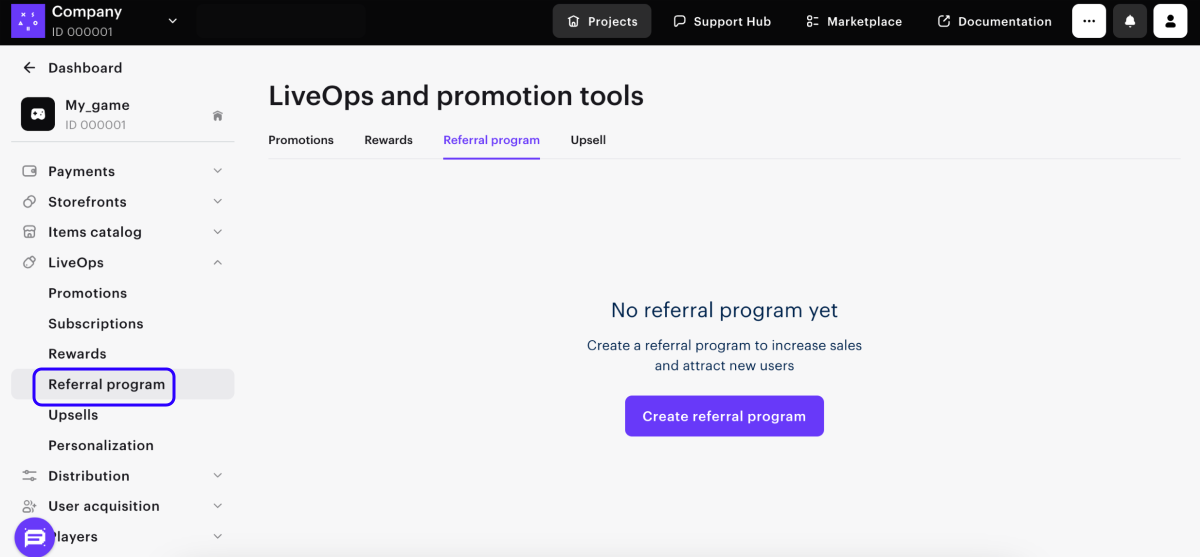
- Click Create referral program.
- Set the necessary parameters:
- Specify the referral program name.
- Enter the description.
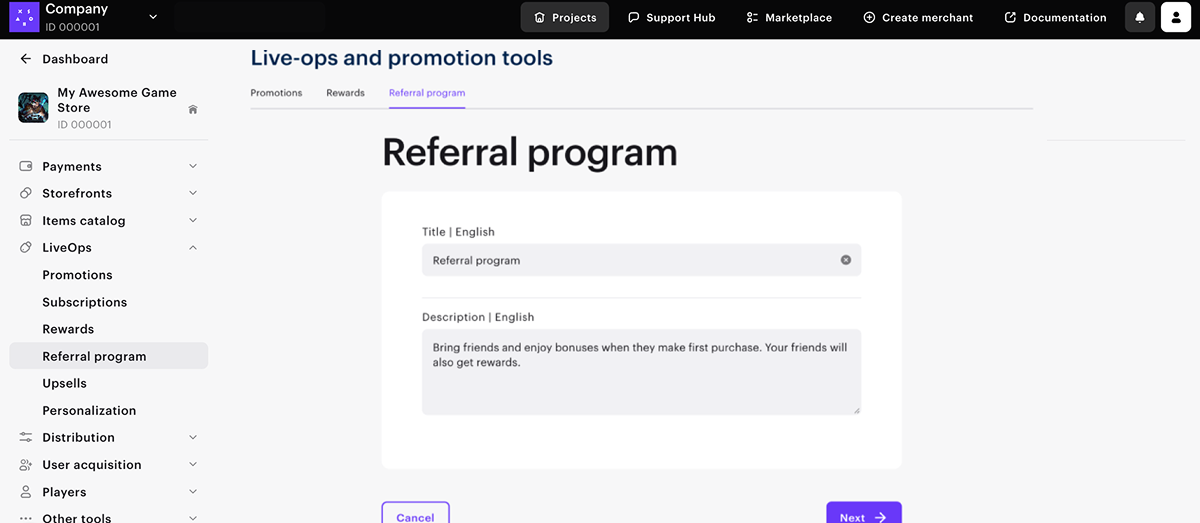
- Click Next.
- Add rewards that users will receive:
- To add a reward for the inviting user, in the Reward for inviting players section, specify the item SKUs and their quantity.
- To add a reward for the invitees, in the Reward for invitees section, specify the items SKUs and their quantity.
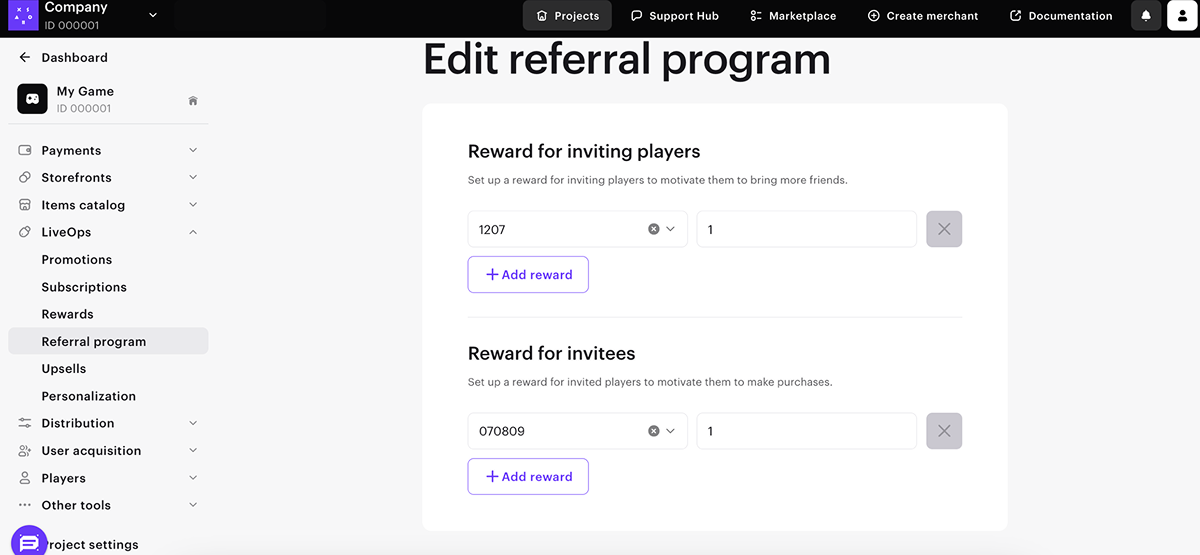
- Click Next.
- Review the settings of the referral program and click Create.
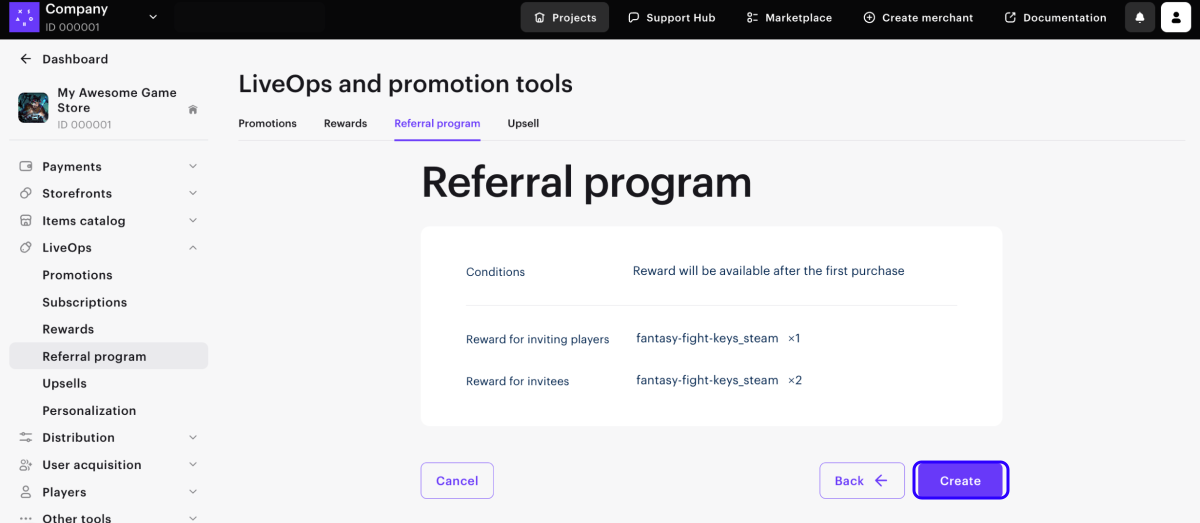
Edit referral program
You can make changes to the active referral program:
- change the list of items that are provided as rewards
- change conditions
- Go to the created referral program.
- Click Edit.
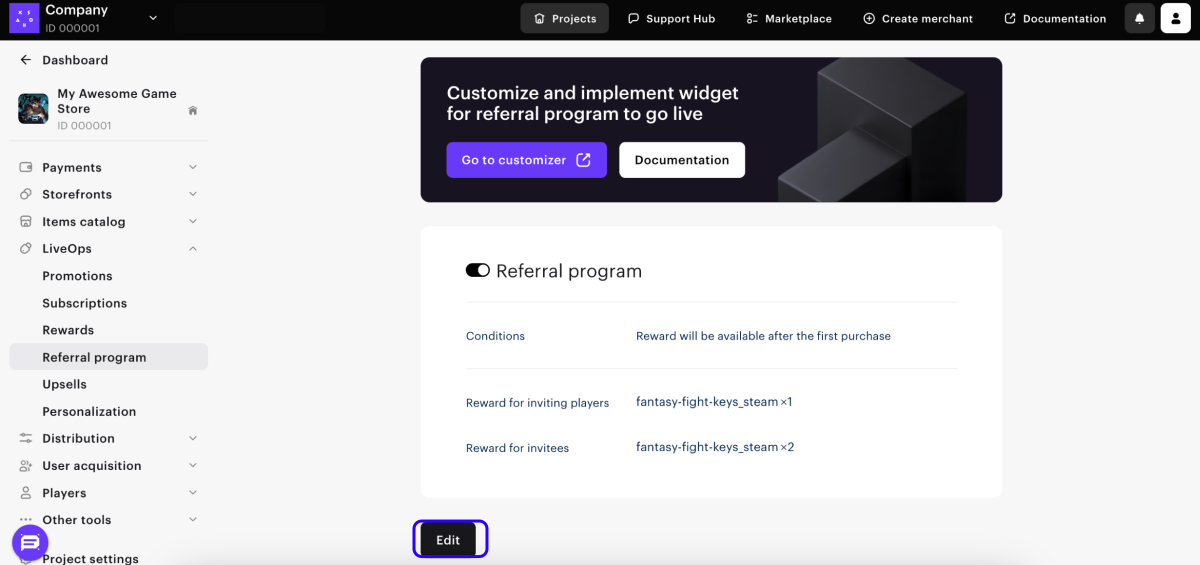
- Update text and/or users item list.
- Click Next.
- Review the referral program settings and click Create.
The edited referral program is enabled by default and is displayed in the Referral program section. After you save the changes, users will see the updated program conditions and receive new rewards.
Rewards that users have already received before the conditions update will not change.
Re-publishing the widget is not required after updating the conditions.
How to display
The referral program is displayed via a widget. To allow users to view the program conditions and participate, add the widget to your website or the game.
Set up widget
- On the created referral program page, click Go to customizer.
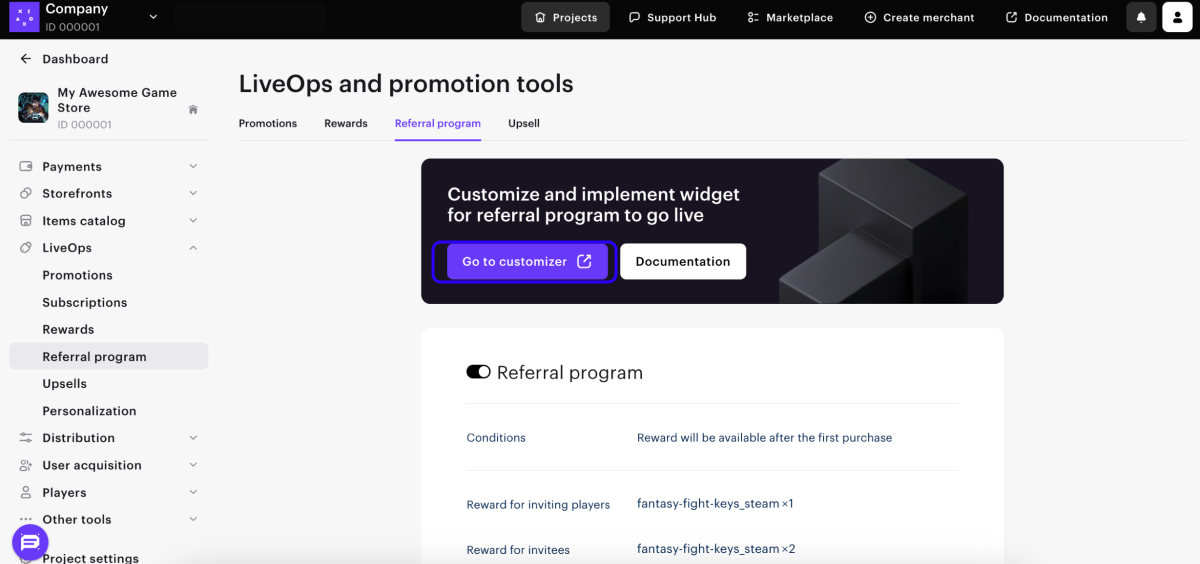
- Set up widget components for each state. To make the widget match the design of the game and site, you can customize it and configure the following features:
- a set of UI elements
- colors of UI elements
- button texts and headers including localization
- font type, color, and size
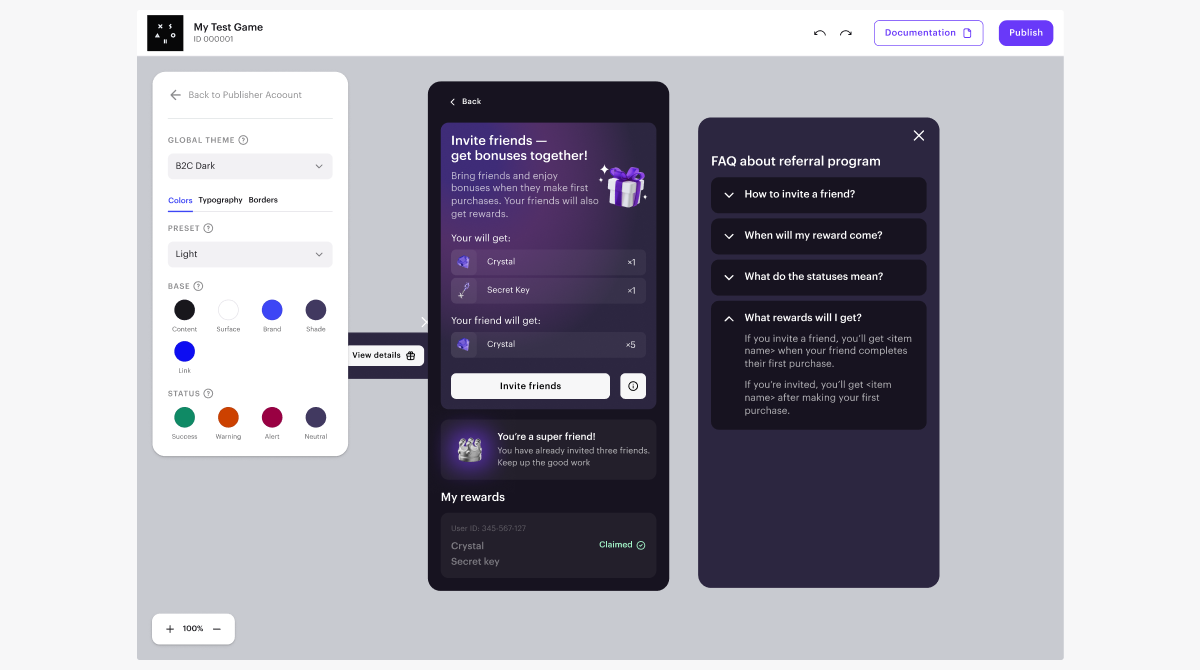
- Set up localization. All widget texts are translated into the project languages specified in Publisher Account in the Project settings > General settings > Project languages section. To change the default translations, click on the text twice and enter your own text.
- Publish the changes
- Copy the widget code in the opened window and add it to your website.
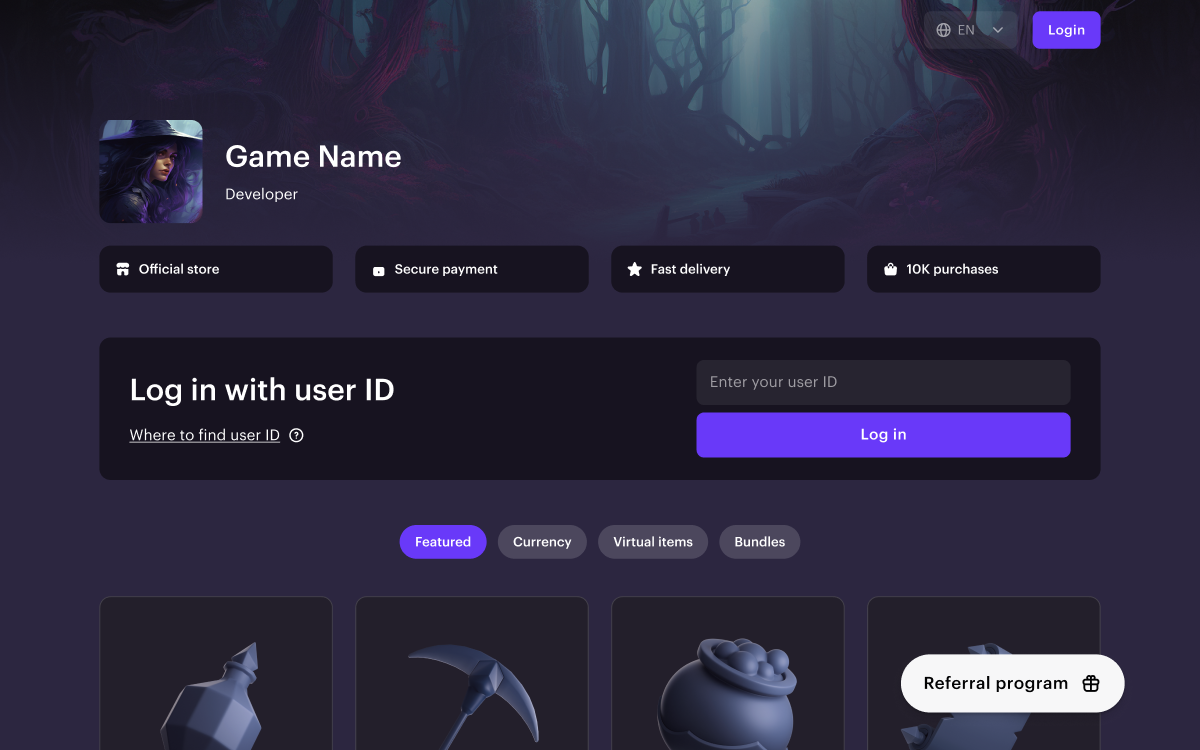
After publishing the widget you can always return to the widget settings and make changes. To apply the changes, re-publish the widget.
Add widget code to your site via Xsolla site builder
If you implement your own site interface, add the widget code into your site’s code. If you use Xsolla site builder, follow the steps to add a referral program widget to your site:
- Open your project in Publisher Account and go to the Storefronts > Websites section.
- In the Sites section, select your site and click Open Site Builder.
- Click Add Block.
- Select the Custom code block.
- Add the referral program widget code.
- To apply the changes, publish the website:
- In the upper-right corner of the Site Builder click Publish.
- Select the checkboxes next to the pages you want to publish.
- Confirm that the website is ready for publishing and click Publish.
Integrate into game or your own site
To integrate the referral program into a game or a website created without Xsolla site builder, follow these steps:
- Implement user authentication in the widget on your side. User authentication in the referral program widget is performed through authentication on the website where the widget is embedded. There are 2 user authentication scenarios — on the website or in the widget:
- If the user logs into the site, you need to pass the user’s authorization token to the widget using the onTokenChange() method. When the user logs out of the system, pass
nullas the method parameter.
- If the user logs into the site, you need to pass the user’s authorization token to the widget using the onTokenChange() method. When the user logs out of the system, pass
  %%{init: {'themeVariables': { 'noteBkgColor': 'transparent', 'noteBorderColor': 'transparent' }}}%%
sequenceDiagram
    participant User as User
    participant WebShop as Web Shop
    participant Widget as Widget
    User ->> WebShop: Login
    activate WebShop
    WebShop ->> Widget: Notification with token
    deactivate WebShop
- If the user logs in through the widget, the widget will call the requestAuth function passed to it during initialization. In response, the site should return the user’s authorization token.
  %%{init: {'themeVariables': { 'noteBkgColor': 'transparent', 'noteBorderColor': 'transparent' }}}%%
sequenceDiagram
    participant User as User
    participant WebShop as Web Shop
    participant Widget as Widget
    User ->> Widget: Login
    activate Widget
    Widget ->> WebShop: Login request
    deactivate Widget
    activate WebShop
    WebShop ->> Widget: token
    deactivate WebShop
Example code for initializing the widget:
- js
1window.XESApi.init({
2requestAuth: requestAuth,
3token: getToken()
4})
- Ensure that referral data is passed correctly.
- Embed the referral program widget code into the game or website interface.
Widget API
The widget API provides a set of functions and methods for authenticating a user in the widget:
| Parameter | Type | Description |
|---|---|---|
init | (config: Config) => void | Method used for initializing the widget. |
init() method is passed the widget configuration:| Parameter | Type | Description |
|---|---|---|
requestAuth | ()=> Promise | Function that the widget calls when authenticating the user. |
token | string or null | The current user’s authorization token. If the token is unknown at the time of widget initialization, pass the null value. |
| Parameter | Type | Description |
|---|---|---|
onTokenChange | (token: string/null) => void | Method to pass the current user’s token to the widget. Pass the null value when the user logs out of the system. |
Widget states
The referral program widget can have different states depending on the type of user (inviting or invitee), user’s authorization status, and fulfillment of program conditions.
The set of widget components includes UI elements for different states. You can configure components when setting up the widget.
Button to open the widget:
| State | Description | Who it’s displayed to | Components that can be edited | Image |
|---|---|---|---|---|
| View details | Engaging the user to participate in the program. | Authorized users who are not yet participating in the program. | Background and text colours. Text of the widget open button and view details button text. | 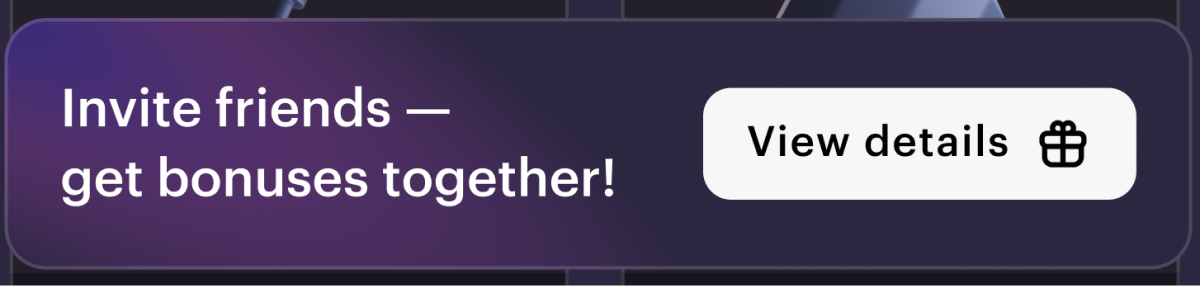 |
| Waiting for authorization | Encouraging the user to log in through the widget. | Unauthorised users who have followed the referral link. | Background and text colours. Button texts. | 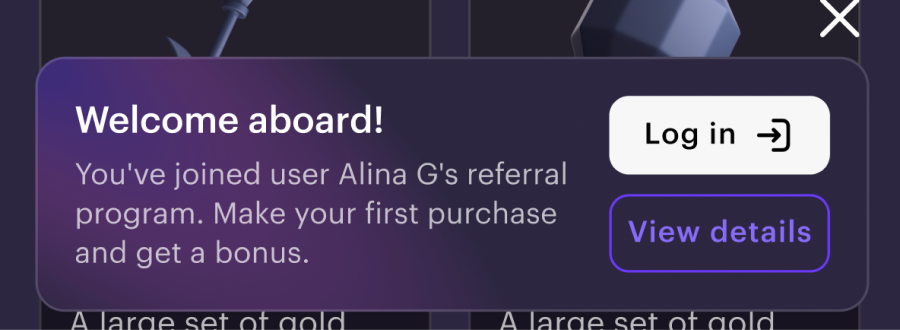 |
| Waiting for the first purchase | Encouraging the user to make the first purchase. | Users who have followed the referral link and logged in to the site. | Background and text colours. Button texts. | 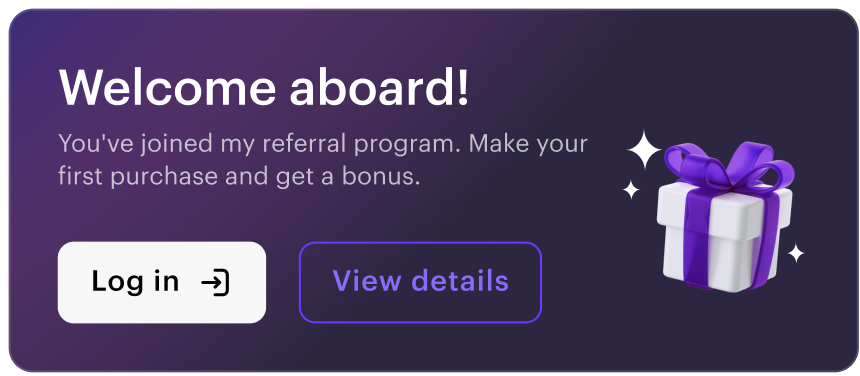 |
| Receiving a reward | Encouraging the user to receive a reward. | Inviting users whose friends have met the program conditions, and they can receive a reward. | Background and text colours. Button texts. | 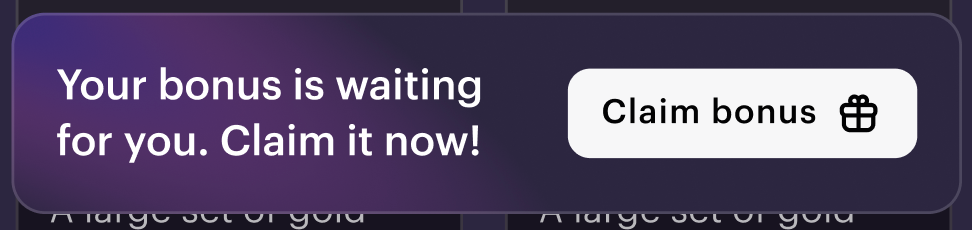 |
| Closing the widget | The widget is open, the button is displayed as the × icon. | Authorized users who have opened the widget details. | Background and text colours. Button colour. |  |
| Default | The widget is closed. | Users who have closed the widget. | Background and text colours. Button text. | 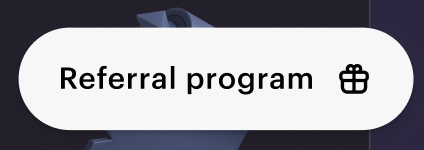 |
Widget page for the inviting user:
| Description | Who it’s displayed to | Components that can be edited | Image |
|---|---|---|---|
| An authorized inviting user, whose friend followed the referral link and logged in to the site. | Background and text colours. Widget text, button texts. | 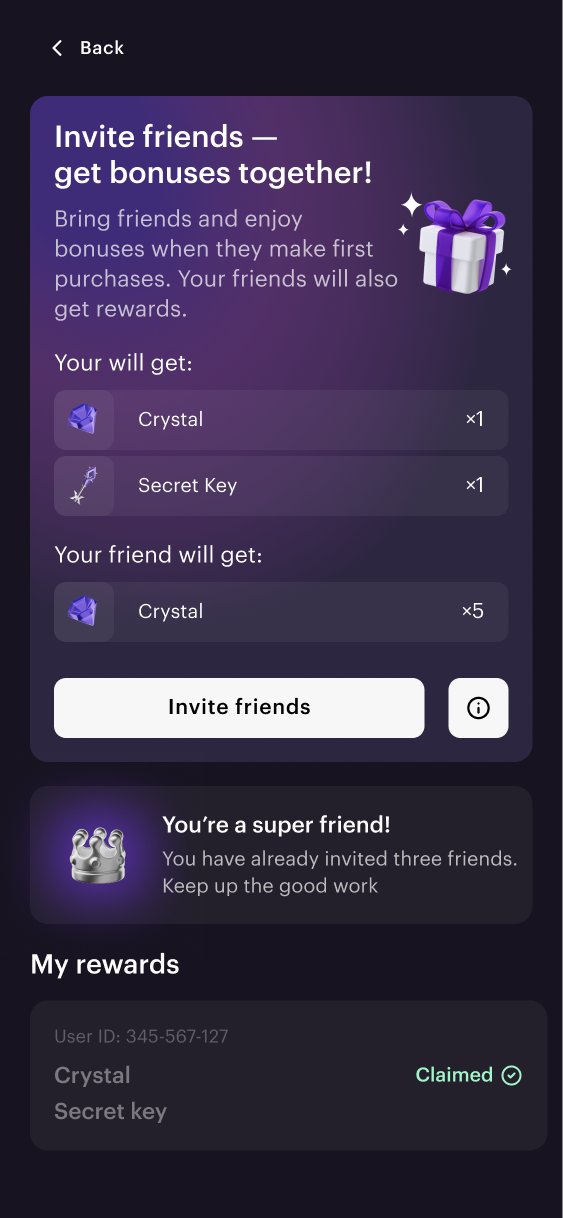 |
| FAQ section | An authorized inviting user who clicked the program information button. | Adding and removing blocks with questions. Background and text colors. Content of questions and answers. | 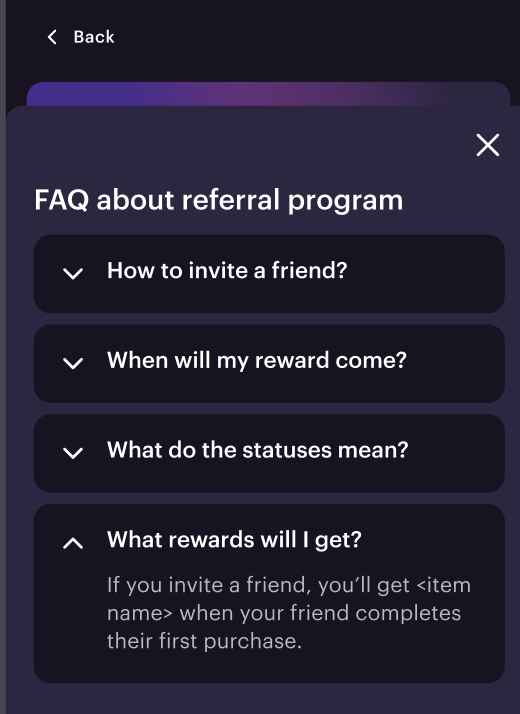 |
Widget page for the invitee:
| Description | Who it’s displayed to | Components that can be edited | Image |
|---|---|---|---|
| The widget text encourages to make a purchase on the site. After making a purchase, the user is shown a notification about receiving a bonus. | Users who have followed the referral link and logged in. | Background and text colors. Widget text, button texts. | |
Found a typo or other text error? Select the text and press Ctrl+Enter.
