
Upsell
How it works
Upsell is a sales method in which the user is offered to buy an item with additional value. For example, this could be the item that is in the greatest demand among other users.
An upsell is available for the following scenarios:
- sale of in-game items — virtual items, virtual currency packages, and bundles
- sale of games and DLC via game keys
You can set up one of the upsell options:
- best-selling items for a certain period (top sellers)
- items with active discounts or bonuses
- custom set of items
Limitations:
- You can only create one upsell per project.
- Upsell offers can include only items that are displayed in the catalog.
- If items with regional restrictions are selected for upsell, users from those regions will not be able to buy those items.
- One upsell can contain up to 100 items.
Upsell setup
Set up via Publisher Account
To create an upsell:
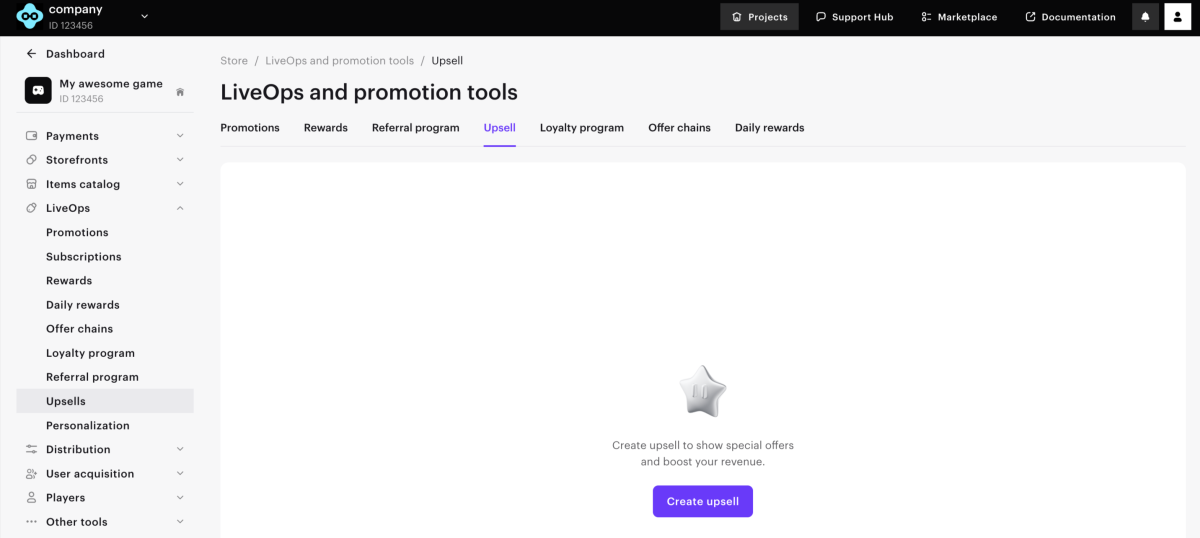
- In your project in Publisher Account, go to LiveOps > Upsell.
- Click Create upsell.
- Select items for upsell. If you selected the option Custom set of items, add the necessary items from the drop-down list.
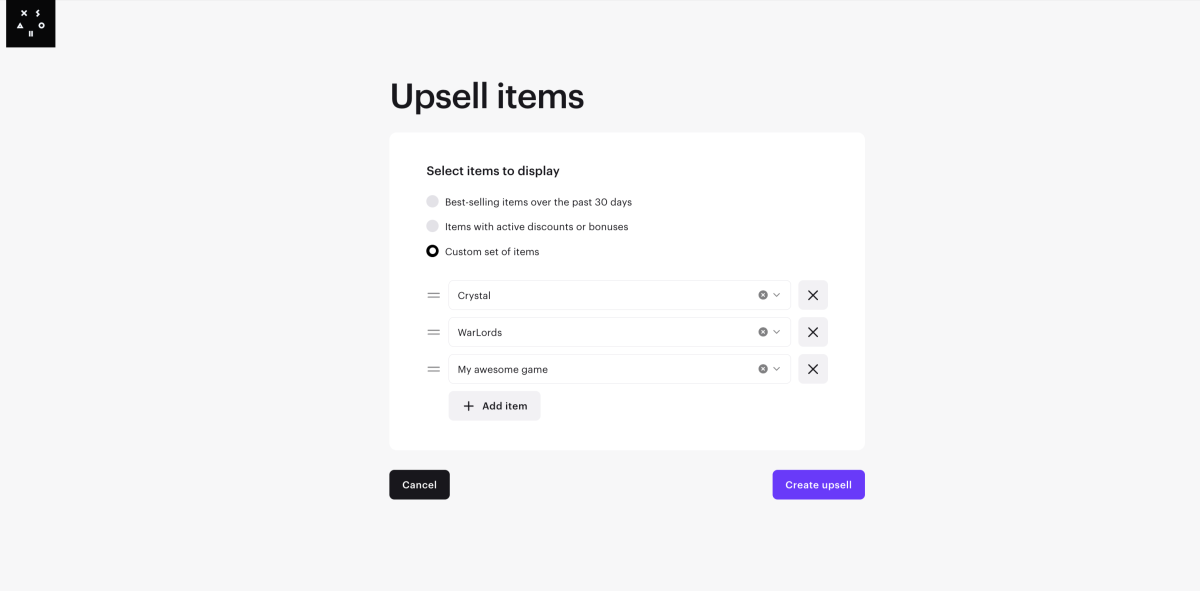
- Click Create upsell.
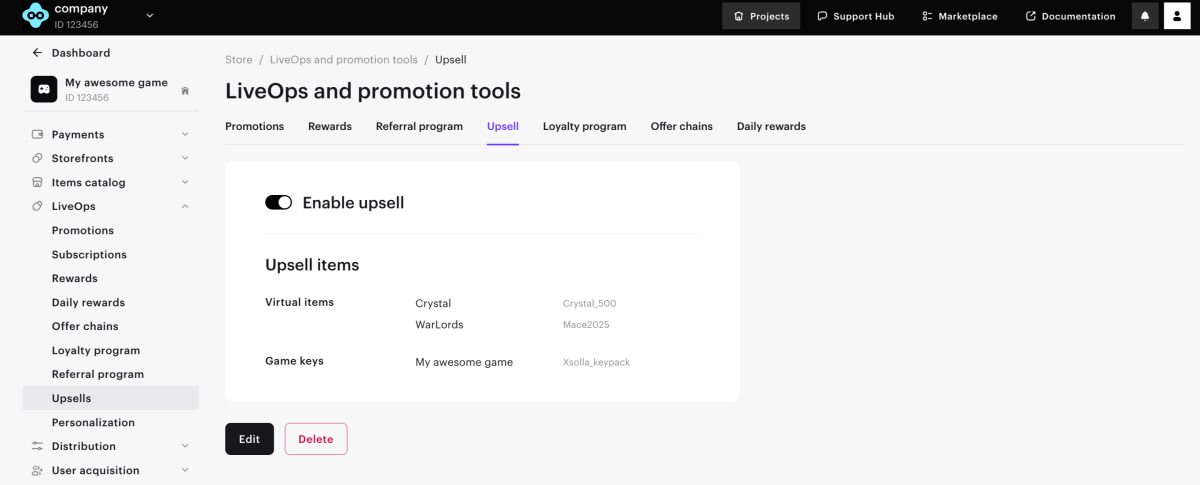
The created upsell is activated by default and is displayed in the Upsell section. You can edit the existing one or delete it and create a new upsell.
Set up via API
Implement a call to the following methods:
Upsell display in catalog
Display via site builder
To display upsell items on your website:
- Create an upsell.
- Open your project in Publisher Account and go to the Storefronts > Websites section.
- In the pane of the desired site, click Open Site Builder.
- In the Store block, go to the Store section.
- In the Item type field, select Upsell item.
- After making all necessary changes and preparing your website for launch:
- In the upper-right corner of the site builder, click Publish.
- Check the boxes next to the pages you want to publish.
- Click Publish.
If website publication is not available, make sure all the conditions are met:
- There are no empty sections on the website (marked with a red indicator).
- The licensing agreement with Xsolla has been signed.
- The main page is published or selected for publication. You cannot publish child pages before the main page.
After publication, a new section with upsell items will appear on the site. After successfully purchasing an item on the site, the user will see a modal window with an offer to buy more items from the list of upsell items.
Get upsell data via API calls
If a list of items for upsell is configured in the project in the Publisher Account, you can get them via the Get list of upsell items in project call.
Found a typo or other text error? Select the text and press Ctrl+Enter.
