Create daily rewards
How it works
Daily rewards motivate users to log into the store every day to get free items. You can create the following types of daily rewards:
Login reward — rewards that become available to the user after they first log into the store. They unlock sequentially, one per day, at a fixed time specified in the settings. If the user first logs into the store after the specified time, the first reward becomes available to them the next day.
EXAMPLE
Reward start: Monday, 10:00 AM. Duration: 7 days.Login to store First reward claim Second reward availability User 1 Monday, 09:00 Monday, from 10:00 AM Tuesday, from 10:00 AM User 2 Monday, 12:00 Tuesday, from 10:00 AM Wednesday, from 10:00 AM User 3 Tuesday, 12:00 Wednesday, from 10:00 AM Thursday, from 10:00 AM
Reward calendar — rewards that are available to all users on specified dates. Rewards unlock on a global schedule at the same time and don’t depend on when the user first logged into the store.
EXAMPLE
If a user logs into the store for the first time on day 4 of the promotion, they will see the reward for day 4 of the chain.
The following item types are available as rewards:
- Virtual items
- Virtual currency packages
- Bundles
The following item settings are ignored in daily rewards chains:
- personalization rules
- purchase limits
- scheduled availability (start/end date)
- promotions and discounts
Daily rewards are shown as chains that users can unlock consecutively. You can launch recurring daily reward chains that automatically restart after the final day in the chain is completed.
To ensure the daily rewards system works correctly, user authentication must be enabled.
Unauthenticated users can see the full daily reward chain but are not able to claim any rewards.
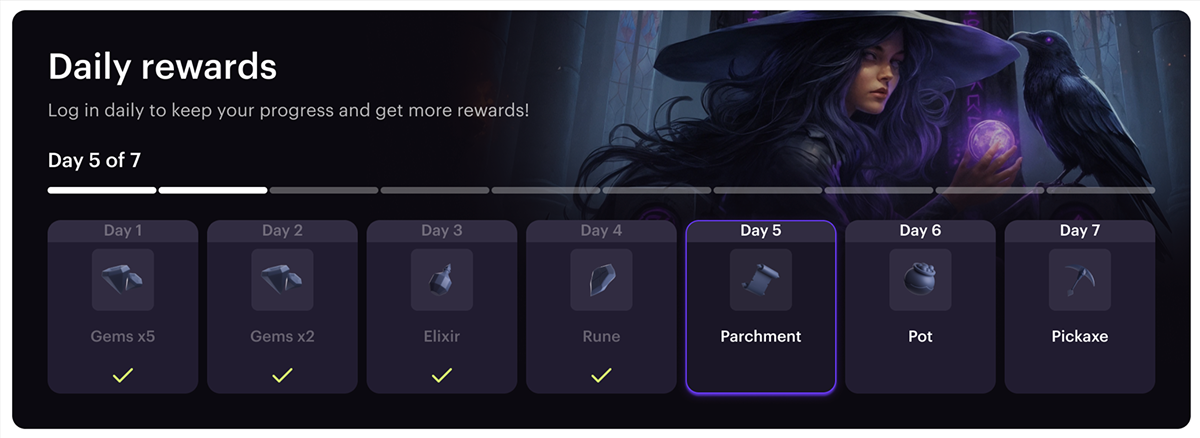
User flow
- The user visits the store.
- The user sees the daily reward chain and the reward available for today’s login.
- The user logs in.
- The user sees their current progress in the daily reward chain.
- The user claims the daily reward.
Prerequisites
Before creating a daily reward chain, you need to create items that users can get for free upon logging into the store.
Create daily rewards
To create daily rewards:
- In your project in Publisher Account, go to the LiveOps > Canvas section.
- In the project in your account for mobile games, go to the Operation > LiveOps section.
- In the project in your account, go to the LiveOps > Canvas section.
- In the project in your account, go to the LiveOps > More > Canvas section.
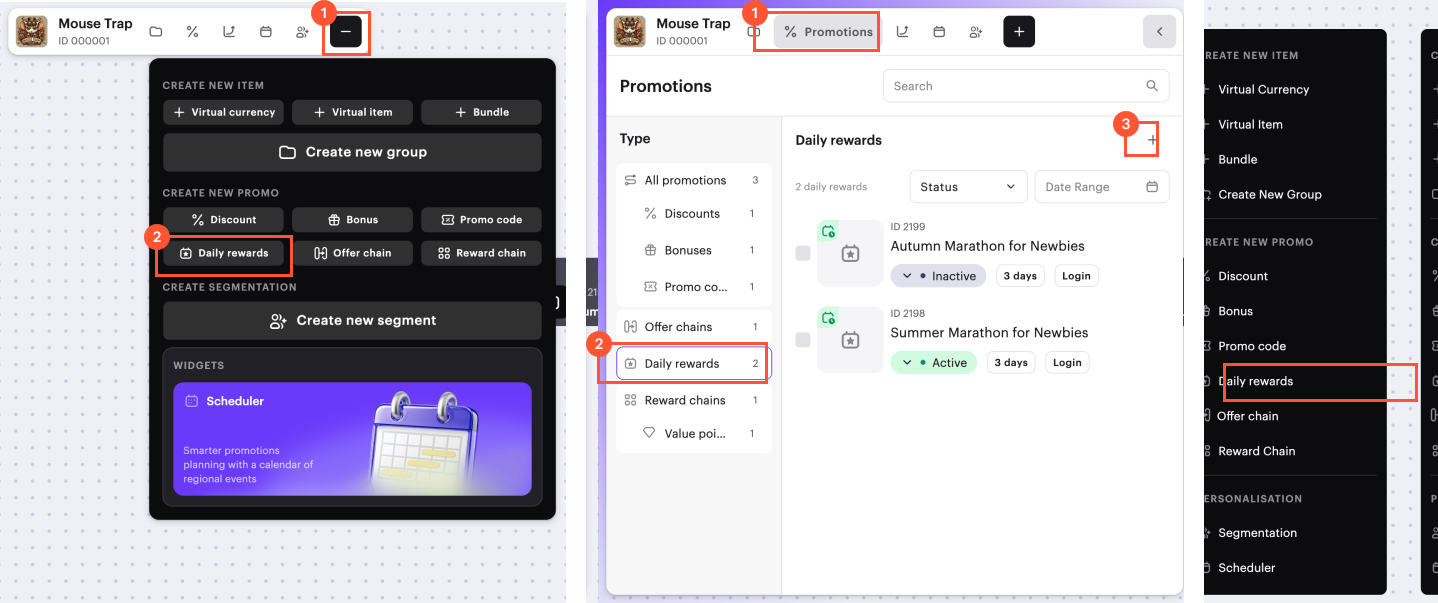
- Proceed to create daily rewards with one of the following methods:
- In the toolbar, click the + icon and select Daily rewards.
- In the daily rewards list area, click the + icon.
- Open the context menu anywhere on the canvas and select Daily rewards.
Specify the following parameters:
- Provide a title for the daily reward chain.
- Enter a description (optionally).
Click Next.
Select the type of daily rewards — Login reward or Reward calendar. Reward type is defined at the creation step and cannot be changed afterward.
Specify the validity period for daily rewards. For the Login reward type, you may omit the end date for the daily reward chain. To do so, turn on the No end date toggle.
If you want the daily rewards chain to restart after it ends, turn on the Make daily rewards renewable toggle.
The renewal logic depends on the chain type:
The Login reward chain restarts after the current cycle ends, before the promotion ends.
Example: A chain of 5 rewards is available from October 1 to October 31. If this setting is enabled, the user will be able to start a new reward cycle after the current one ends (upon earning 5 rewards or resetting the progress). Each new cycle begins with the first reward in the chain. Multiple renewals are possible throughout the promotion period, up to and including October 31.
The Reward calendar chain restarts for all users as frequent as the length of the reward chain (in days).
Example: A chain of 5 rewards is available from October 1. If this setting is enabled, the chain will renew for all users every 5 days — October 6, 11, 16, and so on.
For the Login reward type, you can configure progress reset if a user misses at least one day. To do this, turn on the Reset user progress if they miss a day toggle. If this setting is disabled, the user will resume earning rewards from where they left off when they log back in after missing a day. This setting can only be configured during the creation of the daily reward, you won’t be able to edit it later.
Example: In a chain of 5 rewards, if the user logs in for 3 days in a row and misses the 4th day, then on day 5:
- The user will receive the first reward in the chain if the reset setting is enabled.
- The user will receive the fourth reward in the chain if the reset setting is disabled.
Click Next.
Add a reward for each day of the chain. To add a reward for a single day:
Click Add reward.
Select an item, specify the quantity that users receive as a reward for this day, and click Add reward.
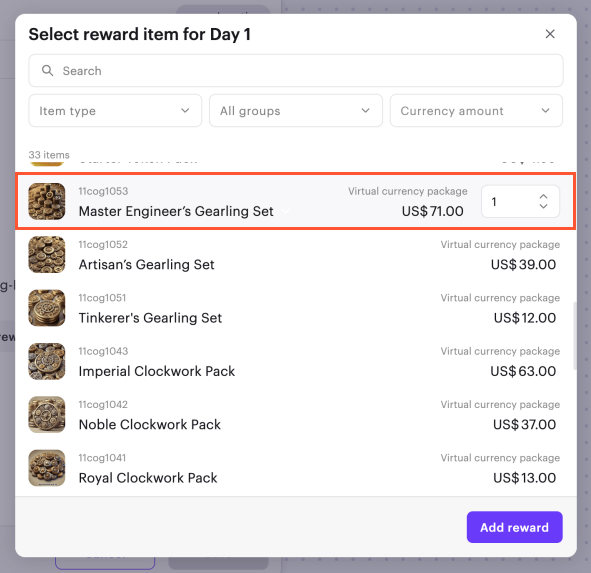
To change the order of rewards in the chain, drag the row to the desired position using the ☰ icon (optional).
After you have added rewards for each day, click Next.
Check the promotion settings.
To activate the promotion immediately (optional), turn on the Create in Active status toggle.
Click Create.
To add the created daily reward chain to the site (optional):
- Open the site in the builder by clicking Open or Open in Site Builder on the banner in the editing form.
- Follow the instructions from the Display daily rewards in store section.
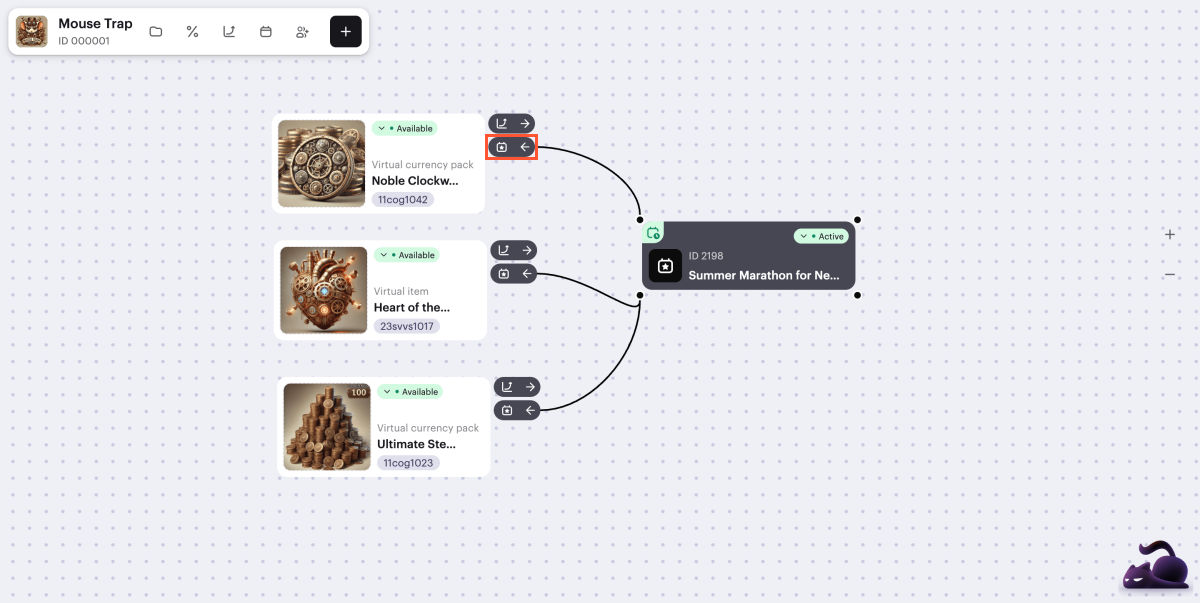
On the canvas, visual links are displayed between the promotion card and the items in the promotion.
To manage their display, click the → or ← icon to the right of any promotional item card, next to the  icon. If an item is included in multiple promotions, only one link can be displayed at a time.
Edit daily rewards
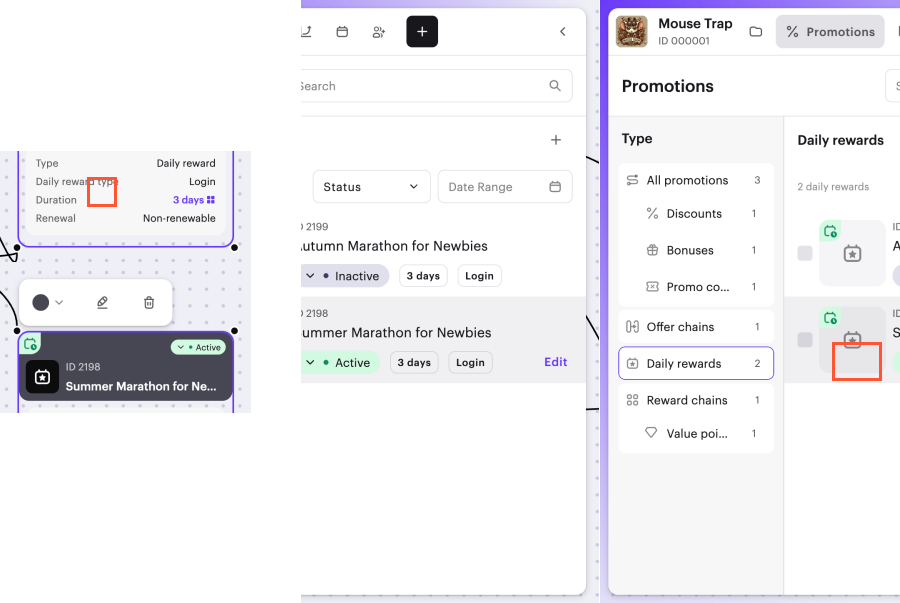
You can activate, deactivate, and edit daily rewards.
You can proceed to edit the promotion in the following ways:
- From the promotion card
- From the promotions list
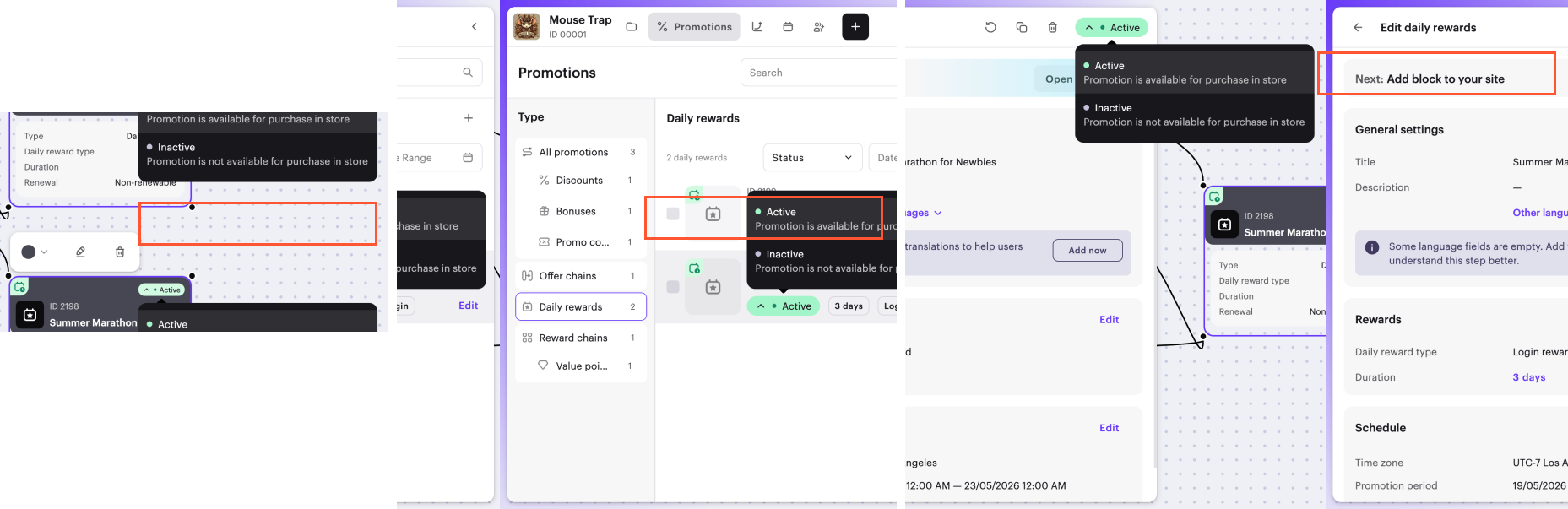
You can activate the promotion in following ways:
- From the promotion card
- From the promotions list
- While editing the promotion
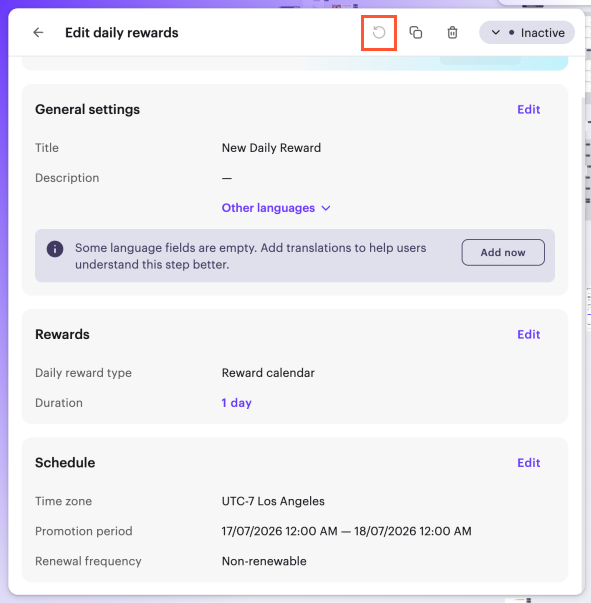
For rewards of the Login reward type, it is also possible to reset the progress of all users within the current daily rewards cycle. To reset progress click the  icon while editing the daily reward chain.
Restrictions on editing reward chains:
- You can’t edit an active daily reward chain. Deactivate it first to make changes.
- Only one chain of the Login reward type can be active at a time. Upon activating a chain, a warning will be displayed regarding the deactivation of any chains with overlapping validity periods.
- Editing reward chain type (Login reward or Reward calendar) isn’t available. You can only set this parameter when creating a daily reward.
- Changing the Reset user progress if they miss a day setting for chains of the Login reward type isn’t available.
For Login reward chains, the following changes require a progress reset for all users:
- changing the Make promotion renewable setting
- adding or removing steps
After reactivation, the chain restarts for all users who logged into the store after the promotion start date, including those who have already earned all rewards.
Changing the title, reward, description, dates, time, or time zones doesn’t require progress reset — users will continue from the day they left off.
For Reward calendar chains, changes don’t require a user progress reset.
Display daily rewards in store
Display on website created with Xsolla
To display a daily reward on your site:
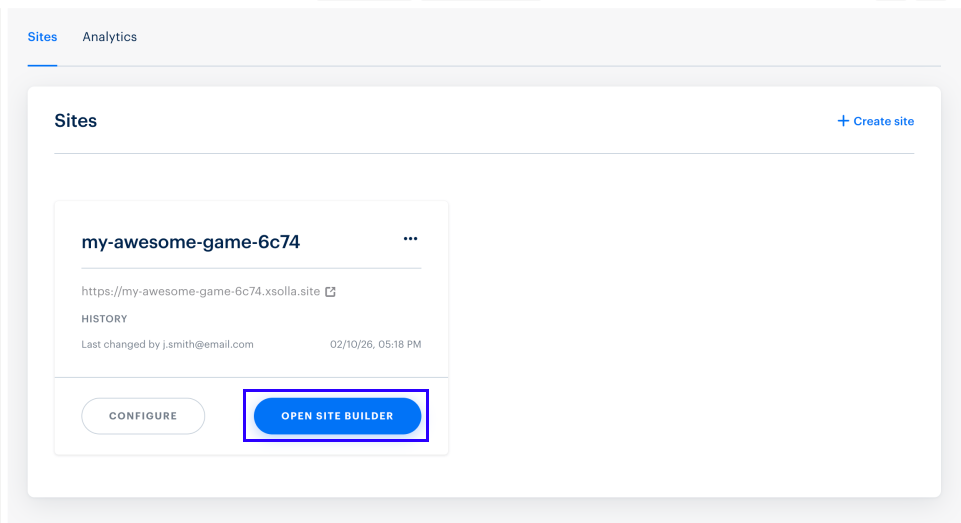
- In your project in Publisher Account, go to the Storefronts > Websites section.
- Select your site and click Open Site Builder.
- Open the project in your account and go to the Storefronts > Website section.
- Click the pane of your site.
- Open the project in your account and go to the Storefronts > Website section.
- Click the pane of your site.
- Open the project in your account and go to the Storefronts > Website section.
- Click the pane of your site.
- Open the project in your account and go to the Web Shop section.
- Click the pane of your site.
- If your site includes multiple pages, select the one you need:
- Click the current page title at the top of the builder.
- Select the necessary page from the drop-down list.
- In the main area of the builder, choose a place where you want to add a new block and click Add block.
- Select the Daily rewards block.
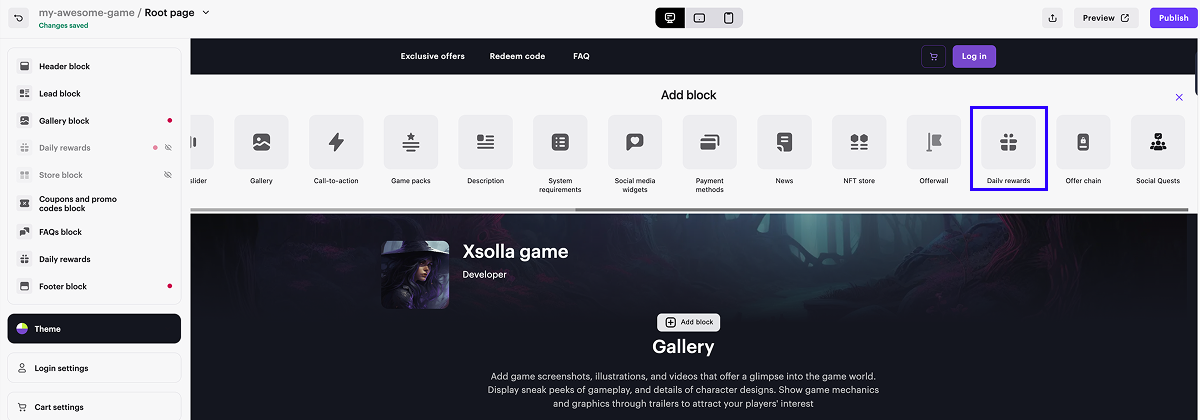
- In the side menu, go to the block settings.
- In the drop-down list, choose the daily reward chain.
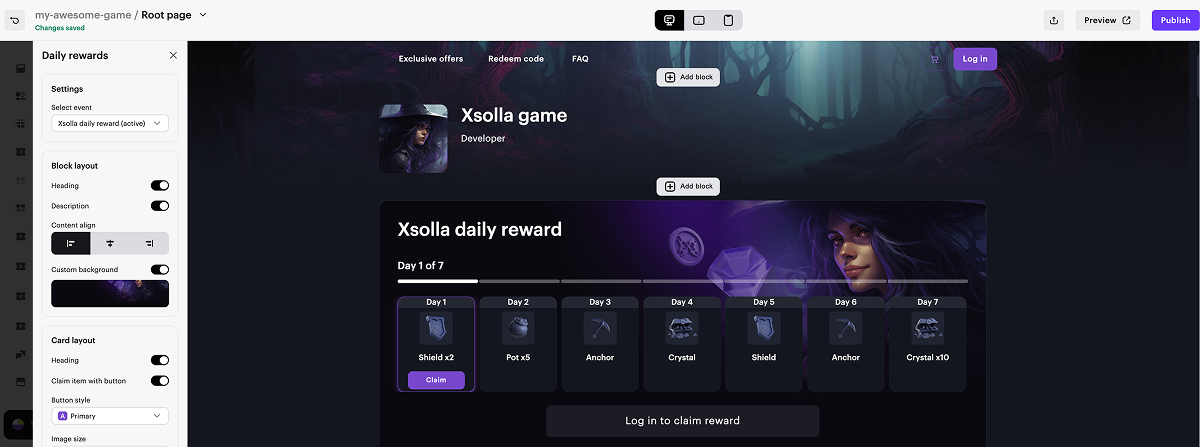
- To preview the daily reward chain, click Preview in the upper-right corner of the builder.
- To apply changes, publish the website:
- In the upper-right corner of the site builder, click Publish.
- Check the boxes next to the pages you want to publish.
- Click Publish.
If site publication is not available, make sure all the conditions are met:
- There are no empty sections in the builder (marked with a red indicator).
- The licensing agreement with Xsolla has been signed.
- The main page is published or selected for publication. You cannot publish child pages before the main page.
Users will not see the daily reward chain until it is activated and its validity period begins.
Daily reward chains with expired dates or chains that have not yet started are displayed in preview mode in the site builder. This mode allows you to view all unpublished changes, including inactive chains.
Display in your own UI
- In your application UI, implement the elements to display daily rewards chain steps.
- Implement the logic to work with chains using the following client-side API calls from the Daily rewards group:
- Ensure that items are correctly granted to the user.
Found a typo or other text error? Select the text and press Ctrl+Enter.
