Evidence submission for chargeback disputes
Overview
During the chargeback dispute process, the Xsolla chargeback management team may request additional evidence or documents from you. As a partner, you have direct access to critical information — such as delivery confirmations, or support correspondence — that Xsolla can’t obtain independently. Providing this information helps strengthen the dispute case submitted to the issuing bank on your behalf.
Providing evidence increases the chances of winning the dispute and ensures full transparency of the chargeback handling. In Publisher Account, you can see which disputes require your attention, track their progress, and play an active role in protecting your revenue. You can view and respond to evidence requests in the Analytics > Overview > Anti-fraud > Chargeback registry section.
When Xsolla requires supporting evidence to dispute a chargeback on your behalf, the following process takes place:
- The Xsolla chargeback management team identifies a dispute that requires additional documents from you and sends an evidence request.
- You receive an automated email titled New evidence request with a link to the relevant disputes in Publisher Account.
- You upload the requested evidence file in Publisher Account.
- The submitted file is automatically included in the final evidence package that Xsolla sends to the issuing bank.
Providing evidence increases the chances of winning the dispute and ensures full transparency of the chargeback handling. In the account, you can see which disputes require your attention, track their progress, and play an active role in protecting your revenue. You can view and respond to evidence requests in the Analytics > Anti-fraud > Chargeback registry section.
When Xsolla requires supporting evidence to dispute a chargeback on your behalf, the following process takes place:
- The Xsolla chargeback management team identifies a dispute that requires additional documents from you and sends an evidence request.
- You receive an automated email titled New evidence request with a link to the relevant disputes in the account.
- You upload the requested evidence file in the account.
- The submitted file is automatically included in the final evidence package that Xsolla sends to the issuing bank.
Providing evidence increases the chances of winning the dispute and ensures full transparency of the chargeback handling. In the account, you can see which disputes require your attention, track their progress, and play an active role in protecting your revenue. You can view and respond to evidence requests in the Analytics > Anti-fraud > Chargeback registry section.
When Xsolla requires supporting evidence to dispute a chargeback on your behalf, the following process takes place:
- The Xsolla chargeback management team identifies a dispute that requires additional documents from you and sends an evidence request.
- You receive an automated email titled New evidence request with a link to the relevant disputes in the account.
- You upload the requested evidence file in the account.
- The submitted file is automatically included in the final evidence package that Xsolla sends to the issuing bank.
Providing evidence increases the chances of winning the dispute and ensures full transparency of the chargeback handling. In the account, you can see which disputes require your attention, track their progress, and play an active role in protecting your revenue. You can view and respond to evidence requests in the Analytics > Anti-fraud > Chargeback registry section.
When Xsolla requires supporting evidence to dispute a chargeback on your behalf, the following process takes place:
- The Xsolla chargeback management team identifies a dispute that requires additional documents from you and sends an evidence request.
- You receive an automated email titled New evidence request with a link to the relevant disputes in the account.
- You upload the requested evidence file in the account.
- The submitted file is automatically included in the final evidence package that Xsolla sends to the issuing bank.
Providing evidence increases the chances of winning the dispute and ensures full transparency of the chargeback handling. In the account, you can see which disputes require your attention, track their progress, and play an active role in protecting your revenue. You can view and respond to evidence requests in the Analytics > Anti-fraud > Chargeback registry section.
When Xsolla requires supporting evidence to dispute a chargeback on your behalf, the following process takes place:
- The Xsolla chargeback management team identifies a dispute that requires additional documents from you and sends an evidence request.
- You receive an automated email titled New evidence request with a link to the relevant disputes in the account.
- You upload the requested evidence file in the account.
- The submitted file is automatically included in the final evidence package that Xsolla sends to the issuing bank.
Evidence workflow
Receiving evidence request
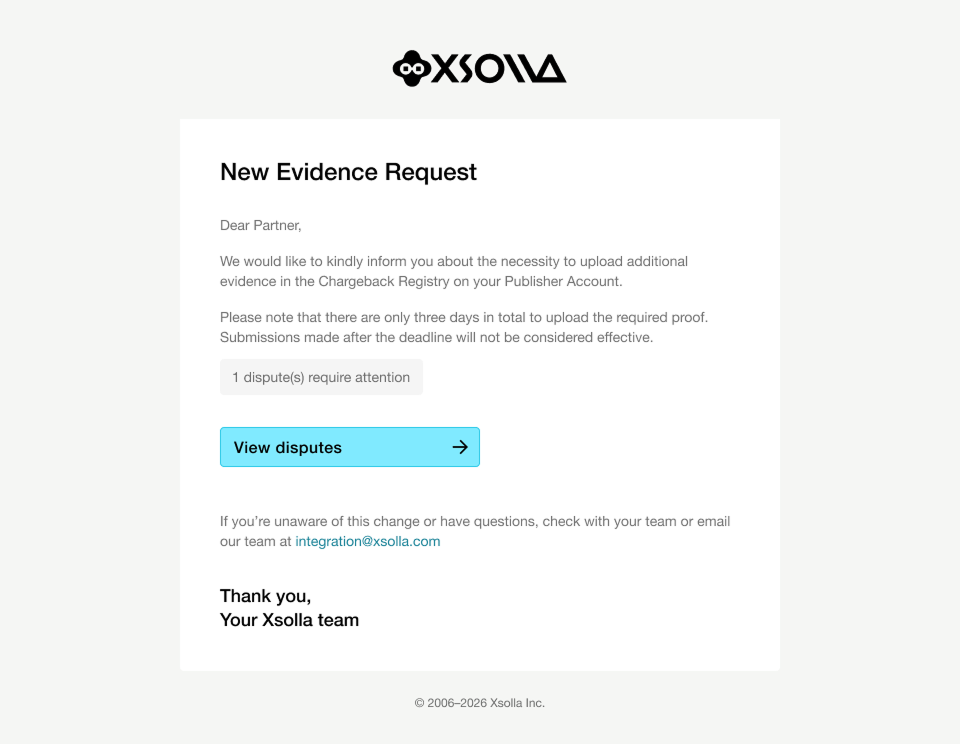
When an evidence request is created, you receive an email at the email specified in Publisher Account. The email contains the following information:
- A notice that additional evidence is required for one or more disputes in your chargeback registry.
- A link to Publisher Account to view the disputes for which you need to submit evidence.
- Information about the deadline: you have 3 calendar days from the request date to upload the required file.
When an evidence request is created, you receive an email at the email specified in your account. The email contains the following information:
- A notice that additional evidence is required for one or more disputes in your chargeback registry.
- A link to your account to view the disputes for which you need to submit evidence.
- Information about the deadline: you have 3 calendar days from the request date to upload the required file.
Submitting evidence
When submitting evidence, only include data that is necessary for handling the chargeback, e.g., the user’s nickname, email, purchase confirmation, and purchase details.
To submit evidence:
- In Publisher Account, go to the Analytics > Overview > Anti-fraud > Chargeback registry section.
- In your account, go to the Analytics > Anti-fraud > Chargeback registry section.
- In your account, go to the Analytics > Anti-fraud > Chargeback registry section.
- In your account, go to the Analytics > Anti-fraud > Chargeback registry section.
- In your account, go to the Analytics > Anti-fraud > Chargeback registry section.
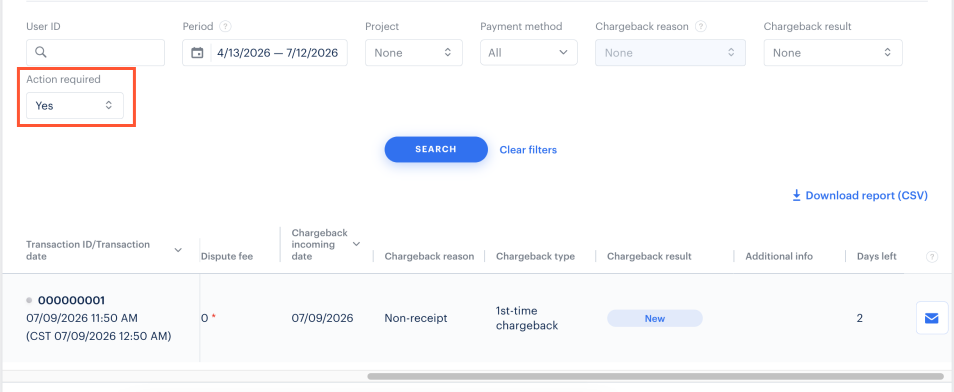
- To find disputes that require evidence, filter them by the Action required field.
- Click the

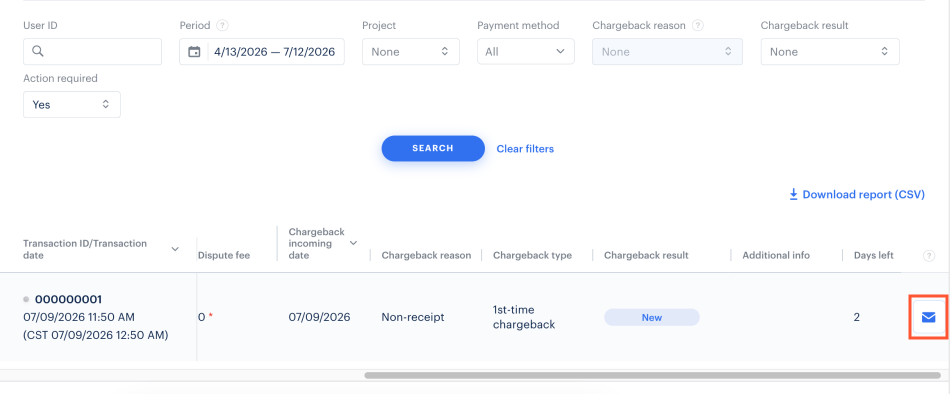
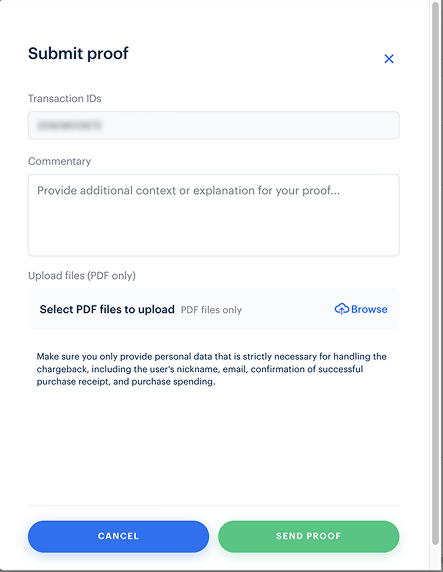
- In the modal window that opens:
- Review the Transaction IDs field to confirm you are uploading evidence for the correct dispute.
- In the Commentary field, provide additional context or explanation for your submission (optional).
- Click Browse to select and upload your evidence file in PDF format.
- Click Send proof.
Waiting for decision
Once you successfully upload the evidence file:
- The dispute status in the chargeback registry automatically changes to In progress to indicate that evidence has been received.
- Xsolla generates the final proof package, which includes the submitted file and other relevant transaction data.
- The final evidence package is sent to the issuing bank as part of the dispute representment.
It usually takes 30–60 days to receive a decision from the payment system after the evidence is submitted.
Additional information
Deadlines and requirements
| Requirement | Description |
|---|---|
| Submission deadline. | 3 calendar days from the date of the evidence request. |
| Accepted file format. | PDF only. |
| Late submissions. | Files uploaded after the deadline won’t be included in the document package. |
Tips for effective evidence submission
- Respond promptly. The 3-day window is strict, so upload your evidence as soon as possible after receiving the notification.
- Include only relevant documents. Useful evidence may include proof of digital delivery, user activity logs, purchase confirmations, or correspondence with the user.
- Keep the files focused. Only include information directly related to the disputed transaction. Avoid submitting unrelated documents.
- Check the transaction ID. Before uploading, verify that your evidence matches the correct dispute.
FAQs
Why doesn’t Xsolla request evidence for every chargeback?
Xsolla acts as a merchant of record, so the chargeback management team has extensive expertise in dispute handling and access to a wide range of transaction data. For many chargebacks — particularly those related to fraud — Xsolla already has sufficient evidence to build a strong dispute case without additional input from the partner.
Evidence requests are sent only in cases where partner-held documents are needed to support the representment. This typically applies to non-fraudulent dispute reasons, such as claims of non-delivery or order cancellation, as well as cases where the payment system has explicitly requested additional evidence. Requesting proof selectively ensures that partners are only contacted when their input can make a meaningful difference to the outcome of the dispute.
What data should I provide?
You can include proof of item delivery, user activity or login logs, purchase confirmations, screenshots of in-game item usage, refund policy excerpts, or any correspondence with the user related to the disputed transaction. Only include data that is necessary for handling the chargeback.
What happens after I upload the evidence?
Once you upload the file, the dispute status in the chargeback registry updates automatically. It confirms that evidence has been received. Xsolla then compiles the final proof package — which includes your submission and other relevant transaction data — and sends it to the issuing bank.
What if I miss the 3-day deadline?
How long does it take to get a decision after evidence is submitted?
It typically takes 30–60 days for the payment system to make a decision after the evidence package has been submitted.
How can I create a PDF file?
The way you create a PDF depends on the software you use. Examples:
| OS | Actions |
|---|---|
| Windows | Press Ctrl + P and select Microsoft Print to PDF as the printer. For Word or Excel files, you can use File → Export → Create PDF/XPS for higher-quality output. |
| macOS | Every application includes PDF export in the print dialog. Press ⌘ + P and select Save as PDF. Alternatively, the Preview application supports File → Export as PDF directly. |
| Linux | GUI applications such as LibreOffice or Firefox support Ctrl + P → Print to File. For batch processing or terminal use, run the following command: libreoffice --headless --convert-to pdf yourfile.docx. |
| Other OS | You can use online tools such as iLovePDF or Smallpdf . Alternatively, you can export a PDF from Google Docs via File → Download. |
Can I update or replace a file after submitting it?
Once evidence is submitted for a dispute, it can’t be replaced through the chargeback registry interface. If you need to provide corrected or additional data, contact the Xsolla chargeback management team.
I didn’t receive the email. What should I do?
Found a typo or other text error? Select the text and press Ctrl+Enter.
