
Analytics na tela
Analytics is a dashboard within the canvas interface that provides near real-time monitoring of your project’s performance, including user activity, sales, and promotional campaigns. Data is updated hourly, sourced from payment transactions and website visits.
Full analytics, including metrics based on front-end events (e.g., unique users, conversion funnel, user retention rate), is only available for sites created with Xsolla site builder (e.g., Web Shop).
If you use the Xsolla API to build your own website or an in-game store, data is collected only for completed purchases. Metrics related to the front-end events and user activity won’t be displayed because the system doesn’t receive these events.
How to access
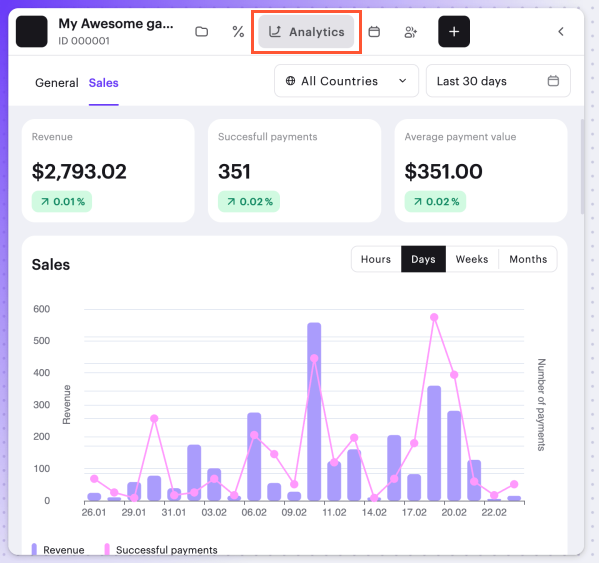
The analytics dashboard is integrated directly into your project’s canvas. To access it:
- Open your project in Publisher Account and go to the LiveOps > Canvas section.
- In the toolbar, click the

Global filters
Two main filters apply to all tabs and metrics:
- Country filter. Set to All countries by default. To set specific countries, click the drop-down list and select one or more entries.
- Date range filter. To set a specific period, select a preset (e.g., Last 7 days) or set a custom range via the calendar.
Dashboard tabs
General
This tab covers user acquisition and top-level conversion and shows the following metrics:
- Unique users: Total count of distinct users for the period.
- User retention rate: Share of returning users.
- Users chart: A combined bar-and-line chart of daily activity.
- Conversion funnel: User journey visualization from visit to purchase.
- Top promotions and items: Tables showing best-sellers.
Sales
This tab covers revenue and transaction health and shows following metrics:
- Revenue: Total gross income.
- Successful payments: Total number of completed transactions.
- Average transaction value (ATV): The mean payment amount.
- Paying users: Number of unique customers who made a purchase.
- Sales chart: Daily trends for revenue and successful payments.
- User payment activity chart: Trend overview of the volume of paying users.
Analytics cards on canvas
For continuous monitoring, you can bring specific analytics directly onto the canvas. To do this, drag an analytics widget from the dashboard and drop it anywhere on the canvas.
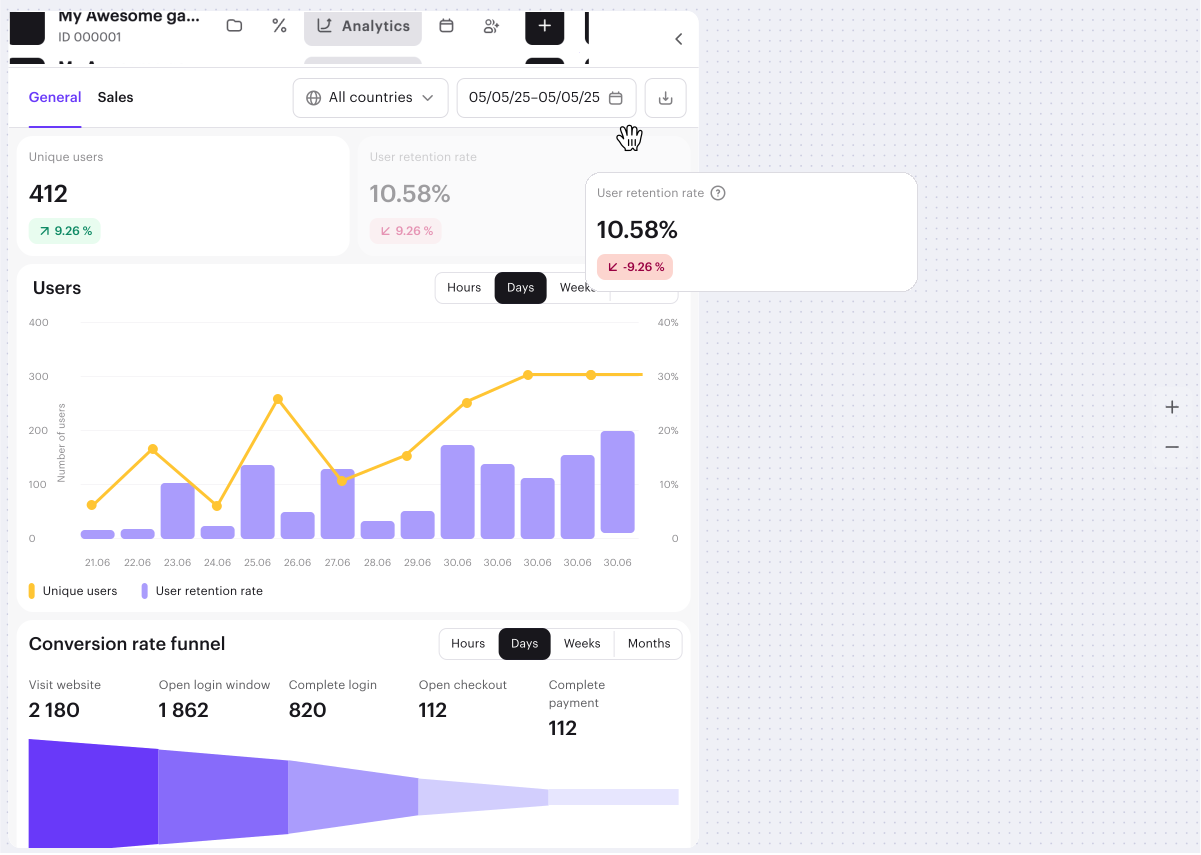
Once the card is added onto the canvas, you can use its toolbar to edit a set of metrics to display. You can also filter data on the card by country or date range. The filters applied to the card will persist even after you leave or reset the page.
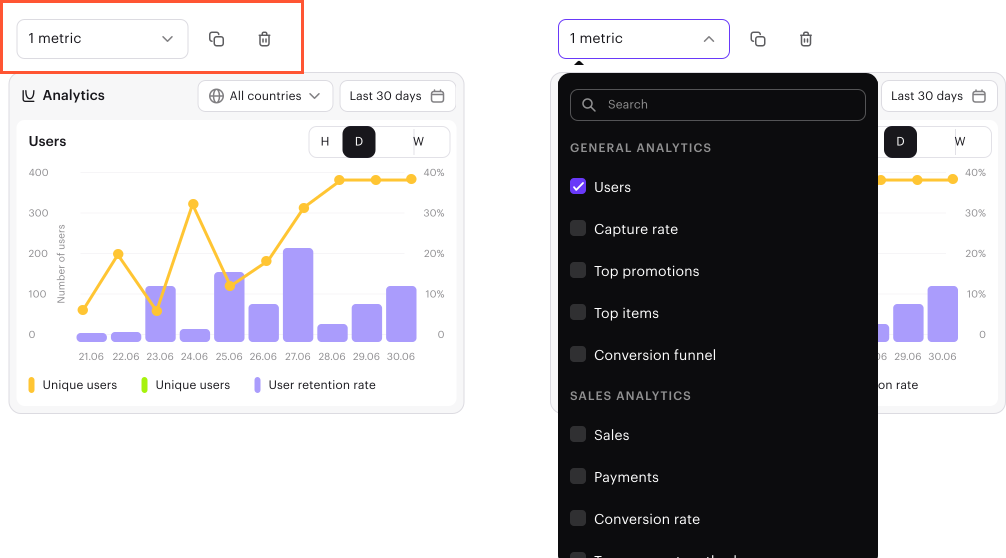
Additionally, the analytics card toolbar allows you to:
- Copy the card.
- Remove the card from the board.
Encontrou um erro de texto ou digitação? Selecione o texto e pressione Ctrl+Enter.
