Set up catalog and subscription plans
Virtual currency is virtual money that is used for purchasing and selling in-game items. Depending on its purpose, a virtual currency affects the game economy balance or is connected to the monetization of the app. You can also create hard currency — a virtual currency that is linked to the platform of purchase and can be purchased only for real money.
You can sell the virtual currency in predefined amounts. For a package, you can define a special price that doesn’t equal the amount of virtual currency in it.
See the Virtual currency section to learn more about virtual currency.
- Open your project in Publisher Account and go to the Items catalog > All items > Virtual currencies section.
- Open the project in your account and go to the Items catalog > All items > Virtual currencies section.
- Open the project in your account and go to the Items catalog > All items > Virtual currencies section.
- Open the project in your account and go to the Items catalog > All items > Virtual currencies section.
- Open your project in the account for mobile games and go to the Catalog section.
- Click Create manually and select Virtual currency from the drop-down list.
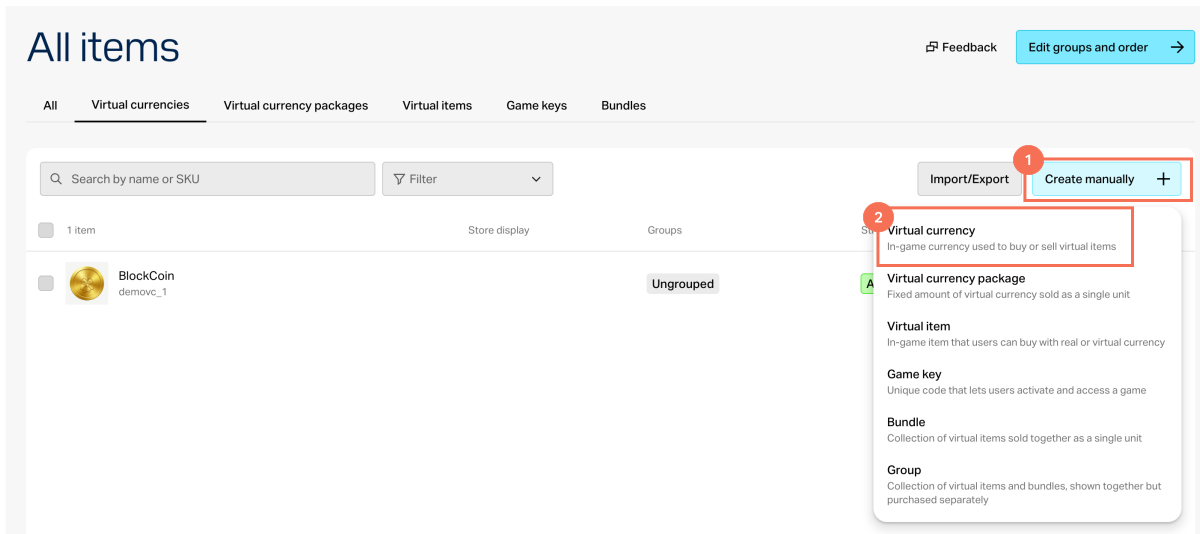
- In the General settings section, specify the following:
- SKU
- One or several groups the item should belong to (optional)
- Name
- Short description
- Extended description — to add it, turn on the corresponding toggle (optional)
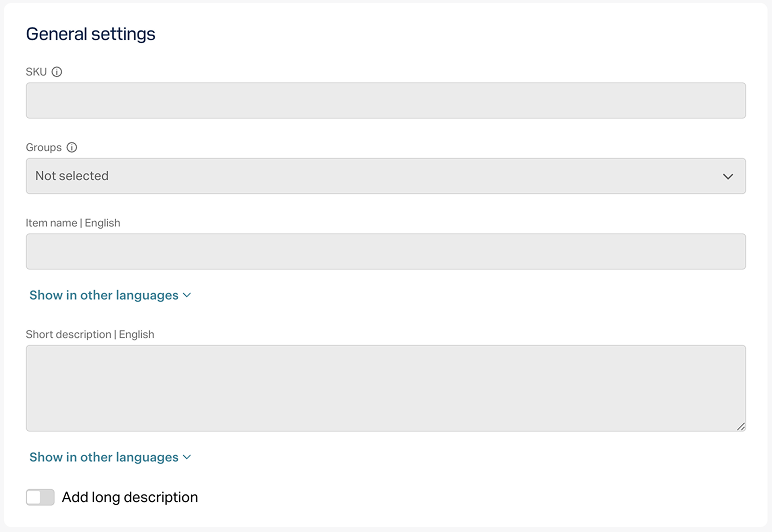
- In the Media section, upload one or more images or videos (optional) — from your device or via a link. In the store created with the Xsolla site editor, all item cards display the file marked as Main, while the remaining files are available only in item cards with a media gallery. The file marked as Main is also returned in the responses of the catalog retrieval API calls.
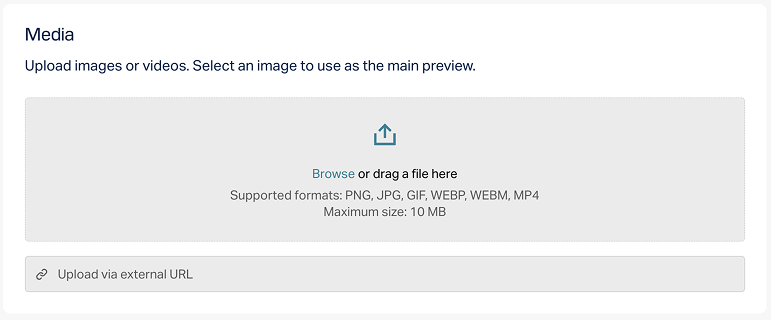
- In the Price settings section, set prices or create a free item:
- To set a price, select Paid item, turn on the Pricing in real currency toggle, and specify the price. If needed, configure regional prices.
- To create a free item, select Free item.
- To limit the number of items available for purchase:
- Turn on the toggle in the Limits section and specify the quantity.
- Configure the limit reset frequency. To do this, select a period from the drop-down list:
- Daily.
- Weekly.
- Monthly.
- Custom interval. The interval is calculated from the item’s display start date in the store.
- No regular refresh.
- Set up the reset schedule by specifying the parameters that correspond to the selected period.
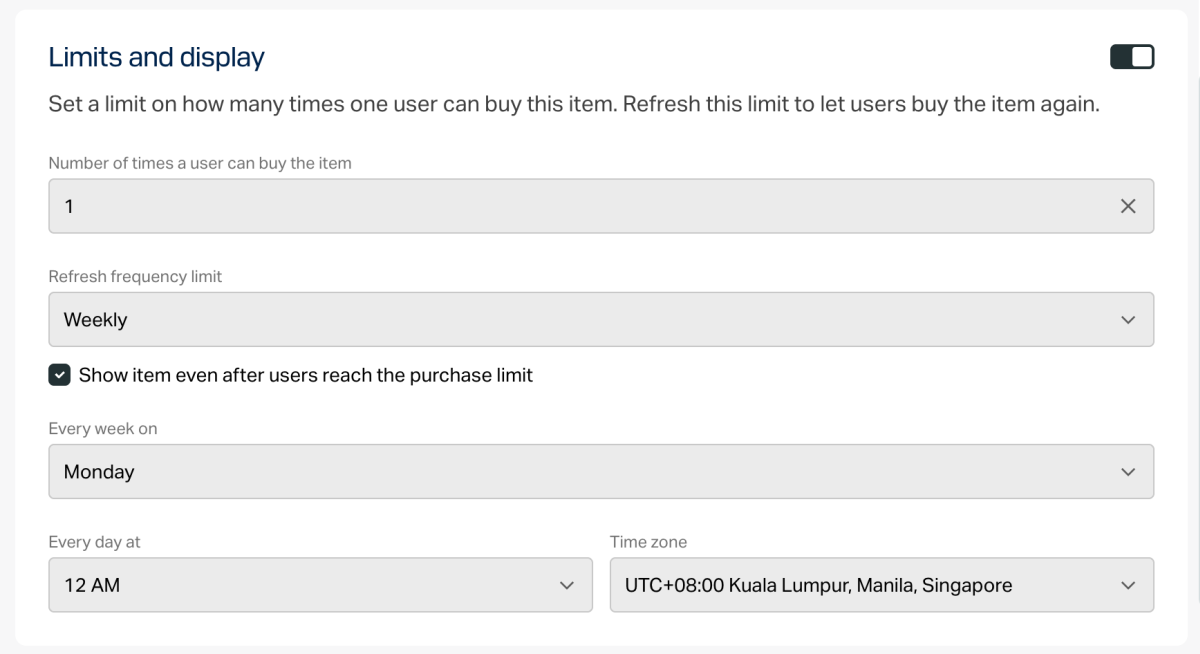
To configure a display time limit for the item (optional):
- Turn on the toggle in the Add specific display period section.
- Specify the time zone and the beginning and the end of the period.
To leave the end of the item’s display period unspecified, turn on the No end date toggle.
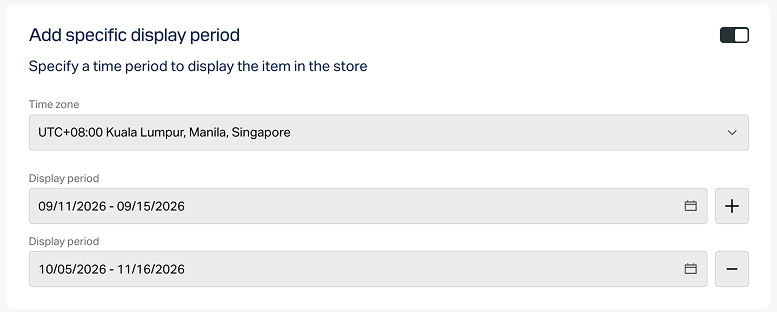
- Configure attributes using one of the following options (optional):
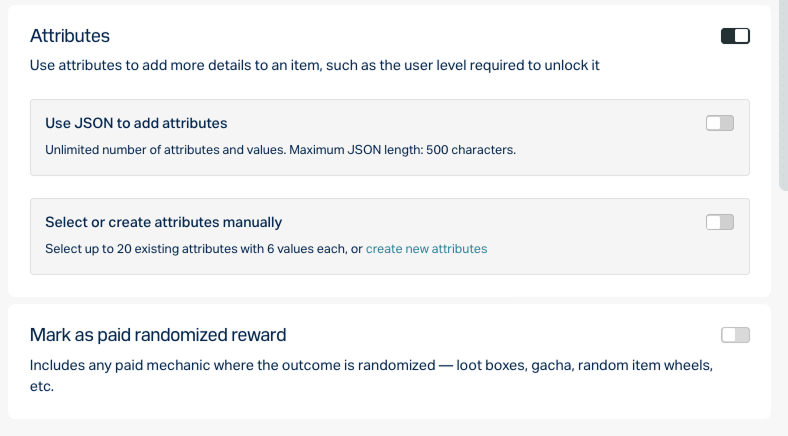
- If the paid item will be used in any mechanics with a random reward (e.g., loot boxes or gacha), enable the Mark as paid randomized reward toggle.
Click Create.
In the window that opens, select the item status and click Continue.
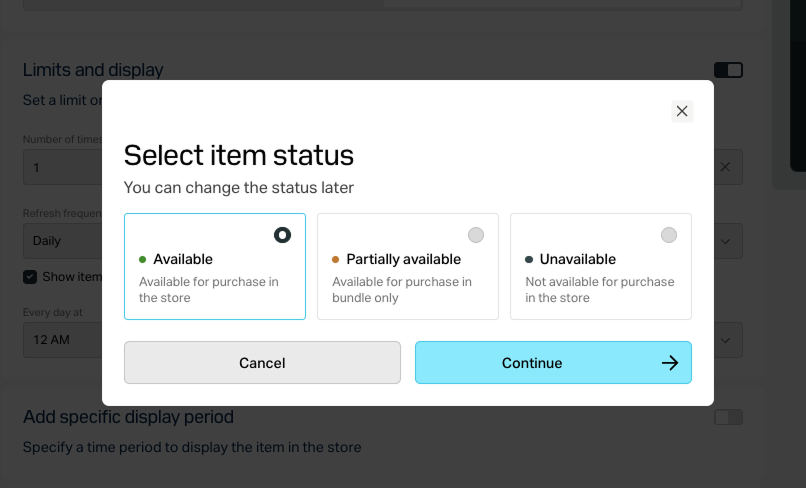
The created item will appear in the All items section.
- Open your project in Publisher Account and go to the Items catalog > All items > Virtual currency packages section.
- Open the project in your account and go to the Items catalog > All items > Virtual currency packages section.
- Open the project in your account and go to the Items catalog > All items > Virtual currency packages section.
- Open the project in your account and go to the Items catalog > All items > Virtual currency packages section.
- Open your project in the account for mobile games and go to the Catalog section.
- Click Create manually and select Virtual currency from the drop-down list.
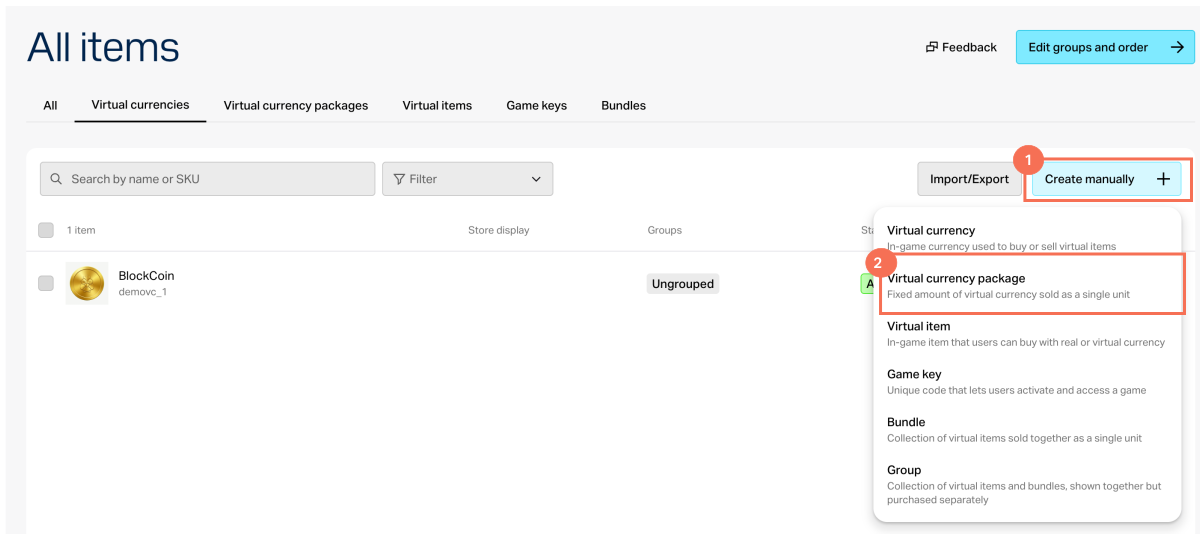
- In the General settings section, specify the following:
- SKU
- One or several groups the item should belong to (optional)
- Name
- Short description
- Extended description — to add it, turn on the corresponding toggle (optional)
- In the Media section, upload one or more images or videos (optional) — from your device or via a link. In the store created with the Xsolla site editor, all item cards display the file marked as Main, while the remaining files are available only in item cards with a media gallery. The file marked as Main is also returned in the responses of the catalog retrieval API calls.
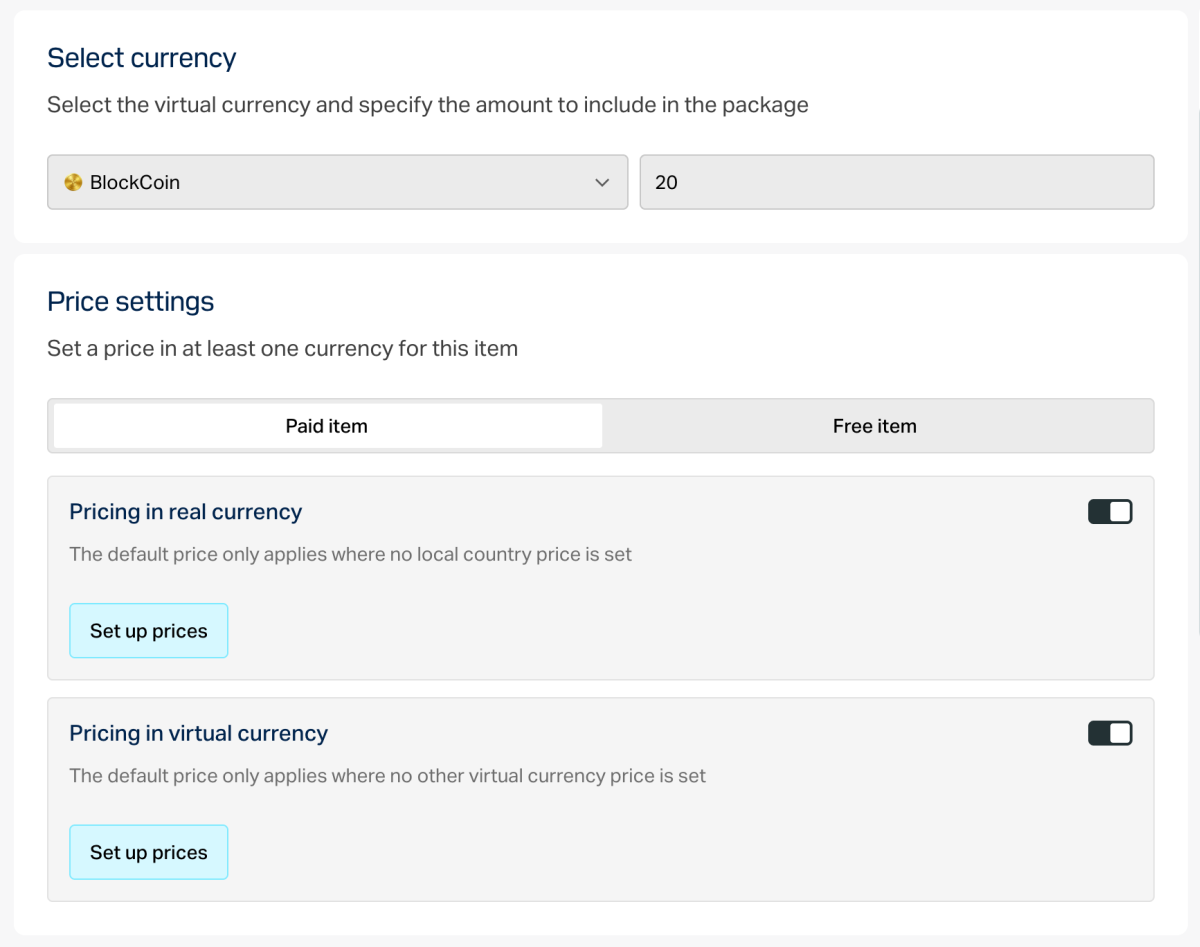
Specify the virtual currency included in the package and its amount.
In the Price settings section, set prices or create a free item:
- To set a price, select Paid item, turn on the Pricing in real currency and/or Pricing in virtual currency toggle, and specify the price. If needed, configure regional prices.
- To create a free item, select Free item.
An item can have prices in several real and virtual currencies. In this case, you must specify a default currency for each type — one among the real currencies and one among the virtual currencies.
You can specify a price in virtual currency only if the virtual currency has already been created in the project.
- To limit the number of items available for purchase:
- Turn on the toggle in the Limits section and specify the quantity.
- Configure the limit reset frequency. To do this, select a period from the drop-down list:
- Daily.
- Weekly.
- Monthly.
- Custom interval. The interval is calculated from the item’s display start date in the store.
- No regular refresh.
- Set up the reset schedule by specifying the parameters that correspond to the selected period.
To configure a display time limit for the item (optional):
- Turn on the toggle in the Add specific display period section.
- Specify the time zone and the beginning and the end of the period.
To leave the end of the item’s display period unspecified, turn on the No end date toggle.
- Configure attributes using one of the following options (optional):
- If the paid item will be used in any mechanics with a random reward (e.g., loot boxes or gacha), enable the Mark as paid randomized reward toggle.
Click Create.
In the window that opens, select the item status and click Continue.
The created item will appear in the All items section.
Virtual items are the in-game content that you can sell for real and virtual currency.
See the Virtual items section to learn more about virtual items.
- Open your project in Publisher Account and go to the Items catalog > All items > Virtual items section.
- Open the project in your account and go to the Items catalog > All items > Virtual items section.
- Open the project in your account and go to the Items catalog > All items > Virtual items section.
- Open the project in your account and go to the Items catalog > All items > Virtual items section.
- Open your project in the account for mobile games and go to the Catalog section.
- Click Create manually and select Virtual item from the drop-down list.
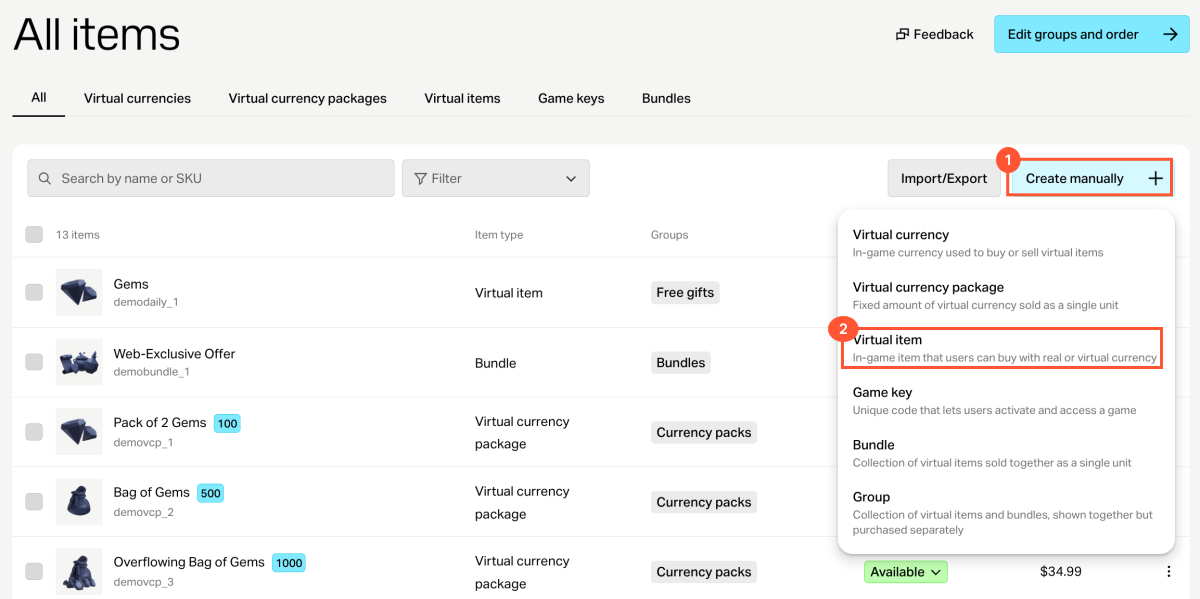
- In the General settings section, specify the following:
- SKU
- One or several groups the item should belong to (optional)
- Name
- Short description
- Extended description — to add it, turn on the corresponding toggle (optional)
- In the Media section, upload one or more images or videos (optional) — from your device or via a link. In the store created with the Xsolla site editor, all item cards display the file marked as Main, while the remaining files are available only in item cards with a media gallery. The file marked as Main is also returned in the responses of the catalog retrieval API calls.
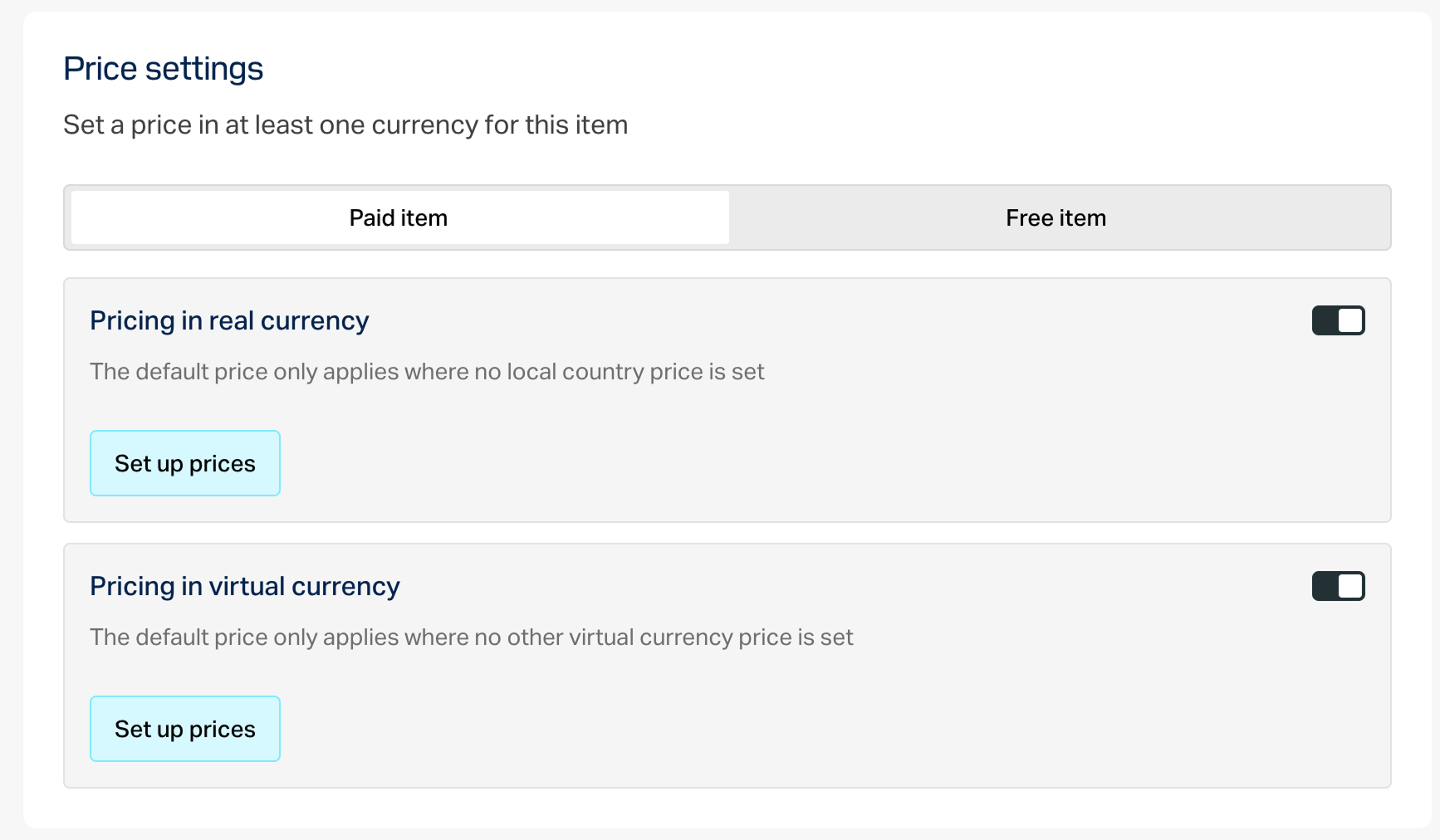
- In the Price settings section, set prices or create a free item:
- To set a price, select Paid item, turn on the Pricing in real currency and/or Pricing in virtual currency toggle, and specify the price. If needed, configure regional prices.
- To create a free item, select Free item.
An item can have prices in several real and virtual currencies. In this case, you must specify a default currency for each type — one among the real currencies and one among the virtual currencies.
You can specify a price in virtual currency only if the virtual currency has already been created in the project.
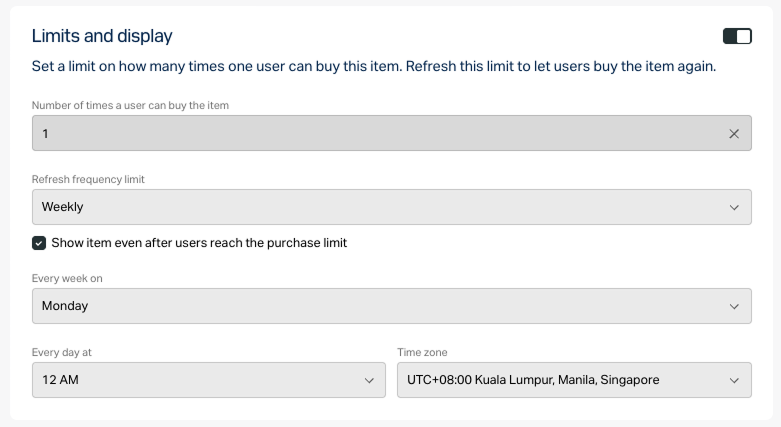
- To limit the number of items available for purchase:
- Turn on the toggle in the Limits section and specify the quantity.
- Configure the limit reset frequency. To do this, select a period from the drop-down list:
- Daily.
- Weekly.
- Monthly.
- Custom interval. The interval is calculated from the item’s display start date in the store.
- No regular refresh.
- Set up the reset schedule by specifying the parameters that correspond to the selected period.
To configure a display time limit for the item (optional):
- Turn on the toggle in the Add specific display period section.
- Specify the time zone and the beginning and the end of the period.
To leave the end of the item’s display period unspecified, turn on the No end date toggle.
- Configure attributes using one of the following options (optional):
- If the paid item will be used in any mechanics with a random reward (e.g., loot boxes or gacha), enable the Mark as paid randomized reward toggle.
Click Create.
In the window that opens, select the item status and click Continue.
The created item will appear in the All items section.
Bundle is a set of several items that are sold as a single unit. You can add items of different types to a bundle:
- Virtual currency.
- Package of virtual currency.
- Virtual items including time-limited items.
- Bundles.
See the Bundles section to learn more about bundles.
To create a bundle:
- Open your project in Publisher Account and go to the Items catalog > All items > Bundles section.
- Open the project in your account and go to the Items catalog > All items > Bundles section.
- Open the project in your account and go to the Items catalog > All items > Bundles section.
- Open the project in your account and go to the Items catalog > All items > Bundles section.
- Open your project in the account for mobile games and go to the Catalog section.
- Click Create manually and select Bundle from the drop-down list.
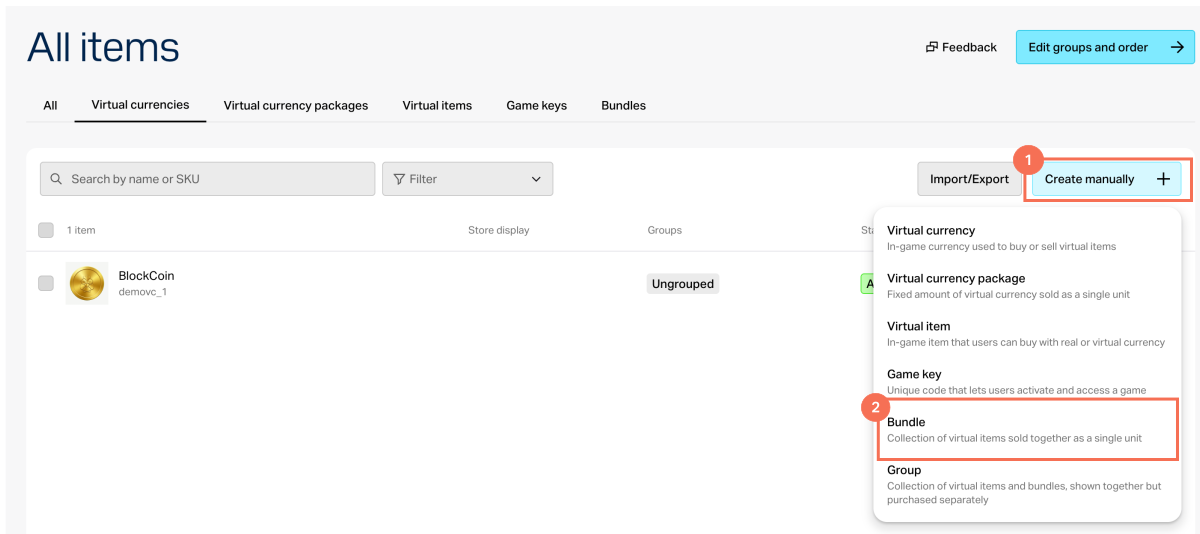
- In the General settings section, specify the following:
- SKU
- One or several groups the item should belong to (optional)
- Name
- Short description
- Extended description — to add it, turn on the corresponding toggle (optional)
- In the Media section, upload one or more images or videos (optional) — from your device or via a link. In the store created with the Xsolla site editor, all item cards display the file marked as Main, while the remaining files are available only in item cards with a media gallery. The file marked as Main is also returned in the responses of the catalog retrieval API calls.
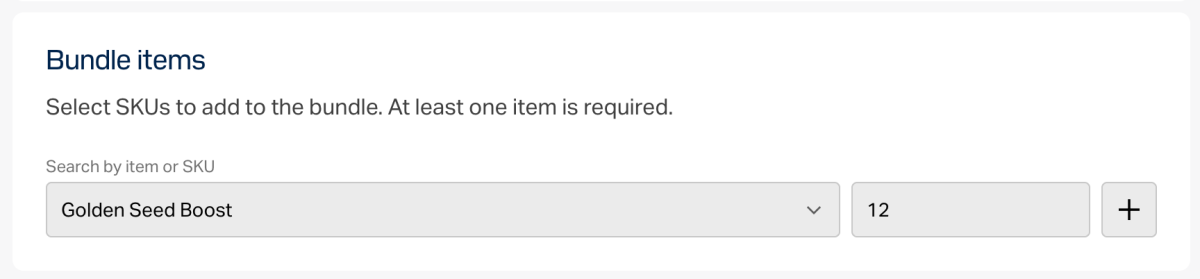
- In the Bundle items section, select SKUs to add to the bundle. At least one item is required.
- In the Price settings section, set prices or create a free item:
- To set a price, select Paid item, turn on the Pricing in real currency and/or Pricing in virtual currency toggle, and specify the price. If needed, configure regional prices.
- To create a free item, select Free item.
- To limit the number of items available for purchase:
- Turn on the toggle in the Limits section and specify the quantity.
- Configure the limit reset frequency. To do this, select a period from the drop-down list:
- Daily.
- Weekly.
- Monthly.
- Custom interval. The interval is calculated from the item’s display start date in the store.
- No regular refresh.
- Set up the reset schedule by specifying the parameters that correspond to the selected period.
To configure a display time limit for the item (optional):
- Turn on the toggle in the Add specific display period section.
- Specify the time zone and the beginning and the end of the period.
To leave the end of the item’s display period unspecified, turn on the No end date toggle.
- Configure attributes using one of the following options (optional):
- If the paid item will be used in any mechanics with a random reward (e.g., loot boxes or gacha), enable the Mark as paid randomized reward toggle.
Click Create.
In the window that opens, select the item status and click Continue.
The created item will appear in the All items section.
You can set up subscription plans via Publisher Account or with the Create plan API call.
To set up a plan via Publisher Account:
- Go to the Items catalog > Subscriptions section.
- On the Subscription plan tab, click Create subscription plan.
You can set up subscription plans in the account or with the Create plan API call.
To set up a plan in the account:
- Go to the Items catalog > Subscriptions section.
- On the Subscription plan tab, click Create subscription plan.
You can set up subscription plans in the account or with the Create plan API call.
To set up a plan in the account:
- Go to the Items catalog > Subscriptions section.
- On the Subscription plan tab, click Create subscription plan.
You can set up subscription plans in the account or with the Create plan API call.
To set up a plan in the account:
- Go to the Items catalog > Subscriptions section.
- On the Subscription plan tab, click Create subscription plan.
You can set up subscription plans in the account or with the Create plan API call.
To set up a plan in the account:
- Go to the Items catalog > Subscriptions section.
- On the Subscription plan tab, click Create subscription plan.
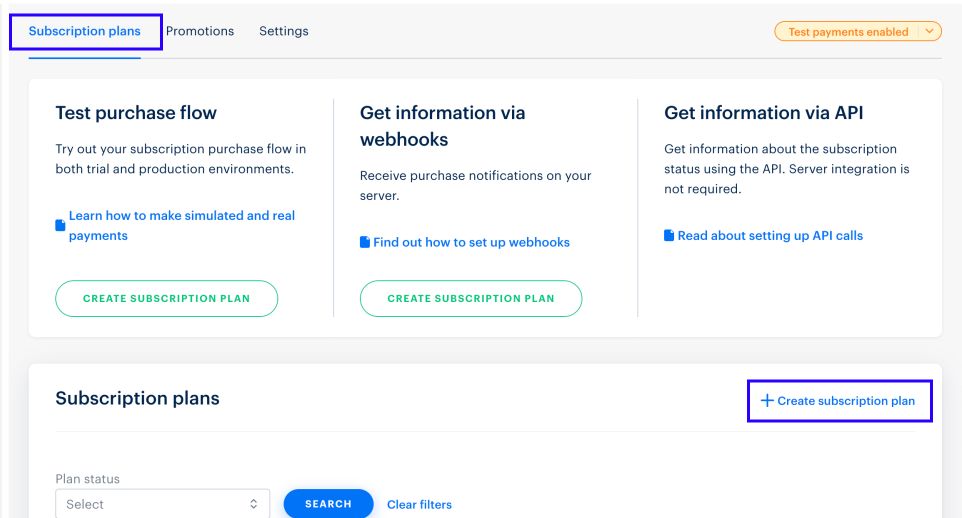
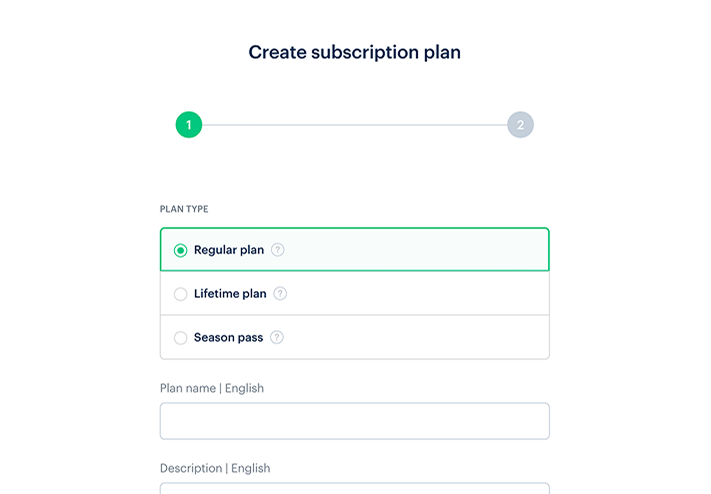
- Choose and set up the plan type:
- Regular plan with regular payments.
- Lifetime plan with a one-time payment and an unlimited period of validity.
- Season pass with a one-time payment and a limited period of validity.
- Open a payment UI with a specific plan.
- Identify the plan in alerts.
- Identify the plan in a transactional report.
- Open the payment UI with a specific plan.
- Identify the plan in alerts.
- Identify the plan in a transactional report.
Set up regular plan
- Specify:
- Plan name.
- Description (optional): This plan description is displayed in the payment UI when users are purchasing a subscription.
- Click Next.
- Choose one of the subscription fee options:
- Regular: the amount of each payment is specified manually.
- Including setup fee: the amount of each payment as well as the amount of the setup fee are specified manually. Use this setting if you want to charge the subscriber for cover additional costs such as connecting a license, setting up a system, training a user, or providing a consultation The first payment in this case will include a setup fee, the remaining payments will be equal to the amount of the regular payment.
- Associated with the first payment: the amount of each payment is equal to the first payment. The subscription cost and currency type are passed in the
purchase.checkout.amountandpurchase.checkout.currencyparameters when opening the payment UI. Use this option if you want to manage pricing on your side and set individual prices for specific users.
- Associated with the first payment: the amount of each payment is equal to the first payment. The subscription cost and currency type are passed in the
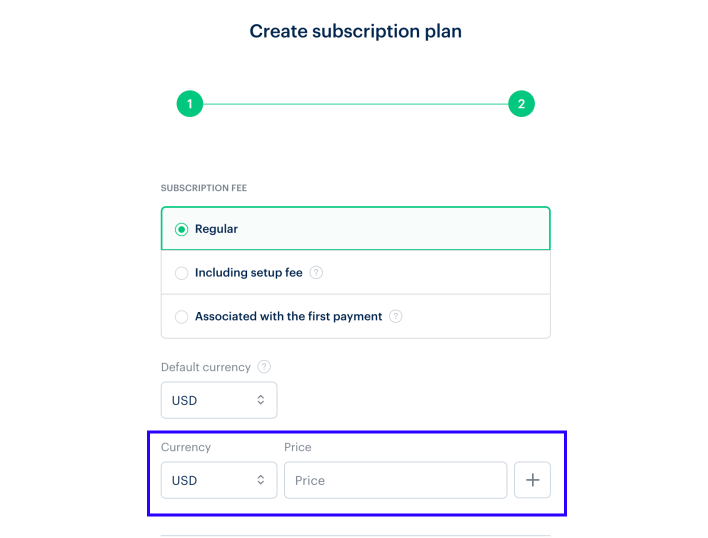
- Whether you choose a regular subscription fee or with setup fee, you can set up different subscription prices for different currencies. To do this:
- In the Currency and Price field, select the required currency and specify the value of the subscription price. For a subscription with setup fee, also enter the value of the setup fee in the corresponding field.
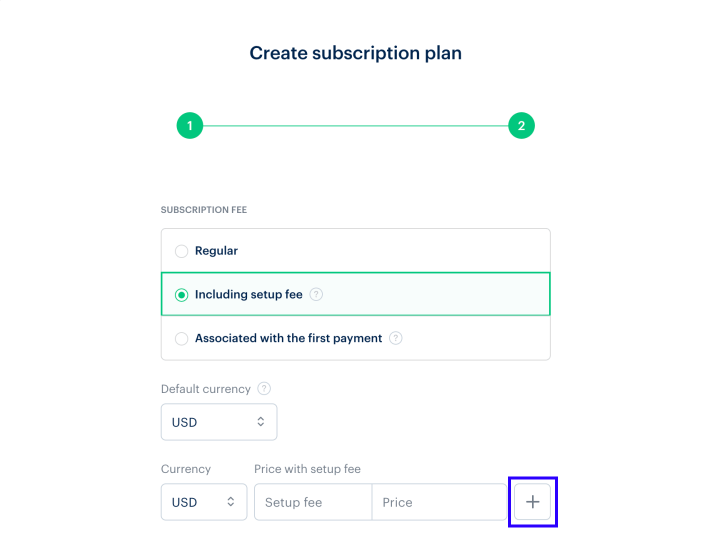
- Click + to add prices in other currencies.
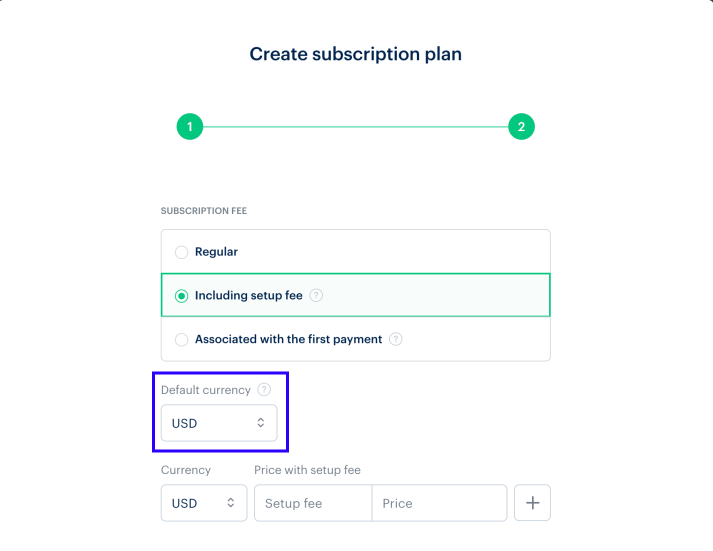
- Specify the default currency.
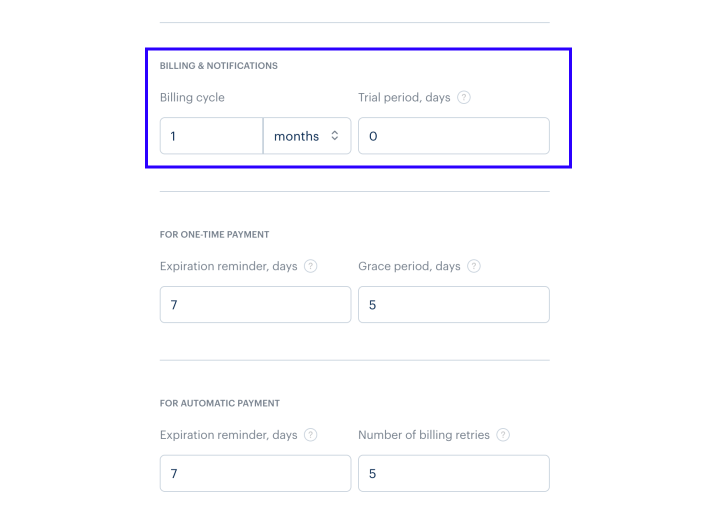
- Configure the billing cycle:
- Specify the frequency of the payment.
- Specify the number of days in the trial period where the subscription can be used without a payment. Set the value to
0to create a plan that does not have a trial period.
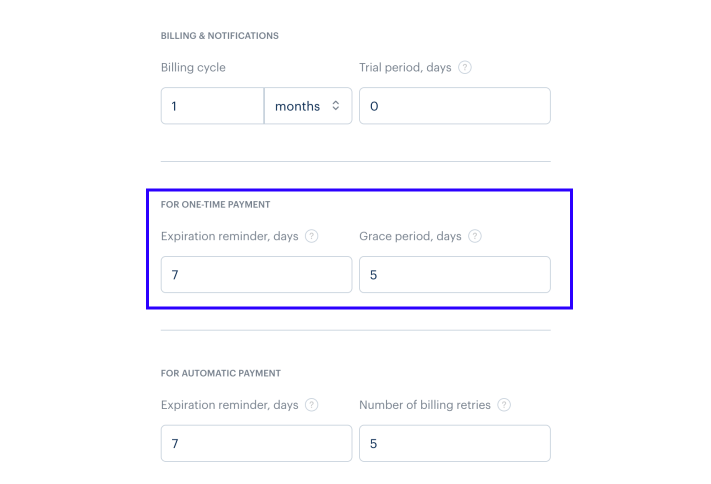
- Specify parameters for a one-time payment. With this type of subscription renewal, users make payments via a payment link sent by email.
- Expiration reminder: Specify the number of days before the subscription expiration date when the user will receive a reminder. If the value is set to
6or higher, the user receives an extra reminder one day before the expiration date. Set the value to0if you don’t want to send any reminders. - Grace period: The number of days users can continue using their subscription after its expiration date, and have the option to renew it. Set the value to
0to create a plan that does not have a grace period.
- Expiration reminder: Specify the number of days before the subscription expiration date when the user will receive a reminder. If the value is set to
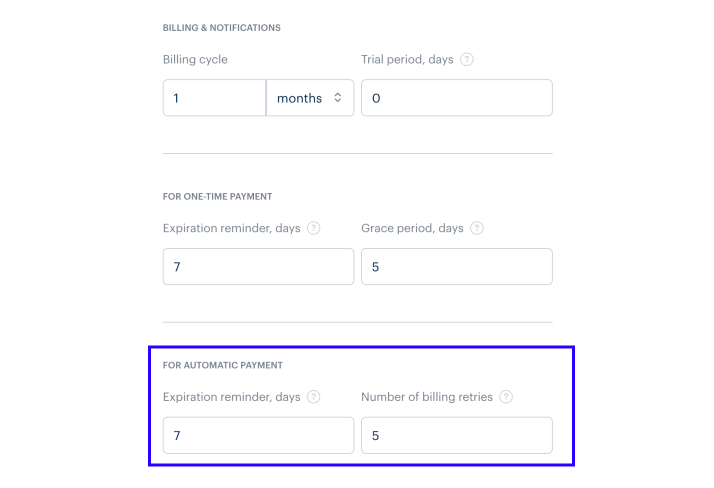
- Specify the parameters for an automatic payment: with this type of subscription renewal, payments are made automatically using the saved billing information without any user interaction.
- Subscription expiration reminder.
- The number of retries after the first unsuccessful attempt to charge for the subscription. The system will retry once a day.
- Click Next.
- Click Create.
Set up lifetime plan
- Specify:
- Plan name.
- Description (optional): This plan description is displayed in the payment UI when users are purchasing a subscription.
- Click Next.
- Choose one of the subscription fee options:
- Regular: the amount of each payment is specified manually.
- Associated with the first payment: the amount of each payment is equal to the first payment made by the user. The subscription cost and currency type are passed in the
purchase.checkout.amountandpurchase.checkout.currencyparameters when opening the payment UI. Use this option if you want to manage pricing on your side and be able to set the individual price for a specific user.
- In the Refund period field, set the number of days when the user can unsubscribe and refund the payment.
- Whether you choose a regular subscription fee, you can set up different subscription prices for different currencies. To do this:
- In the Currency and Price field, select the required currency and specify the value of the subscription price.
- Click + to add prices in other currencies.
- Specify the default currency.
- Click Next.
- Click Create.
Set up season pass
- Specify:
- Plan name.
- Season pass validity period.
- Description (optional): This plan description is displayed in the payment UI when users are purchasing a subscription.
- Click Next.
- Choose one of the subscription fee options:
- Regular: the amount of each payment is specified manually.
- Associated with the first payment: the amount of each payment is equal to the first payment made by the user. The subscription cost and currency type are passed in the
purchase.checkout.amountandpurchase.checkout.currencyparameters when opening the payment UI. Use this option if you want to manage pricing on your side and be able to set the individual price for a specific user.
- In the Refund period field, set the number of days when the user can unsubscribe and refund the payment.
- Whether you choose a regular subscription fee, you can set up different subscription prices for different currencies. To do this:
- In the Currency and Price field, select the required currency and specify the value of the subscription price.
- Click + to add prices in other currencies.
- Specify the default currency.
- Click Next.
- Click Create.
Found a typo or other text error? Select the text and press Ctrl+Enter.
