Go live
Compliance with legal requirements
To start accepting real payments and get access to the advanced features, you need to sign the Licensing agreement with Xsolla and pass the tax interview. To do this, refer to the instructions.
Sandbox and production environments
| Characteristic | Sandbox environment | Production environment |
|---|---|---|
| Availability before signing the license agreement. | Available to all users. | Not available. |
| Availability after signing the license agreement. |
| Available to all users. |
| Payment options. |
| Any Xsolla payment method enabled in the project in Publisher Account in the Payments > Payment methods section. Real money are used. |
| How to switch environment. | In the | In the |
| URL to open the payment interface. | https://sandbox-secure.xsolla.com/paystation4/?token=TOKEN | https://secure.xsolla.com/paystation4/?token=TOKEN |
| Characteristic | Sandbox environment | Production environment |
|---|---|---|
| Availability before signing the license agreement. | Available to all users. | Not available. |
| Availability after signing the license agreement. |
| Available to all users. |
| Payment options. |
| Any Xsolla payment method enabled in the project in your account in the Payments > Payment methods section. Real money are used. |
| How to switch environment. | In the | In the |
| URL to open the payment interface. | https://sandbox-secure.xsolla.com/paystation4/?token=TOKEN | https://secure.xsolla.com/paystation4/?token=TOKEN |
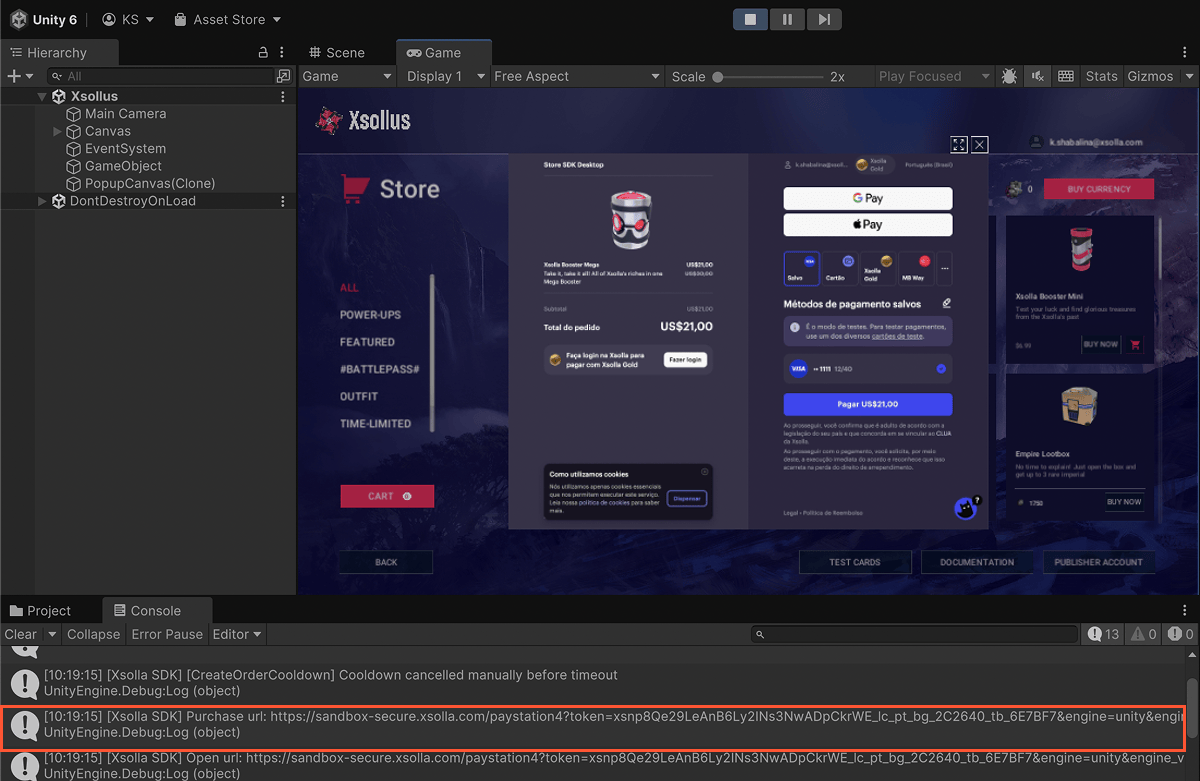
If the payment token doesn’t match the environment, an error with code 0004-0008 will appear in the payment UI.
To determine which environment the payment token was generated for, check the
Test real payments
To test the payment process, you can make a real payment and then initiate a refund via Publisher Account.
To make a refund, follow the steps below:
- Open your Publisher Account and go to the Player support > Transaction search section.
- Choose the test transaction in the Complete status and click the More (•••) menu button. Click Refund in the pop-up menu.
To test the payment process, you can make a real payment and then initiate a refund in your account.
To make a refund, follow the steps below:
- Open your account and go to the Player support > Transaction search section.
- Choose the test transaction in the Complete status and click the More (•••) menu button. Click Refund in the pop-up menu.
To test the payment process, you can make a real payment and then initiate a refund in your account.
To make a refund, follow the steps below:
- Open your account and go to the Player support > Transaction search section.
- Choose the test transaction in the Complete status and click the More (•••) menu button. Click Refund in the pop-up menu.
To test the payment process, you can make a real payment and then initiate a refund in your account.
To make a refund, follow the steps below:
- Open your account and go to the Player support > Transaction search section.
- Choose the test transaction in the Complete status and click the More (•••) menu button. Click Refund in the pop-up menu.
To test the payment process, you can make a real payment and then initiate a refund in your account.
To make a refund, follow the steps below:
- Open your account for mobile games and go to the Operations > Player support > Transaction search section.
- Choose the test transaction in the Complete status and click the More (•••) menu button. Click Refund in the pop-up menu.
Found a typo or other text error? Select the text and press Ctrl+Enter.
