Sell via direct link
Before you set up selling via direct link, create game key packages in your account.
Additionally, you can set up the following in your project:
- promotional campaigns (for example, promo codes)
- user authentication
A direct link lets you sell game keys anywhere a web page or an in-app browser can be opened, for example, on the game website, on social media, in a launcher, in newsletters, or in bloggers’ posts.
The link opens the Xsolla order page. On this page, the user goes through the entire purchase flow: places and pays for the order. You don’t need to develop your own UI for this.
This format is suitable in the following cases:
- You need to quickly launch game sales or pre-orders in different channels. Just place the link on your website, on social media, or in a newsletter.
- You need to reduce the number of support requests caused by incorrect emails or incompatible platforms. The user enters any missing data on the order page, and if you sell keys for several platforms, you can preset the platform in the SKU (see Link format and parameters).
User flow
- The user follows the link.
- Xsolla displays the order page.
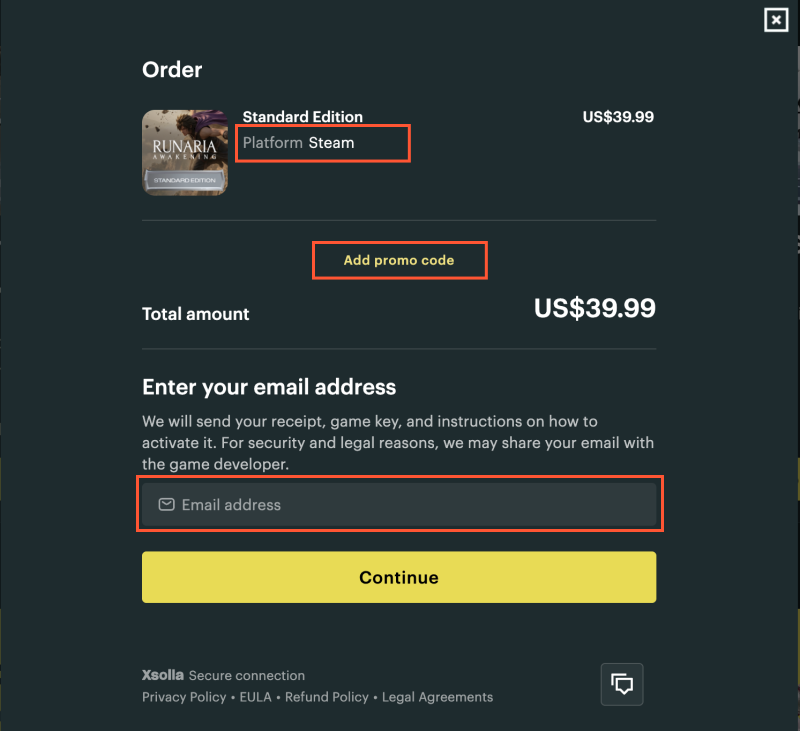
- The user provides the data that was not passed in the link:
- Selects a platform for which keys are available.
- Enters a promo code (optional).
- Enters the email address to which the receipt, game key, and activation instructions will be sent, and clicks Continue.
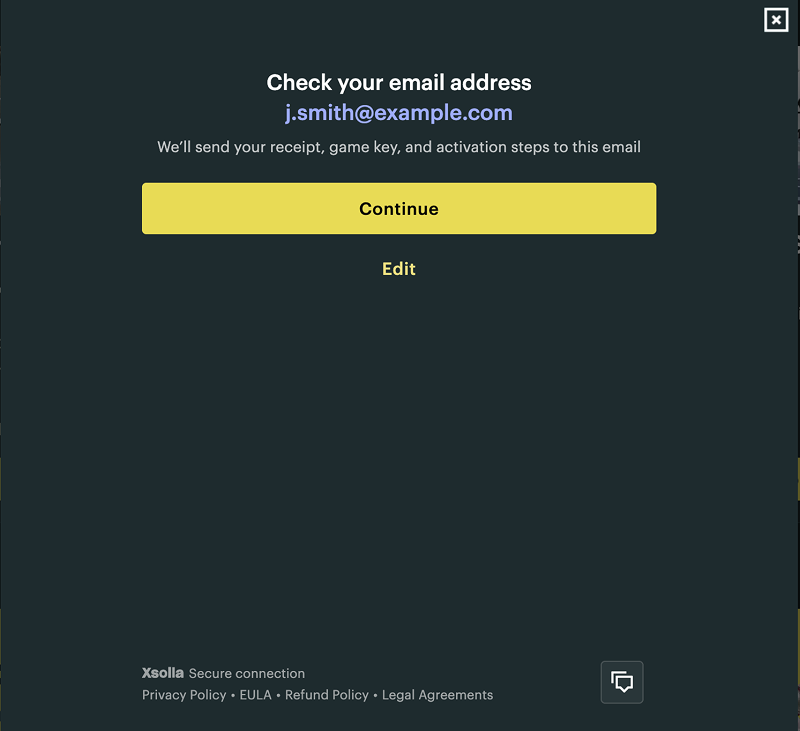
- The page shows the entered address again. The user confirms it or clicks Change and corrects it.
The set of steps for placing an order may differ:
- Platform selection is available if the SKU of the game key package is passed without a platform.
- Promo code entry is available only if there is an active promo code for the game key package or bundle.
- For authenticated users, the email address is filled in automatically in the order form from the user data.
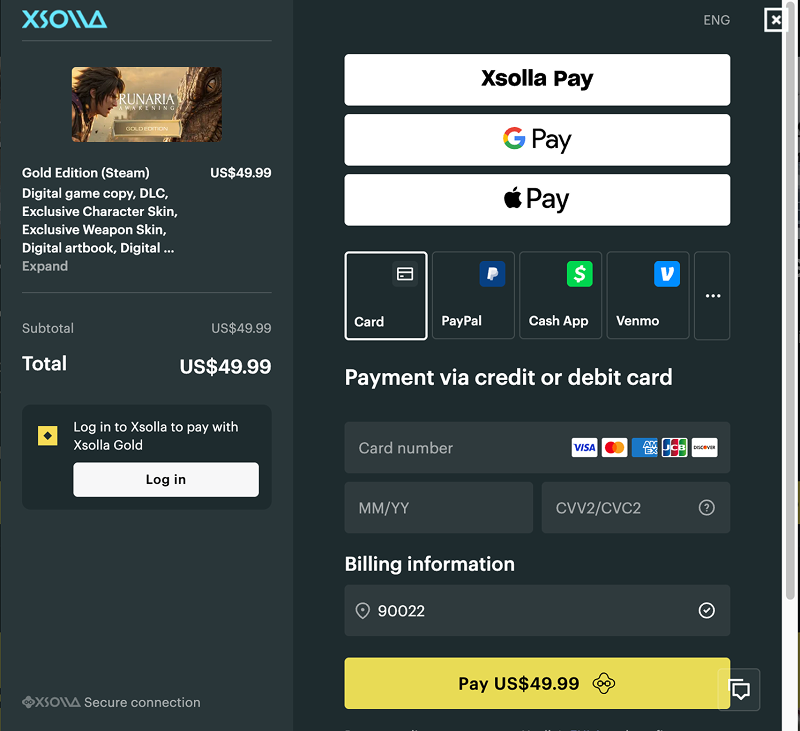
- Xsolla reserves a key for the selected platform and opens the payment UI.
- The user pays for the purchase.
- After successful payment, Xsolla sends an email with the receipt, game key, and activation instructions to the confirmed email address.
Link format and parameters
A link for selling game keys has the following format:
- http
1https://purchase.xsolla.com/pages/buy?type={YOUR_ITEM_TYPE}&project_id={YOUR_PROJECT_ID}&sku={YOUR_ITEM_SKU}
List of query parameters:
| Parameter | Description |
|---|---|
type | Item type. Required. Possible values:
|
project_id | Project ID, which you can find:
Required. |
sku | Game key package SKU. Required. Examples:
To make sure the link works correctly, you can check the SKU value using the Get games list API call. The item SKU is returned in the |
xsolla_login_token | User authentication token (JWT) obtained via Xsolla Login. For details, refer to Selling to authenticated users. |
access_data | Base64-encoded JSON object with user data and payment settings. For details, refer to Selling to authenticated users. |
auth | User authentication token obtained via Pay Station. For details, refer to Selling to authenticated users. |
ui_settings | Base64-encoded JSON object with UI theme settings. For details, refer to Customizing UI. |
mode | Pass the sandbox value to make test payments. For details, refer to Payment testing. |
| Parameter | Description |
|---|---|
type | Item type. Required. Possible values:
|
project_id | Project ID, which you can find:
Required. |
sku | Game key package SKU. Required. Examples:
To make sure the link works correctly, you can check the SKU value using the Get games list API call. The item SKU is returned in the |
xsolla_login_token | User authentication token (JWT) obtained via Xsolla Login. For details, refer to Selling to authenticated users. |
access_data | Base64-encoded JSON object with user data and payment settings. For details, refer to Selling to authenticated users. |
auth | User authentication token obtained via Pay Station. For details, refer to Selling to authenticated users. |
ui_settings | Base64-encoded JSON object with UI theme settings. For details, refer to Customizing UI. |
mode | Pass the sandbox value to make test payments. For details, refer to Payment testing. |
To sell game key packages for a specific platform, pass the game key package SKU with a platform suffix in the sku query parameter. The suffix is added automatically or manually, depending on where you create the package:
- If you create game key packages in your account, the suffix of a specific platform, for example,
_steamor_playstation, is automatically added to the SKU you entered manually, separated by an underscore. - If you create platform-specific game key packages via API calls, you can specify the platform suffix in any format using only lowercase and uppercase Latin letters, digits, periods, dashes, and underscores.
List of supported Xsolla platforms and their example suffixes:
| Name | SKU suffix example |
|---|---|
| Steam | _steam |
| PlayStation | _playstation |
| Xbox | _xbox |
| Uplay | _uplay |
| Origin | _origin |
| DRM Free | _drmfree |
| GOG | _gog |
| Epic Games | _epicgames |
| Nintendo Switch eShop | _nintendo_eshop |
| Discord Game Store | _discord_game_store |
| Oculus | _oculus |
| Viveport | _viveport |
| Google Stadia | _stadia |
| MY.GAMES Store | _my_game |
Example URL for selling a game on Steam:
- http
1https://purchase.xsolla.com/pages/buy?type=game_key&project_id=123456&sku=game456_steam
Customizing UI
To make the order page interface match the style of your game, configure the theme, size, and other parameters by following the customization instructions. Add the ui_settings parameter to the link and pass the settings.ui JSON object in it, Base64-encoded.
Example URL for opening the order page with a custom theme:
- http
1https://purchase.xsolla.com/pages/buy?type={YOUR_ITEM_TYPE}&project_id={YOUR_PROJECT_ID}&sku={YOUR_ITEM_SKU}&ui_settings=ewoJCQkic2l6ZSI6ICJzbWFsbCIsCgkJCSJ0aGVtZSI6ICJkYXJrIgoJCX0=
Selling to authenticated users
Authentication is not required to sell game keys via a direct link. The key is sent to the email address that the user specifies when making a purchase. User authentication is required if you want to limit the number of keys per user, use the entitlement system, or store user data in the Xsolla payment UI.
An additional authentication step may reduce the purchase conversion rate.
To sell game keys to authenticated users, add one of the following parameters to the link:
xsolla_login_token— a JWT obtained via Xsolla Login. Use this parameter if you authenticate users via Xsolla Login. To get the token, authenticate the user via the Login API, for example, using the Auth by username and password call.auth— a token obtained via Pay Station. Use this parameter if you have your own authentication system. To get the token, send the Create token request from your server. For details, refer to Getting a token to open the payment UI.access_data— a Base64-encoded JSON object with user data and payment settings. Use this parameter if you have your own authentication system or need to pass the email address and country. The object structure matches the request body of the Create token call (theuserandsettingsobjects).
Example of JSON for
- json
 1{
 2  "user": {
 3    "id": {
 4      "value": "USER_ID"
 5    },
 6    "email": {
 7      "value": "[email protected]"
 8    },
 9    "country": {
10      "value": "US"
11    }
12  },
13  "settings": {
14    "language": "en",
15    "currency": "USD"
16  }
17}
Encode the JSON object in Base64 and pass the result in the access_data parameter of the link.
For detailed information about authentication methods and generating authentication tokens, refer to How to set up authentication for selling game keys.
Example URL for opening the order page with an authentication token:
- http
1https://purchase.xsolla.com/pages/buy?type={YOUR_ITEM_TYPE}&project_id={YOUR_PROJECT_ID}&sku={YOUR_ITEM_SKU}&xsolla_login_token={ACCESS_TOKEN}
Payment testing
To test payments in the sandbox mode, add the mode=sandbox parameter to the link. You can use test bank cards to complete transactions.
Example URL for opening the order page in the sandbox mode:
- http
1https://purchase.xsolla.com/pages/buy?type={YOUR_ITEM_TYPE}&project_id={YOUR_PROJECT_ID}&sku={YOUR_ITEM_SKU}&mode=sandbox
Found a typo or other text error? Select the text and press Ctrl+Enter.
