Gift subscription
You can include a feature in your application that enables users to gift subscriptions to others. This can help boost revenue and attract new users.
How it works
A user can gift a subscription to an existing user in your system by specifying their account information or to a new user by specifying their email address. In this case, the user sending the gift can hide their name or add a text message to the gift email notification. After creating a subscription, the gift recipient becomes its owner. The created subscription is of the one-time payment renewal type.
Interaction flow when gifting a subscription to an existing user:
  %%{init: {'themeVariables': { 'noteBkgColor': 'transparent', 'noteBorderColor': 'transparent' }}}%%
sequenceDiagram
    participant G as Gifter
    participant R as Recipient
    participant BE as Application
    participant X as Xsolla
    G->>BE: Selects existing user to gift subscription, selects plan.<br>(Optional) Selects to gift it anonymously<br>and adds message
    activate BE
    BE->>X: Sends gifter ID and email,<br>recipient ID and email, plan ID.<br>(Optional) Sends: anonymity option,<br>message from gifter, redirect URL, product ID
    activate X
    X-->>BE: Sends purchase token
    deactivate X
    BE-->>G: Sends link to payment UI
    deactivate BE
    G->>X: Opens payment UI
    activate X
    activate X
    note right of X: Requests user validation
    deactivate X
    X->>BE: Sends User validation webhook
    activate BE
    BE-->>X: Returns successful response
    deactivate BE
    X-->>G: Allows to enter payment data
    deactivate X
    G->>X: Securely transfers payment data
    activate X
    X->>BE: Sends Payment webhook
    activate BE
    BE-->>X: Returns successful response
    deactivate BE
    X-->>G: Shows successful purchase screen
    X->>BE: Sends Created subscription webhook
    activate BE
    BE-->>X: Returns successful response
    deactivate BE
    X-->>G: Sends receipt
    X->>BE: Sends gift email with anonymity data,<br>message from gifter, and redirect URL
    activate BE
    BE-->>X: Returns successful response
    deactivate BE
    X-->>R: Follows the redirect URL in the email<br>and views gifted subscription info
    deactivate X
    activate R
    R->>BE: Returns successful response
    deactivate R
Interaction flow when gifting a subscription to a new user:
  %%{init: {'themeVariables': { 'noteBkgColor': 'transparent', 'noteBorderColor': 'transparent' }}}%%
sequenceDiagram
    participant G as Gifter
    participant R as Recipient
    participant BE as Application
    participant X as Xsolla
    G->>BE: Enters email of new user<br>to gift subscription, selects plan.<br>(Optional) Selects to gift it anonymously<br>and adds message
    activate BE
    BE->>X: Sends gifter ID and email,<br>recipient email, redirect URL, plan ID.<br>(Optional) Sends: anonymity option,<br>message from gifter, product ID
    activate X
    X-->>BE: Sends purchase token
    deactivate X
    BE-->>G: Sends link to payment UI
    deactivate BE
    G->>X: Opens payment UI
    activate X
    activate X
    note right of X: Requests user validation
    deactivate X
    X->>BE: Sends User validation webhook
    activate BE
    BE-->>X: Returns successful response
    deactivate BE
    X-->>G: Allows to enter payment data
    deactivate X
    G->>X: Securely transfers payment data
    activate X
    X->>BE: Sends Payment webhook
    activate BE
    BE-->>X: Returns successful response
    deactivate BE
    X-->>G: Shows successful purchase screen
    X->>BE: Sends Created subscription webhook
    activate BE
    BE-->>X: Returns successful response
    deactivate BE
    X-->>G: Sends receipt
    X->>BE: Sends gift email with message from gifter,<br>and redirect URL.<br>If gift is sent anonymously,<br>gifter's name is hidden.
    activate BE
    BE-->>X: Returns successful response
    deactivate BE
    X-->>R: Follows redirect URL in email
    deactivate X
    activate R
    R->>BE: Opens authentication form
    activate BE
    BE-->>R: Returns successful response
    deactivate BE
    R->>BE: Creates account and receives gifted subscription
    activate BE
    BE-->>R: Returns successful response
    deactivate BE
    deactivate R
How to set it up
You can set up the ability to gift a subscription in your app:
Gift to an existing user
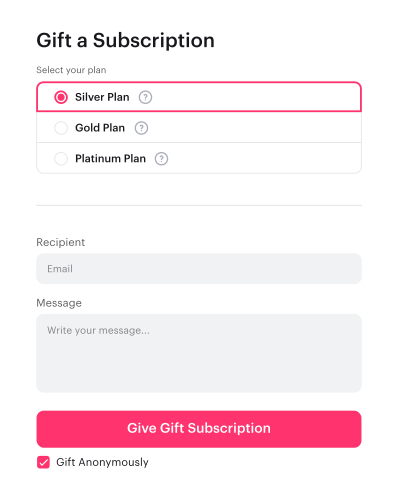
- Implement in your application an interface for purchasing a gift subscription with the following elements:
- fields for entering data of the gift recipient
- field for entering a message from the sender (optional)
- option to select anonymous sending (optional)
- elements for selecting a subscription plan (optional)
- Implement receiving a token after filling in the gift details when proceeding to the payment. To do this, pass the
purchase.subscription.giftobject to the Create token API call with the following parameters:recipient— ID of the subscription recipient. Required.email— recipient’s email address. Required.redirect_url— redirect URL. Provide a link to a page with additional information about the gifted subscription or to the main page of the project.
redirect_url is not passed in the token, the gift recipient will not be able to navigate to the gifted subscription from the gift notification email.- Additionally, you can pass the following parameters in the
purchase.subscriptionobject:gift.anonymous— whether the gift was sent anonymously. Iftrue, the sender’s name is hidden in the email notification. Defaults tofalse.gift.message— message from the sender of the gift. Sent in an email notification of the gifted subscription.plan_id— subscription plan ID.
Example of a request to receive a token:
- json
 1{
 2  "purchase": {
 3    "checkout": {
 4      "currency": "USD",
 5      "amount": 10
 6    },
 7    "subscription": {
 8      "gift": {
 9        "recipient": "test_recipient_v1",
10        "email": "[email protected]",
11        "redirect_url": "https://example.com/",
12        "anonymous": true,
13        "message": "Happy birthday!"
14      }
15    }
16  },
17  "settings": {
18    "currency": "USD",
19    "language": "en",
20    "project_id": 16184,
21    "ui": {
22      "components": {
23        "virtual_currency": {
24          "custom_amount": true
25        }
26      },
27      "desktop": {
28        "virtual_item_list": {
29          "button_with_price": true,
30          "layout": "list"
31        }
32      },
33      "size": "medium"
34    }
35  },
36  "user": {
37    "country": {
38      "allow_modify": true,
39      "value": "US"
40    },
41    "age": 19,
42    "email": {
43      "value": "[email protected]"
44    },
45    "id": {
46      "value": "user_2"
47    },
48    "name": {
49      "value": "John Smith"
50    }
51  }
52}
- Using the token received in step 2, open the payment UI in a new window or using Pay Station Embed.
Gift to a new user
- Implement in your application an interface for purchasing a gift subscription with the following elements:
- fields for entering the email address of the gift recipient
- field for entering a message from the sender (optional)
- option to select anonymous sending (optional)
- elements for selecting a subscription plan (optional)
- Implement the new user creation and assign an ID to it in your system.
- Create a link to activate the user account.
- Implement receiving a token after filling in the gift details when proceeding to payment. To do this, pass the
purchase.subscription.giftobject with the parameters to the Create token API call:recipient— the subscription recipient ID created in step 2.email— recipient’s email address.redirect_url— activation URL created in step 3.
redirect_url is not passed in the token, the gift recipient will not be able to navigate to the gifted subscription from the gift notification email.- Additionally, you can pass the following parameters in the
purchase.subscriptionobject:gift.anonymous— whether the gift was sent anonymously. Iftrue, the sender’s name is hidden in the email notification. Defaults tofalse.gift.message— message from the sender of the gift. Sent in an email notification of the gifted subscription.plan_id— subscription plan ID.
Example of a request to receive a token:
- json
 1{
 2  "purchase": {
 3    "checkout": {
 4      "currency": "USD",
 5      "amount": 10
 6    },
 7    "subscription": {
 8      "gift": {
 9        "recipient": "test_recipient_v1",
10        "email": "[email protected]",
11        "redirect_url": "https://example.com/",
12        "anonymous": true,
13        "message": "Happy birthday!"
14      }
15    }
16  },
17  "settings": {
18    "currency": "USD",
19    "language": "en",
20    "project_id": 16184,
21    "ui": {
22      "components": {
23        "virtual_currency": {
24          "custom_amount": true
25        }
26      },
27      "desktop": {
28        "virtual_item_list": {
29          "button_with_price": true,
30          "layout": "list"
31        }
32      },
33      "size": "medium"
34    }
35  },
36  "user": {
37    "country": {
38      "allow_modify": true,
39      "value": "US"
40    },
41    "age": 19,
42    "email": {
43      "value": "[email protected]"
44    },
45    "id": {
46      "value": "user_2"
47    },
48    "name": {
49      "value": "John Smith"
50    }
51  }
52}
- Using the token received in step 4, open the payment UI in a new window or using Pay Station Embed.
Found a typo or other text error? Select the text and press Ctrl+Enter.
