Get subscription information
You can get information about activity with subscriptions in the following ways:
- request information using the API calls (suitable for serverless integration)
- get information when the subscription status changes automatically using webhooks (suitable for server-side integration)
Set up via API
On the client side of your application, implement getting information about user subscriptions using an HTTP GET request.
Xsolla API uses HTTP access authentication. The request must contain a header Authorization: Bearer <client_user_jwt>, where <client_user_jwt> is a unique token encoded according to the Base64 standard. To get it:
- When authorizing by login and password use the Register new user and Auth by username and password API calls.
- When authorizing through social networks use the Auth via social network API calls.
Specify project ID as the path parameter projectId. You can find this parameter in your Publisher Account next to the name of the project.
Specify project ID as the path parameter projectId. You can find this parameter in your account next to the name of the project.
Specify project ID as the path parameter projectId. You can find this parameter in your account next to the name of the project.
Specify project ID as the path parameter projectId. You can find this parameter in your account next to the name of the project.
Specify project ID as the path parameter projectId. You can find this parameter in your account next to the name of the project.
limit— limit for the number of elements on the page (15 elements are displayed by default).offset— number of the element from which the list is generated (the count starts from 0).locale— interface language (English by default). Accepts values according to the ISO 639-1 standard.
- curl
1curl -X 'GET' \
2  'https://subscriptions.xsolla.com/api/user/v1/projects/{projectId}/subscriptions?locale=ru&limit=5&offset=5 ' \
3  -H 'accept: application/json' \
4  -H 'Authorization: Bearer client_user_jwt'
- json
 1{
 2  "items": [
 3    {
 4      "id": 11111111,
 5      "plan_id": 11111,
 6      "plan_external_id": "TestChangePlanBase",
 7      "plan_name": "package_recurrent_name_66053",
 8      "plan_description": "package_recurrent_description_66053",
 9      "product_id": null,
10      "product_external_id": null,
11      "product_name": null,
12      "product_description": null,
13      "status": "active",
14      "date_create": "2021-03-11T13:50:11+03:00",
15      "date_next_charge": "2031-04-11T13:51:02+03:00",
16      "date_last_charge": "2021-03-11T13:51:02+03:00",
17      "charge": {
18        "amount": "0.2500",
19        "currency": "USD"
20      },
21      "period": {
22        "value": 1,
23        "unit": "day"
24      }
25    }
26  ],
27  "has_more": true
28}
Set up webhooks
The Subscriptions solution supports webhooks for the following events:
- Paying for a subscription:
- Renewing a subscription:
- Canceling a subscription: Canceled Subscription (subscription was canceled in Publisher Account or all payments were canceled for all valid periods)
- Renewing a subscription:
- Canceling a subscription: Canceled Subscription (subscription was canceled in your business account or all payments were canceled for all valid periods)
- Refund:
- Refund (payment was canceled in your business account)
- Updated Subscription (payment was canceled, but subscription is still active. This is possible if the user accidentally paid for the subscription twice and only canceled the last payment.)
- Canceled Subscription (payment was canceled in your business account or all payments were canceled for all valid periods)
- Refund:
- Refund (payment was canceled in Publisher Account)
- Updated Subscription (payment was canceled, but subscription is still active. This is possible if the user accidentally paid for the subscription twice and only canceled the last payment.)
- Canceled Subscription (payment was canceled in Publisher Account or all payments were canceled for all valid periods)
To enable receiving webhooks:
- In the project in Publisher Account go to Project settings > Webhooks section.
- In your project in the account for mobile games go to Settings > Webhooks section.
- In your project in the account, go to the Settings > Webhooks section.
- In your project in the account, go to the Settings > Webhooks section.
- In your project in the account, go to the Settings > Webhooks section.
- In the Webhook server field, specify the URL of your server where you want to receive webhooks in the
https://example.comformat. You can also specify the URL you find in a tool for testing webhooks.
- Generate a secret key:
- In the Secret keys section, click Add key.
- In the modal window that opens, enter the key name that would allow you to identify it in the general list.
- Click Create key.
- Click Copy secret and save the created key on your side.
- Click Done.
- Confirm that you have saved the key and click Ok, close.
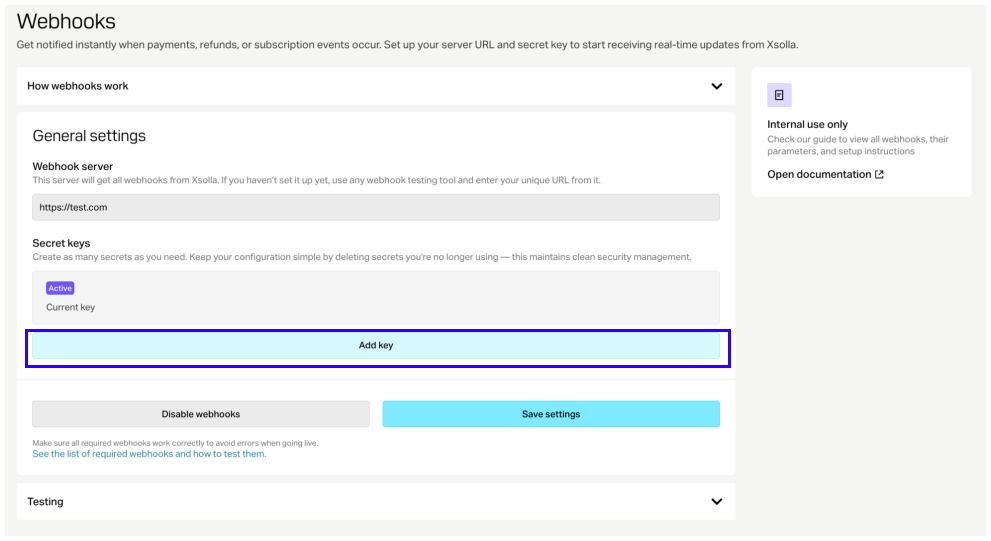
Key recommendations:
- Save the generated secret key on your side. You can view the key in Publisher Account only once when it is created.
- Don’t share your secret key with anyone.
- The secret key must be stored on your server and never in binaries or on the front end.
Key recommendations:
- Save the generated secret key on your side. You can view the key in your account only once when it is created.
- Don’t share your secret key with anyone.
- The secret key must be stored on your server and never in binaries or on the front end.
- Click Enable webhooks.
Secret key rotation
You can create up to 5 secret keys in your project to enable their rotation.
There can be only one active secret key per project. If you want to change it, click Set as active in the row of another key and confirm the action. Once you successfully migrate to a new key, we recommend deleting deactivated keys.
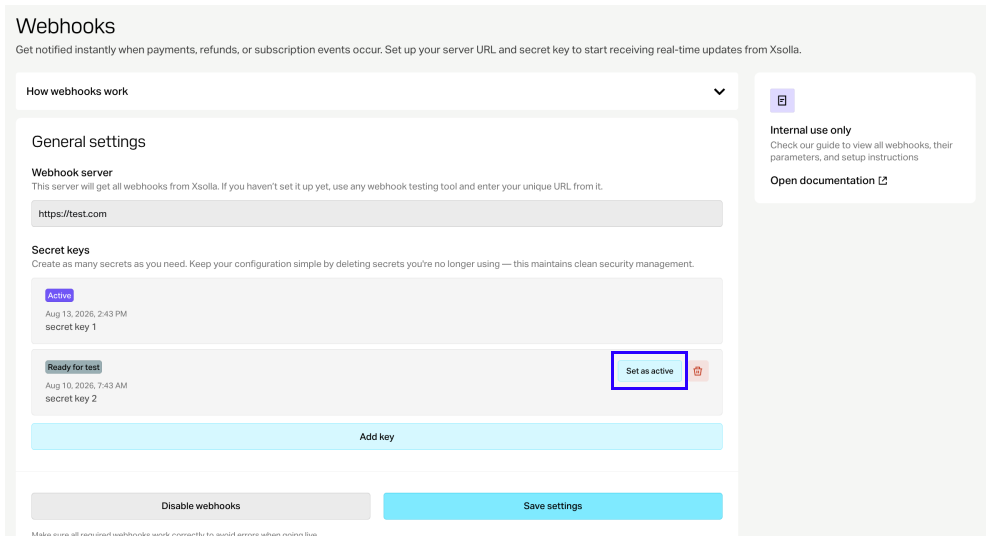
- Test webhooks in Publisher Account.
- Test subscription purchase.
- Test subscription renewal.
- Test subscription cancellation.
Test webhooks in Publisher Account
- Test webhooks in the account.
- Test subscription purchase.
- Test subscription renewal.
- Test subscription cancellation.
Test webhooks in account
In the Subscriptions tab, you can test the following webhooks:
- User validation (
user_validation) - Payment (
payment)
To test webhooks:
- In the testing section, go to the Subscriptions tab.
- Fill in the necessary fields:
- User ID — when testing, you can use any combination of letters and digits.
- Xsolla invoice ID — transaction ID on Xsolla side. When testing, you can use any numeric value.
- Public user ID — ID known to a user, e.g., an email or nickname. This field is displayed if you checked the Use public user ID box in your project in the Project settings > Integration settings section.
- Amount — payment amount. When testing, you can use any numeric value.
- Currency — select a currency from the drop-down list.
- Plan ID — a subscription plan. Choose a plan from the drop-down list.
- Subscription product — choose a product from the drop-down list (optional). The list is displayed if products are set up in your project.
- Invoice ID — transaction ID on your game’s side. When testing, you can use any combination of letters and digits. It is not a required parameter for a successful payment, but you can pass it to link the transaction ID on your side to the transaction ID on Xsolla side.
- Trial period. To test the purchase of a subscription without a trial period or to test the renewal of a subscription, specify the value
0.
- Click Test.
- In the testing section, go to the Subscriptions tab.
- Fill in the necessary fields:
- User ID — when testing, you can use any combination of letters and digits.
- Xsolla invoice ID — transaction ID on Xsolla side. When testing, you can use any numeric value.
- Public user ID — ID known to a user, e.g., an email or nickname. This field is displayed if you checked the Use public user ID box in your project in the Settings > Integration settings section.
- Amount — payment amount. When testing, you can use any numeric value.
- Currency — select a currency from the drop-down list.
- Plan ID — a subscription plan. Choose a plan from the drop-down list.
- Subscription product — choose a product from the drop-down list (optional). The list is displayed if products are set up in your project.
- Invoice ID — transaction ID on your game’s side. When testing, you can use any combination of letters and digits. It is not a required parameter for a successful payment, but you can pass it to link the transaction ID on your side to the transaction ID on Xsolla side.
- Trial period. To test the purchase of a subscription without a trial period or to test the renewal of a subscription, specify the value
0.
- Click Test.
- In the testing section, go to the Subscriptions tab.
- Fill in the necessary fields:
- User ID — when testing, you can use any combination of letters and digits.
- Xsolla invoice ID — transaction ID on Xsolla side. When testing, you can use any numeric value.
- Public user ID — ID known to a user, e.g., an email or nickname. This field is displayed if you checked the Use public user ID box in your project in the Settings > Integration settings section.
- Amount — payment amount. When testing, you can use any numeric value.
- Currency — select a currency from the drop-down list.
- Plan ID — a subscription plan. Choose a plan from the drop-down list.
- Subscription product — choose a product from the drop-down list (optional). The list is displayed if products are set up in your project.
- Invoice ID — transaction ID on your game’s side. When testing, you can use any combination of letters and digits. It is not a required parameter for a successful payment, but you can pass it to link the transaction ID on your side to the transaction ID on Xsolla side.
- Trial period. To test the purchase of a subscription without a trial period or to test the renewal of a subscription, specify the value
0.
- Click Test.
- In the testing section, go to the Subscriptions tab.
- Fill in the necessary fields:
- User ID — when testing, you can use any combination of letters and digits.
- Xsolla invoice ID — transaction ID on Xsolla side. When testing, you can use any numeric value.
- Public user ID — ID known to a user, e.g., an email or nickname. This field is displayed if you checked the Use public user ID box in your project in the Settings > Integration settings section.
- Amount — payment amount. When testing, you can use any numeric value.
- Currency — select a currency from the drop-down list.
- Plan ID — a subscription plan. Choose a plan from the drop-down list.
- Subscription product — choose a product from the drop-down list (optional). The list is displayed if products are set up in your project.
- Invoice ID — transaction ID on your game’s side. When testing, you can use any combination of letters and digits. It is not a required parameter for a successful payment, but you can pass it to link the transaction ID on your side to the transaction ID on Xsolla side.
- Trial period. To test the purchase of a subscription without a trial period or to test the renewal of a subscription, specify the value
0.
- Click Test.
- In the testing section, go to the Subscriptions tab.
- Fill in the necessary fields:
- User ID — when testing, you can use any combination of letters and digits.
- Xsolla invoice ID — transaction ID on Xsolla side. When testing, you can use any numeric value.
- Public user ID — ID known to a user, e.g., an email or nickname. This field is displayed if you checked the Use public user ID box in your project in the Settings > Integration settings section.
- Amount — payment amount. When testing, you can use any numeric value.
- Currency — select a currency from the drop-down list.
- Plan ID — a subscription plan. Choose a plan from the drop-down list.
- Subscription product — choose a product from the drop-down list (optional). The list is displayed if products are set up in your project.
- Invoice ID — transaction ID on your game’s side. When testing, you can use any combination of letters and digits. It is not a required parameter for a successful payment, but you can pass it to link the transaction ID on your side to the transaction ID on Xsolla side.
- Trial period. To test the purchase of a subscription without a trial period or to test the renewal of a subscription, specify the value
0.
- Click Test.
In the specified URL, you will receive webhooks with filled in data. Testing results of each webhook, for both a successful scenario and a scenario with an error, are displayed under the Test button.
Test subscription purchase
- Use the Sandbox mode (for subscriptions with a trial period of 0 days)
- Make a real payment and then initiate a refund via Publisher Account (for subscriptions with a trial period of more than 0 days)
- Use the Sandbox mode (for subscriptions with a trial period of 0 days)
- Make a real payment and then initiate a refund in your business account (for subscriptions with a trial period of more than 0 days)
Sandbox mode
- Get a token for Sandbox mode. Pass the
0value to the Trial period (trial_days) parameter. - Choose the Credit/debit cards group of payment methods.
- Enter test bank card details. Enter any values in the remaining fields. You can also specify incorrect details (card number, expiration date, or CVV) in order to generate an error.
- Receive webhooks for User Validation, Payment, and Updated Subscription at the URL you specified at the Set up webhooks step.
Real payment
- Get a token for real payments.
“mode”:“sandbox” parameter from the token request before you start to receive real payments.- Open the payment UI with the following link:
https://secure.xsolla.com/paystation4/?token=ACCESS_TOKEN, whereACCESS_TOKENis the token obtained in the previous step. - Choose the Credit/debit cards group of payment methods.
- Enter valid bank card details.
- Receive User Validation, Payment, and Updated Subscription webhooks at the webhook URL you provided in the Set up webhooks step.
- Refund your payment. To do this, go to Publisher Account > Player support > Transaction search.
- Choose the test transaction and click the More (•••) menu button. Click Refund in the pop-up menu (transaction should have Complete status). This will send Canceled Subscription and Refund webhooks.
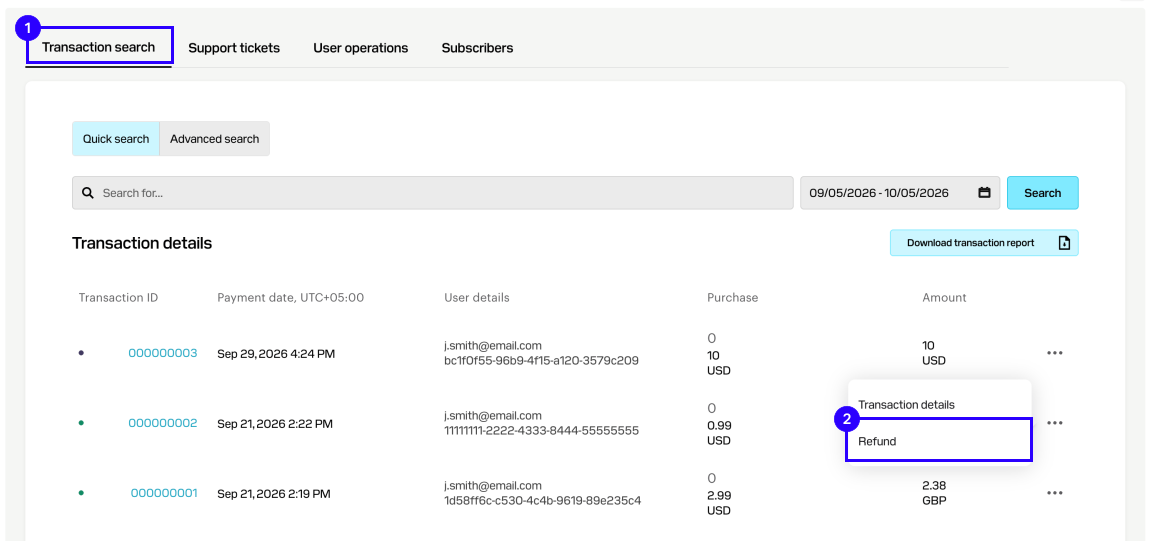
- Receive User validation, Payment, and Updated subscription webhooks at the webhook URL you provided in the Set up webhooks step.
- Refund your payment. To do this, in your account, go to the Player support > Transaction search section.
- Choose the test transaction and click the More (•••) menu button. Click Refund in the pop-up menu (transaction should have Complete status). This will send Canceled subscription and Refund webhooks.
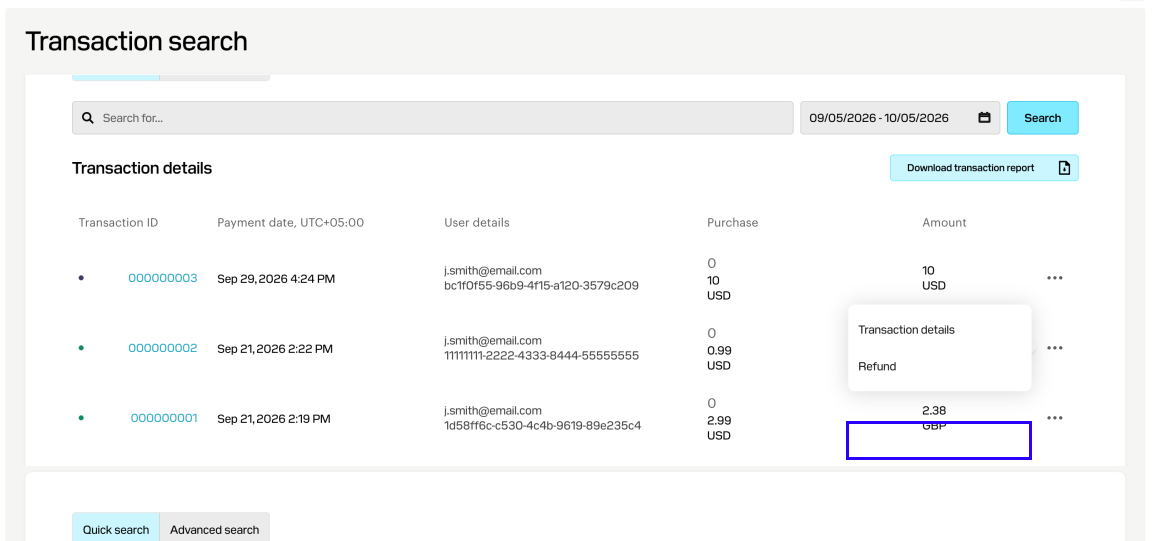
- Receive User validation, Payment, and Updated subscription webhooks at the webhook URL you provided in the Set up webhooks step.
- Refund your payment. To do this, in your account, go to the Player support > Transaction search section.
- Choose the test transaction and click the More (•••) menu button. Click Refund in the pop-up menu (transaction should have Complete status). This will send Canceled subscription and Refund webhooks.
- Receive User validation, Payment, and Updated subscription webhooks at the webhook URL you provided in the Set up webhooks step.
- Refund your payment. To do this, in your account, go to the Player support > Transaction search section.
- Choose the test transaction and click the More (•••) menu button. Click Refund in the pop-up menu (transaction should have Complete status). This will send Canceled subscription and Refund webhooks.
- Receive User validation, Payment, and Updated subscription webhooks at the webhook URL you provided in the Set up webhooks step.
- Refund your payment. To do this, in your account for mobile games, go to the Operations > Player support > Transaction search section.
- Choose the test transaction and click the More (•••) menu button. Click Refund in the pop-up menu (transaction should have Complete status). This will send Canceled subscription and Refund webhooks.
Test subscription renewal
- Get a token for Sandbox mode. Pass the
0value to the Trial period (trial_days) parameter. - Pay for your subscription using any payment method.
- Reopen the payment interface in Sandbox mode.
- Pay again to renew your subscription using any payment method.
- Get User Validation, Payment, and Updated Subscription webhooks at the webhook URL that you specified at the Set up webhooks step.
Test subscription cancellation
To test subscription cancellation, use:
Search by subscription
- Open your Publisher Account and go to the Player support > Subscribers section.
- Find the subscription you want to cancel.
- Open the subscription status menu and select:
- Cancel and refund to receive Canceled Subscription and Refund webhooks.
- Cancel without refund to receive the Canceled Subscription webhook.
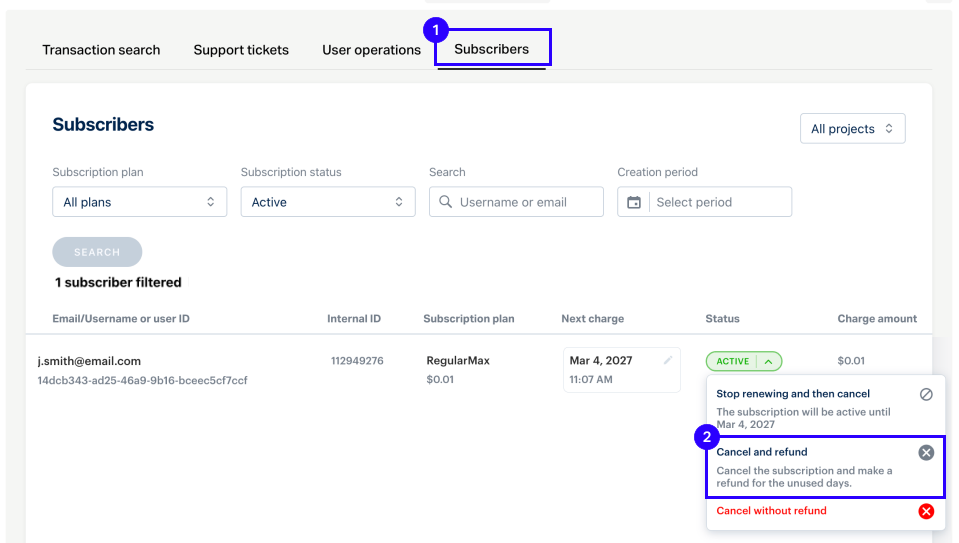
- Open your account and go to the Player support > Subscribers section.
- Find the subscription you want to cancel.
- Open the subscription status menu and select:
- Cancel and refund to receive Canceled Subscription and Refund webhooks.
- Cancel without refund to receive the Canceled Subscription webhook.
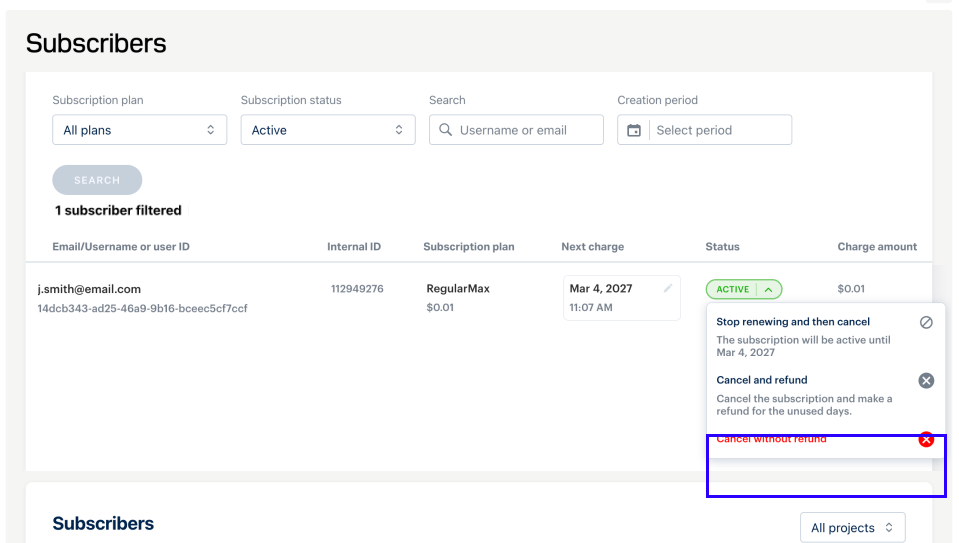
- Open your account and go to the Player support > Subscribers section.
- Find the subscription you want to cancel.
- Open the subscription status menu and select:
- Cancel and refund to receive Canceled Subscription and Refund webhooks.
- Cancel without refund to receive the Canceled Subscription webhook.
- Open your account and go to the Player support > Subscribers section.
- Find the subscription you want to cancel.
- Open the subscription status menu and select:
- Cancel and refund to receive Canceled Subscription and Refund webhooks.
- Cancel without refund to receive the Canceled Subscription webhook.
- Open your account for mobile games and go to the Operations > Player support > Subscribers section.
- Find the subscription you want to cancel.
- Open the subscription status menu and select:
- Cancel and refund to receive Canceled Subscription and Refund webhooks.
- Cancel without refund to receive the Canceled Subscription webhook.
Search by recent transactions
- Open your Publisher Account and go to the Player support > Transaction search section.
- Find the last transactions to be canceled.
- Click the More (•••) icon. Click Refund in the pop-up menu to receive the Canceled Subscription and Refund webhooks.
- Open your account and go to the Player support > Transaction search section.
- Find the last transactions to be canceled.
- Click the More (•••) icon. Click Refund in the pop-up menu to receive the Canceled Subscription and Refund webhooks.
- Open your account and go to the Player support > Transaction search section.
- Find the last transactions to be canceled.
- Click the More (•••) icon. Click Refund in the pop-up menu to receive the Canceled Subscription and Refund webhooks.
- Open your account and go to the Player support > Transaction search section.
- Find the last transactions to be canceled.
- Click the More (•••) icon. Click Refund in the pop-up menu to receive the Canceled Subscription and Refund webhooks.
- Open your account for mobile games and go to the Operations > Player support > Transaction search section.
- Find the last transactions to be canceled.
- Click the More (•••) icon. Click Refund in the pop-up menu to receive the Canceled Subscription and Refund webhooks.
Use API calls
Use the Update Subscription API call to change the subscription status to Canceled and receive the Canceled Subscription webhook.Open payment UI in Sandbox mode
To open the Sandbox payment UI, get a token with active sandbox mode. The following are ways to get a link with the required token:
Via Publisher Account
- Test webhooks in Publisher Account. Specify the
0value in the Trial period field to test a subscription that does not have a trial period. After you receive a confirmation message for a successful test, a link with the required token will appear under the Sandbox URL heading.
To open the Sandbox payment UI, get a token with active sandbox mode. The following are ways to get a link with the required token:
Via account
- Test webhooks in your account. Specify the
0value in the Trial period field to test a subscription that does not have a trial period. After you receive a confirmation message for a successful test, a link with the required token will appear under the Sandbox URL heading.
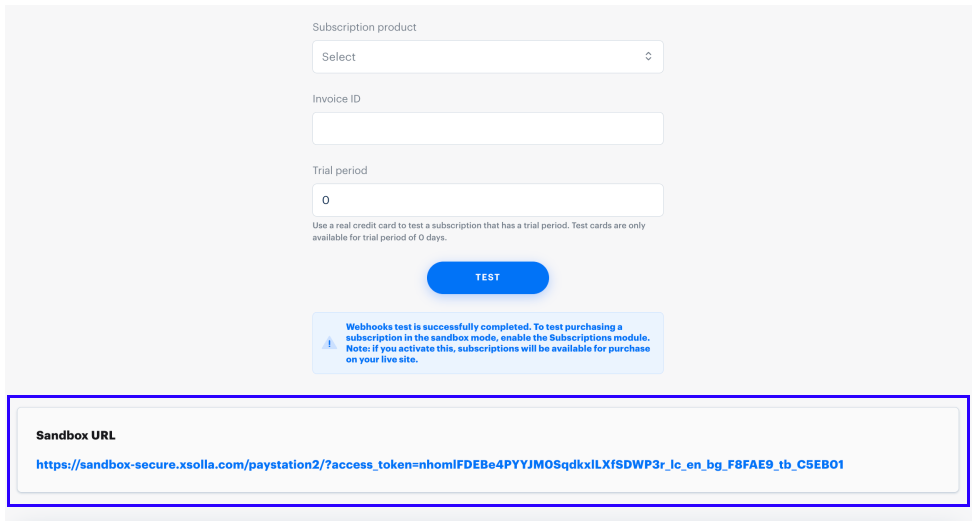
- Follow the Sandbox URL link.
Via API call
- Pass the
"settings":{"mode":"sandbox"}parameters to Create token method. Pass the"purchase": {"subscription":{"trial_days": 0}}parameters to test a subscription that does not have a trial period. - Use the following link:
https://sandbox-secure.xsolla.com/paystation4/?token=ACCESS_TOKEN, whereACCESS_TOKENis the token obtained in the previous step.
Found a typo or other text error? Select the text and press Ctrl+Enter.
