Integration with Airbridge
Glossary
Airbridge
A platform for mobile marketing attribution and analytics. With built-in reporting, deep linking, and audience management, it helps you track user journeys and optimize growth across apps and websites.
Refer to the Airbridge documentation for detailed information about the platform.
Application store ID
Airbridge ID
Lifetime Value (LTV)
Return on advertising spend (ROAS)
In-app event
User acquisition
Customer user ID (CUID)
User ID generated and set by the application owner at the time of user registration. The СUID should be the same for the Web Shop and Airbridge. This parameter is used for user matching and attribution.
Postback
Airbridge S2S token
Integration scenario
Airbridge and Xsolla support mobile application S2S integration, enabling full LTV and ROAS tracking for both mobile application and Web Shop purchases. Xsolla sends information about Web Shop purchases to Airbridge as mobile in-app events, which Airbridge then attributes to the number of mobile application installations, user acquisition and re-engagement campaigns.
You can configure mobile application integration to get advanced event analytics if you:
- have a mobile application on the Android/iOS platform
- use Airbridge
- use Web Shop solution to sell in-game items
The following event is available via the Xsolla and Airbridge S2S integration:
| Event | Description |
|---|---|
| xsolla-billing-payment On the Airbridge side, it is displayed as | Item purchase. The event parameters contain information about a purchase. |
How it works
The integration includes a bidirectional data flow between Xsolla and Airbridge. Below is the system interaction scenario when a user makes a purchase.
  sequenceDiagram
    participant User
    participant Mobile App
    participant Web Shop
    participant Xsolla Backend
    participant Airbridge
    User->>Mobile App: 1. Logs in
    Mobile App->>Airbridge: 2. Sends CUID
    Airbridge-->>Xsolla Backend: 3. Sends postback
    User->>Web Shop: 4. Logs in using CUID
    User->>Web Shop: 5. Makes a purchase
    Web Shop->>Xsolla Backend: 6. Sends purchase event
    Xsolla Backend->>Airbridge: 7. Sends xsolla-billing-payment event
- The user (player) signs up or logs in to the mobile application.
- Your application sends an in-app event to Airbridge — for example,
login,signup, or other event that includes the CUID. - Airbridge sends a postback to Xsolla, which includes the application store ID, Airbridge ID, CUID, and other related data parameters.
- The user logs into the Web Shop using the CUID.
- The user makes a purchase in the Web Shop.
- The purchase event is sent to the Xsolla server and matched with the data received from Airbridge.
- Xsolla’s server sends an S2S in-app event to Airbridge, which contains the Airbridge ID, application store ID, and other parameters received from Airbridge.
Airbridge attributes a new event, purchase, and revenue back to the media source that drove the user acquisition or the user re-engagement.
How to set up in Publisher Account
- Open your project in Publisher Account and go to the Integrations section.
- Click the Airbridge pane.
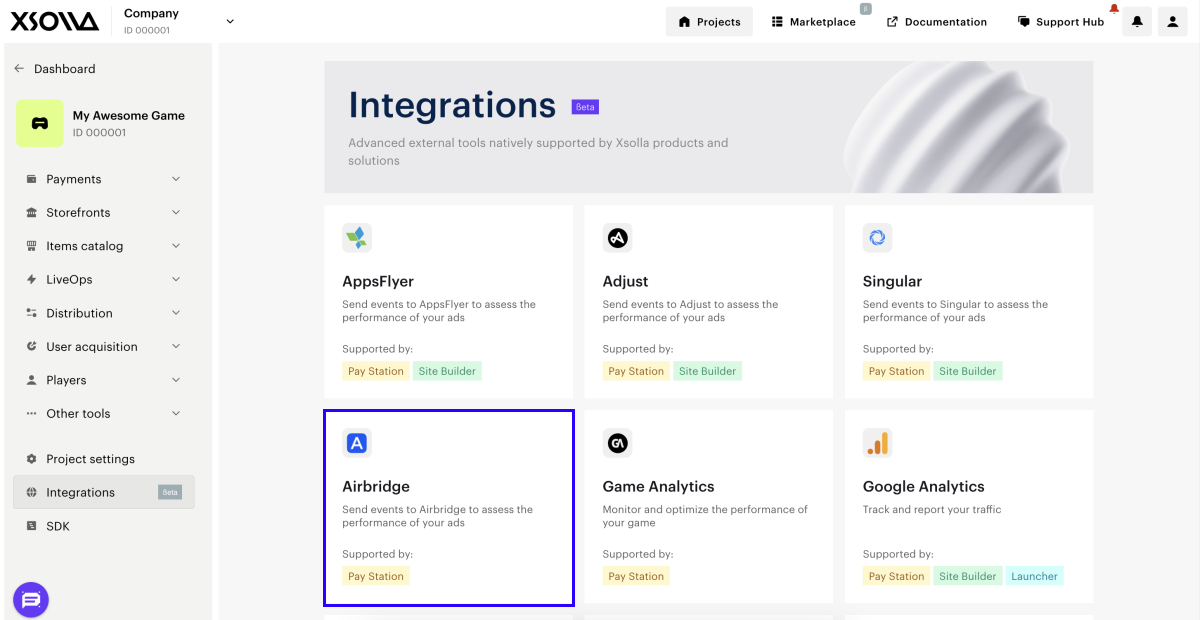
- In the Mobile app S2S integration pane, click Configure.
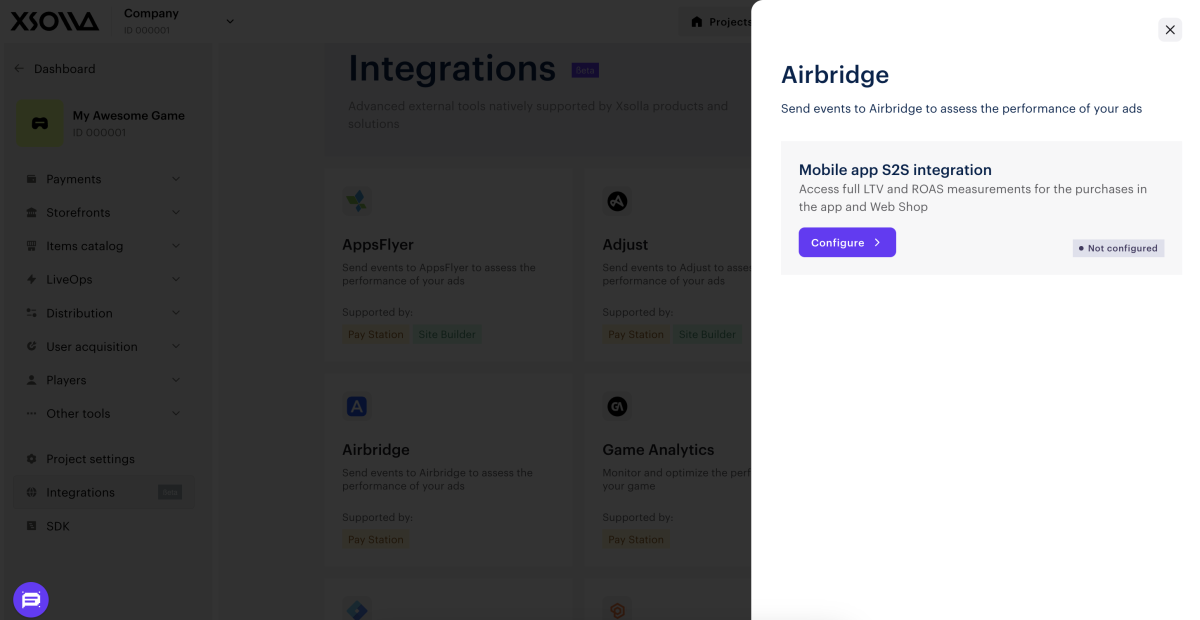
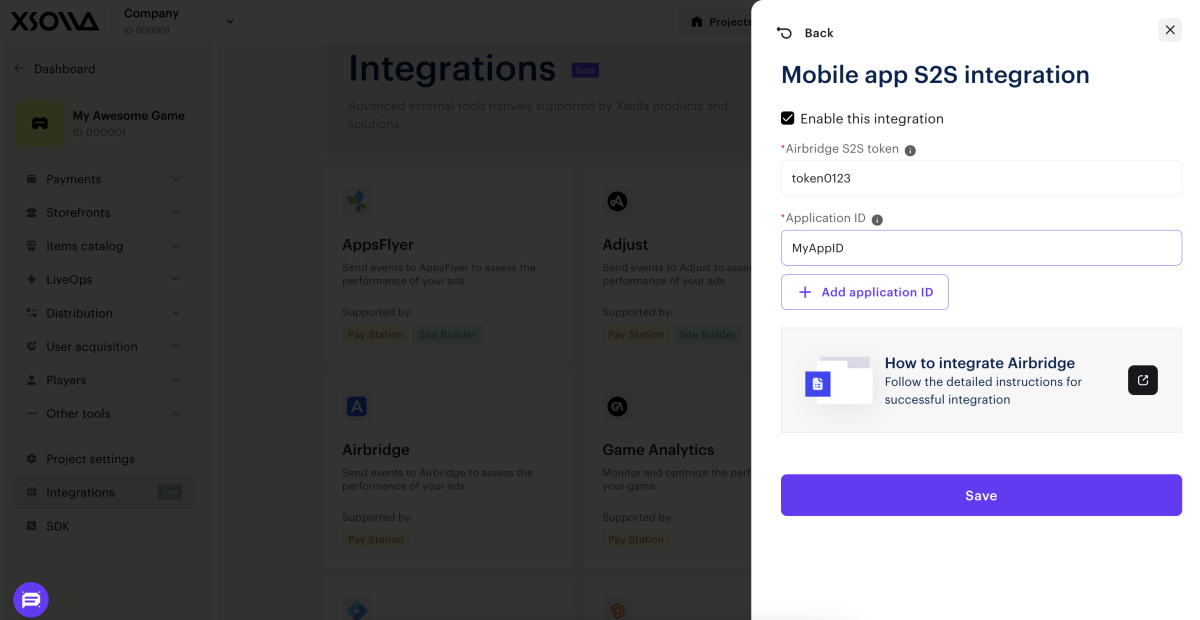
- In the window that opens, check the Enable this integration box.
- Enter the following data:
- Airbridge S2S token.
- Application store ID for publishing platforms (Android/iOS). To add a platform, click Add application ID.
- You need to copy the values for these parameters in your Airbridge account as described below.
- Click Save.
- Enable the integration in Airbridge.
Once you save the settings, a green indicator will be displayed on the S2S integration pane.
To make changes to the connected integration:
- Click the Airbridge pane.
- In the window that opens, make the necessary changes.
- Click Save.
How to set up in Airbridge
In Airbridge, you need to:
Get credentials
- Log in to your Airbridge account.
- Go to the
Integration > Third-party integration section. - Click the
Xsolla pane.
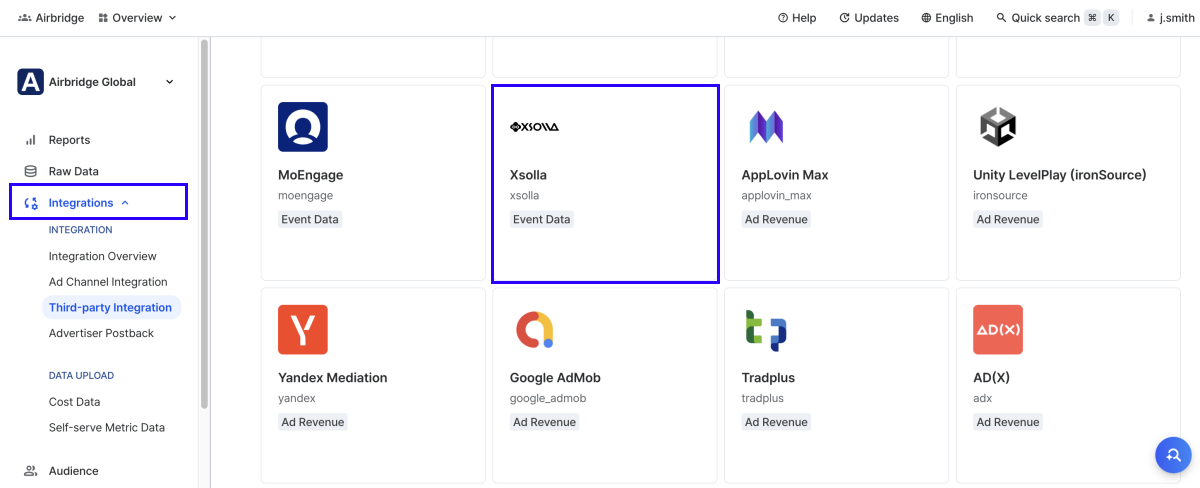
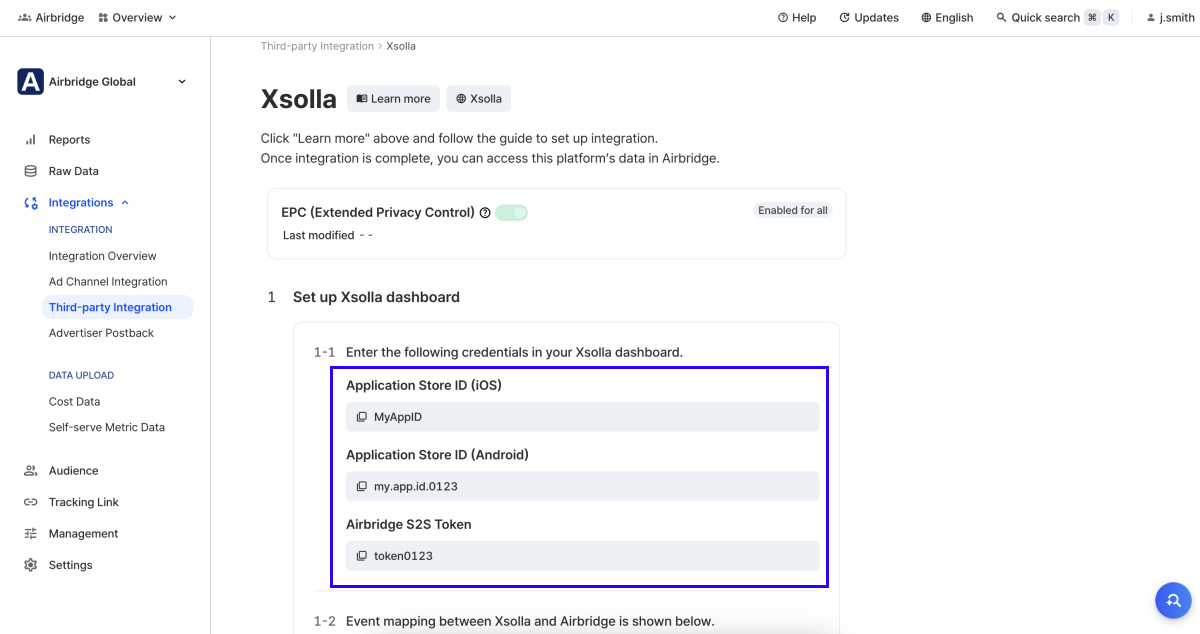
- In the
Set up Xsolla dashboard section, copy values forApplication store ID andAirbridge S2S token and paste them in Publisher Account.
Activate integration with Xsolla
After you enabled integration in Publisher Account:
- Log in to your Airbridge account.
- Go to the
Integration > Third-party integration section. - Click the
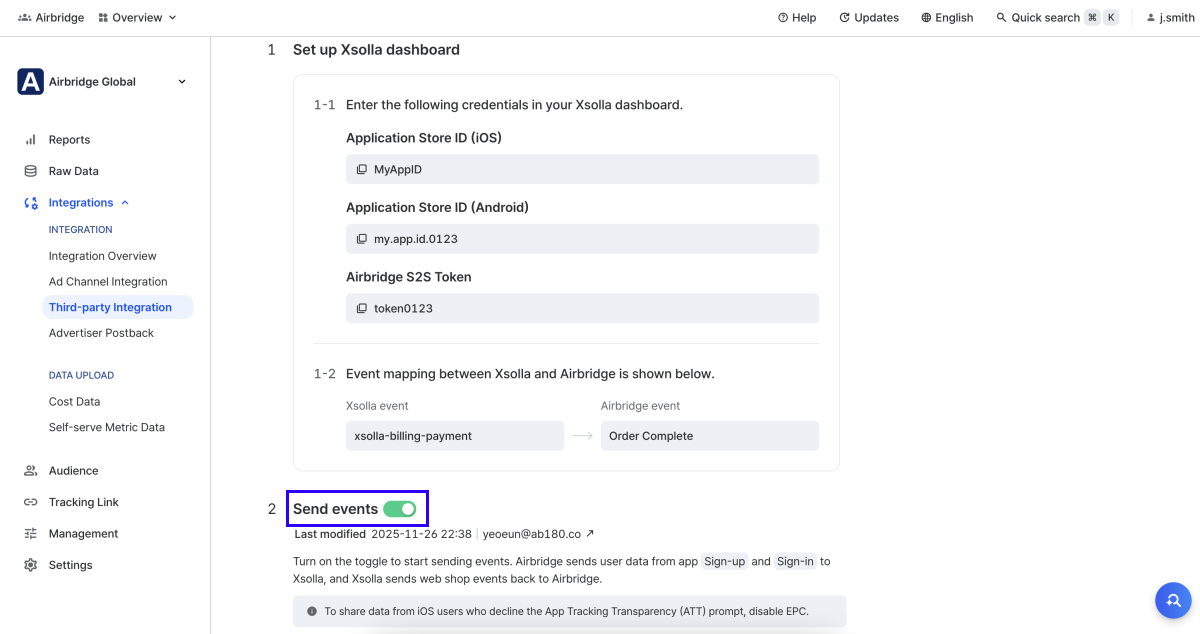
Xsolla pane. - Set the
Send events toggle to active.
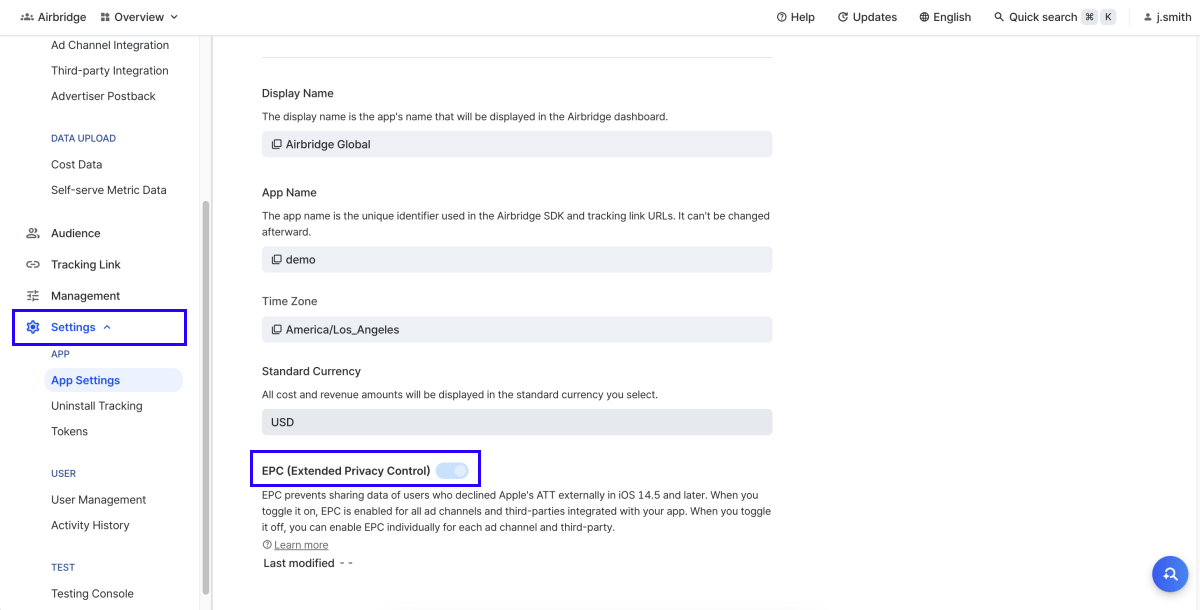
To share data from iOS users who decline App Tracking Transparency (ATT), set the
Event value structure
If you want to set up a specific event or if the current integration options don’t cover your needs, contact your Customer Success Manager or email to csm@xsolla.com.
Item purchase
When a user makes a purchase in Web Shop, Xsolla sends the xsolla-billing-payment event to Airbridge. The following purchase information is passed in the event parameters:
| Parameter | Description |
|---|---|
| content_id | Single SKU or array of SKU in the purchase. |
| quantity | Quantity of the item with corresponding SKU (one or an array). |
| revenue | Purchase amount. Discounts are included. Before taxes and fees. |
| currency | Purchase currency. |
Additional data
Additionally, you can pass the following parameters in the postback:
| Parameter | Description |
|---|---|
| device.deviceUUID | Device ID on the Airbridge side (all platforms). |
| device.gaid | Google Advertising ID. |
| device.appSetID | App Set ID. |
| device.ifa | Advertiser ID in App Store. |
| device.ifv | Vendor ID on the Apple side. |
Found a typo or other text error? Select the text and press Ctrl+Enter.
