Create site and customize main blocks
Overview
This section describes a manual Web Shop setup in the site builder. If you are creating Web Shop for the first time, we recommend starting with the express scenario — it enables you to automatically generate a starter site configuration based on your game’s App Store page data, which you can then further customize in the site builder.
Using the Web Shop template, you can create:
- Single-page store — a simplified Web Shop format. All content is placed on a single page. Suitable if you need to minimize the user journey to purchase and launch the store as quickly as possible. The Web Shop template includes the main blocks for a single-page store. You can customize and delete these blocks, as well as add new ones.
- Multi-page web portal — an advanced Web Shop format that allows you to build a full-featured platform for player engagement. Suitable for working with content (news, rewards), as well as in-game traffic acquisition scenarios. You can direct users to content pages without direct item sales, complying with platform requirements, and then encourage purchases within Web Shop. If you are not using the express scenario, each page must be added manually. A required element of a multi-page site is the sidebar — it provides navigation between pages and is added automatically when the multi-page site is created.
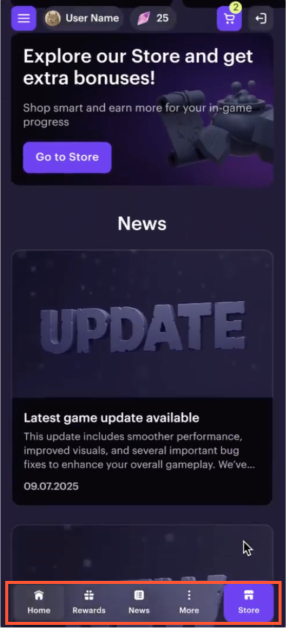
Before you start, configure:
- project in Publisher Account
- user authentication
- item catalog
- LiveOps and promotion tools
- webhook handling
Once configured, test and publish the site.
Create site
- Open your project in Publisher Account and go to Storefronts > Websites section.
- Click Create site.
- Select the Web Shop template.
- Add a URL to an external platform where your game is available. This allows you to quickly create a page in the style of your game: images and the game title, developer information, and a color scheme are automatically added to the page. If you don’t want to use the game data, turn off the Copy game info via App Store or Google Play URL toggle.
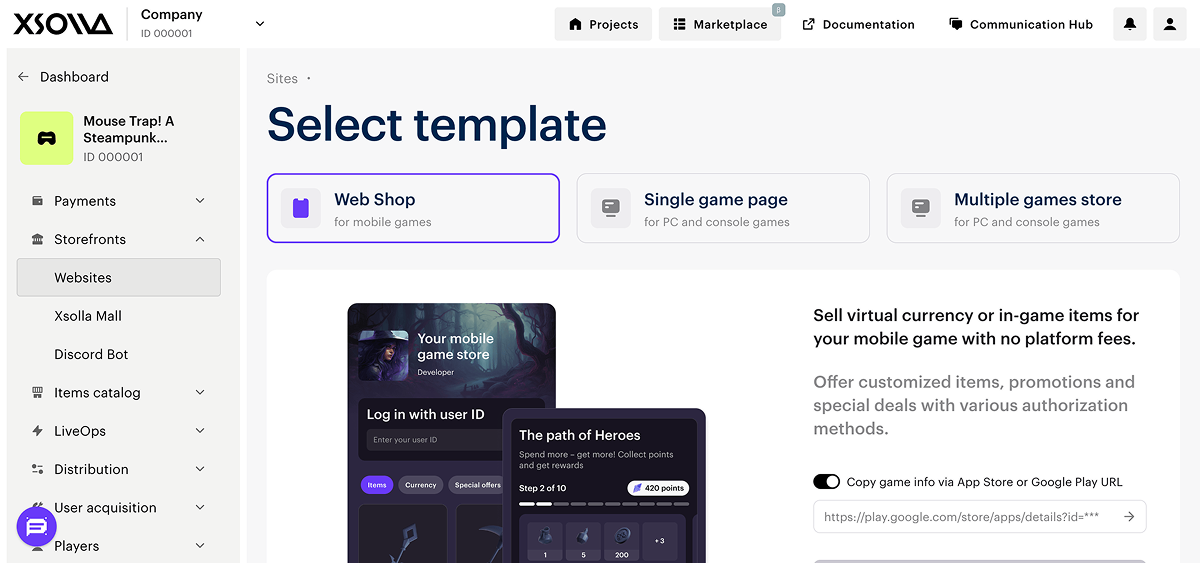
- Click Create Web Shop.
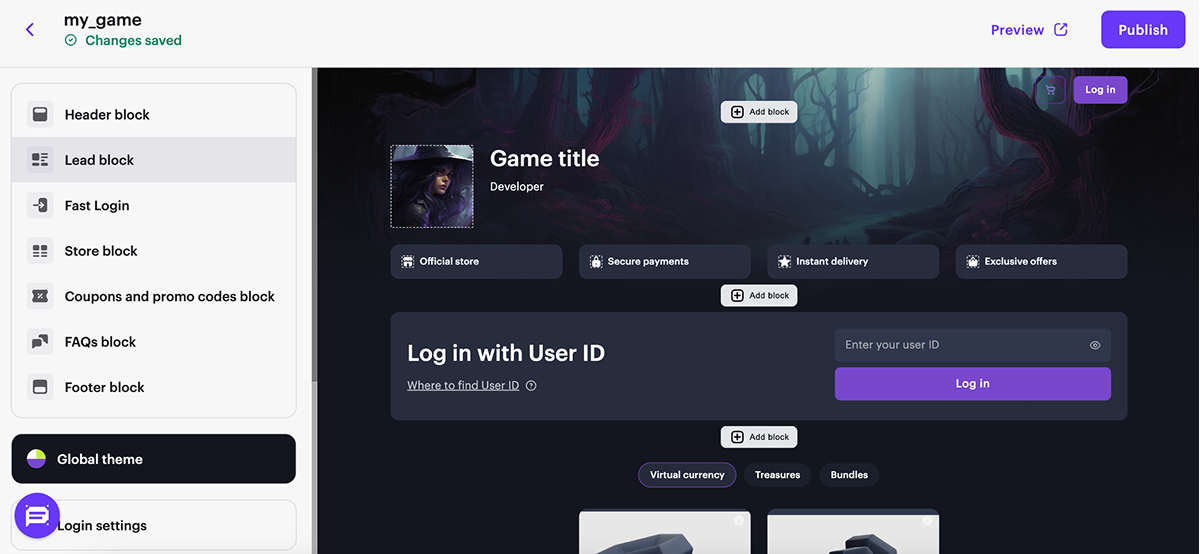
As a result, you will be redirected to the builder with a preconfigured website for your game. You can make the necessary adjustments:
Customize the site theme:
- colors of key elements
- border radius of elements
- fonts for headings and body text
Edit the content:
- upload images and videos to blocks
- change the texts visible to users
If you create a multi-page web portal, add pages:
- Click the page name at the top of the site builder and select Create page from the dropdown.
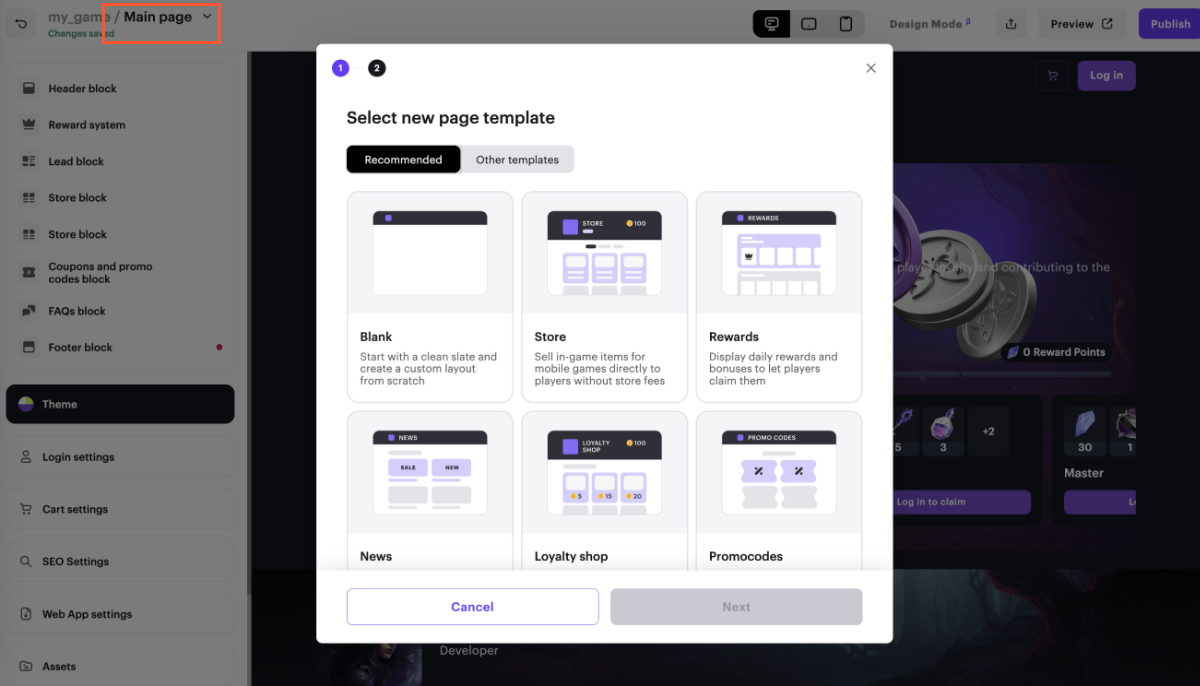
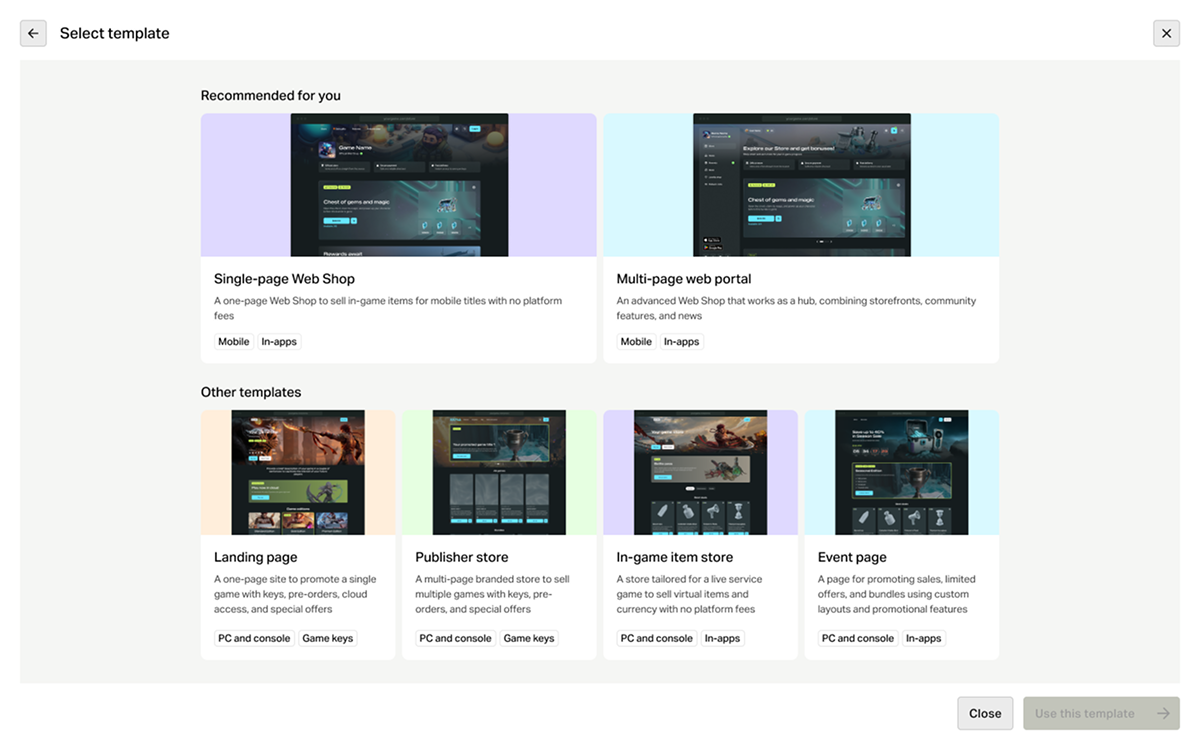
- Select a page template on the Recommended or Other templates tab.
For more information about managing site pages, refer to the documentation.
Configure key blocks
All blocks contain default settings. You can enable or disable certain block functions and customize them as desired. When using the Web Shop template, the following blocks are automatically added to the site:
Header — the block in the header of the site. Displays user information and contains site navigation elements. For detailed information, refer to the Blocks section.
Lead block — block with basic information about your Web Shop: the game the site is created for and who the developer is. For detailed information, refer to the Blocks.
Fast Login — block that allows you to highlight the authorization step and streamline the user’s path to purchase. Requires user authentication to be configured beforehand. For detailed information, refer to the Blocks section.
Store — block for selling virtual items, bundles, and virtual currency packs. For detailed information, refer to the Blocks section.
Footer — the block in the footer of the site with social media links, share options buttons, and additional information. For detailed information, refer to the Blocks section.
Shopping cart — allows users to add items to the cart before purchasing and apply promo codes or coupons in the shopping cart interface. For detailed information, refer to the Blocks section.
Overview
This section describes a manual Web Shop setup in the site builder. If you are creating Web Shop for the first time, we recommend starting with the express scenario — it enables you to automatically generate a starter site configuration based on your game’s App Store or Google Play page data, which you can then further customize in the site builder.
You can create Web Shop of the following types:
- Single-page Web Shop — a simplified Web Shop format. All content is placed on a single page. Suitable if you need to minimize the user journey to purchase and launch the store as quickly as possible. The template includes the main blocks for a single-page store. You can customize and delete these blocks, as well as add new ones.
Multi-page web portal — an advanced Web Shop format that allows you to build a full-featured platform for player engagement. Suitable for working with content (news, rewards), as well as in-game traffic acquisition scenarios. You can direct users to content pages without direct item sales, complying with platform requirements, and then encourage purchases within Web Shop.
A required element of a multi-page site is the sidebar — it provides navigation between pages and is added automatically when the multi-page site is created. The template includes a set of pages that you can customize and delete, as well as add new ones.
Before you start, configure:
To create Web Shop:
- Create a site.
- Configure main blocks.
- Configure pages (optional).
Once configured, test and publish the site.
Create site
Open the project in your account and go to the Web Shop section.
Click Create Web Shop.
Select the template — Single-page Web Shop or Multi-page web portal — and click Use this template
Select visual style — one of the preset site themes for different game genres (optional).
Add a URL to an external platform where your game is available. This allows you to quickly create a page in the style of your game: images and the game title, developer information, and a color scheme are automatically added to the page.
To configure the site manually without using game data, click Skip this step.
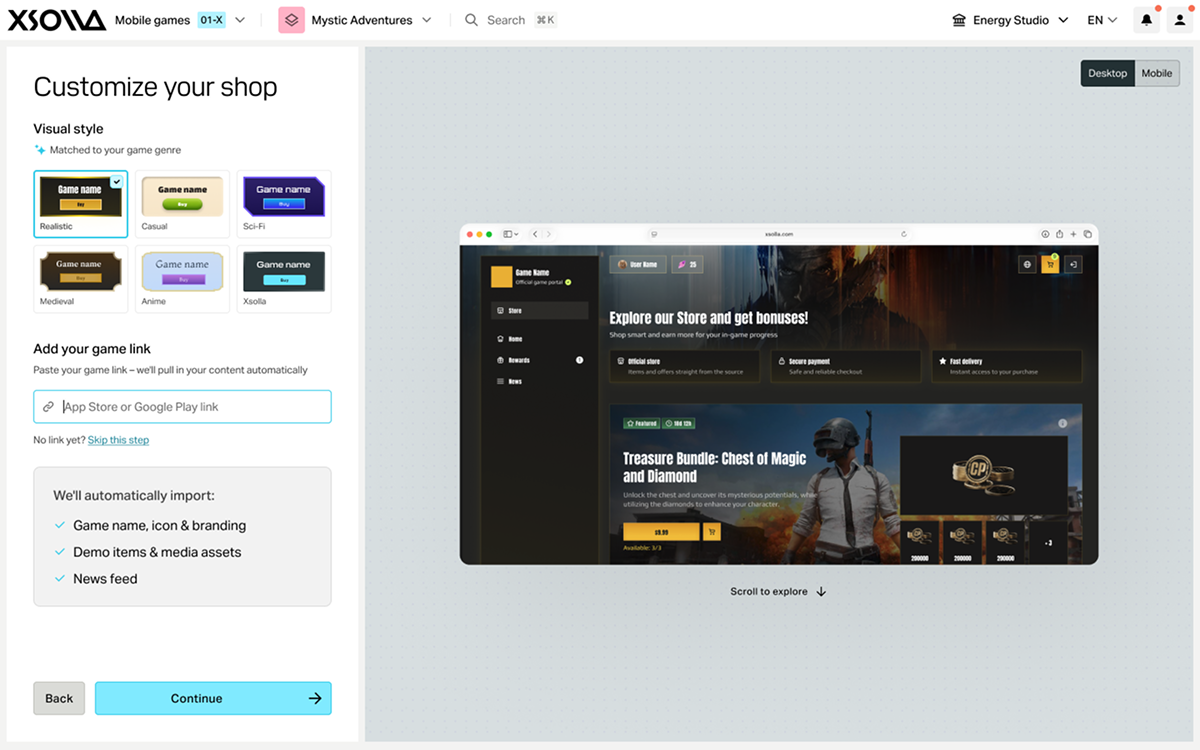
- Click Continue.
Open the project in your account and go to the Storefronts > Websites section.
Click Create site.
Select the template — Single-page Web Shop or Multi-page web portal — and click Use this template
Open the project in your account and go to the Storefronts > Websites section.
Click Create site.
Select the template — Single-page Web Shop or Multi-page web portal — and click Use this template
Open the project in your account and go to the Storefronts > Websites section.
Click Create site.
Select the template — Single-page Web Shop or Multi-page web portal — and click Use this template
After your preconfigured website is created, you can continue project setup or go to the builder to make the necessary adjustments to your Web Shop:
- Customize the site theme:
- colors of key elements
- border radius of elements
- fonts for headings and body text
- Edit the content:
- upload images and videos to blocks
- change the texts visible to users
Configure key blocks
All blocks contain default settings. You can enable or disable certain block functions and customize them as desired. When using the Single-page Web Shop template, the following blocks are automatically added to the site:
Header — the block in the header of the site. Displays user information and contains site navigation elements.
Lead block — block with basic information about your Web Shop: the game the site is created for and who the developer is.
Fast Login — block that allows you to highlight the authorization step and streamline the user’s path to purchase. Requires user authentication to be configured beforehand.
Store — block for selling virtual items, bundles, and virtual currency packs.
Footer — the block in the footer of the site with social media links, share options buttons, and additional information.
Shopping cart — allows users to add items to the cart before purchasing and apply promo codes or coupons in the shopping cart interface.
For detailed information on all available blocks, refer to the Blocks section.
Configure pages
When using the Multi-page web portal template, the following pages are automatically added to the site:
Store — suitable for selling in-game items for your mobile game.
Rewards — contains blocks for displaying daily rewards and the reward system.
News — suitable for posting updates, game announcements, and other information related to your game.
Loyalty shop — suitable for displaying items used in the loyalty program.
Promocodes — contains blocks for using promo codes on the site. Promo codes allow users to receive a discount or a bonus item. Promo codes can also be used to grant users exclusive items.
Each page template contains preset blocks, but you can modify them if needed.
For more information about page templates and page management, refer to the How to manage website pages section.
Continue reading
Found a typo or other text error? Select the text and press Ctrl+Enter.
