How to manage website pages
How it works
You can create multi-page websites in the Xsolla site builder. The page management UI allows you to add, configure, and publish any pages, such as a store with different item sets, a blog, a game landing page, or a promotional campaign page.
In the builder, you can:
- Create new pages based on templates.
- Set the path and name for each page.
- Select a color scheme for pages.
- Track the publication status of pages.
- Quickly switch between pages.
- Publish selected pages.
Benefits:
- All website pages are hosted on a single domain and use single authentication.
- A global theme can be applied to all pages, or a custom theme can be configured for each page.
- A single shopping cart is used across all pages.
- SEO settings can be unique for each website page, except for the favicon.
Page templates
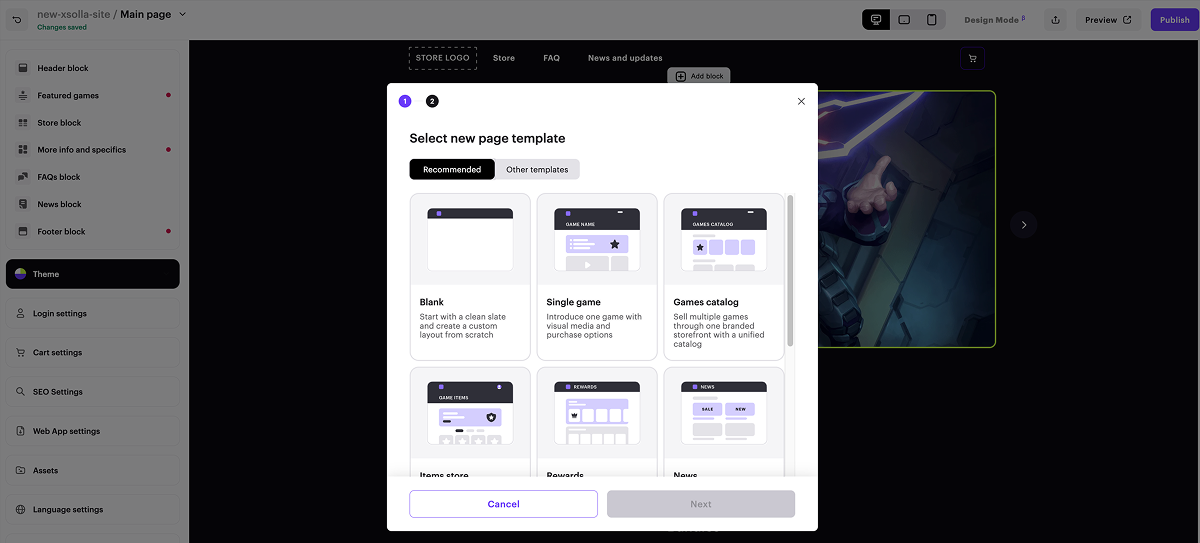
When you create a site page, you can use ready-made templates. In the site builder, templates are grouped by tabs. The Recommended tab is focused on the selected site template. The following page templates are available:
- Blank — contains no blocks. You can create a custom page layout.
- Store — suitable for selling in-game items for your mobile game.
- Rewards — contains blocks for displaying daily rewards and the reward system.
- News — suitable for posting updates, game announcements, and other information related to your game.
- Loyalty shop — suitable for displaying items used in the loyalty program.
- Promocodes — contains blocks for using promo codes on the site. Promo codes allow users to receive a discount or a bonus item. Promo codes can also be used to grant users exclusive items.
- Single game — suitable for showcasing a specific game. When creating the page, you can add a link to your game on Steam to automatically generate a description, images, and other content styled to match your game.
- Games catalog — suitable for a game store home page. Contains a customizable slider and a block with a shared game catalog.
- Items store — suitable for selling in-game items for your PC or console game, without platform fees.
When you create a site page, you can use ready-made templates. In the site builder, templates are grouped by tabs. The Recommended tab is focused on the selected site template. The following page templates are available:
- Blank — contains no blocks. You can create a custom page layout.
- Store — suitable for selling in-game items for your mobile game.
- Rewards — contains blocks for displaying daily rewards and the reward system.
- News — suitable for posting updates, game announcements, and other information related to your game.
- Loyalty shop — suitable for displaying items used in the loyalty program.
- Promocodes — contains blocks for using promo codes on the site. Promo codes allow users to receive a discount or a bonus item. Promo codes can also be used to grant users exclusive items.
- Single game — suitable for showcasing a specific game. When creating the page, you can add a link to your game on Steam to automatically generate a description, images, and other content styled to match your game.
- Games catalog — suitable for a game store home page. Contains a customizable slider and a block with a shared game catalog.
- Items store — suitable for selling in-game items for your PC or console game, without platform fees.
Create and set up website pages
- Open your project in Publisher Account and go to the Storefronts > Websites section.
- Click the pane of your site.
- Open your project in the account and go to the Storefronts > Websites section.
- Click the pane of your site.
- Open your project in the account and go to the Storefronts > Websites section.
- Click the pane of your site.
- Open your project in the account for mobile games and go to the Web Shop section.
- Click the pane of the desired site.
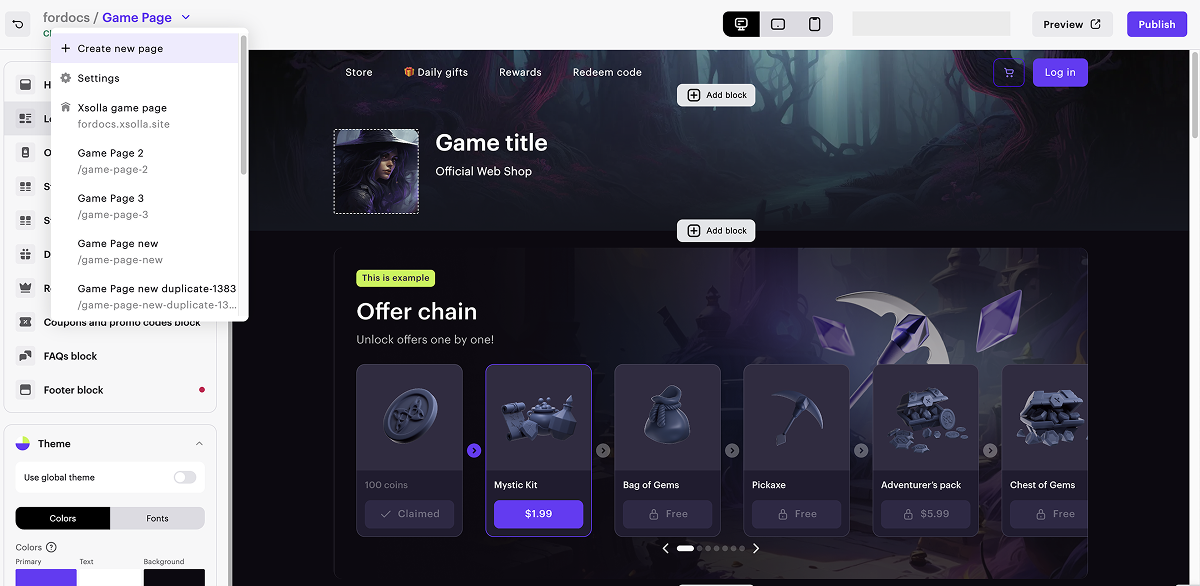
- Click the page name and in the drop-down list, select Create new page.
- Select a page template on the Recommended or Other templates tab.
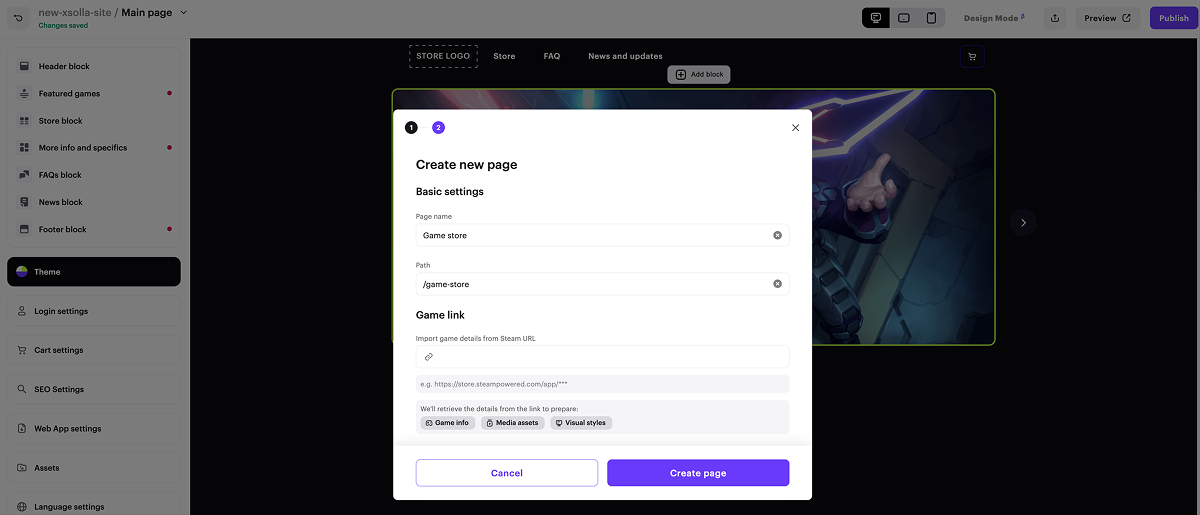
- Enter the name of the new page.
- If necessary, configure additional settings:
- Change the automatically generated page path.
- Add a URL to an external platform where your game is available. This allows you to quickly create a page in the style of your game: images and the game title, developer information, and a color scheme are automatically added to the page.
- Click Create page.
- To customize the theme of a child page, in the side menu in the Theme section:
- Select the Colors tab and set the required color scheme.
- Go to the Fonts tab and configure the required font. You can also use custom fonts.
- Configure the website background and element border radius.
- If you want to save the configured theme as a global one, click Save as global theme.
- To customize the theme of a child page, in the side menu in the Theme section:
- Select the Colors tab and set the required color scheme.
- Go to the Fonts tab and configure the required font. You can also use custom fonts.
- Configure the website background and element border radius.
- If you want to save the configured theme as a global one, click Save as global theme.
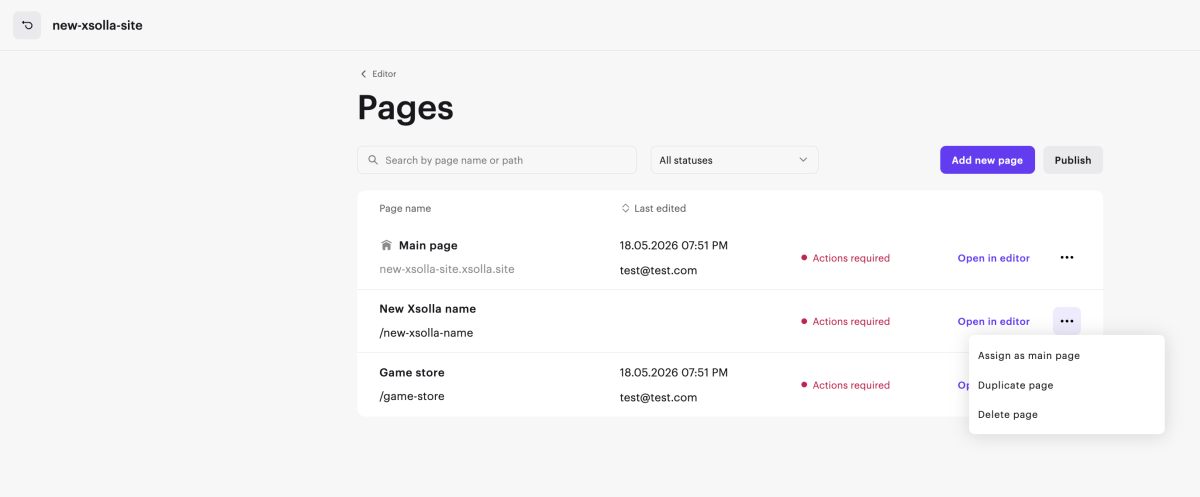
- Create the required number of child pages and configure them. To do this, click the page name in the upper-left corner and select Settings from the drop-down list. In the page management interface, you can:
- create and duplicate pages
- change page names and paths
- delete unnecessary pages
- reassign the main page
- view the page status and the date of its last modification
Publish website
After making all necessary changes and preparing your website for launch:
- In the upper-right corner of the site builder, click Publish.
- Check the boxes next to the pages you want to publish.
- Click Publish.
If website publication is not available, make sure all the conditions are met:
- There are no empty sections on the website (marked with a red indicator).
- The licensing agreement with Xsolla has been signed.
- The main page is published or selected for publication. You cannot publish child pages before the main page.
Found a typo or other text error? Select the text and press Ctrl+Enter.
