Quick start
The express scenario allows you to create a Web Shop starter configuration without manual setup, using data from the game’s App Store page. This enables you to evaluate the appearance, structure, and usability before connecting a real item catalog.
Make sure you have created a project in Publisher Account.
If your project already has a website created with the Web Shop template, the express scenario steps for creating a Web Shop won’t be available. Instead, you can customize the existing Web Shop and proceed directly to configuring the item catalog.
To create a Web Shop starting configuration:
- Open your project in Publisher Account.
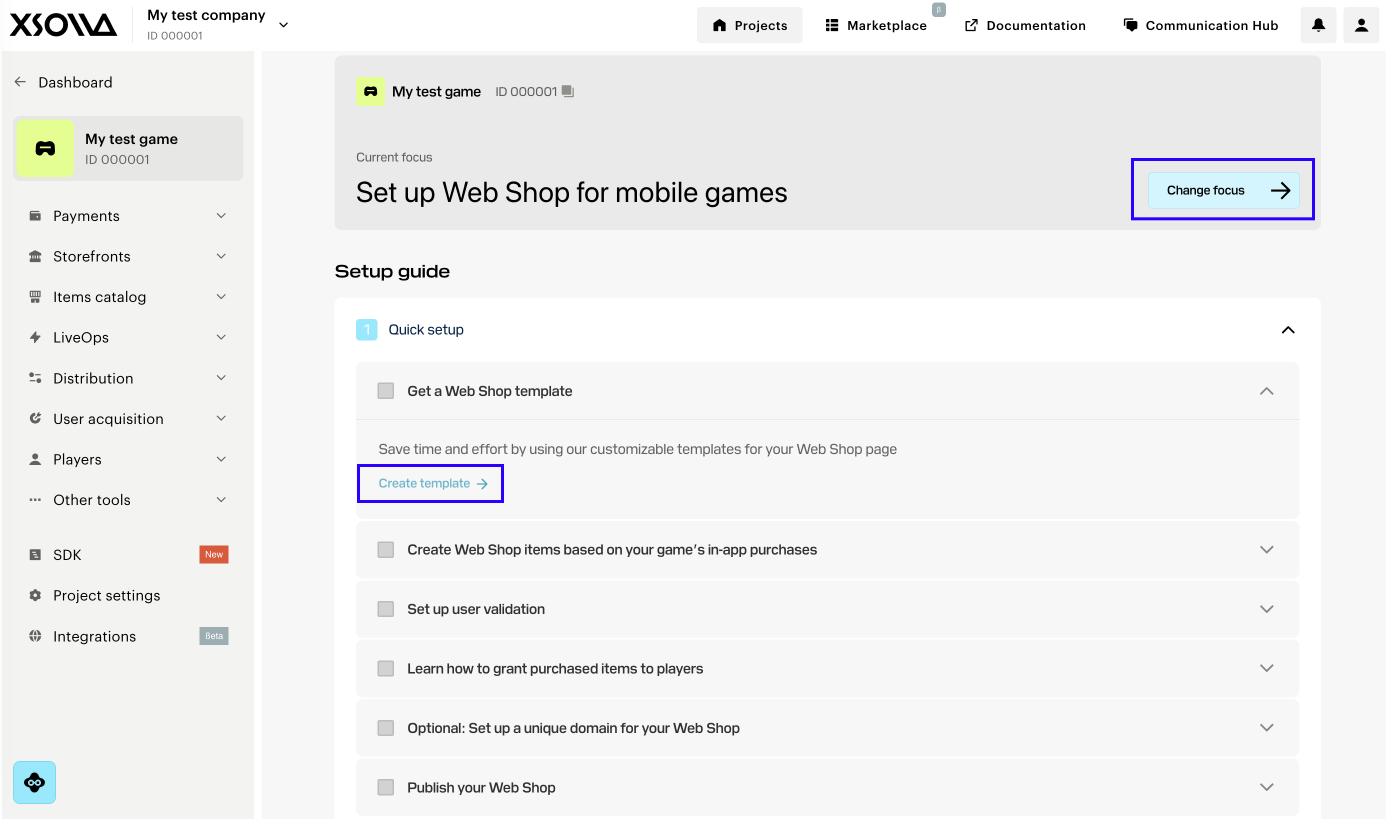
- On the main project page, click Change focus and select Set up Web Shop for mobile games.
- On the Create Web Shop template step, click Create template.
- Select the Web Shop type:
- Single-page store — a simplified Web Shop format. Suitable if you need to minimize the user journey to purchase and launch the store as quickly as possible.
- Multi-page web portal — an advanced Web Shop format that allows you build a full-featured platform for player engagement. Suitable for working with content (news, rewards), as well as in-game traffic acquisition scenarios. You can direct users to content pages without direct item sales, complying with platform requirements, and then encourage purchases within Web Shop.
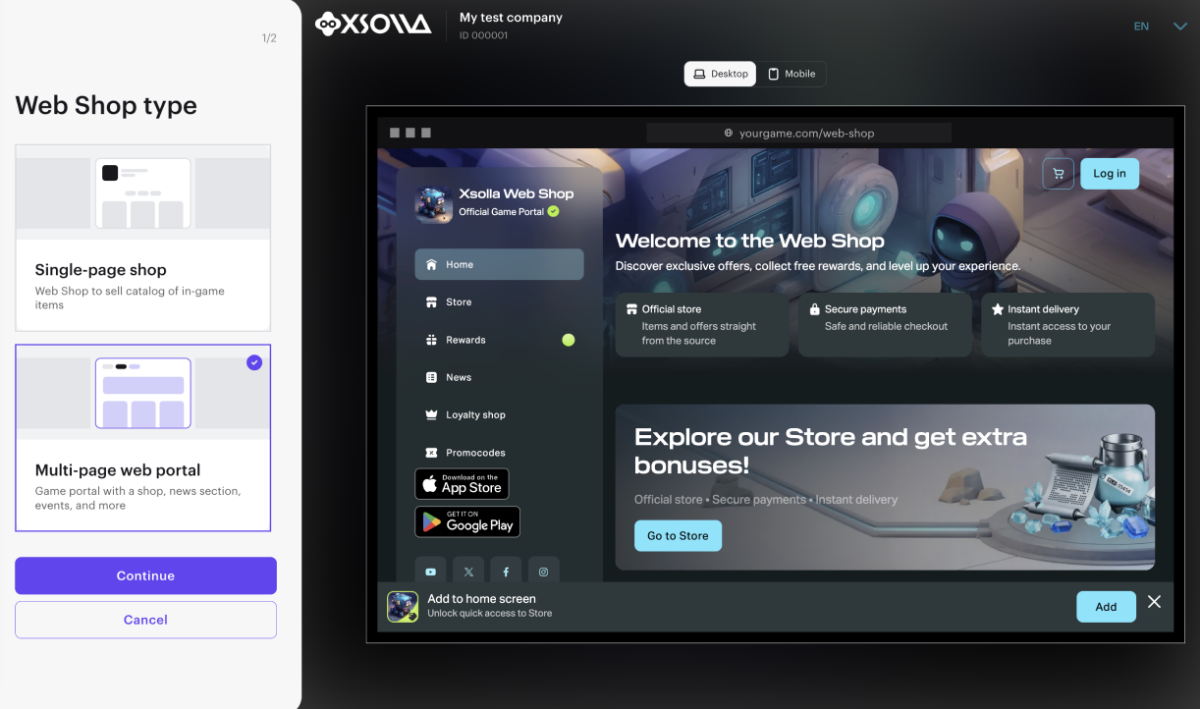
- Click Continue.
- On the Express tab, add a link to your game in App Store. The information from your game’s App Store page is used to generate items, images, and other Web Shop content in your game’s style.
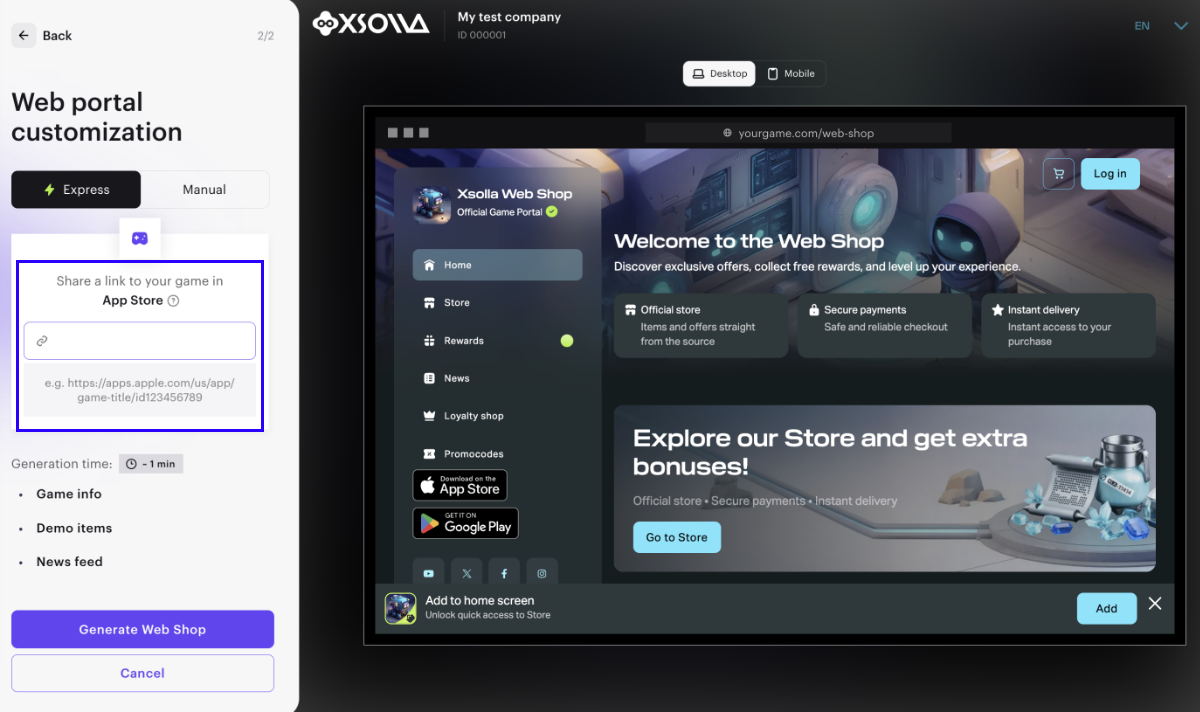
- Click Create Web Shop.
When the express scenario is launched, a Web Shop starter configuration is created and includes:
- a site with a color scheme matching the game
- item cards and banners
- reward systems (reward chains, daily rewards)
- demo news articles
Once Web Shop is successfully created, click Continue setup to return to the focus settings and proceed to the next step.
The express scenario creates only a preliminary version of the store. To prepare Web Shop for launch, configure:
The express scenario allows you to create a Web Shop starter configuration without manual setup, using data from the game’s App Store page. This enables you to evaluate the appearance, structure, and usability before connecting a real item catalog.
To create a Web Shop starting configuration:
- Open the project in your account.
- Initiate the Web Shop creation in one of the following ways:
- Go to the Ecosystem Dashboard section. On the Create Web Shop step page click Create Web Shop.
- Go to the Web Shop section and click Create Web Shop.
- Select the Web Shop type:
- Single-page shop — a site where all sections are placed on a single page.
- Multi-page web portal — a site with three separate pages: a main page, an item catalog page, and a news page.
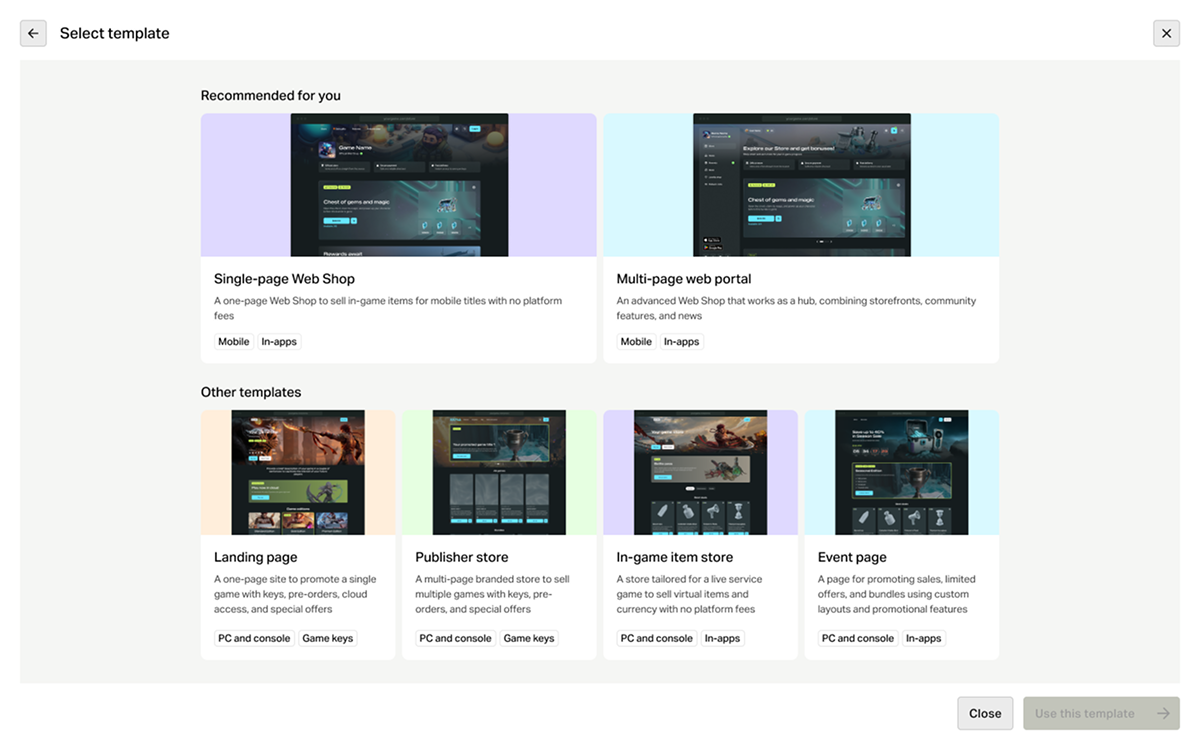
- Click Use this template.
- On the Express tab, add a link to your game in App Store. This allows you to quickly create a page in the style of your game: images and the game title, developer information, and a color scheme are automatically added to the page.
- Click Generate Web Shop.
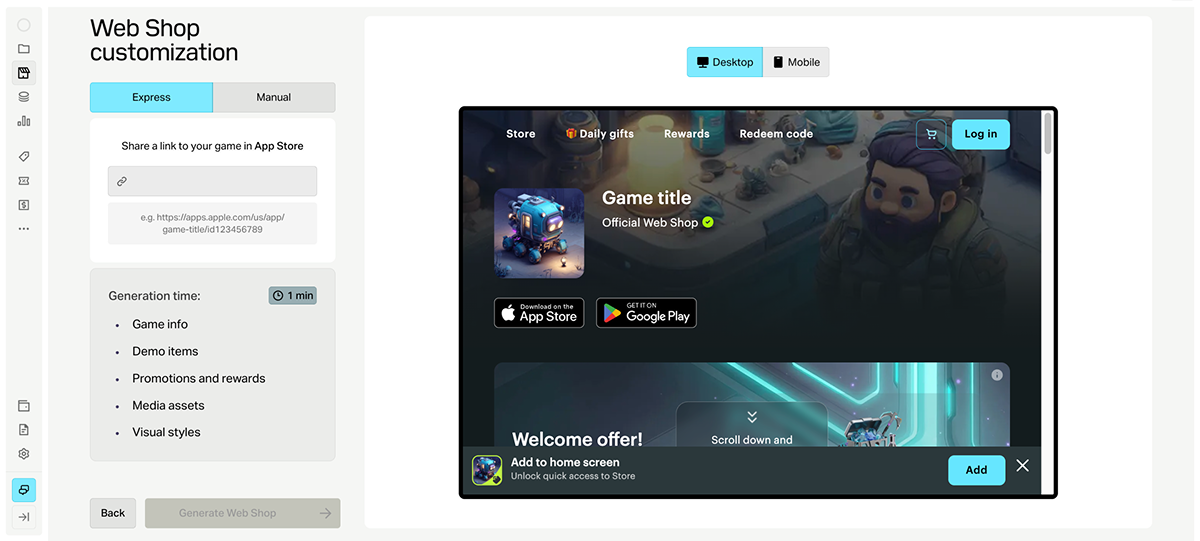
- Once your Web Shop is successfully created, click Open editor to proceed to site fine-tuning.
When the express scenario is launched, a Web Shop starter configuration is created and includes:
a site with a color scheme matching the game
item cards and banners
reward systems (reward chains, daily rewards)
demo news articles
The express scenario creates only a preliminary version of the store. To prepare Web Shop for launch, configure:
Found a typo or other text error? Select the text and press Ctrl+Enter.
