Advent calendar
Overview
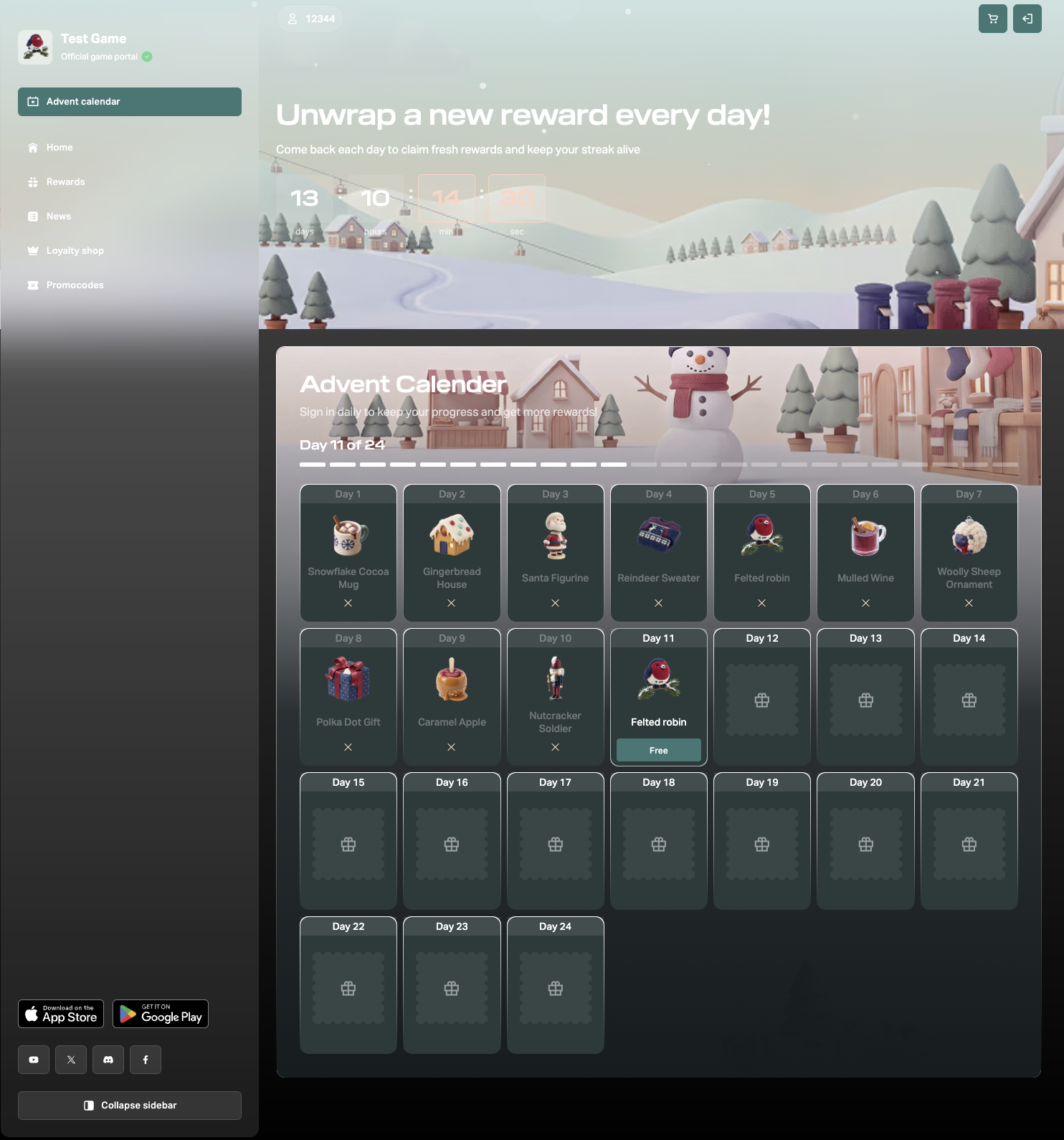
The Advent calendar template lets you create a dedicated page for a holiday event. The page contains an advent calendar: a set of daily rewards that unlock one per day.
A dedicated page keeps users focused on the event, motivates them to come back every day, and gives you a direct link to use in ads, social media posts, newsletters, and in-game banners.
Key features:
- Advent mode in the Daily rewards block. The setting hides the rewards for locked days. The user sees all the days in the calendar, but locked days show only the day number and the Not yet available label.
- Advent mode in the Lead GS block. The setting lets you add falling snow to the block background.
- A countdown timer in the event header.
- Scheduled access to rewards. You set the start date, start time, and time zone in the daily rewards settings. The time is verified on the server, so changing the date on the user’s device doesn’t unlock future days.
- No-code setup. You can edit text, replace images, change the page layout, and customize colors and fonts. Your site theme is applied automatically, and the festive design works correctly with both light and dark themes.
- Quick access to the daily rewards settings directly from the block settings in the builder.
- Responsive layout. The page adapts to desktop and mobile devices. All template text supports the languages available in Web Shop.
You can also turn on Advent mode in the Daily rewards block on any other page of your site, not just on a page created from the template.
User flow
- The user opens the event page.
- The user sees the calendar with the rewards for past days, the reward for the current day, and locked cards for future dates.
- The user logs in to the site.
- The user clicks Claim and gets the reward for the current day.
- When the next day starts, the user gets the next reward.
How to set up
Prerequisites
- Create items that users will receive as rewards.
- Create and activate a daily rewards chain with the Reward calendar type (recommended). Add one reward for each day of the event. The number of rewards determines the event duration.
- Set up user authentication if you haven’t done so yet.
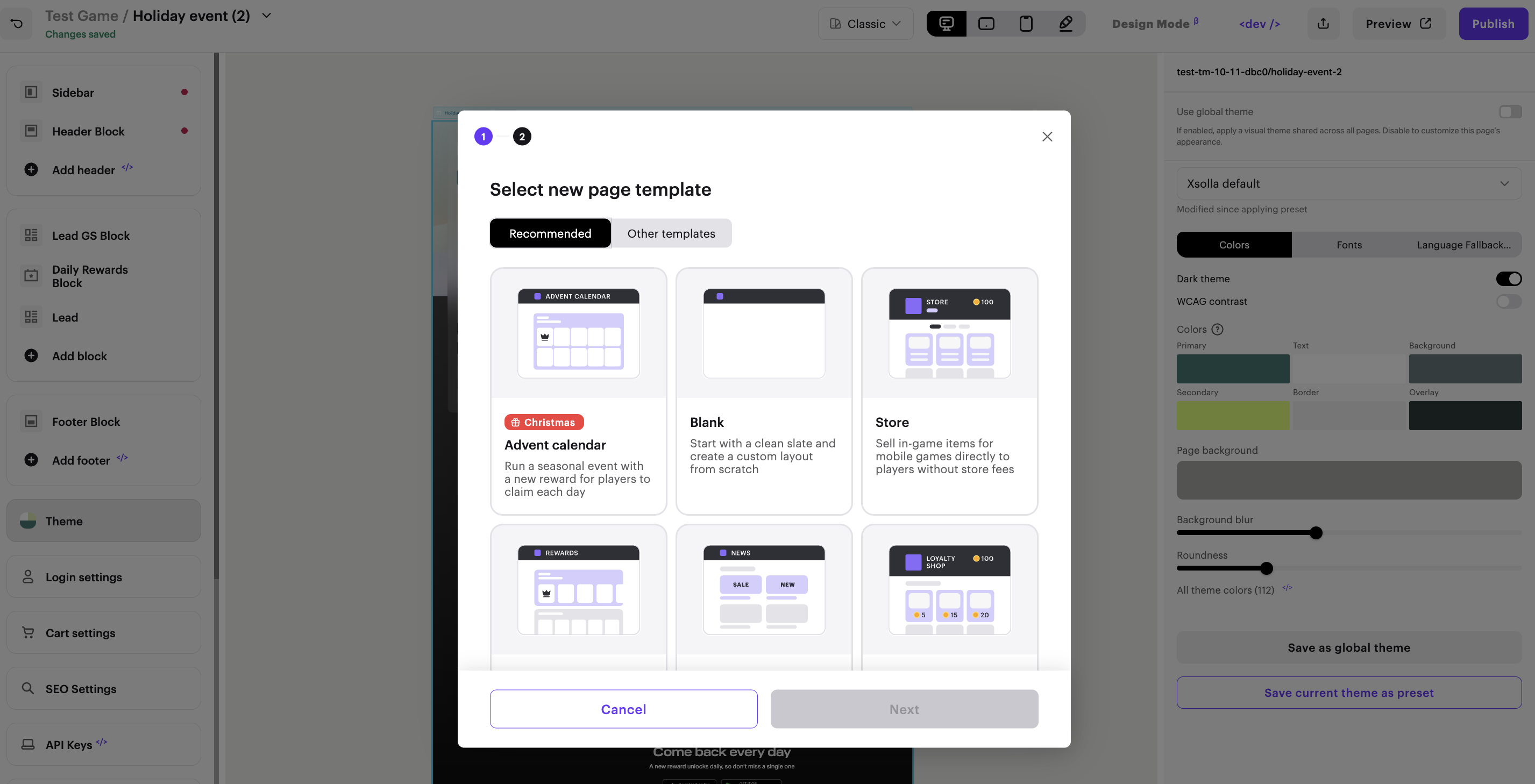
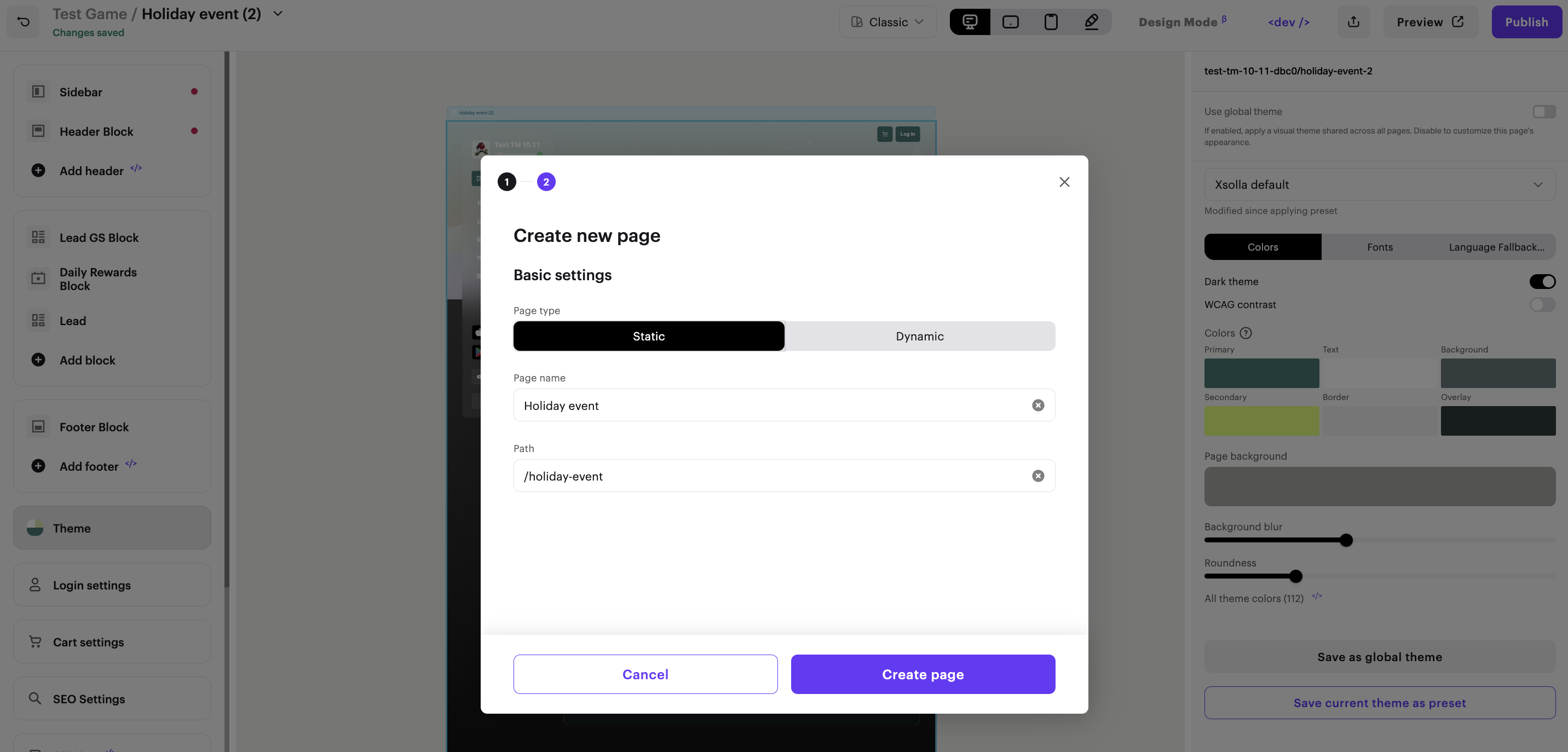
Create advent calendar page
Set up Daily rewards block
The number of rewards in the chain determines how many days the event lasts. To change the duration, edit the chain: deactivate it, add or remove rewards, and then activate the chain again. Until you select a chain, the block displays a sample calendar.
To set up the block:
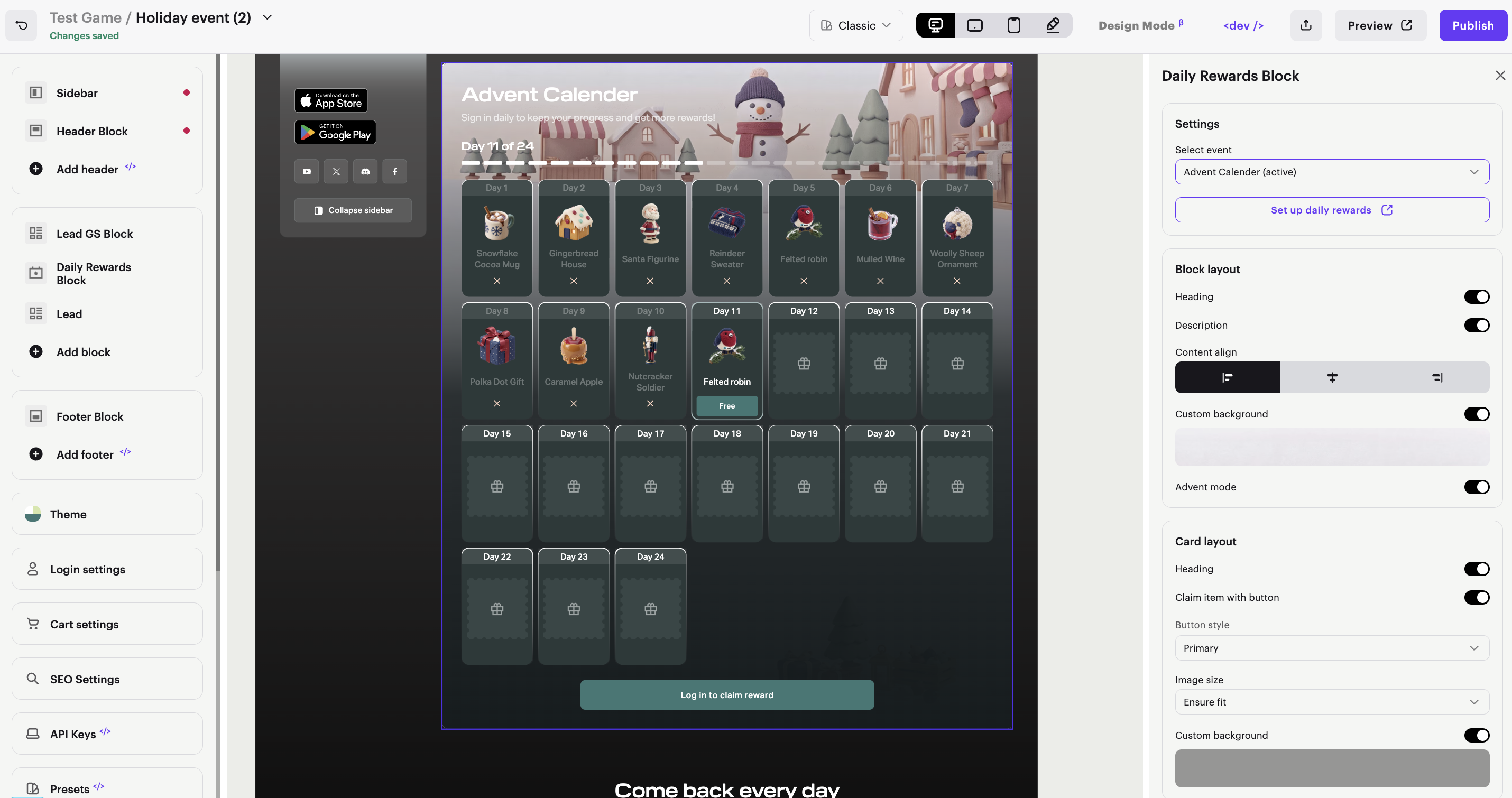
- In the side menu of the builder, select the Daily rewards block.
- In the Settings section, in the Select daily rewards list, select the daily rewards chain.
- In the Block layout section, make sure the Advent mode toggle is on.
- If necessary, customize the block appearance:
- In the Block layout section, show or hide the heading and description, and select the content alignment and background.
- In the Card layout section, show or hide the heading, turn the Claim item with button toggle on or off, and select the image size and background.
Set up the countdown timer
The countdown timer is part of the Lead GS block. It shows users how much time is left until the event ends.
On a page created from the Advent calendar template, the timer is added automatically. On any other page, add it manually. The timer is available in the Lead GS block on all pages, not just on event pages.
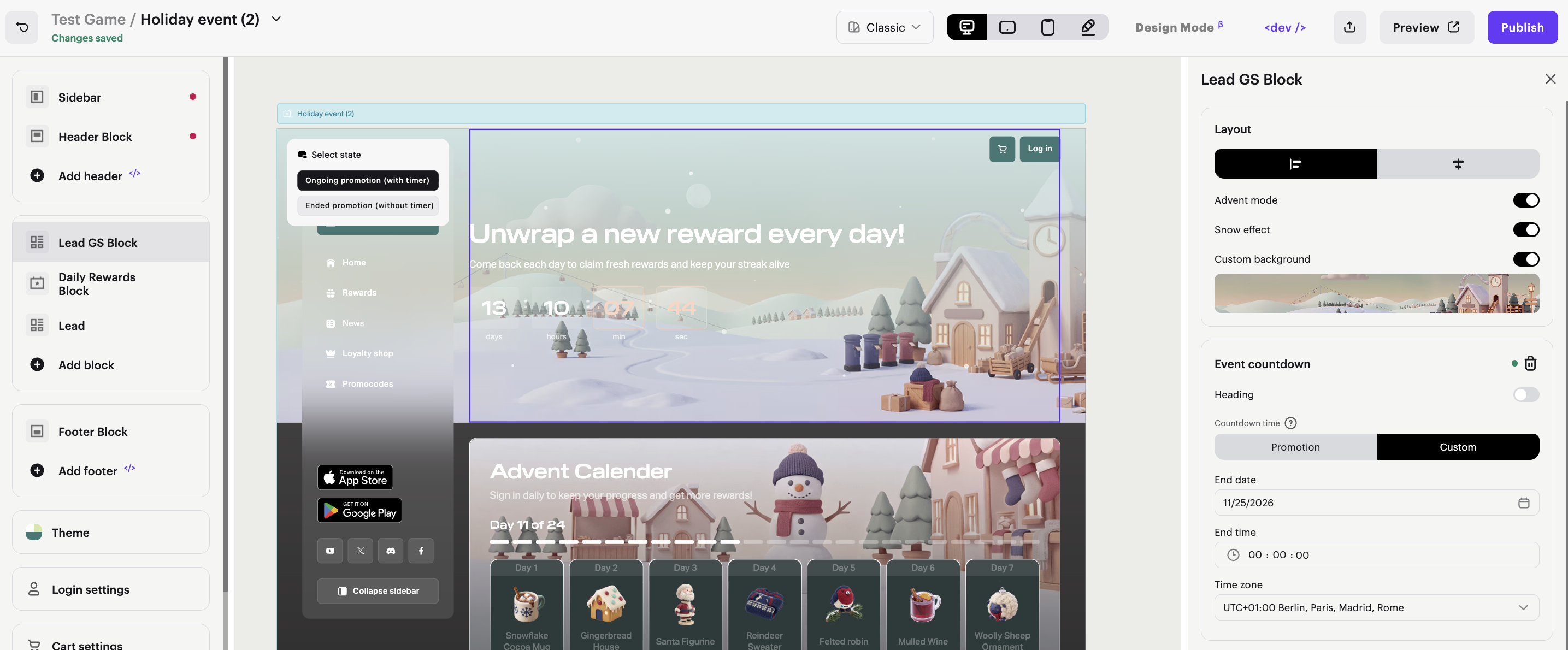
To set up the countdown timer:
- In the side menu of the builder, select the Lead GS block.
- In the Event countdown section, specify the end date, time, and time zone of the event.
- Set up the timer captions and appearance for each state. For example,
Ends infor an active event andThe event has endedfor a finished one. To hide the text above the counter, turn off the Heading toggle in the timer settings.
If necessary, add a falling snow effect to the block background. To do this, in the Layout section, turn on the Advent mode toggle, and then the Snow effect toggle.
Found a typo or other text error? Select the text and press Ctrl+Enter.
