
Daily rewards
How it works
Daily rewards motivate users to log into the store every day to receive free items. You can create the following types of daily rewards:
- Login reward — rewards that unlock sequentially every 24 hours starting from the user’s first login.
- Reward calendar — rewards that unlock at the same set time each day for all users. The reward schedule is global and doesn’t depend on the date a specific user first logs into the store.
- Example: If a user logs into the store for the first time on the day 4 of the promotion, they will see the reward for day 4 of the chain.
The following item types can be used as rewards:
- Virtual items
- Virtual currency
- Virtual currency packages
- Bundles
The following item settings are ignored in daily rewards chains:
- personalization rules
- purchase limits
- scheduled availability (start/end date)
- promotions and discounts
Daily rewards are shown as chains that users can unlock consecutively. You can launch recurring daily reward chains that automatically restart after the final day in the chain is completed.
To ensure the daily rewards system works correctly, user authentication must be enabled.
Unauthenticated users can see the full daily reward chain but are not able to claim any rewards.
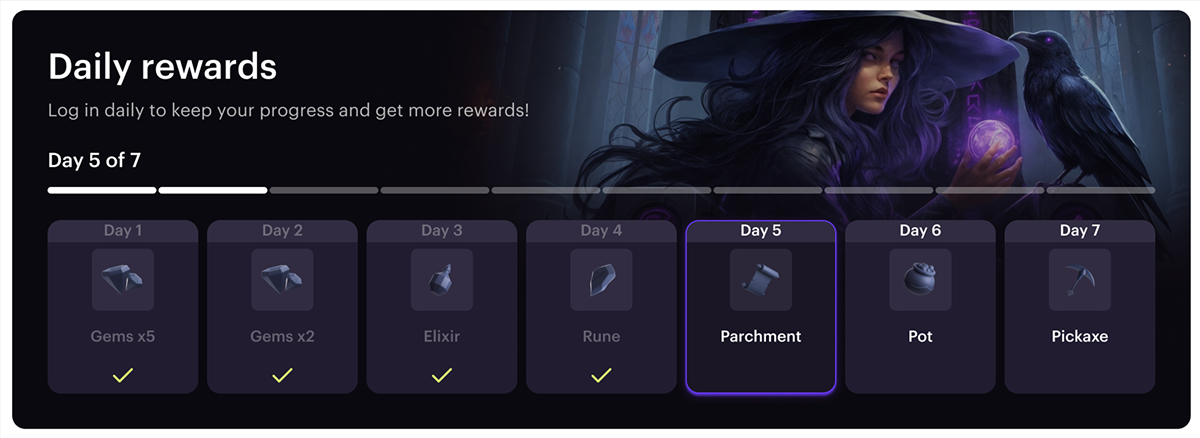
User flow
- The user visits the store.
- The user sees the daily reward chain and the reward available for today’s login.
- The user logs in.
- The user sees their current progress in the daily reward chain.
- The user claims the daily reward.
Set up via Publisher Account
Before creating a daily reward chain, you need to create items that users can get for free upon logging into the store.
To create items manually in your project in Publisher Account, go to the Items catalog > All items section. Detailed information about this and other methods for creating items is available in the Items catalog documentation section.
Create daily rewards
To create daily rewards:
- Open your project in Publisher Account and go to the LiveOps > Daily rewards section.
- Click Create daily rewards.
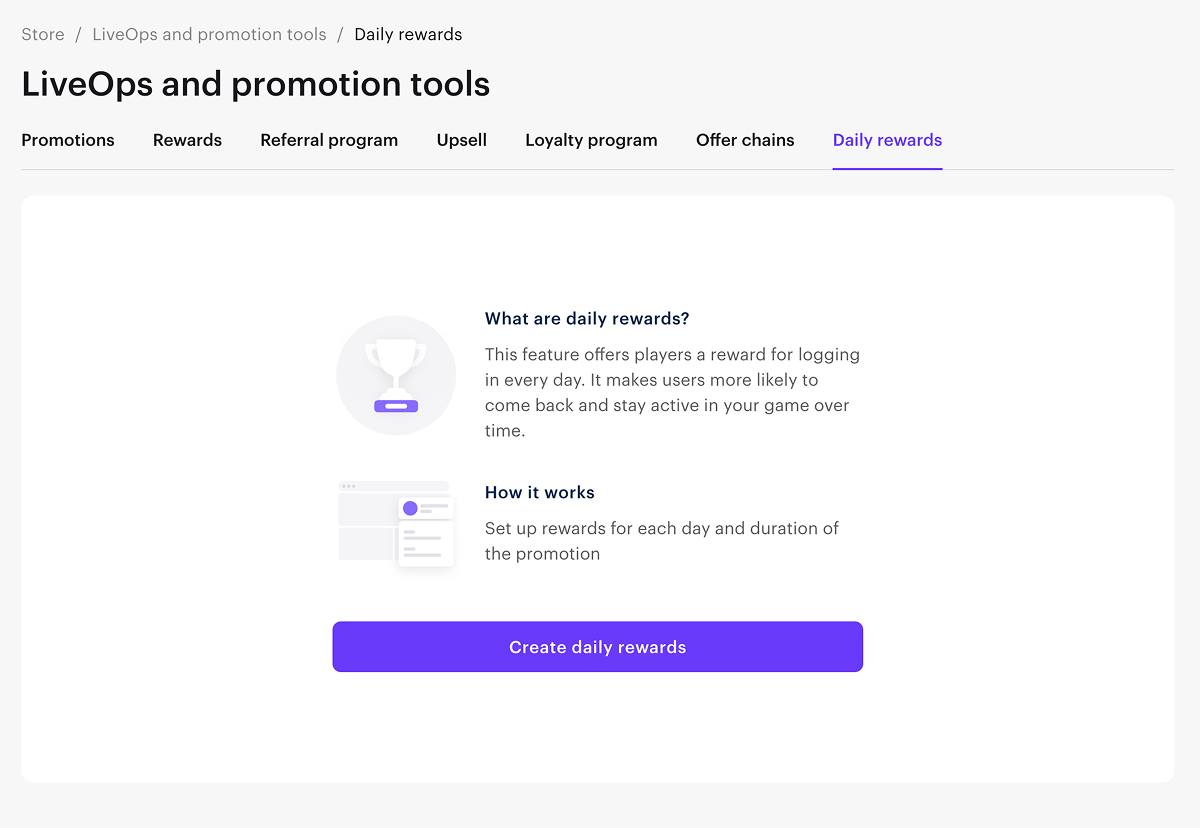
- Specify the following parameters:
- Provide a title for the daily reward chain.
- Enter a description (optionally).
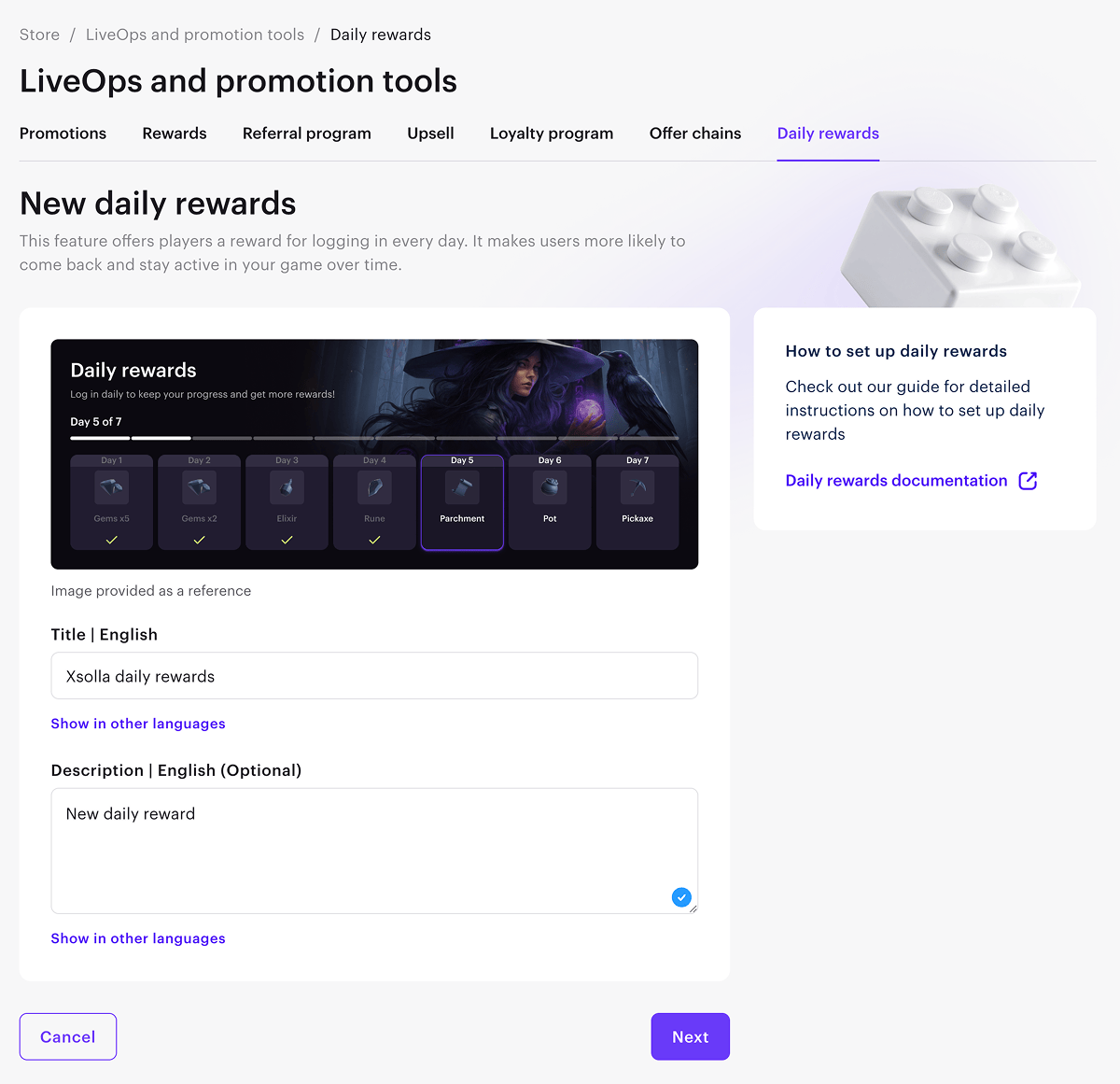
- Click Next.
- Add a reward for the day of the chain. To do this:
- Click Add reward.
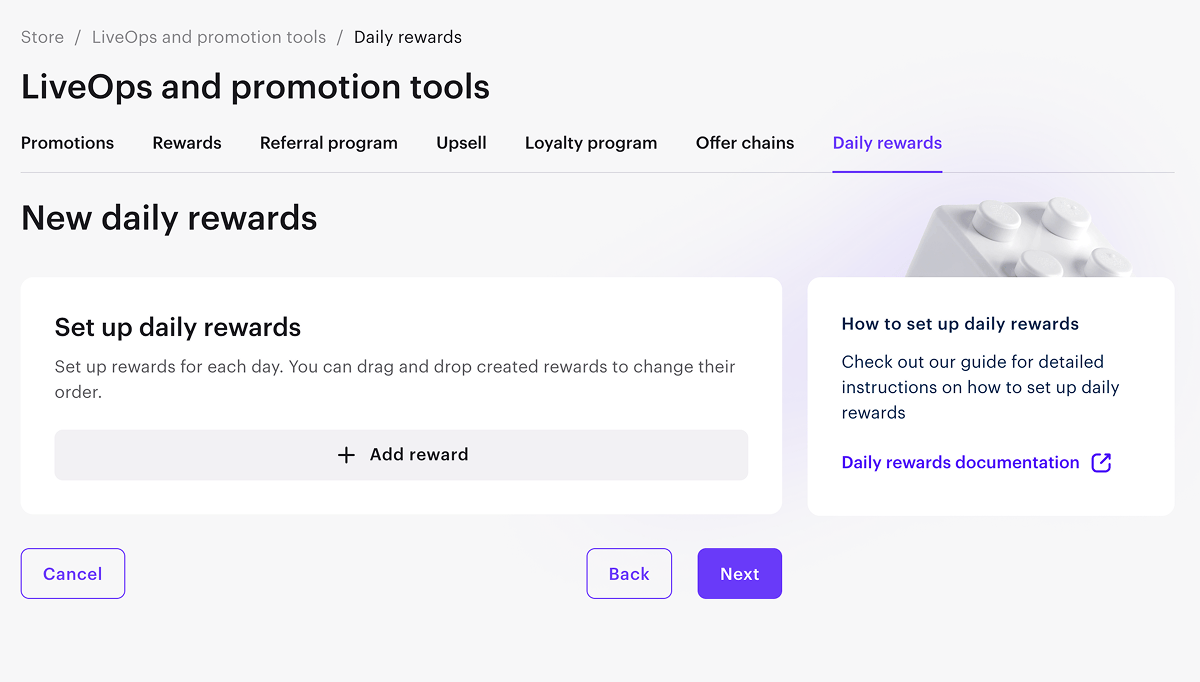
- Select an item, specify the quantity that users receive as a reward for this day, and click Save.
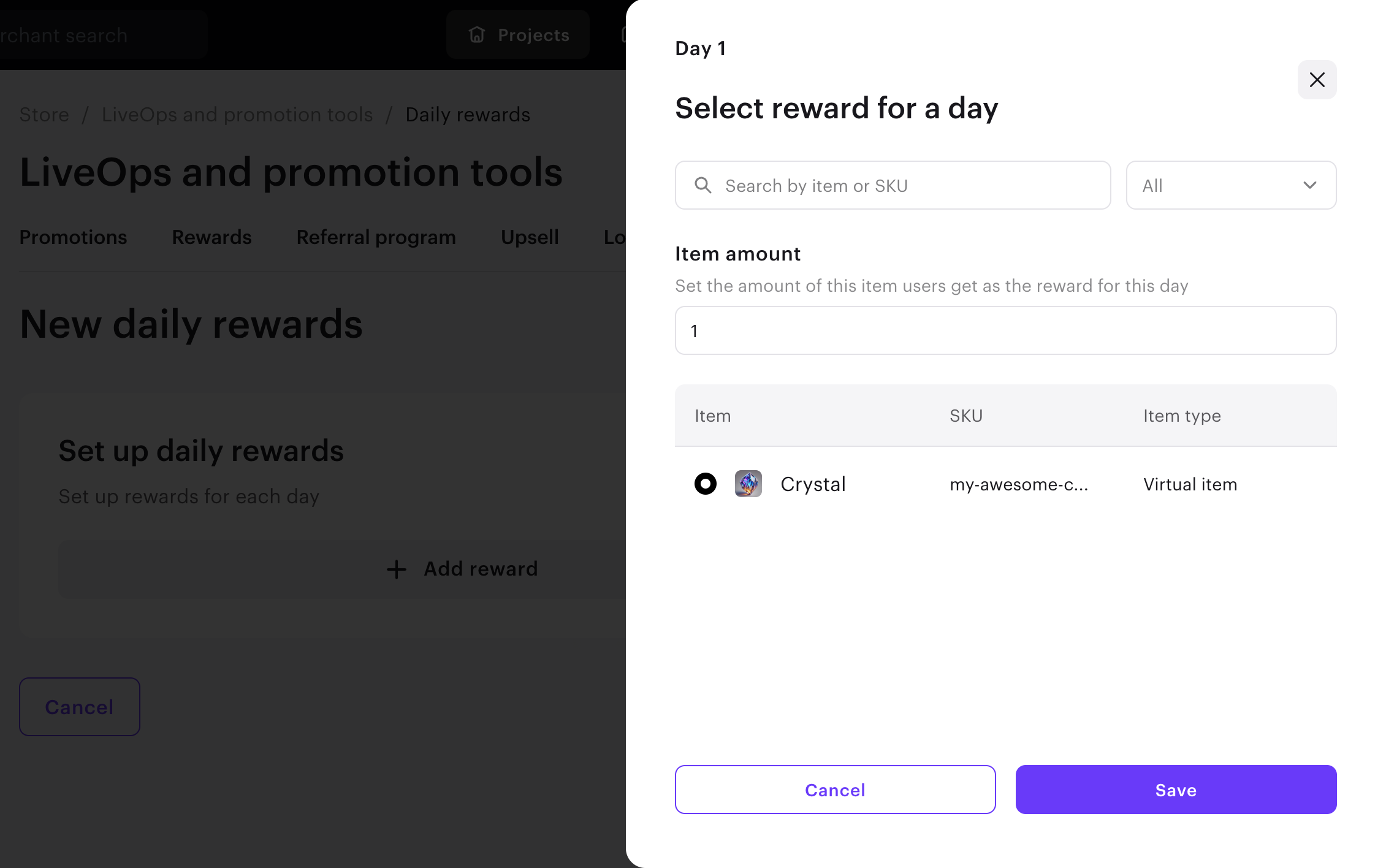
- After you have added rewards for each day, click Next.
- Select the type of daily rewards — Login reward or Reward calendar. Reward type is defined at the creation step and cannot be changed afterward.
- Specify the start date and time for the daily rewards.
- For the Login reward type, you can turn on the Add time limit toggle and specify the end date and time of the promotion.
For the Reward calendar type, the end date is calculated automatically based on the number of days for which rewards are created.
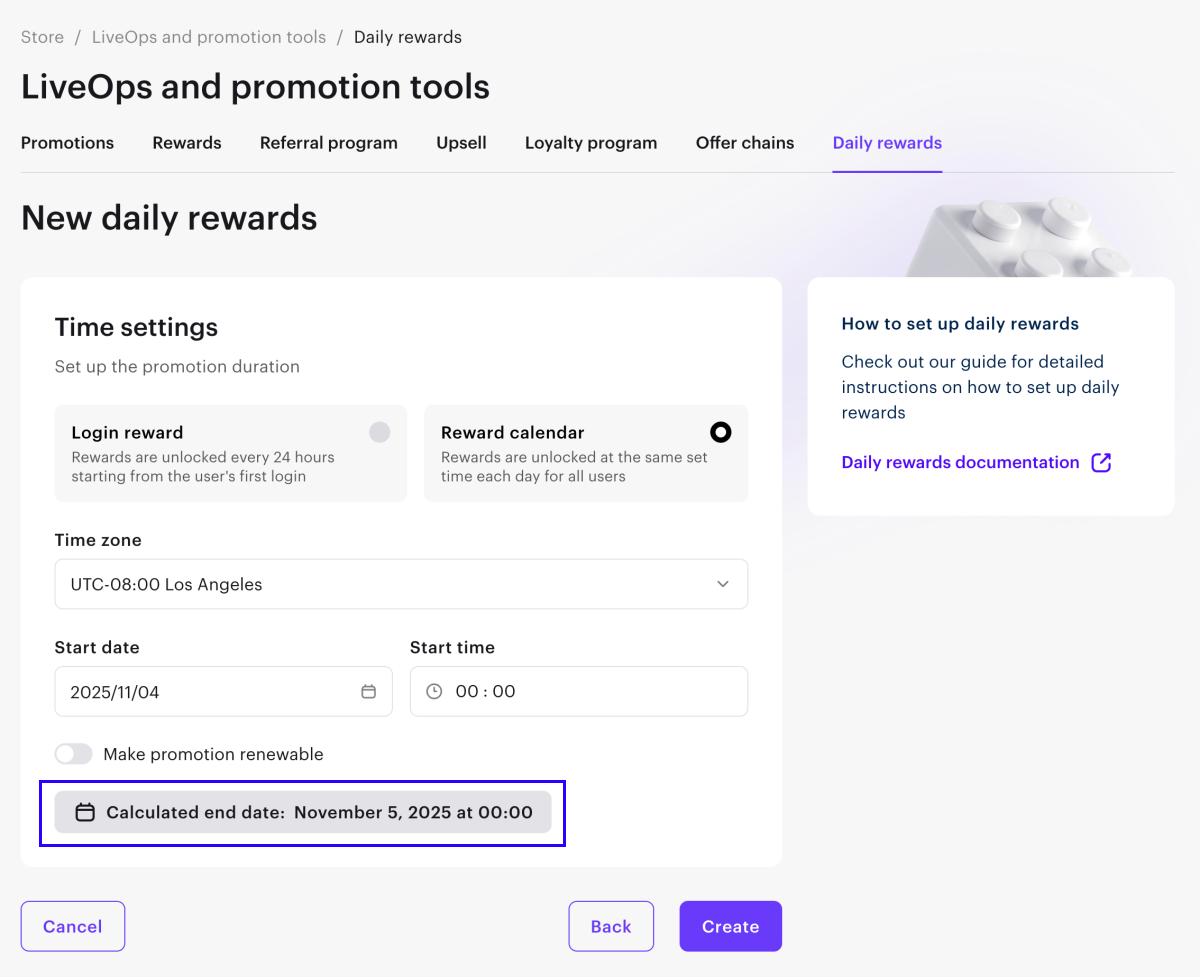
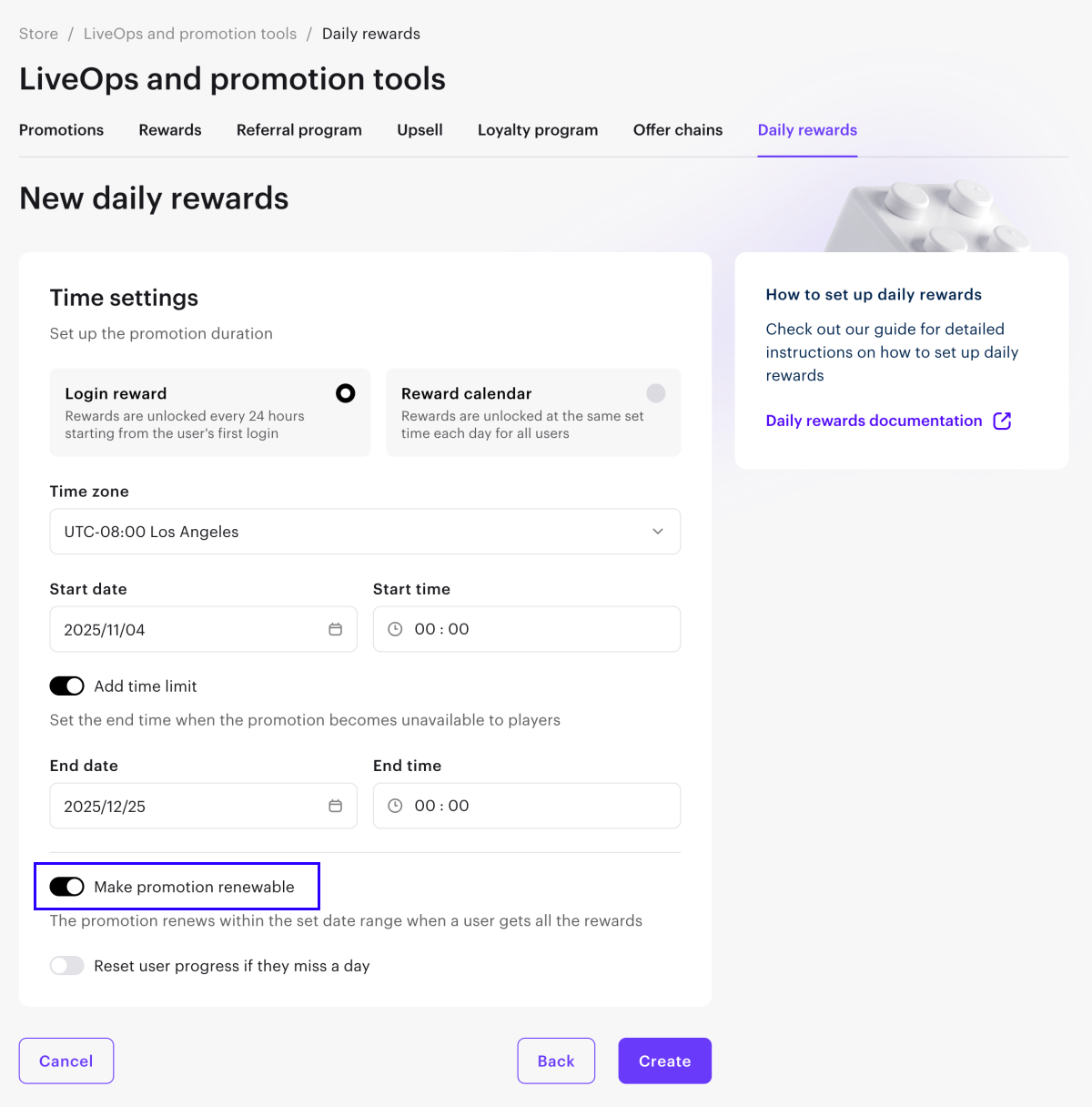
- If you want the daily rewards chain to restart after it ends, turn on the Make promotion renewable toggle.
- The renewal logic depends on the chain type:
- The Login reward chain restarts after the current cycle ends, before the promotion ends.
- Example: A chain of 5 rewards is available from October 1 to October 31. If this setting is enabled, the user will be able to start a new reward cycle after the current one ends (upon earning 5 rewards or resetting the progress). Each new cycle begins with the first reward in the chain. Multiple renewals are possible throughout the promotion period, up to and including October 31.
- The Reward calendar chain, renews for all users with a frequency equal to the length of the reward chain.
- Example: A chain of 5 rewards is available from October 1. If this setting is enabled, the chain will renew for all users every 5 days — October 6, 11, 16, and so on.
- Click Create.
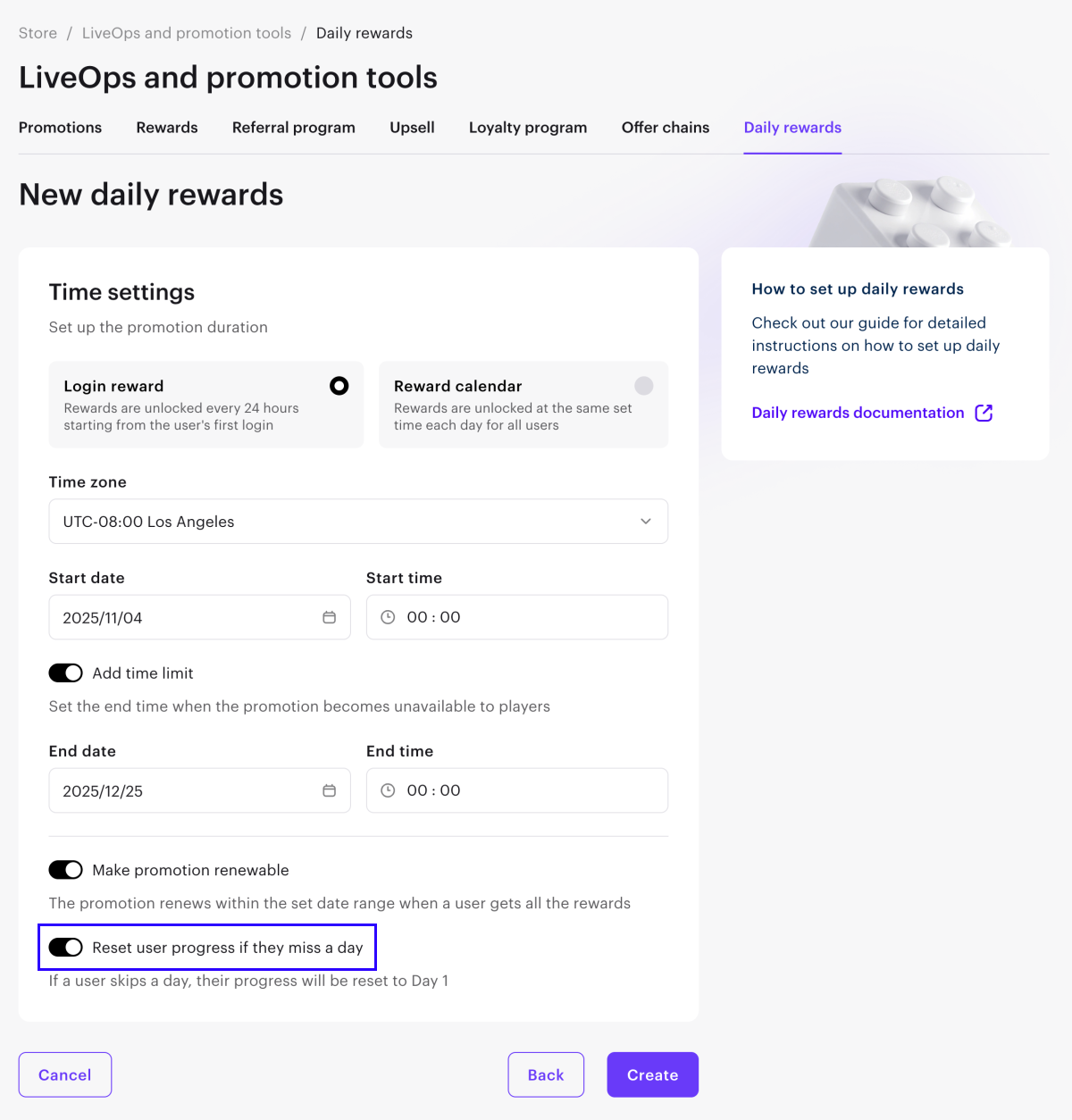
- Example: In a chain of 5 rewards, if the user logs in for 3 days in a row and misses the 4th day, then on day 5:
- The user will receive the first reward in the chain if the reset setting is enabled.
- The user will receive the fourth reward in the chain if the reset setting is disabled.
- Click Create.
- In your project in Publisher Account, go to the LiveOps > Daily rewards section.
- In the row with a daily reward, click ••• and choose Activate in the drop-down list.
Edit daily rewards
You can activate, deactivate, and edit daily rewards. For rewards of the Login reward type, you can also reset the progress of all users in the current daily rewards cycle. To change the settings, click ••• in the daily reward row and select the desired action.
You can’t edit an active daily reward chain. Deactivate it first to make changes.
Editing reward chain type (Login reward or Reward calendar) isn’t available. You can only set this parameter when creating a daily reward.
For Login reward chains, the following changes require a progress reset for all users:
- changing the Make promotion renewable setting
- changing the Reset user progress if they miss a day setting
- adding or removing steps
After reactivation, the chain will restart for all users who logged into the store after the promotion start date, including those who have already earned all rewards.
Changing the title, reward, description, dates, time, or time zones doesn’t require progress reset — users will continue from the day they left off.
For Reward calendar chains, changes don’t require a user progress reset.
Configure via API
To set up and manage daily reward via API, use the following calls from the Admin section in the Daily reward group:
| Task | API call |
|---|---|
| Create daily reward. | Create daily reward. |
| Activate daily reward. | Pass the “is_enabled”: true parameter to the Create daily reward or Update daily reward calls. You can also use the Toggle daily reward call. |
| Update daily reward. | Update daily reward. |
| Deactivate daily reward. | Toggle daily reward. |
| Delete daily reward. | Delete daily reward. |
Display daily rewards in store
Display on website created with Xsolla
To display a daily reward on your site:
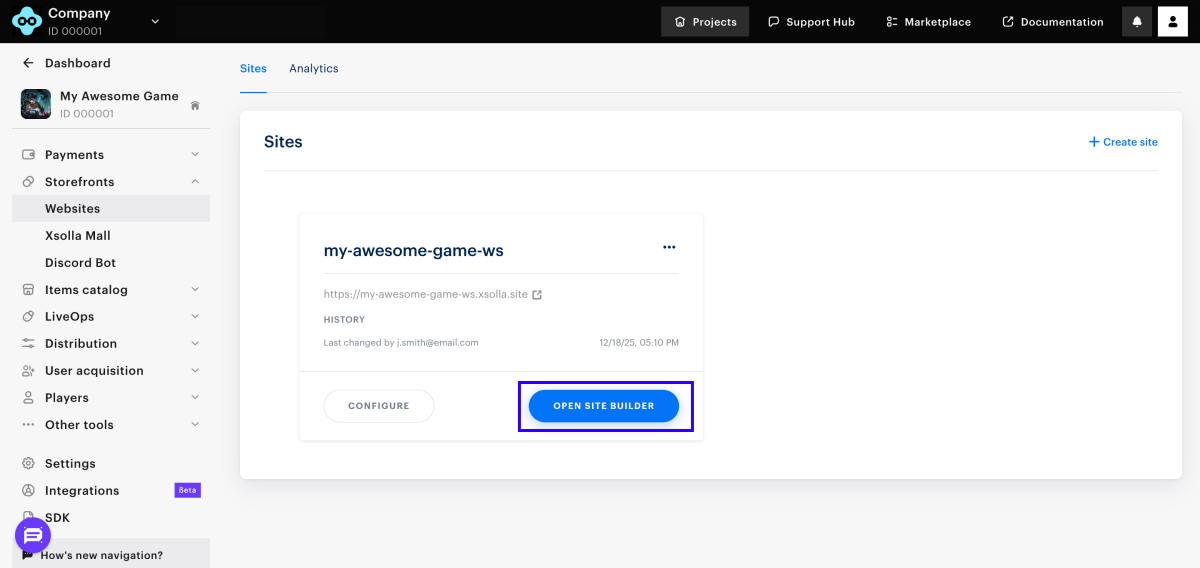
- In your project in Publisher Account, go to the Storefronts > Websites section.
- Select your site and click Open Site Builder.
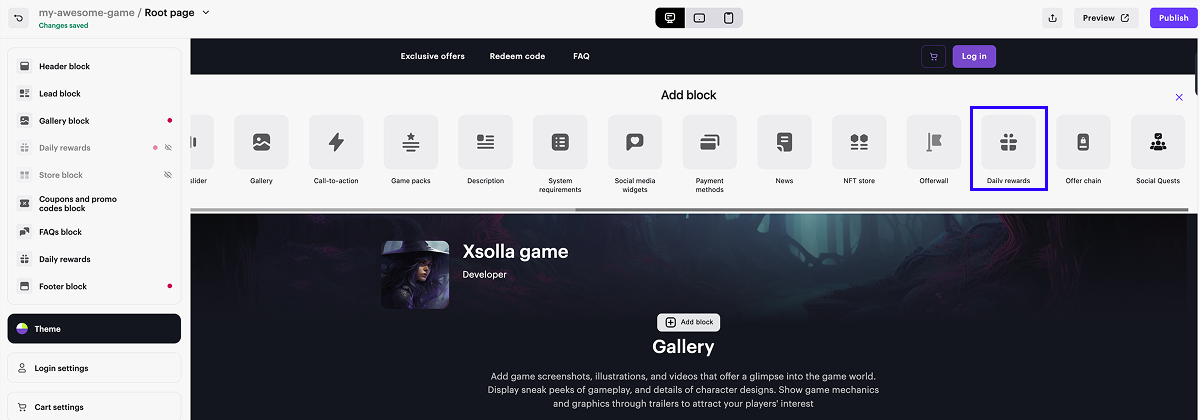
- In the main area of the builder, choose a place where you want to add a new block and click Add block.
- Select the Daily rewards block.
- In the side menu, go to the block settings.
- In the drop-down list, choose the daily reward chain.
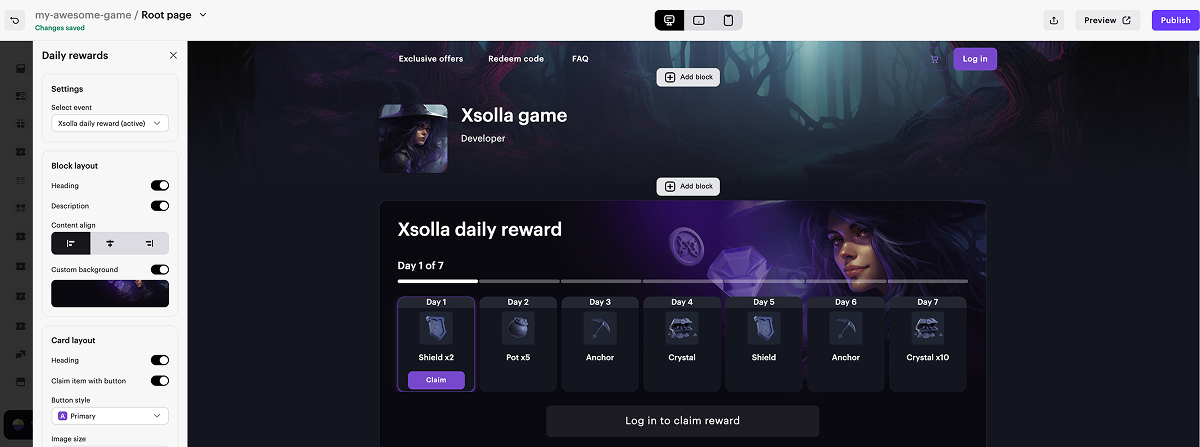
- To preview the daily reward chain, click Preview in the upper-right corner of the builder.
- To apply changes, publish the website:
- In the upper-right corner of the site builder, click Publish.
- Check the boxes next to the pages you want to publish.
- Click Publish.
If site publication is not available, make sure all the conditions are met:
- There are no empty sections in the builder (marked with a red indicator).
- The licensing agreement with Xsolla has been signed.
- The main page is published or selected for publication. You cannot publish child pages before the main page.
Users will not see the daily reward chain until it is activated and its validity period begins.
Daily reward chains with expired dates or chains that have not yet started are displayed in preview mode in the site builder. This mode allows you to view all unpublished changes, including inactive chains.
Display in your own UI
- In your application UI, implement the elements to display daily rewards chain steps.
- Implement the logic to work with chains using the following client-side API calls from the Daily rewards group:
- Ensure that items are correctly granted to the user.
Found a typo or other text error? Select the text and press Ctrl+Enter.
