Push notifications
How it works
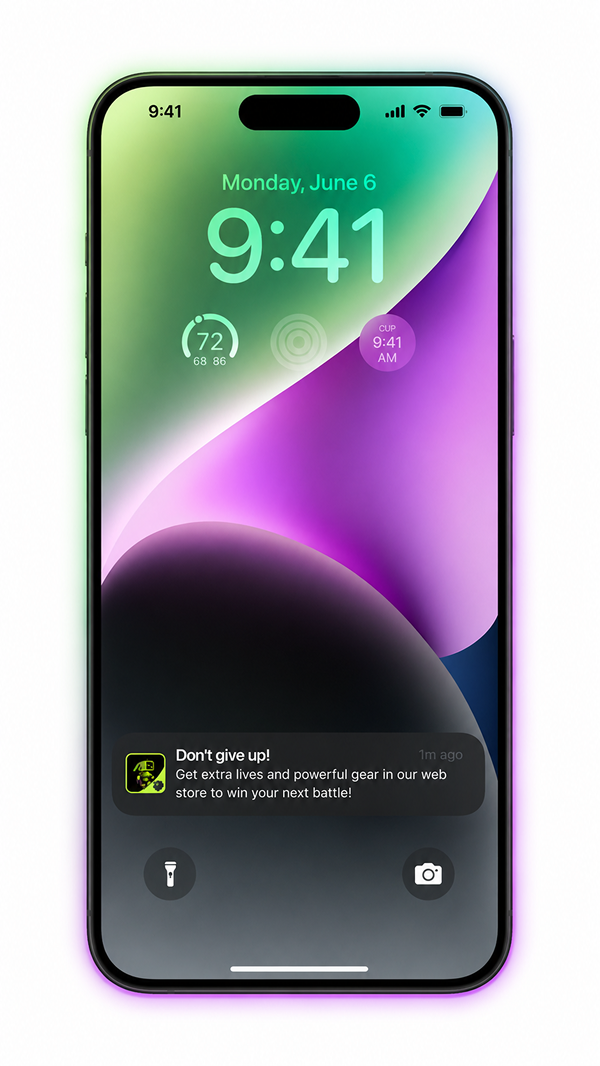
In Web Shop, you can set up push notifications — personal or bulk messages that users receive directly in their browser. Push notifications let you inform users about new items, promotions, and special offers.
To send a notification to a user — for example, after they lose a battle or run out of resources — call the Xsolla API for sending notifications on the game server side.
After clicking the notification, the user goes to the Web Shop, where they can purchase the items they need.
Push notifications are configured in the Xsolla site builder and work only for published Web Shops.
Xsolla doesn’t track in-game events. You define when the game server makes the API call to send a notification, for example:
| In-game event | Push notification text |
|---|---|
| First login of the day, week, or month. | Welcome back! Check the Web Shop for your gift. |
| Losing a battle. | Don’t give up! Buy power-ups for your hero and get your revenge! |
| Running out of energy or currency. | Out of energy? Top it up in the Web Shop and keep playing! |
| New content unlocked. | New level unlocked! Buy power-ups in the Web Shop to beat it more easily. |
| Several failed attempts in a row. | Tough boss? A weapon bundle to help you win is waiting in the Web Shop. |
Interaction flow
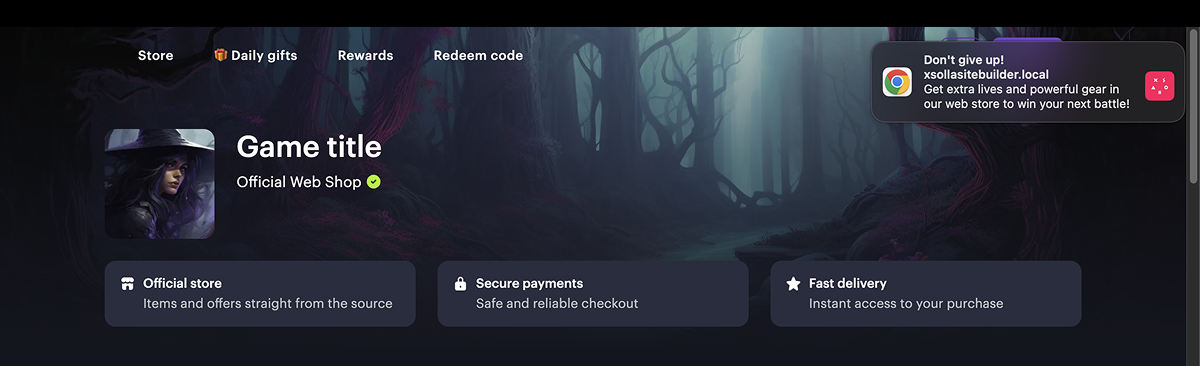
- The user opens the Web Shop in a browser or via an installed PWA and sees a banner offering to subscribe to notifications.
- The user clicks Subscribe and allows notifications in the browser’s system prompt.
Subscription logic with the Auto-request permission option enabled
If the Auto-request permission option is enabled in the site settings, the Web Shop requests permission to send notifications when opened, without displaying the subscription banner. If the user has already granted permission before, the subscription is completed automatically. If the request fails (for example, the browser blocked it or the user denied permission), the subscription banner is displayed.
    flowchart LR
      A[User opens Web Shop] --> B{Permission already granted?}
      B -- Yes --> C[Automatic subscription]
      B -- No --> D{Can the browser show the system prompt?}
      D -- Yes --> E[System prompt]
      D -- No --> F[Subscribe banner]
      F --> E
      E -- Allow --> G[Subscribed]
      E -- Block --> H[Not subscribed]
The Web Shop registers the user as a subscriber in the Xsolla system. The subscription is linked to the browser or the installed PWA on the user’s device. The notifications you can send to the user depend on their authorization status:
- If the user is logged in to the Web Shop, their ID is linked to the subscription — you can send personal notifications to this user.
- If the user is not logged in, you can only send them bulk notifications; after the user logs in, the subscription is automatically linked to their user ID.
The game server makes the Xsolla API call to send notifications.
The user receives the push notification.
The user clicks the notification and goes to the Web Shop — to the page specified in the
data.urlparameter, or to the main page if the parameter isn’t passed. If the user has an active session in the Web Shop, they remain logged in.
  sequenceDiagram
    participant U as User
    participant WS as Web Shop
    participant G as Game
    participant X as Xsolla
    note over U,X: Subscription
    U->>WS: Opens the site / PWA
    WS->>U: Displays the subscription banner
    U->>WS: Subscribes and allows notifications
    WS->>X: Registers the subscriber (User ID, browser / PWA)
    X-->>WS: Confirms the subscription
    note over U,X: Sending a notification
    G->>X: Calls POST /messages/push/send
    X-->>G: Returns message_id
    X->>U: Sends the push notification
    U->>WS: Clicks the notification, follows data.url
    WS->>U: Displays store offers
How to get it
- Open your project in Publisher Account and go to the Storefronts > Websites section.
- In the pane of the desired site, click Open Site Builder.
- Open your project in the account and go to the Web Shop section.
- Click the pane of the desired site.
- Open your project in the account and go to the Storefronts > Websites section.
- Click the pane of the desired site.
- Open your project in the account and go to the Storefronts > Websites section.
- Click the pane of the desired site.
- Open your project in the account and go to the Storefronts > Websites section.
- Click the pane of the desired site.
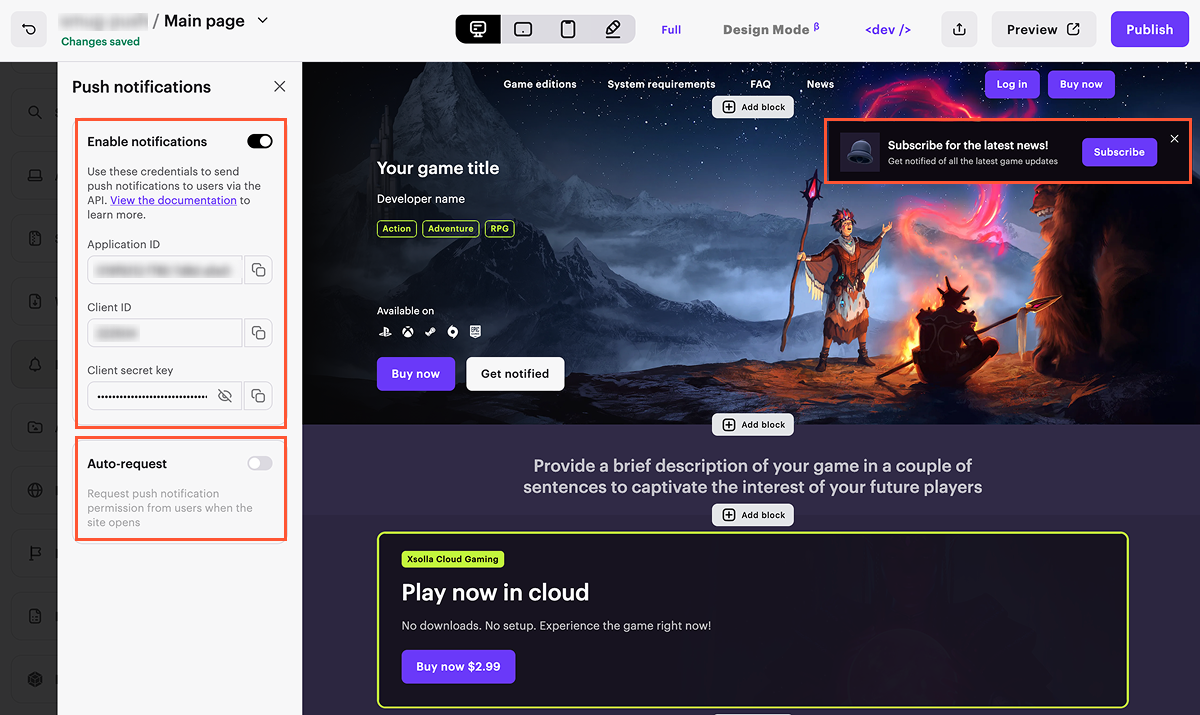
- Go to the Push notifications section.
- Turn on the Enable notifications toggle.
- Copy the values from the Application ID, Client ID, and Client secret key fields — you will need them to send API requests from the game server. The parameters are created once, when the Enable notifications toggle is turned on for the first time, and are used for the entire project: if there are several sites in the project, the same values are used for all of them.
- Set up the subscription banner if needed: change the title, description, icon, and button text.
- To have the site automatically request the user’s permission to send push notifications when opened, turn on the Auto-request permission toggle (optional). If the toggle is off, permission is requested only after the user clicks the Subscribe button.
- To apply the changes, publish the site.
- On the game server, implement the push notification sending logic. The game server must make the API call for sending notifications and pass the user ID in the request.
Sending notifications
Xsolla doesn’t send notifications automatically — the sending is always initiated by your game server via the API call.
Base URL: https://messaging-platform.xsolla.com
Authentication
Requests are authenticated via the OAuth 2.0 protocol. Get a server JWT using the Generate JWT API call, passing the following parameters:
grant_type— JWT grant type, pass theclient_credentialsvalueclient_id— the Client ID field value from the Push notifications section settingsclient_secret— the Client secret key field value from the Push notifications section settings
Pass the received token in the Authorization: Bearer <token> header.
Send notification to user
Sends a personal push notification to a user by their ID. The notification is delivered to all browsers and installed PWAs where the user has subscribed to notifications.
HTTP request
POST https://messaging-platform.xsolla.com/api/v1/messages/push/send
Request headers
| Header | Required | Description |
|---|---|---|
| Authorization | Yes | Bearer <token> |
| Idempotency-Key | Yes | Unique request key. Protects against sending the same notification more than once. |
| Content-Type | Yes | application/json |
Request parameters
| Parameter | Type | Description |
|---|---|---|
app_id | string | Application ID on the Xsolla side, from the Push notifications section settings. Required. |
identity | object | Notification recipient data. |
external_user_id | string | User ID. Required. |
title | string | Notification title. Required. |
body | string | Notification text. Required. |
image_url | string | URL of the image displayed in the notification. |
data | object | Additional notification data. |
url | string | URL of the page that opens when the user clicks the notification. If the parameter isn’t passed, the Web Shop main page opens. |
Response parameters
| Parameter | Type | Description |
|---|---|---|
message_ids | array of strings | List of sent message IDs in UUID format — one for each browser or installed PWA where the user is subscribed to notifications. |
Example request
- json
 1{
 2  "notification_type": "user_validation",
 3  "settings": {
 4    "project_id": 123456,
 5    "merchant_id": 789012
 6  },
 7  "user": {
 8    "id": "11111111-1111-1111-1111-111111111111"
 9  }
10}
Example response
- json
1{
2  "message_ids": [
3"aa8ef5c2-front-4a3b-9d2e-example00001",
4"bb9fa6d3-front-4b4c-8e3f-example00002"
5    ]
6}
Send notification to all users
Sends a push notification to all or selected subscribed users. The notification is delivered to all browsers and installed PWAs where the user has subscribed to notifications.
HTTP request
POST https://messaging-platform.xsolla.com/api/v2/messages/push/send_batch
Request headers
| Header | Required | Description |
|---|---|---|
| Authorization | Yes | Bearer <token> |
| Idempotency-Key | Yes | Unique request key. Protects against sending the same notification more than once. |
| Content-Type | Yes | application/json |
Request parameters
| Parameter | Type | Description |
|---|---|---|
app_id | string | Application ID on the Xsolla side, from the Push notifications section settings. Required. |
recipients | object | Defines the notification recipients. |
type | string | Recipient type. Possible values: all — all subscribers; external_user_id — selected users. |
external_user_id | array of strings | Array of user IDs. Pass it if the type parameter is set to external_user_id. Required. |
title | string | Notification title. Required. |
body | string | Notification text. Required. |
image_url | string | URL of the image displayed in the notification. |
data | object | Additional notification data. |
url | string | URL of the page that opens when the user clicks the notification. If the parameter isn’t passed, the Web Shop main page opens. |
Response parameters
Example request
Example response
Found a typo or other text error? Select the text and press Ctrl+Enter.
