First Login Reward via PWA
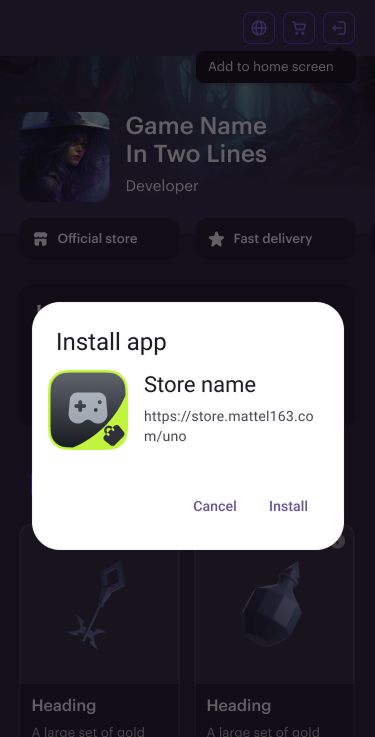
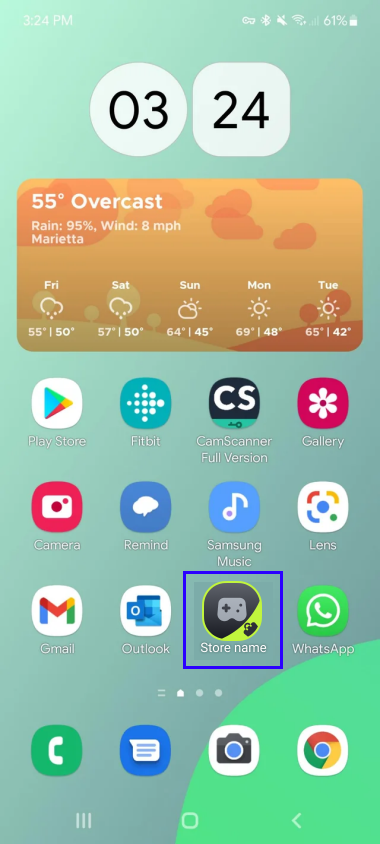
The first login reward feature allows you grant users a one-time reward when they log in via an installed Progressive Web Application (PWA) version of your Web Shop. This feature is configured in Site Builder and works only in published Web Shops with PWA installation enabled.
User flow
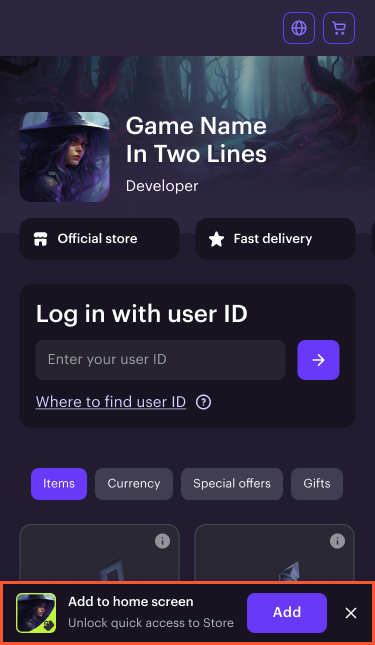
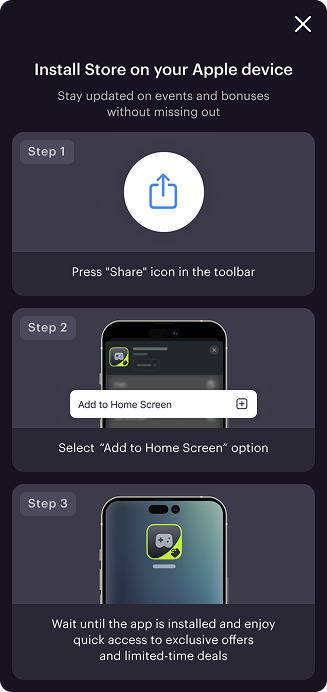
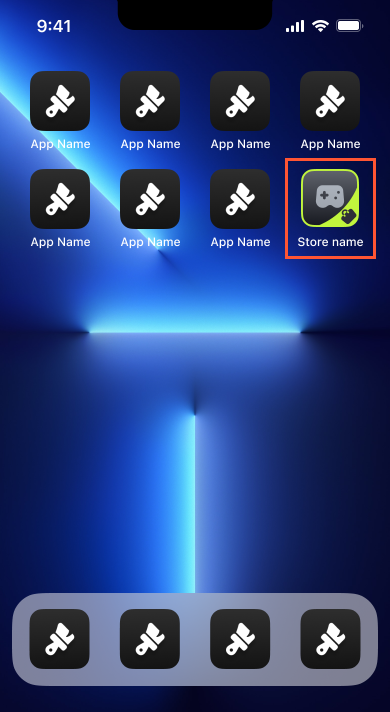
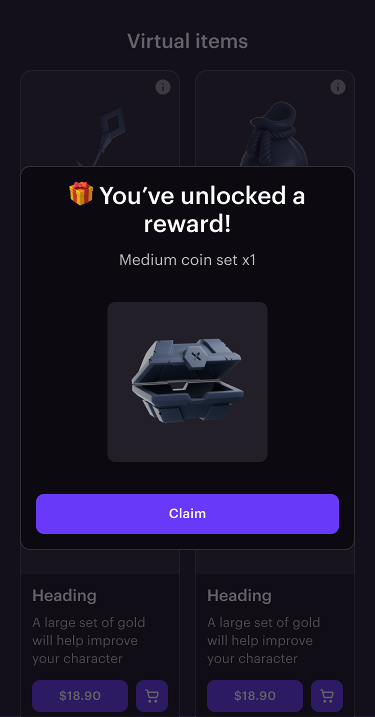
Requirements
- PWA installation must be enabled on your website.
- To be available for selection as a reward in Site Builder, the item must meet the following conditions:
- Marked as free.
- Limited to 1 per user:
- The Limits for single user toggle is set to active.
- The Number of times item can be bought field is set to 1.
- Has Available status in the Items catalog.
- PWA installation must be enabled on your website.
- To be available for selection as a reward in Site Builder, the item must meet the following conditions:
- Marked as free.
- Limited to 1 per user:
- The Limits for single user toggle is set to active.
- The Number of times item can be bought field is set to 1.
- Has Available status in the Items catalog.
- PWA installation must be enabled on your website.
- To be available for selection as a reward in Site Builder, the item must meet the following conditions:
- Marked as free.
- Limited to 1 per user:
- The Limits for single user toggle is set to active.
- The Number of times item can be bought field is set to 1.
- Has Available status in the Items catalog.
- PWA installation must be enabled on your website.
- To be available for selection as a reward in Site Builder, the item must meet the following conditions:
- Marked as free.
- Limited to 1 per user:
- The Limits for single user toggle is set to active.
- The Number of times item can be bought field is set to 1.
- Has Available status in the Items catalog.
- PWA installation must be enabled on your website.
- To be available for selection as a reward in site builder, the item must meet the following conditions:
1 is passed in the quantity parameter in the Catalog personalization on partner side webhook response. Per-user quantity tracking must be implemented on the game side.How to set up
Only free items with a limit of 1 per user are available for selection in Site Builder.
Supported reward types: virtual items, virtual currency packages, and bundles.
Open your project in Publisher Account and go to the Storefronts > Websites section.
In the pane of your Web Shop site, click Open Site Builder.
Open the project in your account and go to the Storefronts > Websites section.
In the pane of your Web Shop site, click Open Site Builder.
Open the project in your account and go to the Storefronts > Websites section.
In the pane of your Web Shop site, click Open Site Builder.
Open the project in your account and go to the Storefronts > Websites section.
In the pane of your Web Shop site, click Open Site Builder.
- Open your project in the account for mobile games and go to the Web Shop section.
- Click the pane of your site.
- Go to Web App settings.
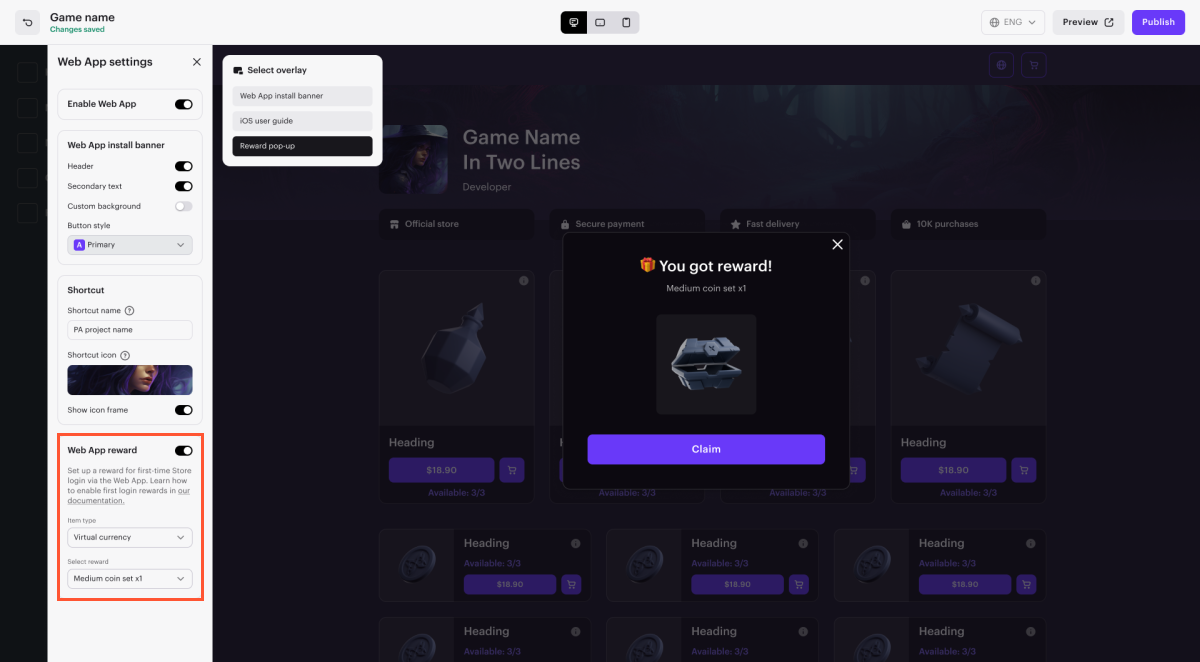
- Set the Web App reward toggle to active and select the item from the list.
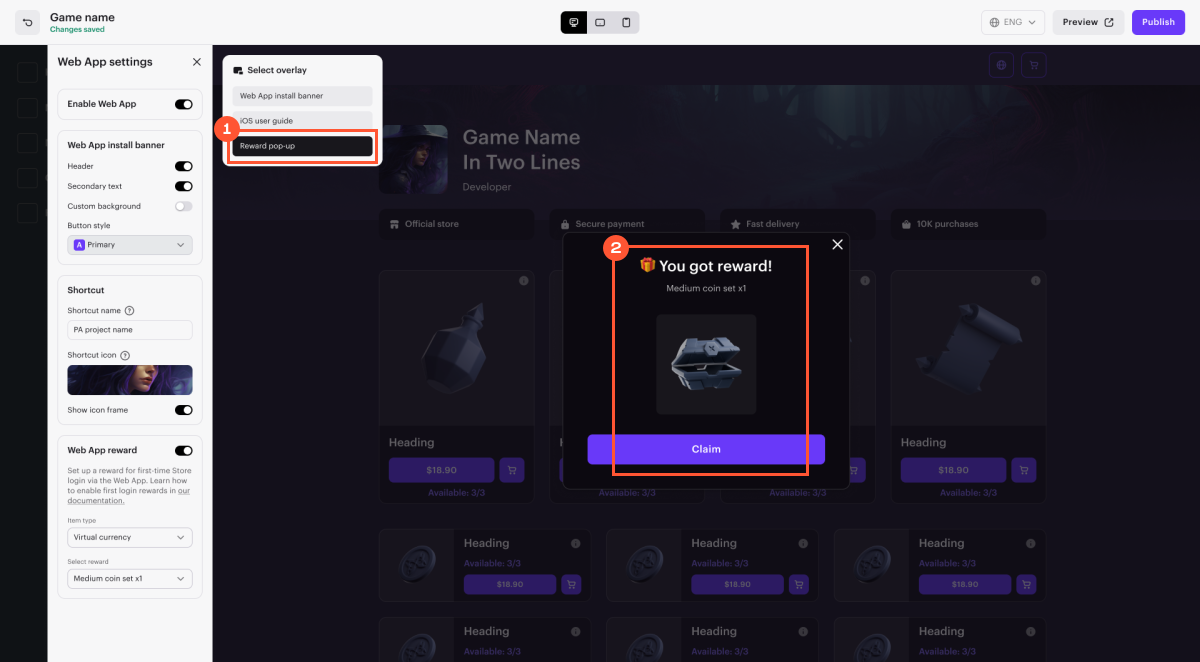
- Configure the reward pop-up. In the Select overlay menu, choose Reward pop-up, and if needed, edit the title, description, and button text.
- To apply changes, publish your site.
Found a typo or other text error? Select the text and press Ctrl+Enter.
