Discount promo codes
How It Works
You can allow creators to share discount promo codes with their audience for game purchases. Once creators confirm their participation in a campaign, they can generate an unlimited number of promo codes.
Within a campaign, you can set a fixed discount for promo codes or allow creators to choose the discount amount within a specified range.
How to set up
How to set up promo codes in campaign
To allow creators to provide discounts to their audience:
- In your project in Publisher Account, go to the User acquisition > Creator marketing > Campaigns section.
- In the project in your account, go to the User acquisition > Creator marketing > Campaigns section.
- In the project in your account, go to the User acquisition > Creator marketing > Campaigns section.
- In the project in your account, go to the User acquisition > Creator marketing > Campaigns section.
- In the project in your account for mobile games, go to the Other tools > Creators marketing > Campaigns section.
- Create campaign or select an existing one. To edit, click ⋯ next to campaign and select Edit campaign.
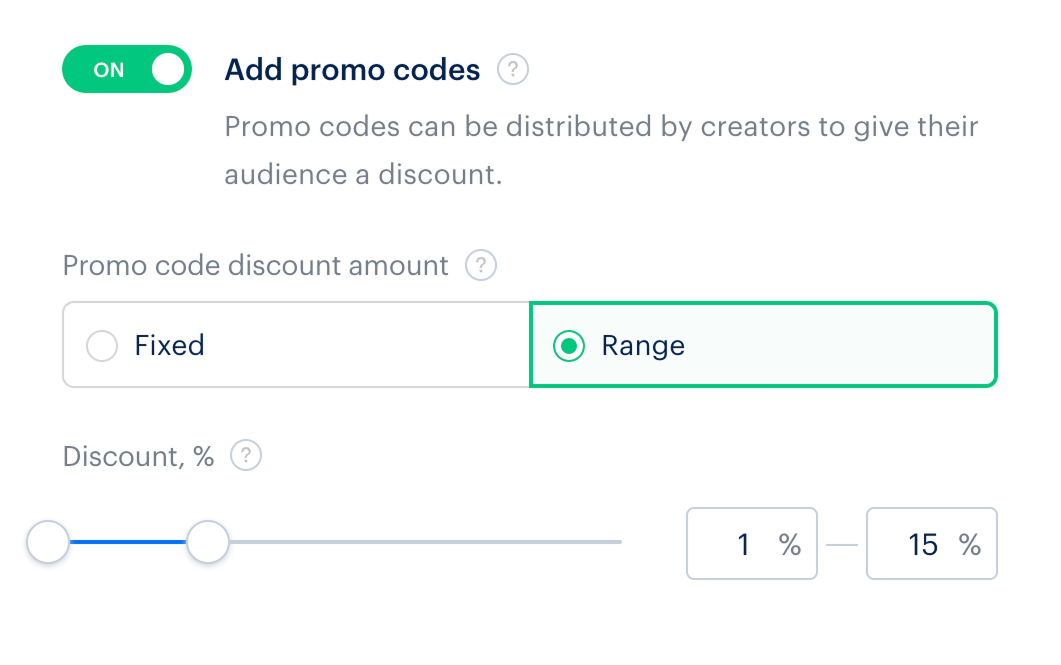
- In the Campaign details section, turn on the Add promo codes toggle and select the discount amount:
- Fixed — enter the discount percentage. The discount must not exceed the revenue share percentage set in the Revenue share section.
- Range — enter the range within which content creators can set the discount. The discount must not exceed the revenue share percentage set in the Revenue share section.
Creator-generated promo codes
After confirming participation in a campaign, a creator can generate promo codes, set the discount amount, view the list of created promo codes, and share them with their audience.
The first promo code is created automatically when you confirm the creator’s participation in the campaign. To create an additional promo code, the creator must complete the following steps:
- Go to Creator Account and select a campaign.
- On the Promotional tools tab in the Promo code generator section click Create new.
- Create a promo code based on the campaign settings:
- If the campaign uses fixed promo codes, the following steps are required:
- Enter the promo code value. The promo code can contain only uppercase Latin letters and numbers.
- Click Create.
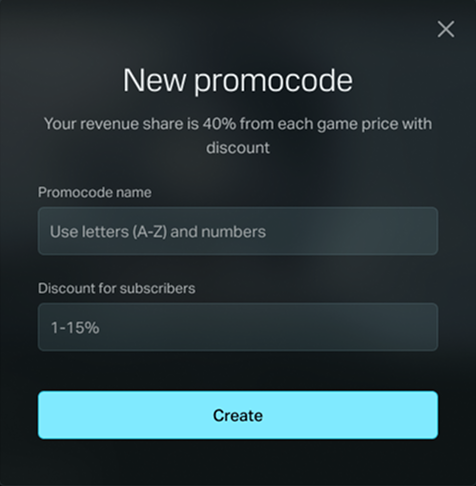
- If the campaign uses a range that allows creators to provide discounts, the following steps are required:
- Enter the promo code value. The promo code can contain only uppercase Latin letters and numbers.
- Enter a discount percentage within the specified range.
- Click Create.
- If the campaign uses fixed promo codes, the following steps are required:
Found a typo or other text error? Select the text and press Ctrl+Enter.
