How to edit active campaigns
You can update the settings of an active campaign, for example, upload additional game keys, prolong the campaign, or update items for creators’ storefronts.
To edit an active campaign:
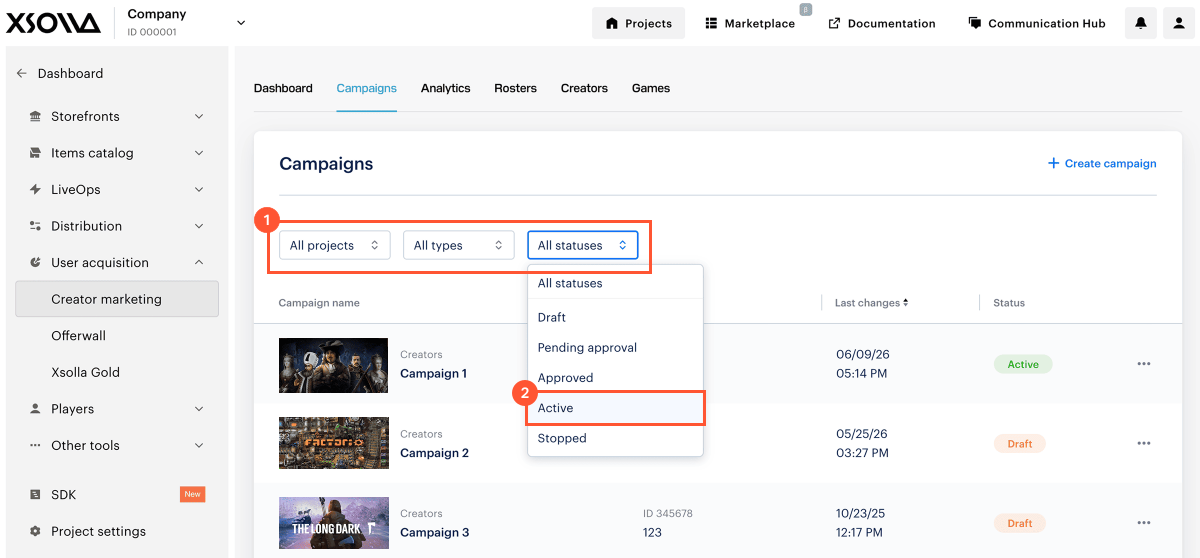
- In your project in Publisher Account, go to the User acquisition > Creator marketing > Campaigns section.
- In the project in your account, go to the User acquisition > Creator marketing > Campaigns section.
- In the project in your account, go to the User acquisition > Creator marketing > Campaigns section.
- In the project in your account, go to the User acquisition > Creator marketing > Campaigns section.
- In the project in your account for mobile games, go to the Other tools > Creators marketing > Campaigns section.
- If needed, filter campaigns by the Active status.
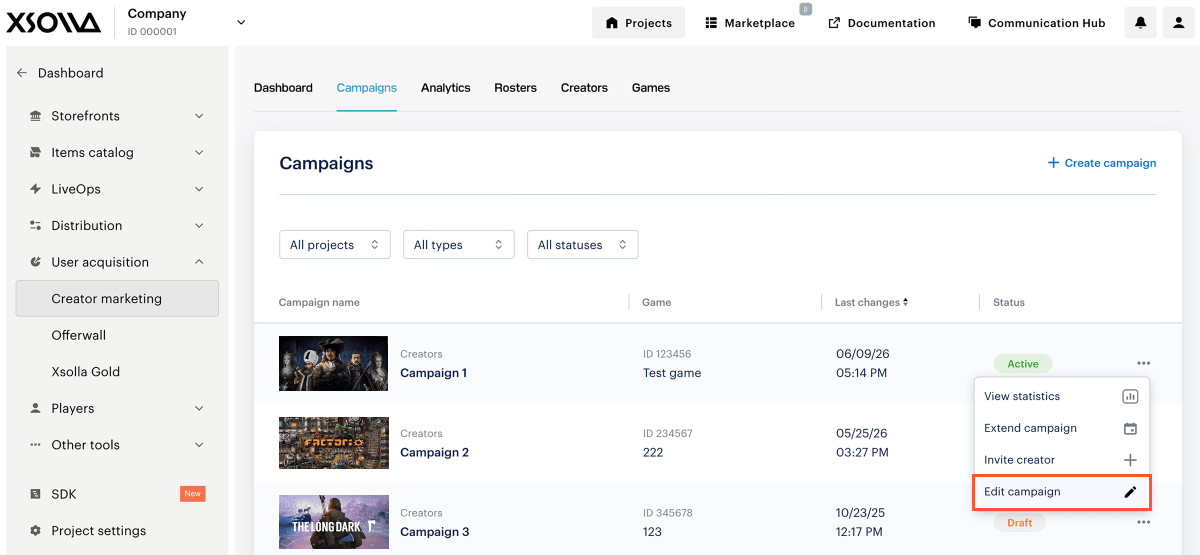
- In the row of the campaign you want to update, click ••• and select Edit campaign.
- Go to the tab with the settings you want to update:
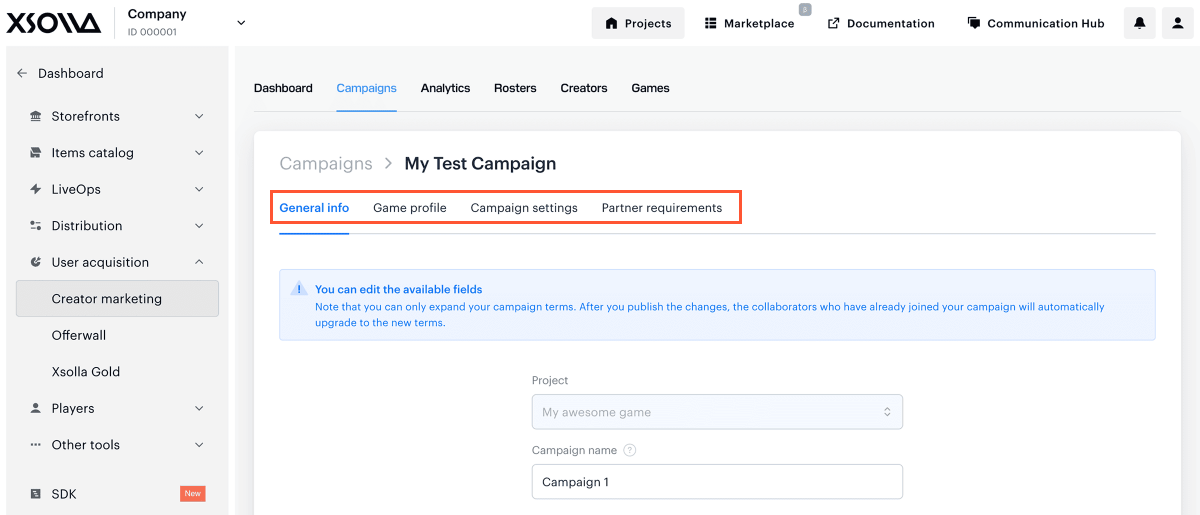
- General info — to change the campaign name.
- Game profile — to update game details, such as the title, cover image, genre, or description.
- Campaign settings — to:
- change the participation period
- increase the revenue share percentage
- extend the revenue share end date and time
Note
To decrease the revenue share percentage or shorten the revenue share period, contact your Customer Success Manager ([email protected]) or reach out to our support team ([email protected]).
- update game keys distribution settings, including uploading additional game keys
- update promo codes settings
- update special terms
- Partner requirements — to update:
- minimum audience requirements for creators' channels
- the allowlist — creators included in this list can join the campaign regardless of the audience size requirements
- private campaign settings — the campaign will be hidden from the public campaign list and available only to creators from selected rosters
- the blocklist — creators included in this list won't be able to join the campaign
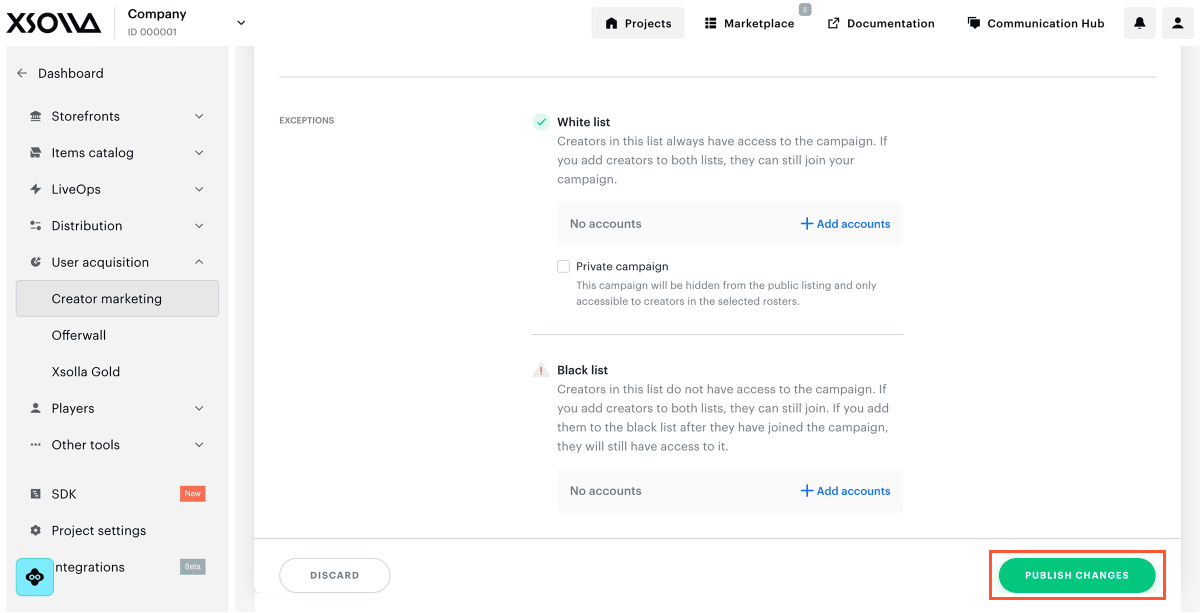
- After updating the required settings, click Publish changes. You will see a success message. If necessary, go to another tab to update the remaining settings.
Was this article helpful?
Thank you for your feedback!
We’ll review your message and use it to help us improve your experience.Found a typo or other text error? Select the text and press Ctrl+Enter.
