How to find and invite creator to campaign
If you want particular creators to promote your game, invite them to your campaign in Partner Network. You can invite both creators from the Xsolla list and those who aren’t on it.
- Via your campaign in Publisher Account. Use this option to invite a specific creator you’re already working with or following.
- Via your campaign in the account. Use this option to invite a specific creator you’re already working with or following.
- Using the list of creators provided by Xsolla. Use this option to invite a creator who is an Xsolla partner and meets your campaign criteria.
- Through game statistics in your Publisher Account. Use this option when you’re looking for a creator for a specific game or genre.
- Through game statistics in your account. Use this option when you’re looking for a creator for a specific game or genre.
- Which creator have already accepted. To do this, go to the Creators > My creators.
- Which invitations are awaiting confirmation. To do this, go to the Creators > Pending requests.
You can invite both registered and unregistered creators to your campaign.
If you invite an unregistered or unauthorized creator:
The creator receives an invitation email and clicks View details.
The creator goes to Partner Network and signs up or logs in with a social media account or email.
The creator logs in, sees the campaign details, and clicks Accept invite if they agree.
If you are inviting a registered or authorized creator:
The creator receives an invitation email and clicks View details.
The creator goes to Partner Network:
If the invitation includes a social media channel linked to the creator’s Xsolla Creator Account, the creator goes to the campaign page and clicks Accept invite.
If the invitation includes a social media channel that is not linked to the creator’s Xsolla Creator Account, the creator goes to the general campaign list. The campaign indicated in the invitation will appear in the list only if at least one of the creator’s social media channels matches the campaign’s requirements. If the campaign card is visible in the list, the creator can open it and accept the invitation.
To invite creator to the campaign:
- Open your project in Publisher Account and go to the User acquisition > Creator marketing section.
- Open the project in your account and go to the User acquisition > Creator marketing section.
- Open the project in your account and go to the User acquisition > Creator marketing section.
- Open the project in your account and go to the User acquisition > Creator marketing section.
- Open the project in your account and go to the User acquisition > Creator marketing section.
- Open the project in your account for mobile games and go to the Other tools > Creators marketing section.
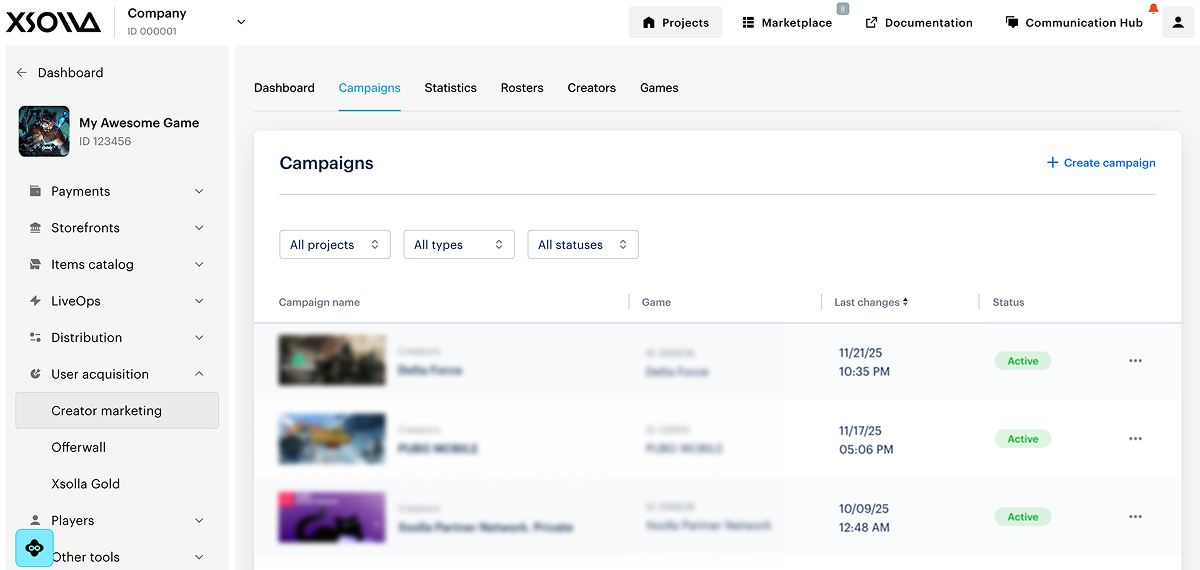
Display only active campaigns using filters (optional).
Go to the settings of the campaign you want to update and click Invite creator.
In the modal window with invitation details that appears, specify the following:
- Link to the account for invitation (common Creator Account/specific Dedicated Environment).
- Creator info: email and channel link (optional).
If you want to invite a creator by the channel, provide the channel link in one of the following formats:
where [uid] — creator’s ID in the social media, [nickname] and [@username] — creator’s nickname in social media.
Click + button to save the information. A new row appears where you can invite additional creators.
Write a message to creator.
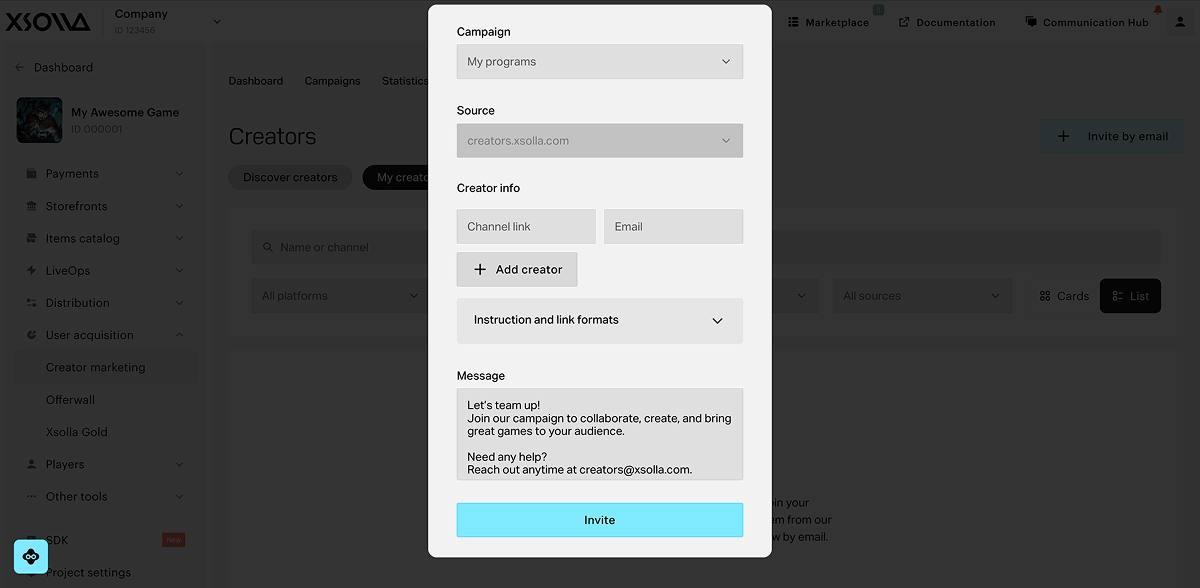
- After completing all the fields, click Invite. Invitation messages are sent to the creators you added.
You can search for suitable creators for your campaign and invite them to collaborate if the creator is registered in Xsolla Creator Account, that is, if they are an Xsolla partner.
To invite a creator from the list:
- In your project in Publisher Account, go to User acquisition > Creator marketing > Creators > Discover creators.
- In the project in your account, go to User acquisition > Creator marketing > Creators > Discover creators.
- In the project in your account, go to User acquisition > Creator marketing > Creators > Discover creators.
- In the project in your account, go to User acquisition > Creator marketing > Creators > Discover creators.
- In the project in your account, go to User acquisition > Creator marketing > Creators > Discover creators.
- In the project in your account for mobile games, go to Other tools > Creators marketing > Creators > Discover creators.
Search for a creator:
If you’re looking for a particular creator, enter their name, email address, or channel name in the search bar.
If you want to find a suitable creator for your campaign, set the following filters and click Apply:
Platforms. Select the platforms most relevant to your campaign. If a creator is active on at least one of the selected platforms, they will appear in the list.
Followers. Specify a follower range. This applies to all platforms: Twitch, YouTube, TikTok, and Twitter. If the follower count on at least one platform matches the specified range, the creator will be shown in the list.
Average viewers. Set a range for the average number of live stream viewers. It applies only to Twitch and YouTube. If the average viewership on at least one platform falls within the selected range, the creator will appear in the list.
Views (for YouTube only). Specify a range of video views on YouTube. This filter is especially useful for finding creators who run video blogs rather than live streams.
Games. Select the games the creator has streamed. If they have streamed at least one of the selected games, they will appear in the list.
Xsolla partner. Indicate whether the creator must be an Xsolla partner.
In the row of the suitable creator, click the + icon. In the window that opens, provide the information that will be included in the invitation:
Email. This field appears if the creator is not an Xsolla partner.
Campaign. Select the campaign you are inviting the creator to.
Source. Choose the link the creator will use to join your campaign: either from the main page of the Xsolla Influencer Account or from a dedicated domain for your game. This link opens when the campaign card button is clicked.
Creator’s priority channel. If you want the creator to use a specific channel to promote your game, provide the URL of this channel in the following format:
https://www.tiktok.com/[@username];where
[uid]is the creator’s social media ID, and[nickname]or[@username]is their nickname on the platform.
Message. Add the invitation text that will be displayed in the campaign card.
Click Invite.
You can invite creators who have successfully streamed games and are Xsolla partners to your program’s campaign. The creator will receive an email invitation with a link to your campaign.
To invite a creator to a campaign:
- Open your project in Publisher Account and go to the User acquisition > Creator marketing > Games section.
- Open the project in your account and go to the User acquisition > Creator marketing > Games section.
- Open the project in your account and go to the User acquisition > Creator marketing > Games section.
- Open the project in your account and go to the User acquisition > Creator marketing > Games section.
- Open the project in your account and go to the User acquisition > Creator marketing > Games section.
- Open the project in your account for mobile games and go to the Other tools > Creators marketing > Games section.
Go to the game page by clicking on the game card or row. Use the search bar if necessary.
On the page that opens, go to the Creators tab. The page will display statistics on creators who have ever streamed this game. In the creator row, click +.
In the window that opens, specify the information that will be sent in the invitation:
Campaign. Select the campaign you are inviting the creator to.
Source. Select the link the creator will use to join your campaign: from the main page of Xsolla Influencer Account or from a dedicated domain of your game. This link will open when a creator clicks the button in the campaign card.
Creator’s priority channel. Select the social platform.
Message. Add the invitation text that will be displayed in the campaign card.
Click Invite.
- Open your Publisher Account and go to the User acquisition > Creator marketing > Rosters section.
- Open your account and go to the User acquisition > Creator marketing > Rosters section.
- Open your account and go to the User acquisition > Creator marketing > Rosters section.
- Open your account and go to the User acquisition > Creator marketing > Rosters section.
- Open your account and go to the User acquisition > Creator marketing > Rosters section.
- Open your account for mobile games and go to the Other tools > Creators marketing > Rosters section.
Open the desired roster.
Click ••• next to a creator and select Invite to campaign.
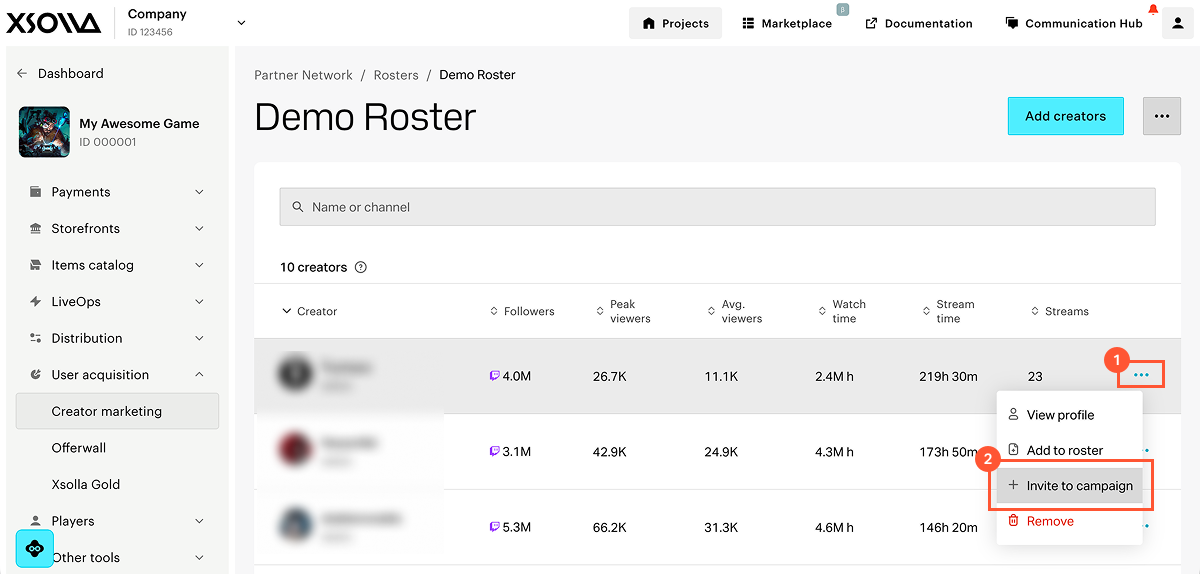
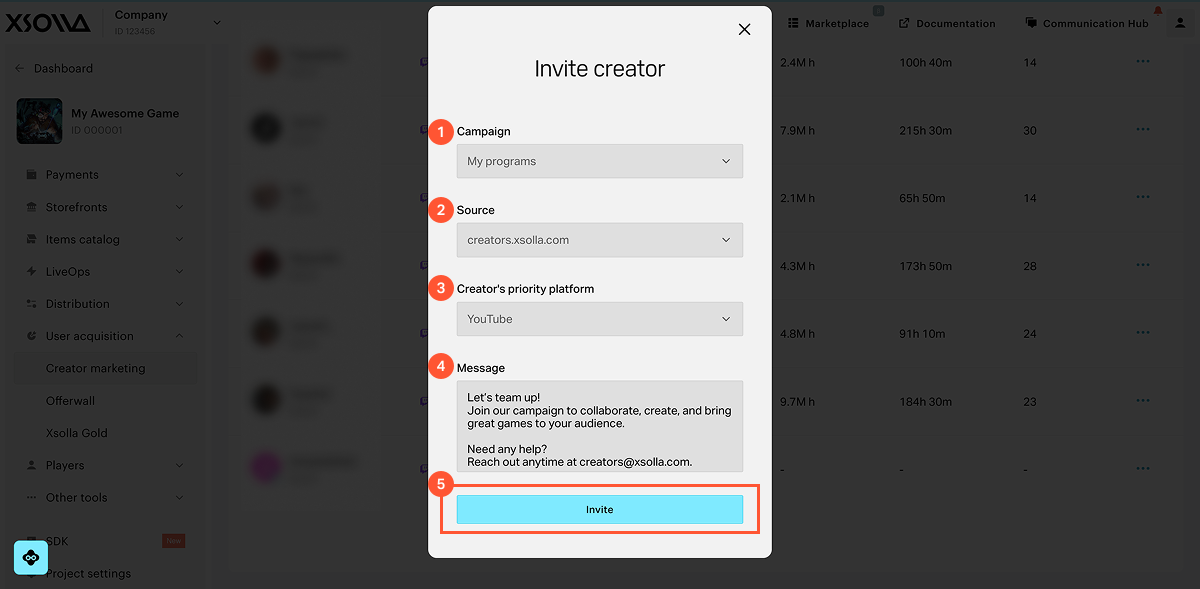
In the modal window, fill in the following fields:
Campaign. In the drop-down list, select the campaign you are inviting the creator to.
Source. Choose the link the creator will use to join your campaign: either from the main page of the Xsolla Creator Account or from a dedicated domain for your game. This link opens when the campaign card button is clicked.
If you invite a creator from the Xsolla Partner Network database, select their main platform from the Creator’s priority platform drop-down list — its metrics will be used to assess performance.
If the creator is not in the Xsolla Partner Network database, provide the URL to their channel and their email in the Creator info field.
- If you want to invite a creator by the channel, provide the channel link in one of the following formats:
https://www.youtube.com/channel/[uid]https://www.youtube.com/c/[nickname]https://www.twitch.tv/[nickname]https://www.tiktok.com/[@username],
[uid]— creator's ID in the social media,[nickname]and[@username]— creator's nickname in social media.
- If you want to invite a creator by the channel, provide the channel link in one of the following formats:
- Message. Add the invitation text that will be displayed in the campaign card.
- Click Invite.
Found a typo or other text error? Select the text and press Ctrl+Enter.
