Create items in Publisher Account
Create items in account
Create items in account
Create items in account
Create items in account
Notice
You need to create a catalog on Xsolla side. You can add items manually or import them from App Store, Google Play, or PlayFab. When importing from Google Play, you can import a maximum of 100 items at a time.
These instructions provide steps for basic setup of a virtual item. Later, you can add other items to your catalog (virtual currency, bundles, game keys), create item groups, set up promotional campaigns, regional prices, etc.

Refer to the instructions for creating a project and ensuring compliance with legal requirements.
To add a virtual item with basic settings to the catalog:
- Open your project in Publisher Account and go to the Items catalog > All items > Virtual items section.
- Open the project in your account and go to the Items catalog > All items > Virtual items section.
- Open the project in your account and go to the Items catalog > All items > Virtual items section.
- Open the project in your account and go to the Items catalog > All items > Virtual items section.
- Open your project in the account for mobile games and go to the Catalog section.
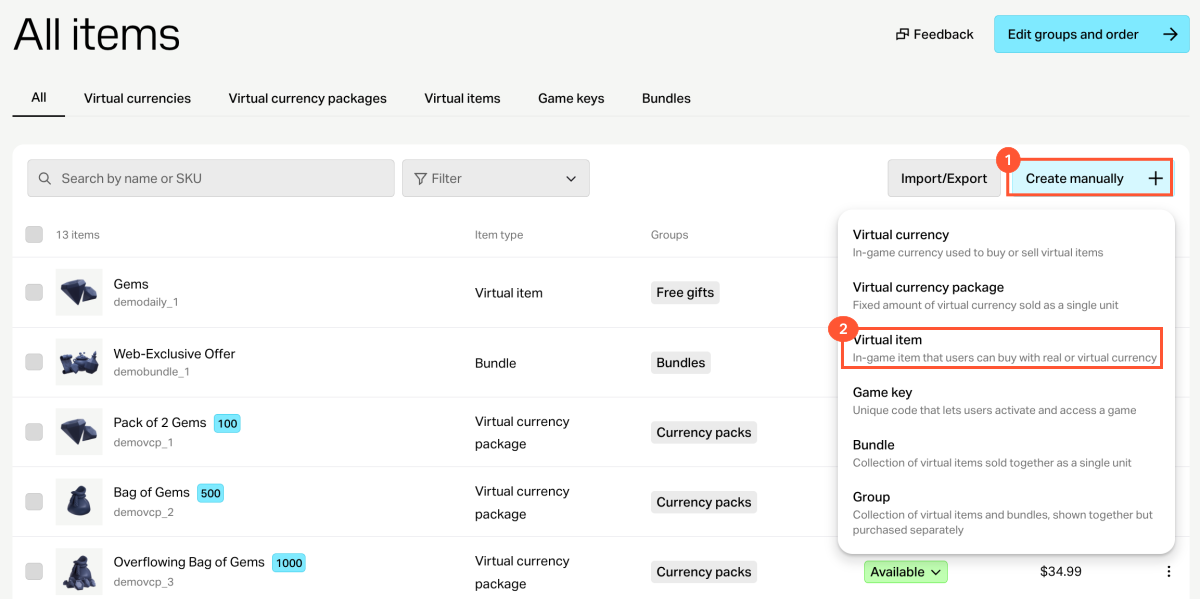
- Click Create manually and select Virtual item from the drop-down list.
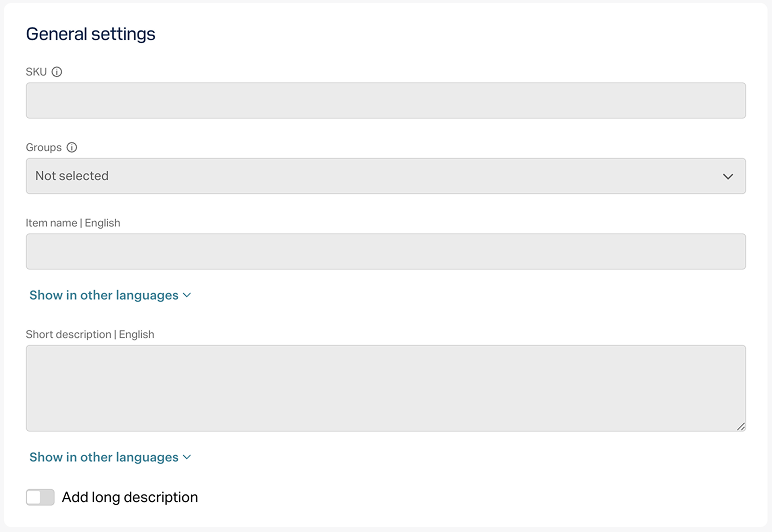
- In the General settings section, specify the following:
- SKU
- name
- short description
- extended description — to add it, turn on the corresponding toggle (optional)
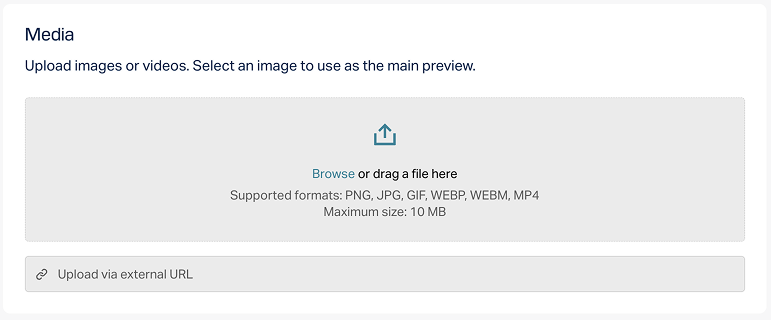
- In the Media section, upload one or more images or videos (optional) — from your device or via a link. In the store created with the Xsolla site editor, all item cards display the file marked as Main, while the remaining files are available only in item cards with a media gallery. The file marked as Main is also returned in the responses of the catalog retrieval API calls.
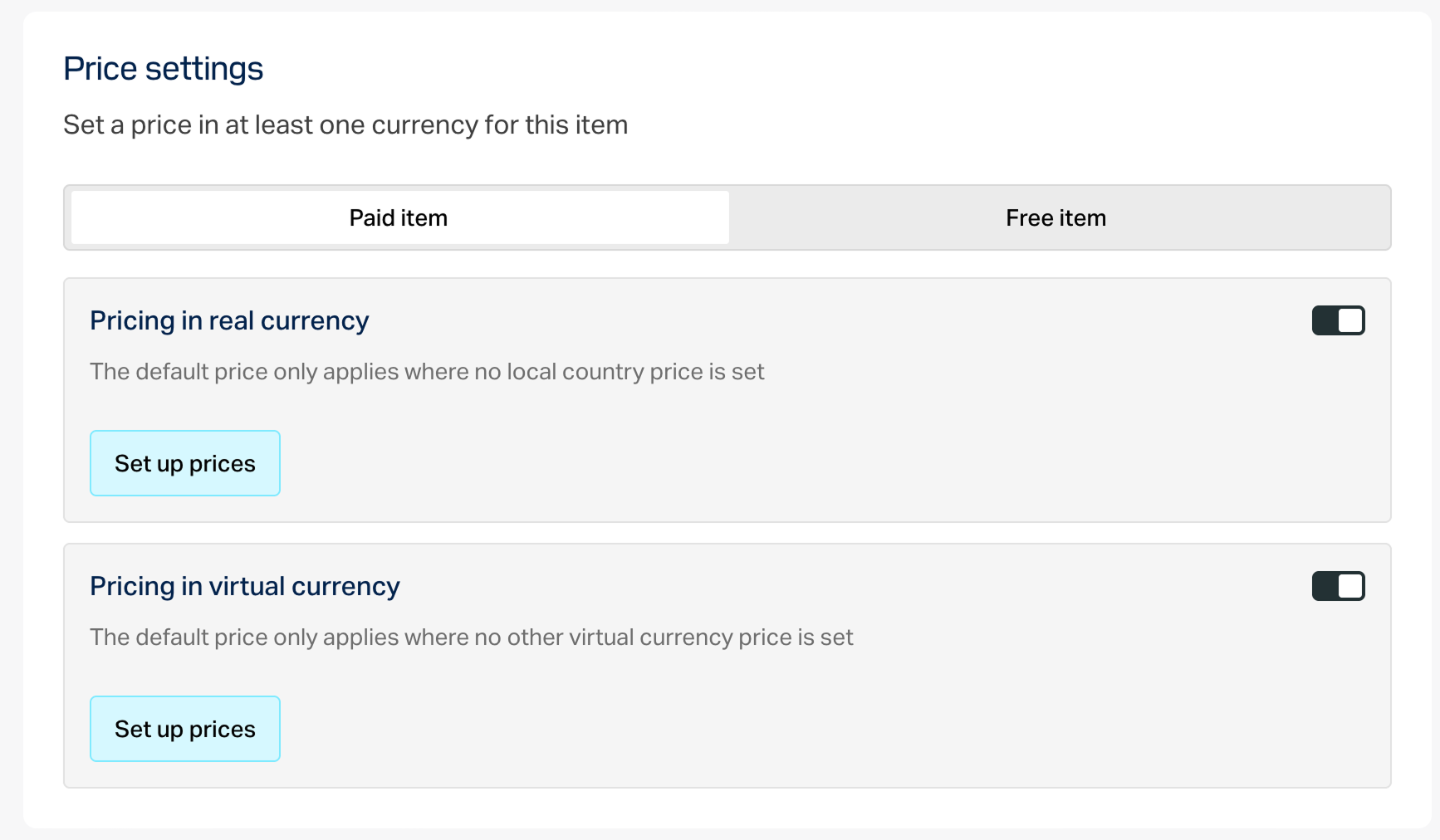
- In the Price settings section, set prices:
- Select the Paid item type.
- Turn on the Real currency prices and/or Virtual currency prices toggle and specify the price.
Note
To ensure that the API calls for getting the catalog work correctly, make sure that the default currency and the list of currencies in which prices are specified match for all items.
Click Create.
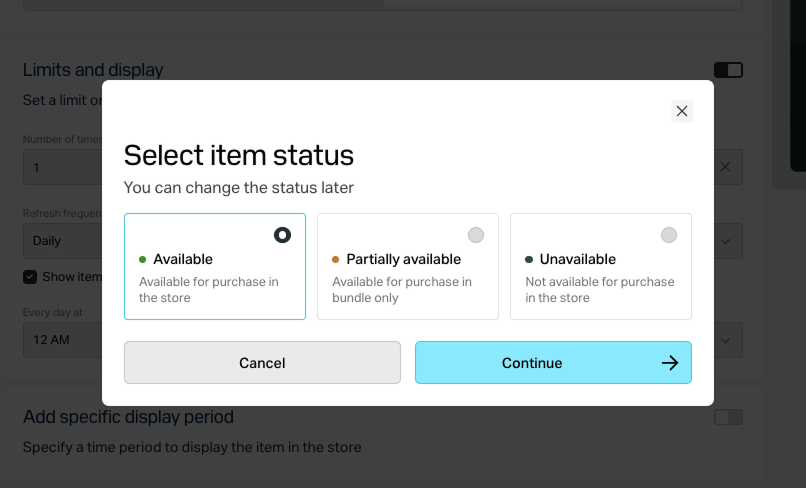
In the window that opens, select the item status and click Continue.
The created item will appear in the All items section.
Was this article helpful?
Thank you for your feedback!
We’ll review your message and use it to help us improve your experience.Found a typo or other text error? Select the text and press Ctrl+Enter.
