
How to connect analytics services
How it works
Connect analytics to track events related to user actions on your site and payment UI events. The site builder supports automatic integration with the Google Analytics service, with the ability to receive advanced analytics of site events and payment interface. In addition, you can connect any other analytics service using Google Tag Manager and receive an extended list of events for your website and payment interface. You can set up analytics with:
- Google Analytics (automatic integration)
- Another analytics service (requires setting up Google Tag Manager)
landing mark in the name of the event.Xsolla complies with international data protection standards. When integrating third-party analytics services, not all user data may be collected due to GDPR and CCPA regulations.
To lawfully collect data, user consent must be obtained. Users can review data collection terms in the cookie banner. Depending on the user’s region and legislative restrictions, data is collected in one of the following cases:
- The user has agreed to tracking and accepted all cookie files.
- The user has not opted out of tracking.
Also, analytics collection can be influenced by:
- Ad blockers can block analytical systems and hinder tracking.
- Browsers such as Safari, Firefox, and Brave may block third-party cookie files or restrict tracking by default.
Glossary
Event
Event category
event_category, the value of which is passed when sending events from sites created with Site Builder. Parameter values are names of the site blocks.Event label
event_label, the value of which is passed when sending events from sites created with Site Builder. The parameter values are additional information that refines the events.Description
Google Analytics connection
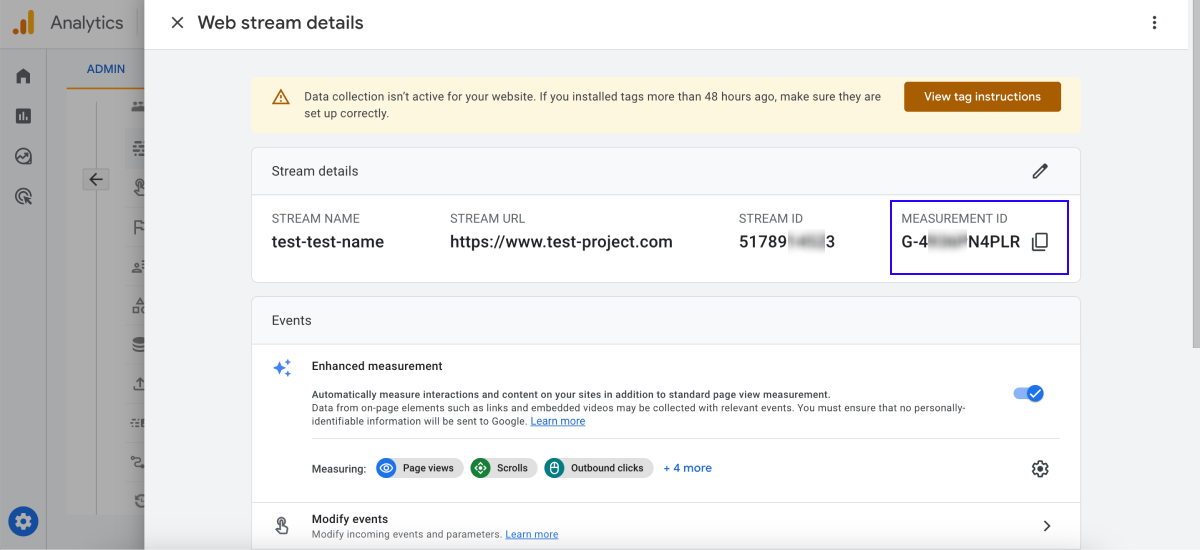
- Get service ID:
- In the sidebar, choose Admin.
- On the Admin tab, choose the account and resource.
- Go to the Data Streams tab.
- Click the data stream.
- Copy Measurement ID.
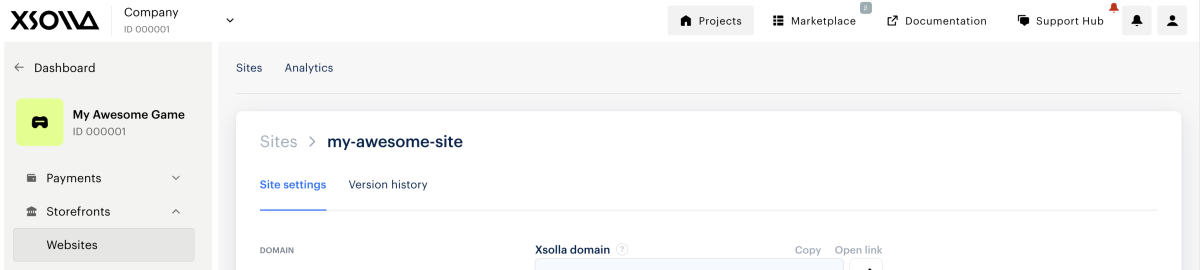
- Open your project in Publisher Account and go to the Storefronts > Websites section.
- Select your site and click Configure.
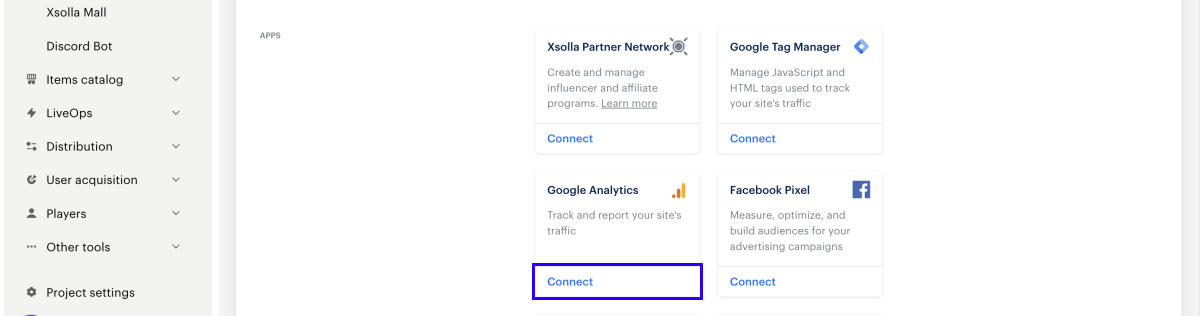
- Go to the Apps section, and in the Google Analytics block, click Connect.
- In the modal window, specify the analytics service ID and click Connect.
- In the modal window, click Publish.
- There are no empty sections in Builder (marked with a red dot).
- The Licensing Agreement with Xsolla has been signed.
- A section for user authorization has been added to the site if you use the Store block or Web Shop template.
Connecting other analytics services
- Create an account with your chosen analytics service.
- Create a Google Tag Manager account (GTM account).
- Set up a GTM account for your analytics system:
- Set up tags.
- Set up events and settings.
- Publish changes to GTM.
- In your project in Publisher Account and go to the Storefronts > Websites section.
- In the Sites section, select your site and click Configure.
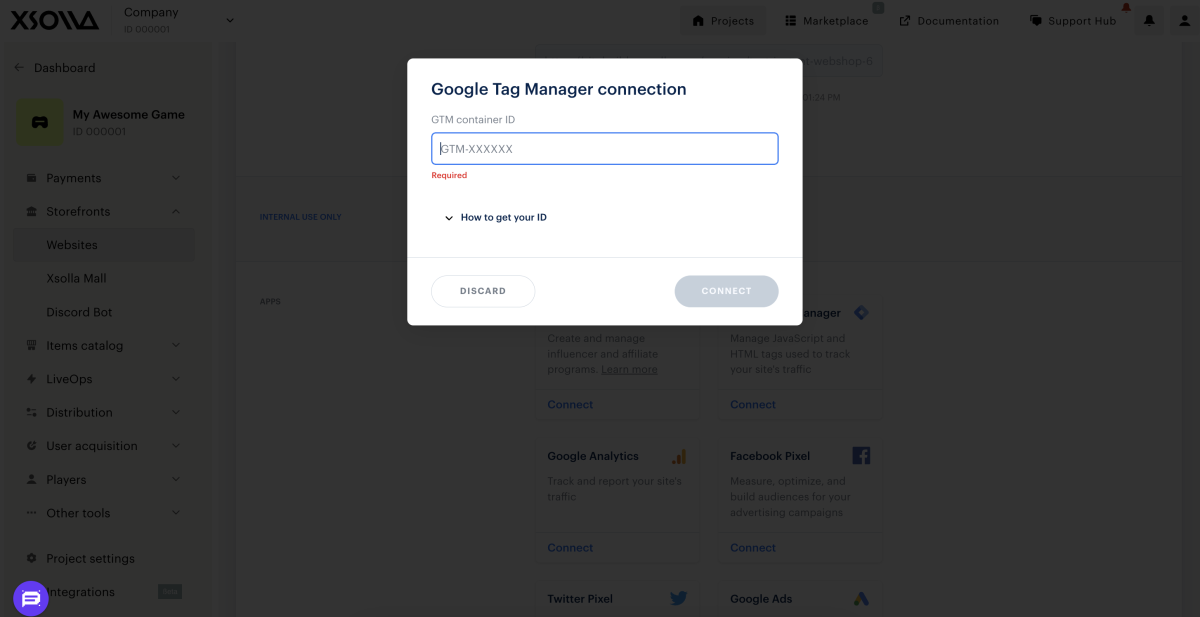
- Go to the Apps section and in the Google Tag Manager block, click Connect.
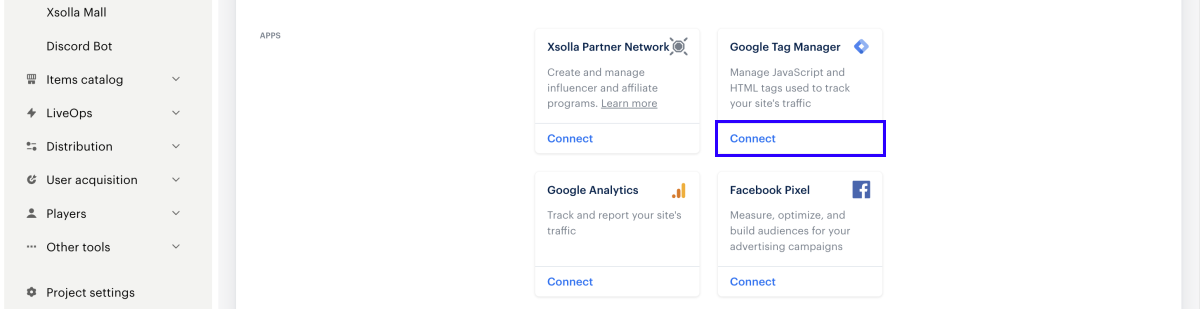
- Specify the GTM container ID and click Connect. To find the container ID, use the instruction in the How to get your ID input box.
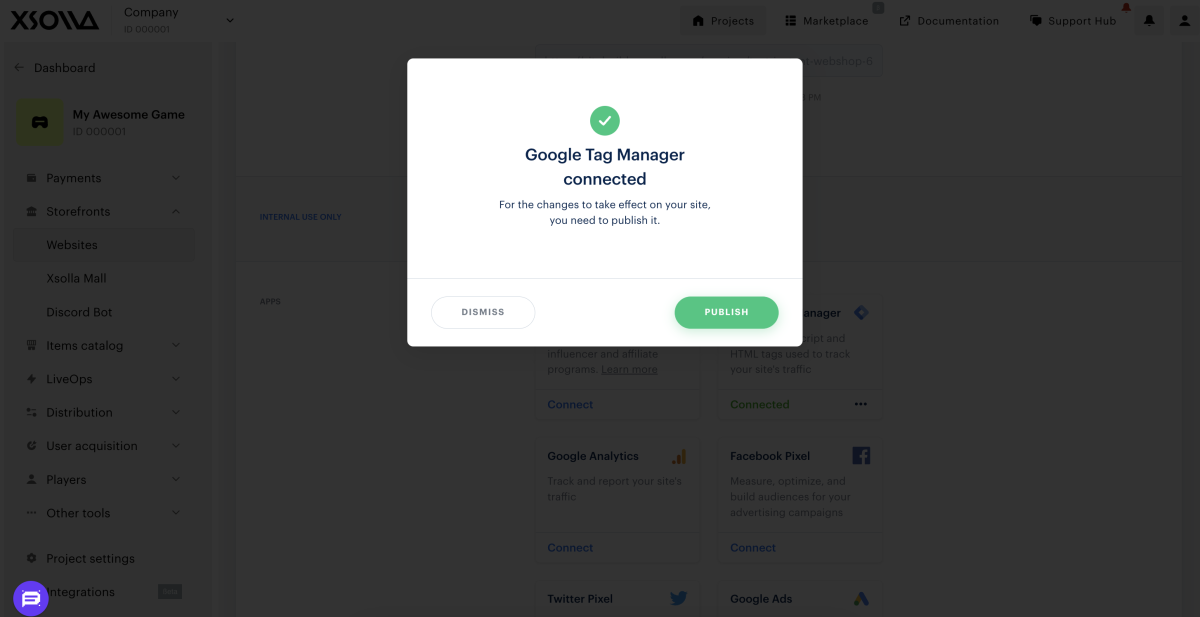
- In the modal window, click Publish.
- There are no empty sections in Builder (marked with a red dot).
- The Licensing Agreement with Xsolla has been signed.
- A section for user authorization has been added to the site (if there is a Store block on the site).
Extended list of events
Connecting Google Analytics or GTM allows you to track an extended list of events.
Payment UI events
Category for all payment UI events is Paystation_landing.
Site Builder uses Google Analytics 4 (GA4) event model: the event_category and event_label parameters are custom GA4 event parameters preserved for backward compatibility after migration from Universal Analytics. They are not processed by GA4 as event categories or labels and can be used as regular custom parameters in reports and explorations.
| Event name | event_category parameter | event_label parameter | Description |
|---|---|---|---|
| open | Paystation_landing | state | Opening the payment UI page. The name of the page is passed as the Label parameter. |
| close | Paystation_landing | state | Closing the payment UI page. The name of the page is passed as the event_label parameter. |
| share | Paystation_landing | name | Clicking the button to share. The name of the social network is passed as the event_label parameter. |
| payment | Paystation_landing | payment | Pressing the Pay Now button on the payment data entry form. The name of the selected payment method is passed as the event_label parameter. |
| choose-widget | Paystation_landing | payment | Clicking on the payment method widget. The name of the widget is passed as the event_label parameter. |
| choose-method | Paystation_landing | payment | Choice of payment method.The name of the payment method is passed as the event_label parameter. |
| change-status | Paystation_landing | status | Change of payment status. If the user closes the page or payment UI and the status changes after it is closed, no event message is sent. The payment status is passed as the Label parameter (created, error, successful, etc.). |
| purchase-success | Paystation_landing | done | Successful payment. Similar to the event Change of payment status, but only sent if the status is done. |
Header block events
| Event name | event_category parameter | event_label parameter | Description |
|---|---|---|---|
| click-login | Header_landing | – | Clicking on the login button. |
| open-login | Header_landing | – | Opening the authorization widget when the authorization button is clicked. |
| open-uid-widget | Header_landing | – | Opening the ID input widget when clicking on the authorization button. |
| click-buy | Header_landing | sku | Clicking on the buy button. The item SKU is passed as the event_label parameter. |
| click-googleplay | Header_landing | – | Clicking on a button with a Google Play link. |
| click-appstore | Header_landing | – | Clicking on a button with an App Store link. |
User ID input widget events
| Event name | event_category parameter | event_label parameter | Description |
|---|---|---|---|
| close | UID_widget_landing | – | Closing the modal ID input window. |
| input | UID_widget_landing | – | Start entering a value in the ID input field. |
| confirm | UID_widget_landing | – | Pressing the ID confirmation button. |
| click-instruction | UID_widget_landing | – | Clicking on a collapsed instruction. |
| error | UID_widget_landing | – | Identification error (invalid ID). |
| success_id | UID_widget_landing | – | Successful identification. |
Packs block events
| Event name | event_category parameter | event_label parameter | Description |
|---|---|---|---|
| click-buy | Packs_landing | sku | Clicking on the buy button. In the Label parameter, the item SKU is passed. |
| open-login | Packs_landing | – | Opening the authorization widget when the buy button is clicked. |
| open-uid-widget | Packs_landing | – | Opening the ID input widget when the buy button is clicked. |
| click-googleplay | Packs_landing | – | Clicking on a button with a Google Play link. |
| click-appstore | Packs_landing | – | Clicking on a button with an App Store link. |
Promo slider block events
| Event name | event_category parameter | event_label parameter | Description |
|---|---|---|---|
| click-buy | Promo_landing | sku | Clicking on the buy button on the slide. In the Label parameter, the item SKU is passed. |
| open-login | Promo_landing | – | Opening the authorization widget when the buy button on the slide is clicked. |
| open-uid-widget | Promo_landing | – | Opening the ID input widget when clicking on the buy button on the slide. |
| click-googleplay | Promo_landing | – | Clicking on a button with a Google Play link on a slide. |
| click-appstore | Promo_landing | – | Clicking on a button with an App Store link on a slide. |
| enter-email | Promo_landing | – | Clicking on the confirmation email button to subscribe to the newsletter. |
Store block events
| Event name | event_category parameter | event_label parameter | Description |
|---|---|---|---|
| auth | Store | - | Opening the authorization modal window after a user clicks the buy button. |
| open-ps | Store | sku | Initializing the payment interface after a user clicks the buy button in an item card. The item SKU is passed in the Label parameter. |
| auth | Store | - | Opening the authorization modal window after an unauthorized user clicks the buy button in an item modal window. |
| open | Store | sku | Opening the item card modal window after the user clicks the card. |
| open-ps | Store | sku | Initializing the payment interface after an unauthorized user clicks the buy button in an item modal window. |
Store block in other templates events
| Event name | event_category parameter | event_label parameter | Description |
|---|---|---|---|
| click-buy | Store_landing | sku | Clicking on the buy button. In the Label parameter, the item SKU is passed. |
| open-login | Store_landing | – | Opening an authorization widget or ID input widget when the purchase button is clicked. |
| open-uid-widget | Store_landing | – | Opening the ID input widget when clicking on the buy button in the Packs block. |
| add | Store_landing | sku | Clicking on the add to cart button. In the Label parameter, the item SKU is passed. |
| add-vc | Store_landing | – | Clicking on the button to add the amount of virtual currency. |
| reduce-vc | Store_landing | – | Clicking on the button to reduce the amount of virtual currency. |
| click-checkout | Store_landing | – | Clicking on the payment via Checkout button on the item card. |
| open-cart | Store_landing | – | Opening a shopping cart by clicking on the payment via Checkout button on the item card. |
Call-to-action block events
| Event name | event_category parameter | event_label parameter | Description |
|---|---|---|---|
| click-buy | CTA_landing | sku | Clicking on the buy button. In the Label parameter, the item SKU is passed. |
| open-login | CTA_landing | – | Opening the authorization widget when the buy button is clicked. |
| open-uid-widget | CTA_landing | – | Opening the ID input widget when clicking on the buy button. |
| enter-email | CTA_landing | – | Clicking on the confirmation email button to subscribe to the newsletter. |
Footer block events
| Event name | event_category parameter | event_label parameter | Description |
|---|---|---|---|
| social | Footer_landing | name | Clicking on the social network button. The name of the social network is passed as the event_label parameter. |
Offer chain block events
| Event name | event_category parameter | event_label parameter | Description |
|---|---|---|---|
| open-auth | Offer_chain_buy_button | Item SKU. | Opening the authorization modal window after a user clicks the buy button. In the event_label parameter, the item SKU is passed. |
| open-ps | Offer_chain_buy_button | Item SKU. | Initializing the payment interface after a user clicks the buy button in an item card. In the event_label parameter, the item SKU is passed. |
| claim | Offer_chain_buy_button | Item SKU. | An offer was claimed after the user clicks the claim button in an item card. In the event_label parameter, the item SKU is passed. |
| open-auth | Offer_chain_pop-up | Item SKU. | Opening the authorization modal window after an unauthorized user clicks the buy button in an item modal window. In the event_label parameter, the item SKU is passed. |
| open-ps | Offer_chain_pop-up | Initializing the payment interface after the user clicks the buy button in an item modal window. In the event_label parameter, the item SKU is passed. | |
| claim | Offer_chain_pop-up | An offer was claimed. In the event_label parameter, the item SKU is passed. | |
| open | Offer_chain_pop-up | Opening the item card modal window after the user clicks the card. In the event_label parameter, the item SKU is passed. | |
| scroll-right | Offer_chain_landing | Scroll right by clicking a right arrow in the offer chain cards slider. | |
| scroll-left | Offer_chain_landing | Scroll left by clicking the left arrow in the offer chain cards slider. |
Daily rewards block events
| Event name | event_category parameter | event_label parameter | Description |
|---|---|---|---|
| open-auth | Daily_reward_landing | Opening the authorization widget or ID input widget when clicking the claim button on the step card. | |
| open-ps | Daily_reward_landing | Item SKU. | Daily reward was claimed. In the event_label parameter, the item SKU is passed. |
| expand | Daily_reward_landing | Action name, possible values: more, less. | Clicking button expanding or collapsing list of daily rewards. In the event_label parameter, the action name is passed. |
Rewards block events
| Event name | event_category parameter | event_label parameter | Description |
|---|---|---|---|
| load | Rewards_landing | Reward chain type. Possible values: standard, clan. | Loading of the reward system for an authorized user. In the event_label parameter, the type of reward chain is passed. |
| vp-added | Rewards_landing | Reward chain type. Possible values: standard, clan. | Value points are added to the user’s balance. In the event_label parameter, the type of reward chain is passed. |
| step-achieved | Rewards_landing | Reward chain type. Possible values: standard, clan. | A new step of the reward system becomes available. In the event_label parameter, the type of reward chain is passed. |
| step-collected | Rewards_landing | Reward chain type. Possible values: standard, clan. | A reward is successfully claimed. In the event_label parameter, the type of reward chain is passed. |
| step-opened | Rewards_landing | Reward chain type. Possible values: standard, clan. | Opening the step card modal window after the user clicks the card. In the event_label parameter, the type of reward chain is passed. |
| reward-tab-click | Rewards_landing | Reward chain type. Possible values: standard, clan. | Switching between the reward chains by clicking tabs. In the event_label parameter, the type of reward chain is passed. |
| reward-button-open-auth | Rewards_landing | Reward chain type. Possible values: standard, clan. | Opening authorization widget or ID input widget when clicking the claim button on the step card. In the event_label parameter, the type of reward chain is passed. |
| steps-scroll-right | Rewards_landing | Type of the reward chain the user switched to. Possible values: standard, clan. | Scroll right by clicking the right arrow in the steps cards slider. In the event_label parameter, the type of reward chain is passed |
| steps-scroll-left | Rewards_landing | Reward chain type. Possible values: standard, clan. | Scroll left by clicking the right arrow in the steps cards slider. In the event_label parameter, the type of reward chain is passed. |
Found a typo or other text error? Select the text and press Ctrl+Enter.
