How to add media to blocks
You can set images or videos as a custom background in most blocks and add them to individual components within blocks.
How to add image to block
To set an image as a custom background or add an image to a block component:
- Open your project in Publisher Account and go to the Storefronts > Websites section.
- Click the pane of the desired site.
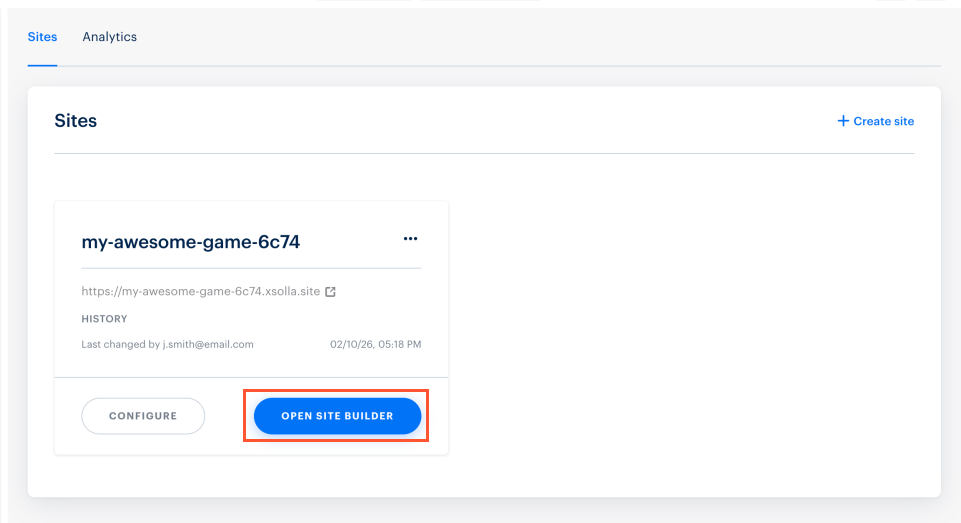
- Open your project in the account for free-to-play PC games and go to the Storefronts > Websites section.
- Click the pane of the desired site.
- Open your project in the account for premium PC games and go to the Storefronts > Websites section.
- Click the pane of the desired site.
- Open your project in the account for web games and go to the Storefronts > Websites section.
- Click the pane of the desired site.
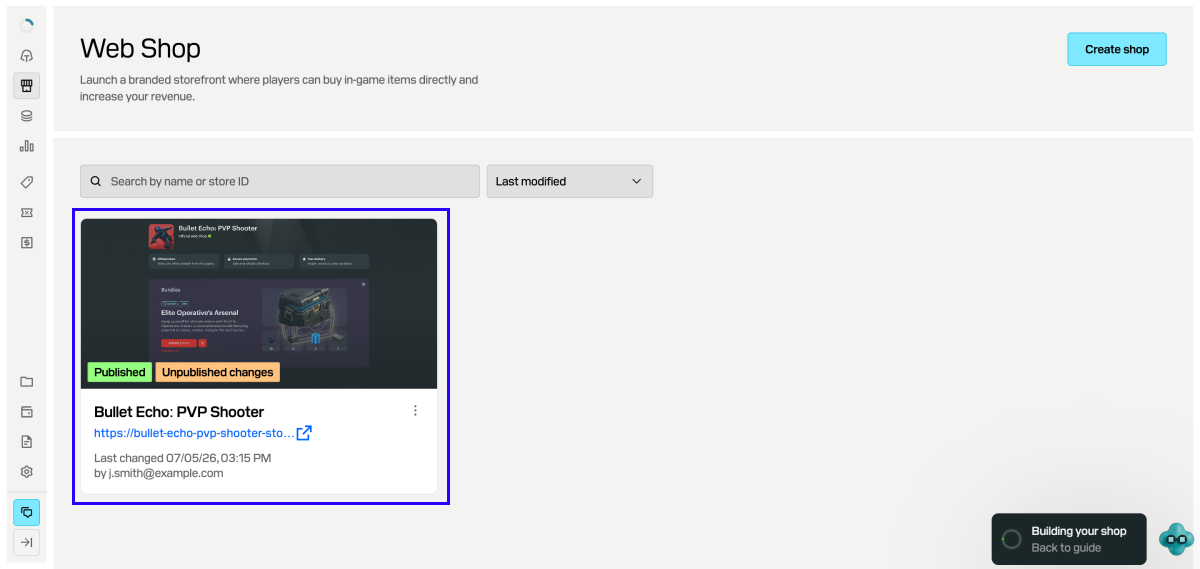
Open your project in the account for mobile games and go to the Web Shop section.
Click the pane of the desired site.
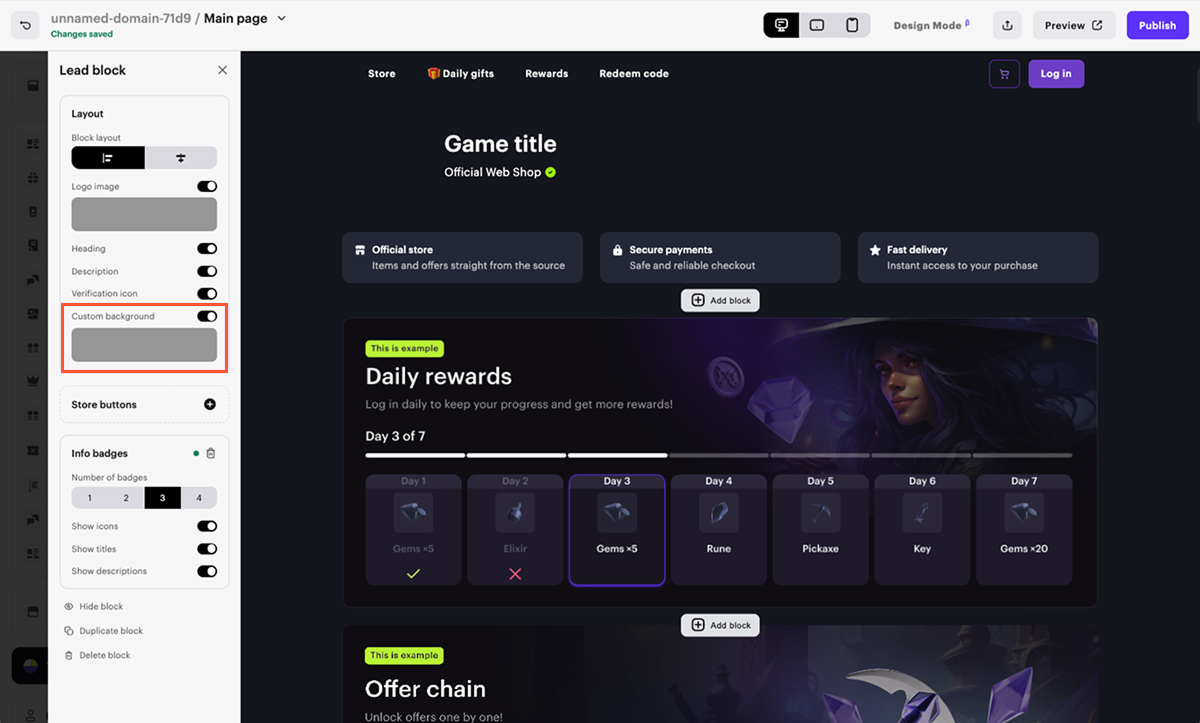
- In the block settings, turn on the corresponding toggle (for example, Custom background, Game icon) and click on the preview field below the toggle.
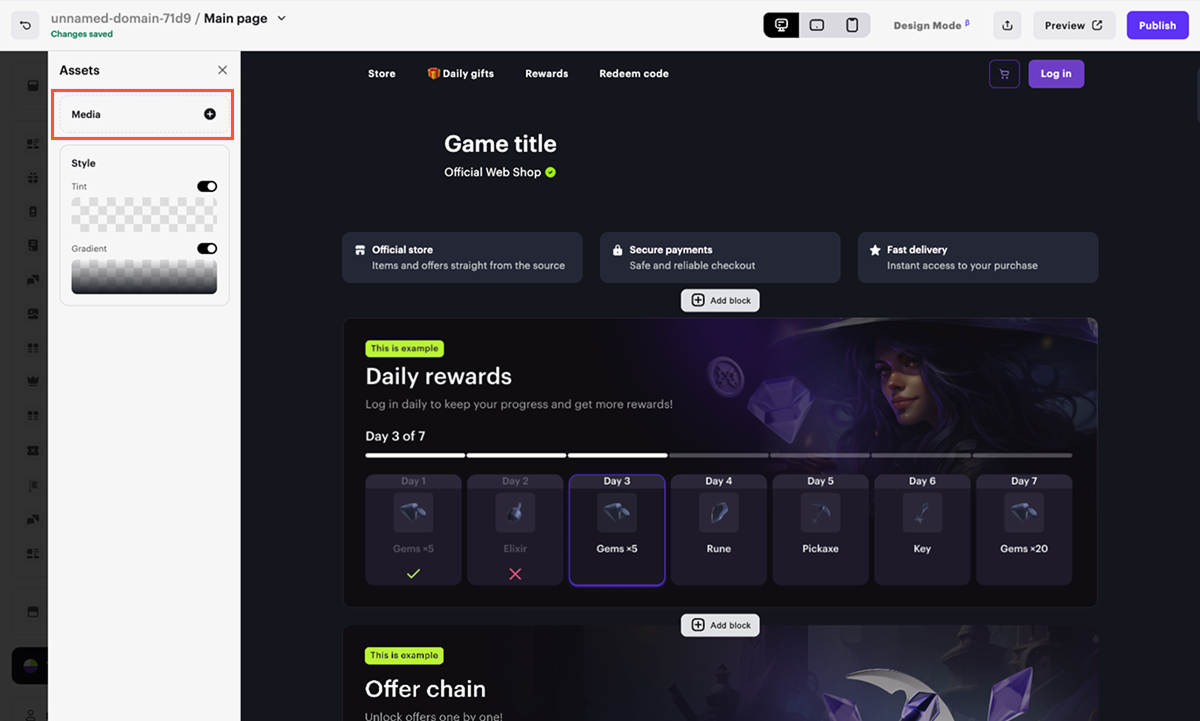
- Click Media.
- In the modal window that opens, upload the image in one of the following ways: A. On the All assets or Images tab, drag and drop the image and click on it after it uploads. B. Click Add new asset, select From device in the drop-down list, and upload the desired image.
Note
- The maximum image size: 10 MB.
- Supported formats: ICO, PNG, GIF, JPG, JPEG, WEBP, BMP, TIFF, TIF, SVG.
- The recommended image width for a custom background in a block is 1920 px. Determine suitable image proportions after the necessary content has been added to the block. The recommended sizes for other image types are provided in the block descriptions.
Note
- The maximum image size: 10 MB.
- Supported formats: ICO, PNG, GIF, JPG, JPEG, WEBP, BMP, TIFF, TIF, SVG.
- The recommended image width for a custom background in a block is 1920 px. Determine suitable image proportions after the necessary content has been added to the block. The recommended sizes for other image types are provided in the block descriptions.
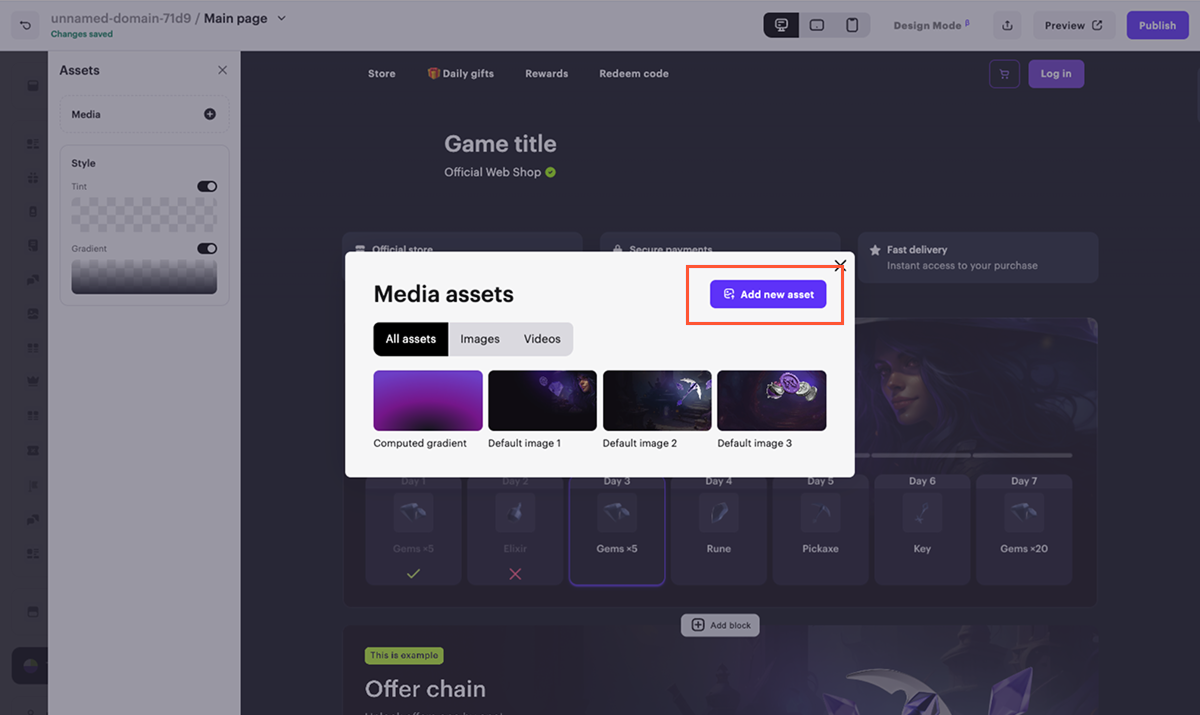
- Configure the image style:
Note
The set of settings depends on the component to which you are adding media.
How to add video to block
To set a video as a custom background or add a video to a block component:
- Open your project in Publisher Account and go to the Storefronts > Websites section.
- Click the pane of the desired site.
- Open your project in the account for free-to-play PC games and go to the Storefronts > Websites section.
- Click the pane of the desired site.
- Open your project in the account for premium PC games and go to the Storefronts > Websites section.
- Click the pane of the desired site.
- Open your project in the account for web games and go to the Storefronts > Websites section.
- Click the pane of the desired site.
- Open your project in the account for mobile games and go to the Web Shop section.
- Click the pane of the desired site.
- In the block settings, turn on the corresponding toggle (for example, Custom background, Game icon) and click the preview field below the toggle.
- Click Media.
- In the modal window that opens, upload the video in one of the following ways:
- On the All assets or Video tab, drag and drop your video and click on it after it uploads.
- Click Add new asset and select a video upload method from the drop-down list:
- From device — select the video file on your device.
- From YouTube — enter the URL of the video hosted on YouTube.
Note
- Maximum size for a single video uploaded from a device: 10 MB.
- Supported formats: ICO, PNG, GIF, JPG, JPEG, WEBP, BMP, TIFF, TIF, SVG.
- Adding video as a custom background is not supported in the Call-to-action, Promotional slider, and Subscriptions blocks.
- The recommended video width for a custom background in a block is 1920 px. Determine suitable image proportions after the necessary content has been added to the block. The recommended sizes for other image types are provided in the block descriptions.
Note
- Maximum size for a single video uploaded from a device: 10 MB.
- Supported formats: ICO, PNG, GIF, JPG, JPEG, WEBP, BMP, TIFF, TIF, SVG.
- Adding video as a custom background is not supported in the Call-to-action, Promotional slider, and Subscriptions blocks.
- The recommended video width for a custom background in a block is 1920 px. Determine suitable image proportions after the necessary content has been added to the block. The recommended sizes for other image types are provided in the block descriptions.
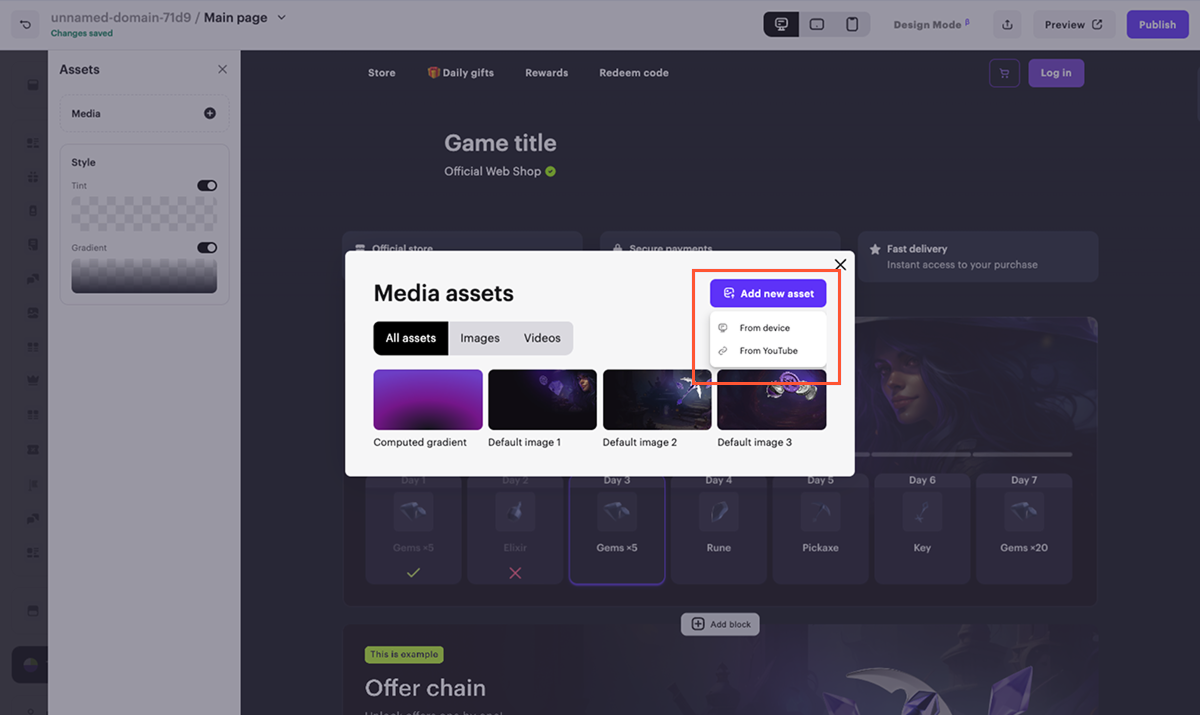
- Configure the video style:
Note
The set of settings depends on the element to which you are adding media.
Was this article helpful?
Thank you for your feedback!
We’ll review your message and use it to help us improve your experience.Found a typo or other text error? Select the text and press Ctrl+Enter.
